Mac Trash Recovery Guide: Recover Deleted Files from Trash on Mac
| Key Takeaways for Mac Trash Recovery | |
|---|---|
|
You can recover deleted files from Trash on Mac, even after emptying it, by taking the right measures or using Mac data recovery software, which can help you undelete files and recover your documents, pictures, videos, or audio files.
※ A small tip:To undo the deletion of a file or folder, simply press the Command (⌘)+Z keyboard shortcut. This will revert the last action, restoring the deleted item.
Method 1. How to Recover Deleted Files from Trash on Mac
Applies to whom:
- Select a file and press Command (⌘)+Delete on the keyboard;
- To delete a file on a Mac, drag and drop the file onto the Trash icon on the dock. This will move the file to the Trash folder, where it can be permanently deleted by emptying the Trash.
- Control-click a file and choose Move to Trash
On a Mac, the Trash Bin serves the same purpose as the Recycle Bin on a Windows computer, providing a temporary holding space for deleted files and data. If you accidentally delete something important, you can easily restore it from the Trash Bin.
Follow how-to:
- Open Trash on your Mac
- Locate deleted files or folders you deleted in Trash
- Option-click on the file and choose Put Back
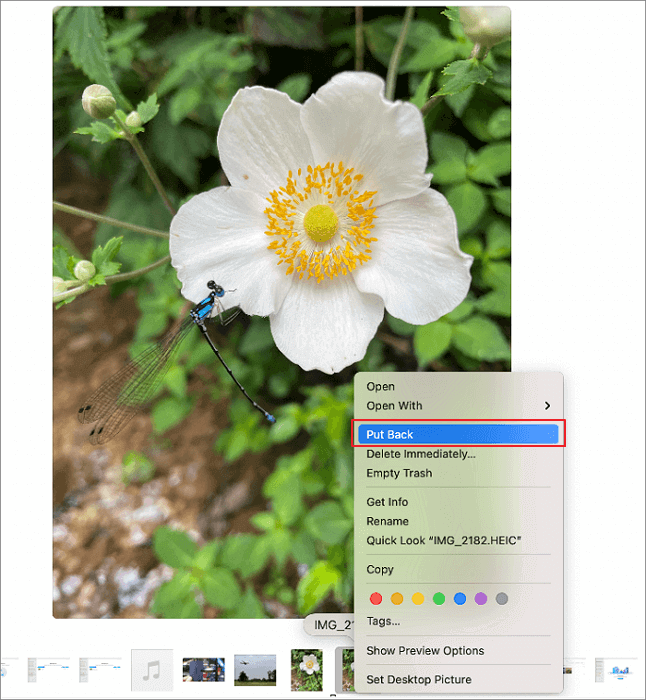
※ Restored files are sent back to their original location before being permanently deleted.
Method 2. How to Recover Deleted Files from Emptied Trash on Mac
Applies to whom:
- Use Option+Command (⌘)+Delete to permanently delete a file
- Select a file and choose the Delete Immediately option
- To completely clear the trash bin files, click the "Empty" button located within the Trash.
- In Finder Preferences, go to Advanced and enable the option "Remove items from the Trash after 30 days" to automatically empty the Trash after a specified period of time. This can help free up disk space by removing items that have been in the Trash for an extended period.
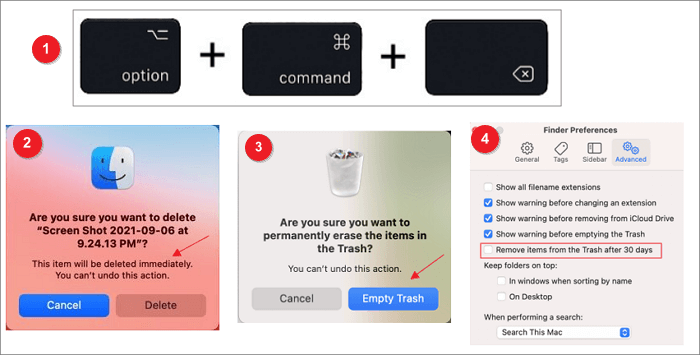
If you've accidentally emptied the Trash bin on your Mac and need to recover lost files, you'll need a more advanced method beyond just restoring from the Trash. This is because once files are deleted, they're no longer in the Trash and can't be recovered through it alone. You'll need a dedicated file recovery tool to scan your Mac's storage for any remaining file fragments and attempt to reconstruct the deleted files.
Data recovery software is a solution for data loss, recovering deleted files and data from Mac internal disks and external devices like SD cards and external HDDs.
What makes data recovery software mighty:
Every time a file is deleted, the system marks the storage space as empty, but the deleted file remains on the storage device until it's overwritten. This is how data recovery software works, scanning and finding deleted files before they're lost forever. Deep Data Recovery for Mac is a tool that does just that, and we recommend it for its ability to restore deleted files to a safe location.
Qiling Emptied Trash Recovery Tool:
- If you've accidentally deleted a file on your Mac or lost access to the Trash, there are still ways to recover the deleted file. You can try using the Time Machine backup feature, which can restore deleted files if you've been regularly backing up your Mac.
- Compatible with macOS from the latest Monterey to Mavericks.
- This software supports recovering over 1000 types of files and allows you to preview recoverable files for free.
- Highly improved operational efficiency on M1 Chip.
Tips for increasing data recovery rate:
- Stop all write operations, including editing, saving, creating, and deleting files.
- Do not access data on the target disk, such as viewing files or folders.
- Do not format or reformat the disk.
Follow how-to:
Step 1. Launch Deep Data Recovery, select the desired file types, and click "Fast Scan" to initiate the recovery process.

Note: You can choose different search modes based on where and why the data was lost.
Step 2. Select the location where your important data & files were deleted and click the "Scan" button.

Step 3. The software will perform a quick scan and a deep scan on the selected volume, working to identify as many deleted files as possible.

Step 4. After scanning, the recovered files will be displayed in the left pane. To retrieve them, simply select the desired file(s) and click the "Recover" button.
Undo Empty Trash Mac Related Questions
Here are some related questions that you may be interested in. Read on and solve your problems easily.
1. Where is the trash on Mac?
To empty the Trash, click on the "Empty" button at the bottom of the Finder window or press Command (⌘) + Delete. Be aware that once you empty the Trash, the files are permanently deleted and cannot be recovered. If you want to delete files from the Trash without emptying it, select the files you want to delete and click "Secure Delete" or press Command (⌘) + Shift + Delete. This will permanently delete the selected files without emptying the entire Trash.
2. Where do deleted files go after emptying Trash?
Files deleted to the Trash are not completely erased and can be restored with the right software if the Trash is emptied, but are still located on the hard drive.
3. Can I recover emptied trash on a Mac?
You can easily recover files from an emptied Mac Trash using Deep Data Recovery Mac, a tool that makes the process straightforward. With just three simple steps, you can retrieve your deleted files, making it a hassle-free experience.
Step 1. Select the location and click the Scan button.
Step 2. The software will run both a quick scan and a deep scan to find lost files.
Step 3. To recover deleted files, select the files you want to recover and click the "Recover Now" button to retrieve them.
4. How do you empty the trash on a Mac?
- Click and hold the Trash icon in the Dock.
- A popup will appear that says Empty Trash. Select it.
To empty the Trash from any open Finder window, hold down the Command + Shift + Delete keys.
Related Articles
- Downgrade macOS/Mac OS X without Losing Data (Big Sur/Catalina Applicable)
- Solved: How Can I Stop Trash Deleting Files Immediately on Mac
- Disk Drill Mac: Is It Safe? Or Is It Worth Downloading?
- 3 Methods: Recover Unsaved or Lost Excel File on Mac
- SD Card Repair on Windows 10 and Android
How to repair corrupted SD card without losing data? If you are having trouble accessing data on an SD card due to corruption or damage. We've covered comprehensive guides on fixing a corrupted SD card with SD card repair tips or tools. - Fixed: Seagate external hard drive not showing up in Windows 10/11
To fix a Seagate external hard drive not showing up on the computer in Windows 10 without losing data, first check the USB port and cable for any issues. Next, try restarting your computer and the external hard drive.
Products
Articles & Tutorials
- Data Recovery
- Data Backup
- File Recovery
- File Backup
- System Backup and Restore
- Disk and Partition Clone
- Technical articles
- Mobile articles
- Disk Master Help
- Windows Data Recovery Tutorials
- Windows Secure Delete Tutorials
- Windows Partition Management Tutorials
- Windows File Backup and Restore Tutorials
- Windows System Backup and Restore Tutorials
- Windows Disk Backup and Restore Tutorials
- Windows Clone Tutorials