How to Recover Severely Corrupted Word File According to Different Scenarios (Can Open or Cannot Open)

Corruption issues in Microsoft Word are not uncommon, and compared to recovering a lost Word file, repairing a corrupted file requires more patience and skills. However, for a severely corrupted Word .doc/.docx file, there are still some fixable ways available. The process can be divided into two scenarios: one where the file is slightly damaged and can be recovered with the help of professional file recovery software, and another where the file is more severely damaged and requires a more complex process to restore the file content. Despite the complexity, there are still solutions available to help recover severely corrupted Word files in Windows 10/8.1/8/7 with confidence.
| Scenarios | Step-by-step Troubleshooting |
|---|---|
| The Corrupted Word Does Not Open | Fix 1. Open the File in Draft mode...Full steps Fix 2. Open with "Recover Text from Any File"...Full steps Fix 3. Open the File in a new document...Full steps |
| Able to Open but Data Corrupt | Fix 4. Use the Open and Repair Word Tool...Full steps Fix 5. Copy content to a new document...Full steps Fix 6. Start Word from default settings...Full steps Fix 7. Adopt the document view...Full steps |
What Makes A Word Document Corrupt - Badly?
When you're unable to open a file normally, it's likely due to file corruption. Even if you can open the file, but it displays weird characters or is blank, it suggests the file data has been damaged. To identify the file problem, consider if you've performed any actions that could have caused the issue before the event occurred. If so, it's probably the reason for the file corruption.
- A sudden power failure or system shutdown can occur while editing, downloading, or transferring a file, potentially causing data loss or corruption.
- To avoid changing the Word file format too frequently, you can save the document in a specific format, such as .docx or .doc.
- You can't read or write a Word file on a hard drive with too many bad sectors because the drive can't maintain the integrity of the file's data. The file may become corrupted or even become unreadable, leading to data loss.
- The computer has been infected by malware and viruses
- The Microsoft Word application crashed or froze
How to Manually Repair Severely Corrupted Word with 7 Simple Tricks
If you receive an error saying the File in Word has been corrupted, you should act quickly to repair the corruption and prevent the file from being lost. Making a real-time backup of the file can help ensure its safety, but taking immediate action to repair the corruption is also crucial.
Scenario #1. The Word File Does Not Open from the start
If a Word file cannot be opened, it's usually due to the file being corrupt, and the solutions provided can help fix this issue.
Fix 1. Open the File in Draft mode
- Open Word and navigate to Viewand then Draft
- Select File> Options> Advanced
- In the Show document content section, check the box next to "Use draft font in Draft and Outline views" and "Show picture placeholders" to make the desired changes.
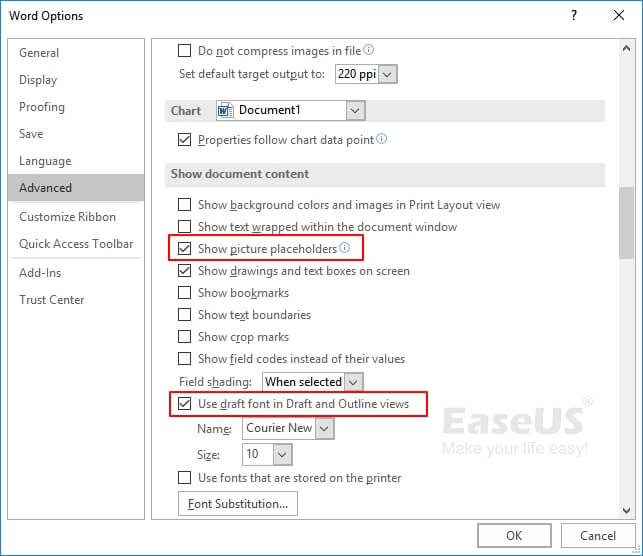
- To prevent Word from automatically updating links at open, go to the General section, uncheck the options for Update automatic links at open, select OK, and then close Word.
- Restart Word and select the damaged document to open
Fix 2. Open the File with "Recover Text from Any File"
- Tip
- To avoid issues when opening a file in Word, do not use the double-click method to open the file. Instead, use the available feature in Word, such as the "Open" button or the "File" tab, to ensure the file opens correctly.
- Open Word and go to File> Open> Browse.
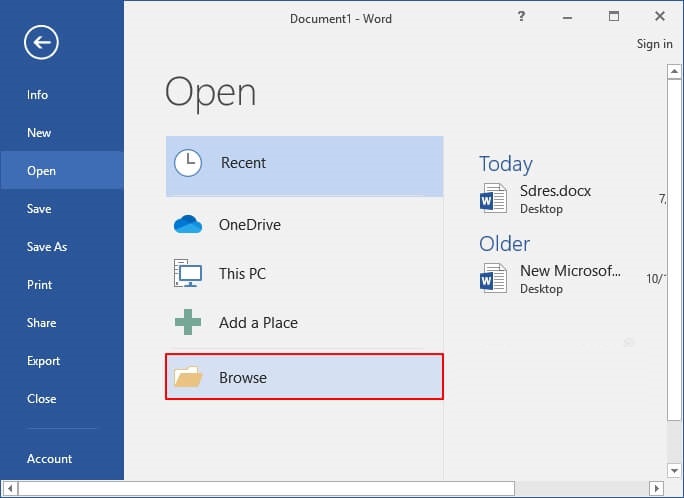
- Select the problematic Word document by navigating to its file location and selecting "Recover Text from Any File (*.*)" from the dropdown menu.
- Click Open
Fix 3. Insert the File in a new document
This method involves two procedures: creating a new Word file and inserting the damaged document content into the new document.
- Select the Filemenu, and then select New
- Select Blank document, and then select Create
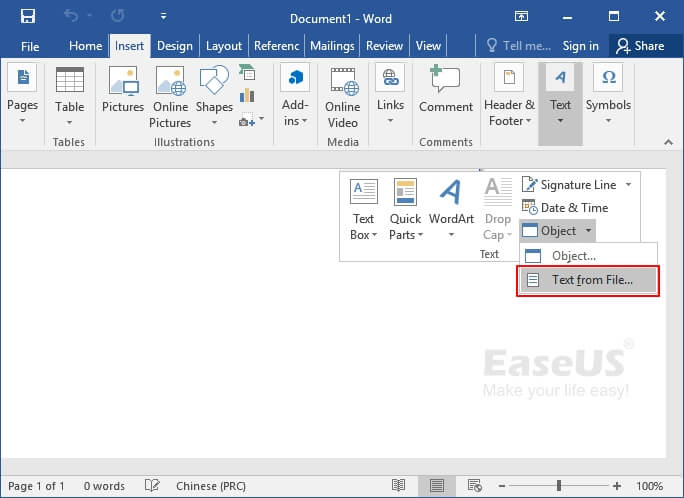
- On the Insert tab, select Insert Object, and then choose Text From File.
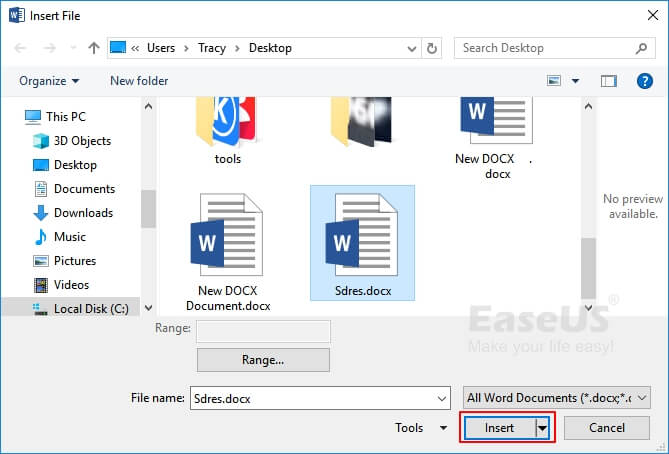
- In the Insert File dialog box, locate and select the damaged document, then choose Insert.
Scenario #2. Able to Open the Word File but Data Corrupt
If you're unable to open a Word document, the issue might be due to corrupted or damaged file contents. In this case, trying to open the file in Word may result in an error, with the content displaying as unreadable characters and the formatting and layout being severely disrupted. To resolve this issue, you'll need to employ alternative methods, such as using a different word processing software or a specialized file repair tool to attempt to recover the document.
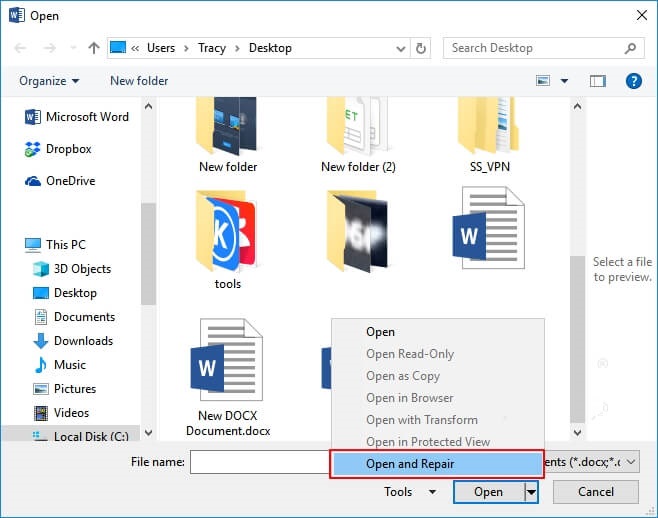
Fix 4. Use the Open and Repair Word Tool
- To open a document in Word, select the File tab on the Ribbon and then click on Open.
- In the Open dialog box, click once to select your Word document.
- To fix a corrupt Excel file, select the arrow on the "Open" button and choose "Open and Repair".
Fix 5. Copy content except for the last paragraph to a new document
Keep in mind one critical step: copy only the text between the section breaks if your document contains section breaks, do not copy the section breaks themselves.
- In Word, select Fileand then choose New
- Select Blank document, and then select Create
- Next, choose File and then select Open
- Select the damaged paper, and then select Open
- Copy the contents of the document, and then paste the contents into the new document
Fix 6. Start Word from default settings
Running Word with the default settings can exclude the factors of some add-ins and the Normal.dotm template issues that cause your Word file to constantly corrupt.
- Close all the Word documents on your PC
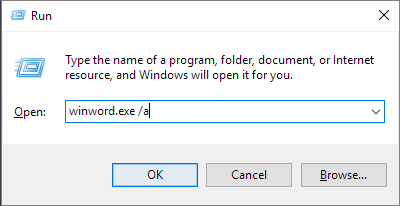
- Press Windows+R keys to open Run
- Type winword.exe /a and click OK
- Once Word opens up, go to Fileand click on Open
- Browse to the damaged Word file and click on Open
Fix 7. Adopt the document view to remove damaged data
If a document's pages are truncated, you can try to remove the damaged content by switching the document view. To do this, open the corrupted Word file and scroll through it page by page to identify the page number (note it down) where the damaged content starts. Then, switch the view to remove the damaged content.
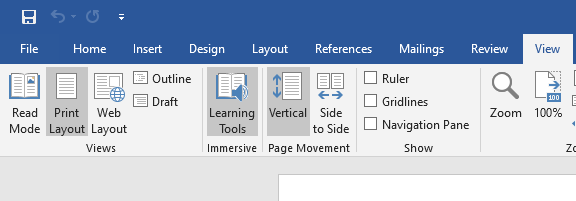
- To view your document in a web layout or draft view, select the "View" tab and click on either "Web Layout" or "Draft View" in the Document Views group.
- Scroll to view the content that was displayed before the document appeared to be truncated
- The user wants to select and delete the next paragraph, table, or object in the file.
- On the View tab in the Document Views group, select Print Layout. If the document still appears truncated, switch views and delete content until it no longer seems to be truncated in Print Layout view.
- Save the document
Are you having more issues not mentioned on this page? Check the links for further help.
How to Fix A Word File Won't Open After Recovery
If you're struggling to recover severely corrupted Word files that won't open in Word 2003-2019 or Microsoft 365, you can try the manual methods outlined in the article. Alternatively, if you need to repair Word documents that won't open after recovery, you may want to consider using a reliable utility like Deep Data Recovery on your PC, which cannot only recover Word files but also repair corrupted documents that are seemingly broken.
Step 1. Launch Deep Data Recovery, select the file types you want to recover, and follow the on-screen instructions to complete the recovery process.

Note: You can choose different search modes based on where and why the data was lost.
Step 2. To fix damaged files, select the partition with the corrupted documents and click "Scan". This will initiate a scan of the disk, allowing the software to identify and repair damaged Word, Excel, PPT, and PDF files in a single, streamlined process.

Step 3. A deep data recovery and repair tool scans for lost and corrupted files, allowing you to find them by file type or search by name in a search box.

Step 3. Deep Data Recovery can automatically repair damaged documents, and after previewing the files, you can click "Recover" to save the repaired Word, Excel, and PDF documents to a safe location.
Related Articles
- What Happens to the Data on an SSD When the Power Is Lost?
- Unformat Freeware | Unformat Hard Disks/USB Drives with Ease
- Getting Word Runtime Error 53? Here Is How to Fix Run-Time Error
- What is GPT Disk? How to Recover GPT Partition Data Easily
- Top 5 Best Open Source Data Recovery for Windows/Mac/Linux/Android
If you're struggling to find your open source data, we've can help. this guide recommends the top 5 best open source data recovery software options, which can help you recover deleted or lost data. - Top 8 Best Professional Data Recovery Software
Compare professional data recovery software to restore lost files from PCs, drives, partitions, and storage devices safely.
Products
Articles & Tutorials
- Data Recovery
- Data Backup
- File Recovery
- File Backup
- System Backup and Restore
- Disk and Partition Clone
- Technical articles
- Mobile articles
- Disk Master Help
- Windows Data Recovery Tutorials
- Windows Secure Delete Tutorials
- Windows Partition Management Tutorials
- Windows File Backup and Restore Tutorials
- Windows System Backup and Restore Tutorials
- Windows Disk Backup and Restore Tutorials
- Windows Clone Tutorials