How to Recover Overwritten or Replaced Excel/Word Document
To restore an accidentally saved over a Word document or recover an overwritten Excel file, try the following two effective solutions. First, check the autosave feature in your Microsoft Office software, which may have saved a previous version of your document or file. If the autosave feature is not available, you can try using a third-party file recovery software to scan your computer for deleted or overwritten files.
| Workable Solutions | Step-by-step Troubleshooting |
|---|---|
| If you've accidentally overwritten an Excel file, you can try to recover it using the AutoRecover feature in Microsoft Office. This feature automatically saves a copy of your file at regular intervals, which can be used to recover the file if it's been overwritten. To access the AutoRecover feature, go to File > Info > Manage Versions & Backup in Excel, and then click on "Recover Unsaved Workbooks". | You can recover saved over Excel or Word documents with the built-in AutoRecover feature in Microsoft Office. Open Excel > Click File > Info > Manage Workbook...Full steps |
| To recover the replaced Excel file from temporary files on Windows 10, follow these steps: | Restore the previous version of Excel file or Word document from temporary files on Windows 10/8/4/7. Go to the location of Microsoft Office temporary files...Full steps |
| To restore a previous version of an Excel file or Word document, follow these steps: open the file, click on the "File" tab, select "Info", and click on the "Manage Versions" button. Select the version you want to restore from the list of available versions and click on the "Restore" button to apply the changes. Alternatively, you can use the "Revert" button in the "Review" tab if versioning is enabled. | You can restore the previous version of Excel file from Windows backup: create a new Excel/Word file > Select Properties > Go to Previous Versions...Full steps |
| 3 Ways to restore overwritten Excel files on Mac | You can recover replaced Excel files on Mac by using Time Machine, MS Office's AutoSave, as well as cloud backups. Detailed steps are offered...Full steps |
| Bonus Tip. Recover Deleted or Corrupted Word/Excel Files | If you've lost an Excel or Word document, there are several steps you can take to try and recover it. First, check your recycle bin to see if it's still there. If not, try using the "Undo" feature in the program to see if it's still in the buffer.data recovery tool to restore files easily...Full steps |
User Case: Accidentally Saved Over a Word Document
If you've overwritten an Excel file and saved it, you can try using the Excel autosave feature or the Office File Recovery Tool to recover the original file. Additionally, if you've saved the overwritten file, you can try using a third-party file recovery software to scan for recoverable data. It's also a good idea to check if you have any backups or previous versions of the file. However, if the file was not saved before it was overwritten, the chances of recovery are lower.
To recover an overwritten Word document in Windows 10, 8, or 7, you can try using the built-in File History feature or a third-party data recovery software. If you've been using File History, you can check the "Previous Versions" tab in the file's properties to see if a previous version of the document is available. If not, you can try using software like Deep Data Recovery or Qiling file recovery software to scan your computer for deleted files and recover the overwritten Word document. Additionally, you can also try checking the "Recent Files" list in Word to see if the document is still listed, and if so, you may be able to recover it from there. It's also a good idea to regularly back up your important files to an external drive or cloud storage service to prevent data loss in the future.
Overwriting or replacing an Excel or Word file is a common problem for many Windows PC users. Fortunately, there are reliable methods to recover overwritten Excel files or Word documents. If your file has been overwritten, you can try using two methods to retrieve it: the methods below.
In conclusion, recovering deleted Word or Excel files can be a challenge, but there are solutions available. To prevent data loss, it's recommended to use a smart Word/Excel recovery and backup solution. Additionally, utilizing a reliable data recovery software can help recover permanently deleted Word documents with ease.
How to Recover Overwritten Excel File with Built-in Tool in Excel
When editing a Word or Excel file, Microsoft Office may create temporary backup files on your Windows PC if AutoSave is enabled. These files won't overwrite previous versions, so if you've saved over an Excel or Word document, you can try to restore the previous version using the AutoRecover feature in Microsoft Office.
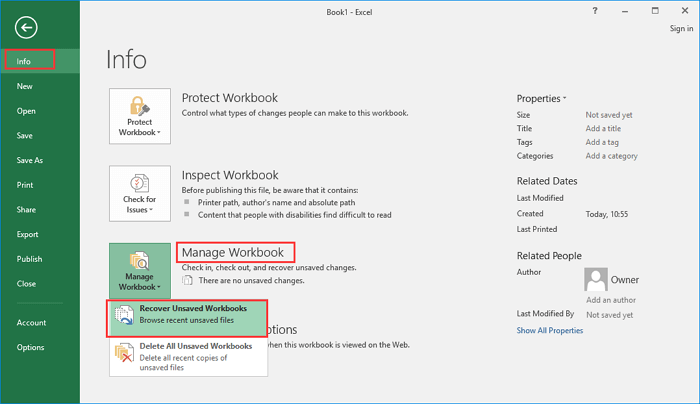
Step 1. To recover unsaved Excel workbooks, open Excel, go to "File" > "Info" > "Manage Workbook", and then select "Recover Unsaved Workbooks" from the dropdown menu.
Step 2. Select the unsaved file and click the "Open" button.
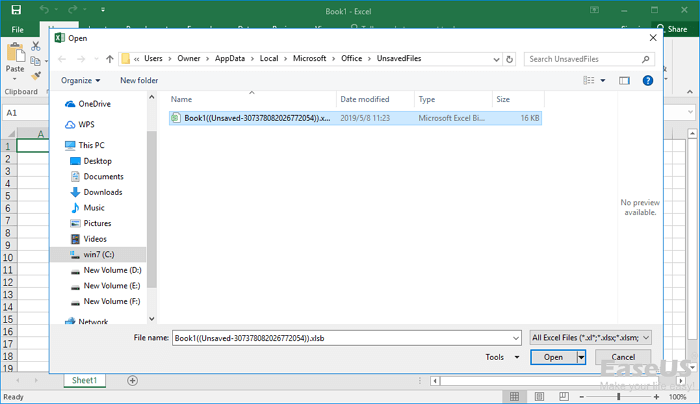
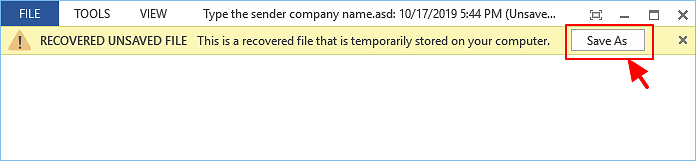
Step 3. To recover a file, go to the top bar of the file and click on "Save As". This will allow you to save the file with a new name, which will overwrite the original file and recover its contents.

Also read: If you've lost an unsaved or deleted Word document in Windows 10, there are several methods to recover it. First, check the Word's AutoRecover feature, which periodically saves your work in the background.
How to Recover Replaced Excel File from Temporary Files
If you accidentally closed a file in Excel or Word, you can navigate to the temp file folder on your Windows PC, find the previous versions of the file, and open and save them as needed.
Step 1. To access the location where Microsoft Office temporary files are saved, navigate to the following path in File Explorer: `%appdata%\Microsoft\Office\14.0\Temporary Files` (the version number may vary depending on your Microsoft Office version).
- On Windows 10/8/7/Vista: C:\Users\UserName\AppData\Local\Microsoft\Office\UnsavedFiles
- On Windows XP: C:\Documents and Settings\Local Settings\Application Data\Microsoft\Office\UnsavedFiles
In the above path, replace UserName with your computer username.
Step 2. Find the temporary file of Excel file or Word document you need.
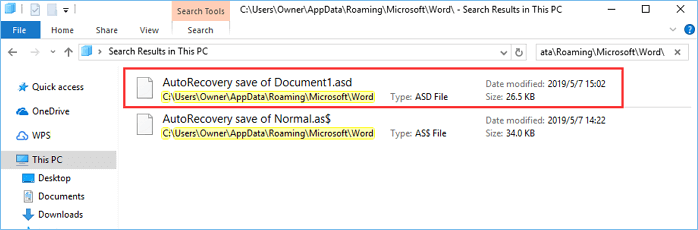
Step 3. To recover a replaced Excel file or Word document, open the target files and click "Save As" to save them in a new location. This will help you recover the original file.
If you've accidentally overwritten an important Excel or Word document on your PC, don't worry! You can try restoring it from the Recycle Bin. Simply open the Recycle Bin, find the document you need, right-click on it, and select "Restore.
How to Restore Previous Version of Excel File or Word Document
To recover overwritten Excel files or Word documents, another feasible way is restoring files from backup. This can be done by restoring previous versions from File History or restore points, as long as Windows backup was activated.
Step 1. To recover a lost Excel or Word file, start by creating a new file with the same name as the lost file. This can be done by opening a new Excel or Word document and naming it the same as the lost file.
Step 2. Right-click on the Excel or Word file and select "Properties".
Step 3. To restore a previous version of a file, go to the "Previous Versions" section, select the latest or desired version, and click "Restore".
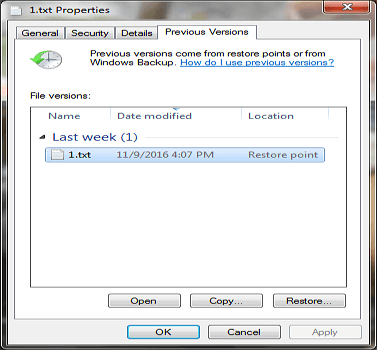
The replaced or overwritten Excel or Word file will be restored with the same file name.
How to Recover Replaced Excel File on Mac
To recover a file you accidentally replaced on your Mac, consider the following three solutions. You can try using Time Machine to restore the overwritten file, or check if you have enabled AutoSave in Excel, which automatically saves a copy of your work at set intervals. Alternatively, if you have cloud backups enabled, you may be able to recover the file from a previous version stored online.
Recover Previous Version of Excel File from Time Machine
If you've replaced a file, the easiest way to recover it is from local backups. Mac users can use Time Machine, which automatically backs up photos, videos, documents, and other files incrementally, to restore the replaced Excel file if they've enabled this feature.
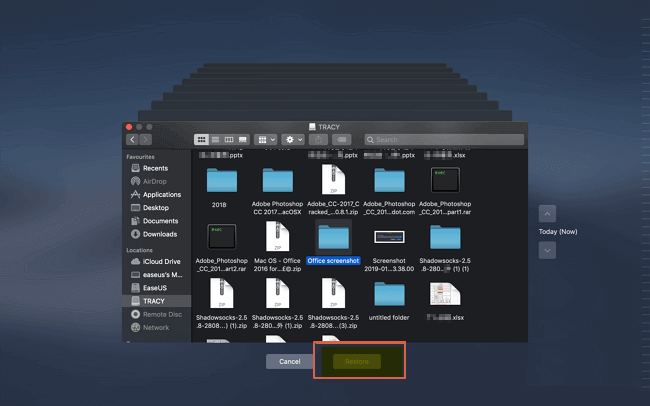
Step 1. To enter Time Machine, go to the menu bar on your Mac, click on "Time Machine," and then select the option to enter Time Machine. This will allow you to access the Time Machine interface and start browsing through your backups.
Step 2. Select the folder with the overwritten files.
Step 3. To recover replaced Excel files on a Mac, click the "Restore" button. This will relocate the restored files back to their original location.
Recover Overwritten Excel File on Mac with AutoSave
On a Mac, Office also features AutoSave, which automatically saves documents at intervals you set. If your Word or Excel files become corrupted or replaced, you can use the AutoRecovery files to restore them. To do this, follow the steps. (Note: I removed the "Like on Windows" part as it's not necessary and the text is already clear that it's about Office on Mac)
Step 1. Open your Mac, go to the "Finder" and select "Go" from the menu, then choose "Go to Folder".
Step 2. Type ~/Library/Containers/com.microsoft.Excel/Data/Library/Preferences/AutoRecovery and click "Go".
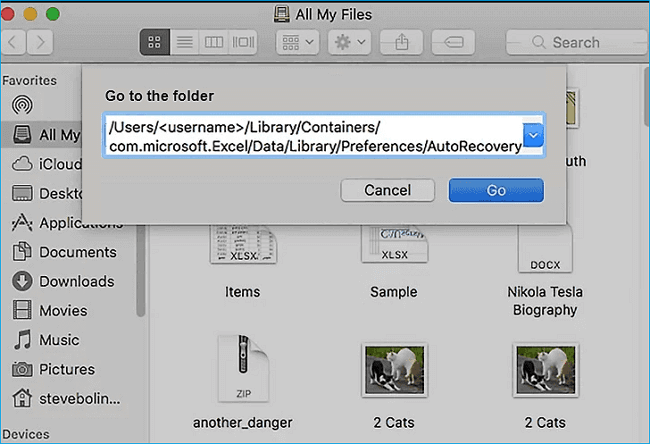
Step 3. Find the files you need and select "Save As" to restore it.
Recover Replaced Excel File on Mac via Cloud Backups
If you've overwritten an Excel file and don't have Time Machine, you can still recover it using cloud backups. Services like OneDrive, iCloud, and Dropbox save a history of changes made to your files, allowing you to quickly and easily restore previous versions of files. This means you can recover your overwritten Excel file even without Time Machine.
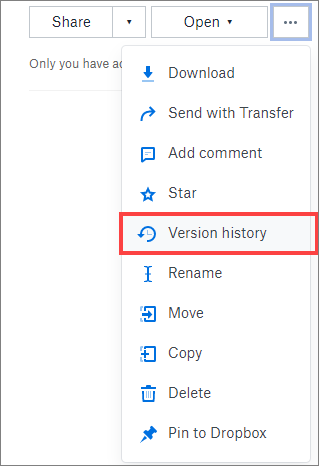
Here, we shows you how to recover Excel files saved over from Dropbox:
Step 1. Open your web browser and go to dropbox.com. Log in to your account.
Step 2. To recover an overwritten file, select the folder where the original file was located, then open the latest version of your file. This will allow you to access the most recent copy of your file. Note that this assumes you have versioning enabled on your file. If you don't have versioning enabled, you may not be able to recover the original file.
Step 3. To view the version history of your Google Doc, click on the three dots on the right control panel and select "Version history".
Step 4. Find the original version and click "Restore".
Bonus Tips: How to Recover Deleted or Lost Word/Excel Files
If your Excel or Word document is lost or accidentally deleted, you can use professional data recovery software to retrieve the data. Deep Data Recovery is a well-designed and reputable tool that's powerful in restoring lost data, even in complex circumstances.
Qiling File Recovery Software
- Losing important documents can be frustrating, especially when they're accidentally deleted or lost due to hard drive formatting, partition loss, or other issues. Fortunately, there are solutions available to recover lost or deleted documents, including Excel, Word, PPT, PDF, and other file types.
- Data recovery software can scan and repair corrupted Excel, Word, PPT, and PDF documents for free, allowing users to recover their data before attempting to repair the files. This process involves scanning the corrupted file, identifying the recoverable data, and saving it to a new, healthy file.
- Fix damaged or broken files from various devices, including hard drives, USB flash drives, SD cards, pen drives, external hard drives, and more.
To recover deleted or lost Word and Excel files, download a data recovery software that can help you retrieve them.
Step 1. Launch Deep Data Recovery. Select file types and click "Fast Scan" to start.

Note: You can choose different search modes based on where and why the data was lost.
Step 2. Choose the drive where you lost files and start scanning. This software allows you to recover lost data from all devices, including HDD, SSD, USB drive, SD card, pen drive, camera, and more.

Step 3. Qiling data recovery software supports 1000+ file types, allowing users to browse full scan results and choose the file type they need by clicking on the file type filter, which can recover various types of files such as photos, videos, documents, emails, audio files, and more.

Step 4. To recover files, select the desired files, click the "Recover" button, and choose a storage location to save the recovered data.
Back Up Word/Excel Files to Avoid Data Loss
To avoid losing Excel or Word documents, it's essential to back them up regularly. This simple step can save you from the frustration of losing important files and ensure that your work is always safe and secure.
Enable AutoSave in Excel or Word
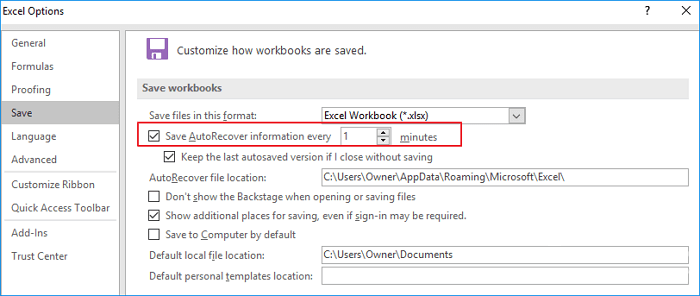
Step 1. Open Excel, go to "File" > "Options" > "Save".
Step 2. To save your work automatically, check the box next to "Save AutoRecover information every * minutes" and also select the option "Keep the last autosaved version if I close without saving".
Step 3. Click "OK" to save the changes.
Back Up Saved Excel Files with Auto-Backup Software
Microsoft Office's AutoRecover feature only protects unsaved files, so it's essential to have a smart backup for saved Excel or Word files. If a saved document is accidentally overwritten, a backup can be recovered. Qiling file backup software can be set to back up files every half hour, providing an extra layer of protection.
- To back up database files that are frequently changed
- To back up shared files that are frequently updated
- To create multiple backup points for recovery or rollback
If you frequently edit crucial Word and Excel documents, it's a good idea to back them up with a smart tool. This way, you can ensure your important files are safe and easily recoverable in case of any unexpected changes or system crashes.
Step 1. To initiate a backup, click on "File backup" in the "Backup and recovery" page.

Step 2. Local and network files will be displayed on the left side, allowing users to extend the directory and choose which files to back up.
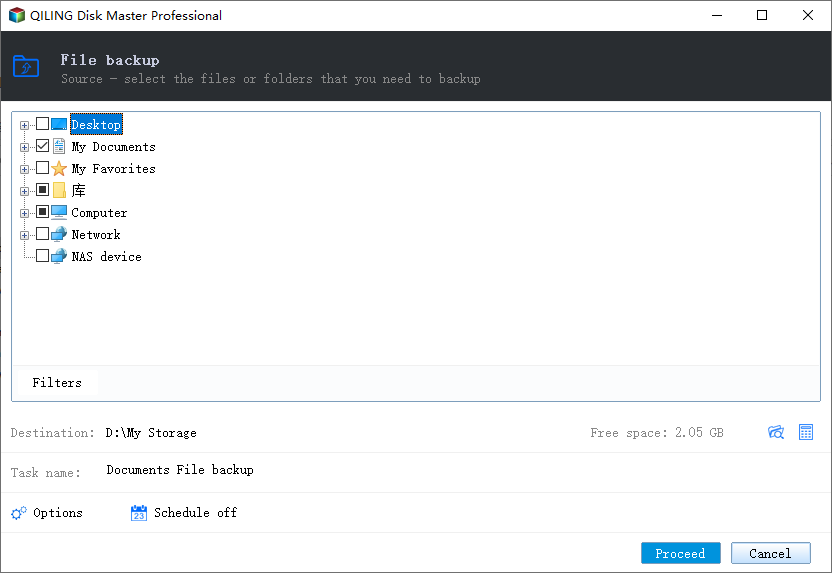
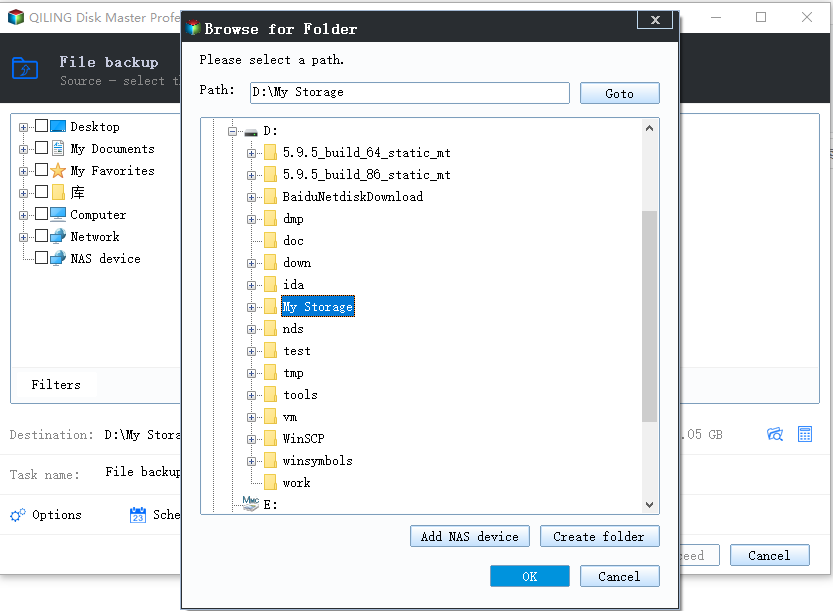
Step 3. To store the backup, select the location where you want to save it by following the on-screen instructions.
To encrypt the backup with a password, click on "Options" in the "Backup Options" section. This allows for various customization options for the backup process.
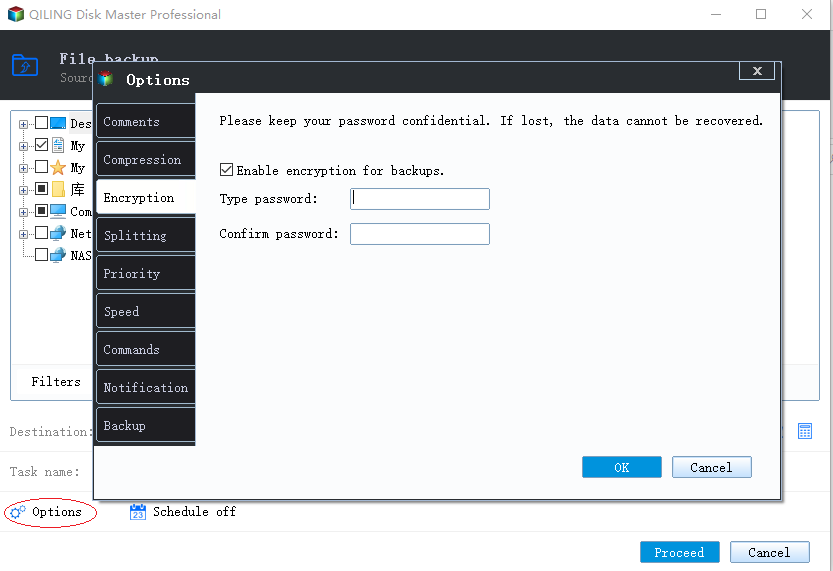
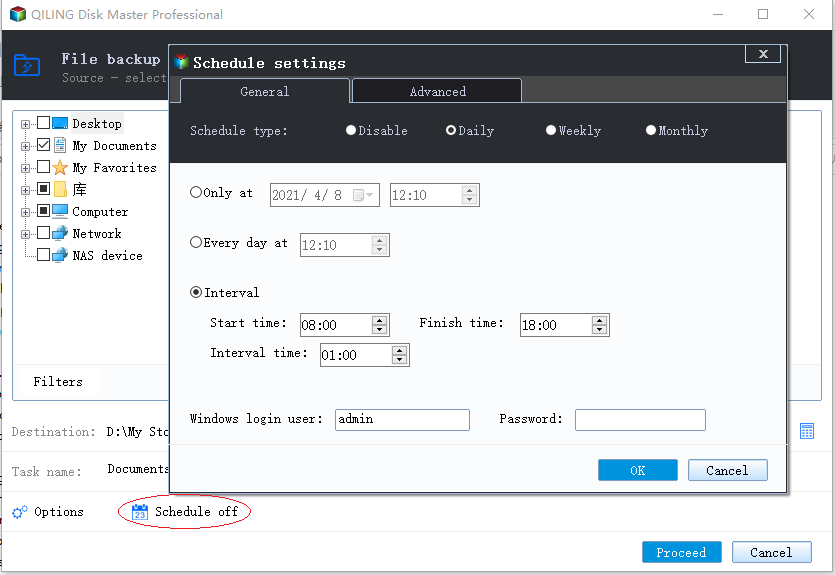
To set up a backup schedule, click on the "Schedule" option and choose the desired schedule settings. Additionally, you can also initiate a backup at a specific event by selecting "Backup Scheme" and choosing the event you want to trigger the backup for.
Step 4. You may save the backup to a local disk, Qiling's online service, or a NAS.
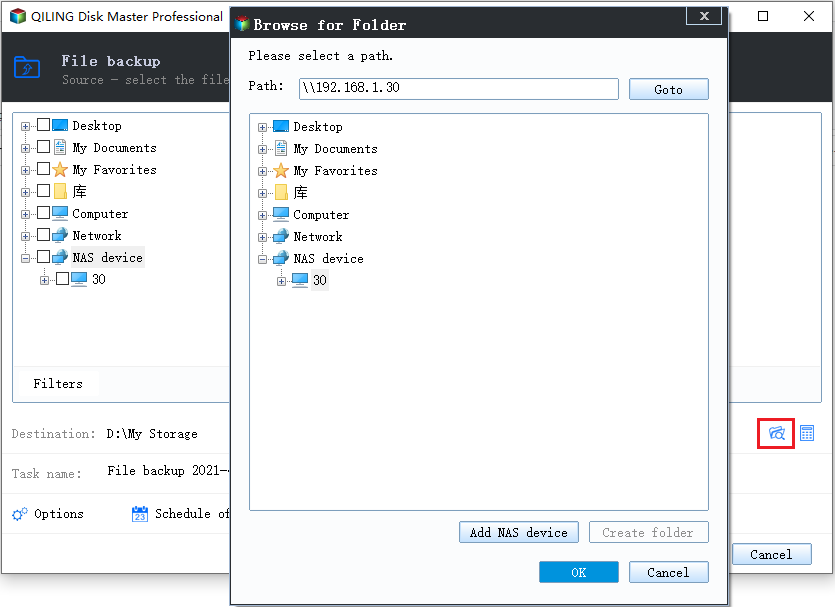
Step 5. To start a backup, click "Proceed". Once the backup process is complete, it will be displayed as a card on the left side of the panel. You can then manage the backup job by clicking it.
FAQs About Accidentally Saved Over a Word Document
Here are the top frequently asked questions related to how to recover the previous version of Excel file or Word document. If you also have any of these problems, you can find the methods here.
How do I retrieve a Word document that I saved over?
To recover a saved over Word document from an earlier version, follow these steps:
- Open the Word document.
- Go to File > Info.
- Under Manage Workbook, select Recover Unsaved Workbooks.
- In the pop-To restore an overwritten Word document, open the Word application and click on the "File" tab in the top left corner of the screen. From the drop-down menu, select "Recent" and then click on the "History" button.
Can you recover a file you saved over?
To restore an overwritten Word document or file/folder, you can follow these steps: If you know the location where the file or folder was saved, you can go to that location and look for the previous version of the file or folder. If you don't know the location, you can check your computer's Recycle Bin or Trash, or contact your IT department for assistance. If you have a version of the file or folder saved on a cloud storage service like OneDrive or Google Drive, you can also try restoring the previous version from there.
- To recover a deleted file or folder, find the folder that used to contain the file or folder on your computer, right-click it, and then click Restore previous versions.
- Double-To restore a file or folder from a previous version, click on the folder that contains the file or folder you want to restore. This will open the folder in File Explorer, where you can access the previous versions of the file or folder.
- To restore a file or folder, drag the item you want to restore to a new location, such as your desktop or another folder.
Can you undo a save in Word?
If you open an existing file in Word to modify, but forget to save it with a new name before editing, you can use the Undo command to restore the original file contents, as long as the file is still open.
- First, copy the current contents of the file and save them to a new file with a different name.
- Unfortunately, the original file can only be restored using Ctrl+Z up to 20 changes, and if the changes are not undone, the original file will be lost. To prevent this, save the file with the original file name using Save As. This way, you can have both the original and the modified file.
- If you're unable to recover your work due to a corrupted file, try to undo a save in Excel or Word with the backup. This can be done by going to the "File" menu, selecting "Info," and clicking on "Manage Versions" or "Manage Document," depending on the software.
How do I undo a replaced file?
How to recover an overwritten file:
- Right-click the overwritten or replaced file and click Properties.
- Select Previous Versions.
- To view the old version, click View. To copy the old version to another location, click Copy... To replace the current version with the older version, click Restore.
Related Articles
- Hard Drive Failure! What to Do to Find the Signs, Fix, and Causes?
- How to Recover Permanently Deleted Emails in Outlook 2018/2017/2016/2010/2007/2003
- How to Recover Deleted History on Google Chrome Windows 10/Android/iPhone
- View and Restore Firefox Cache Files
- How to Recover Formatted HDD Data with Unformat HHD Software
Want to recover formatted HDD data? Here is the guide that walks you through the whole process for used unformat HDD tool to help you quickly and effectively recover data from formatted HDD. - Unformat Pen Drive Software to Recover Formatted Pen Drive
It will saves you multiple important files to unformat pen drive on Mac or Windows. In this article, we talk about how to use pen drive unformat software to recover files from formatted pen drive.
Products
Articles & Tutorials
- Data Recovery
- Data Backup
- File Recovery
- File Backup
- System Backup and Restore
- Disk and Partition Clone
- Technical articles
- Mobile articles
- Disk Master Help
- Windows Data Recovery Tutorials
- Windows Secure Delete Tutorials
- Windows Partition Management Tutorials
- Windows File Backup and Restore Tutorials
- Windows System Backup and Restore Tutorials
- Windows Disk Backup and Restore Tutorials
- Windows Clone Tutorials