What Is Dynamic Disk | Everything About Windows Dynamic Disk
What is Dynamic Disk
The dynamic disk manages its volumes using the Logical Disk Manager (LDM) database, which is a physical disk.
The LDM database is a 1MB hidden database at the end of a dynamic disk that records information about the volumes on the disk, including drive letters, volume labels, sector locations, sizes, file systems, and the dynamic disk itself.
Each dynamic disk holds its own information, and if there are multiple dynamic disks, they are all interrelated. This means that removing one dynamic disk from the system will show a "Missing" disk in Windows Disk Management. All this information is stored in the LDM (Logical Disk Manager) database, making it just as important as the partition table on a basic disk.
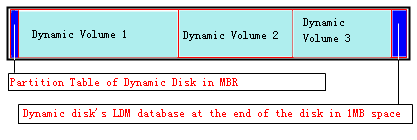
The MBR at the beginning of a dynamic disk contains a partition table that identifies the disk as dynamic, not empty, and the LDM database at the end stores information about the disk's partitions.
What's the Difference Between Basic Disk and Dynamic Disk in Windows
Microsoft Windows supports two types of disk storage: basic and dynamic disks. The most commonly used type is the basic disk, which contains primary partitions and logical drives. In contrast, dynamic disks allow for more flexibility and are typically used in more complex storage configurations.
Basic Disk Storage
- Basic storage uses normal partition tables supported by various operating systems, including MS-DOS, Windows 95, Windows 98, Windows Me, Windows NT, Windows 2000, Windows Server 2003, and Windows XP.
- A disk that has been initialized for basic storage is called a basic disk.
- A basic disk contains basic volumes, such as primary partitions, extended partitions, and logical drives, as well as multi-disk volumes created by earlier Windows editions like volume sets, stripe sets, mirror sets, and stripe sets with parity.
- Windows XP does not support these multidisk basic volumes.
- Any volume sets, stripe sets, mirror sets, or stripe sets with parity must be backed up and deleted or converted to dynamic disks before installing Windows XP Professional.
Dynamic Disk Storage
- Dynamic storage is supported in Windows XP Professional, Windows 2000, and Windows Server 2003.
- A dynamic disk is a disk that has been initialized for dynamic storage.
- A dynamic disk is a type of disk in Windows that can be managed dynamically, meaning you can add or remove volumes without having to restart the system. This type of disk contains various types of volumes, including simple, spanned, striped, mirrored, and RAID-5 volumes.
- Dynamic disks are not supported on portable computers or on Windows XP Home Edition-based computers.
- You cannot create mirrored volumes or RAID-5 volumes on Windows XP Home, Windows XP Professional, or Windows XP 64-Bit Edition-based computers.
- To create a mirrored or RAID-5 volume on remote computers, you can use a Windows XP Professional-based computer. This is possible even if the remote computers are running different versions of Windows, such as Windows 2000 Server, Windows 2000 Advanced Server, or Windows 2000 Datacenter Server, or the Standard, Enterprise, and Data Center versions of Windows Server 2003, or the Starter, Basic, Home Premium, Business, Enterprise, and Ultimate versions of Windows Vista.
- Storage types are separate from file system types. A basic or dynamic disk can have any combination of FAT16, FAT32, or NTFS partitions or volumes.
- A disk system can have any mix of storage types, but all volumes on the same disk must be the same storage type.
Dynamic Volumes
A volume is a storage unit made from free space on one or more disks, which can be formatted with a file system and assigned a drive letter. Volumes on dynamic disks have different types, including simple, spanned, mirrored, striped, and RAID-5.
-
Simple Volume
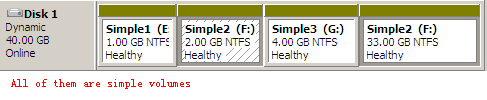
- A simple volume is a type of storage that uses free space from a single disk, which can be a single region on a disk or multiple concatenated regions. It can be extended within the same disk or onto additional disks, becoming a spanned volume if extended across multiple disks.
-
Spanned Volume
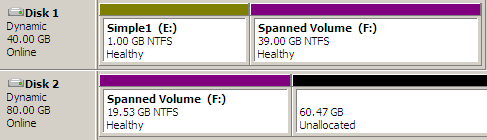
- A spanned volume is created from free disk space on multiple disks, but it can only use up to 32 disks and is not fault-tolerant.
-
Striped Volume
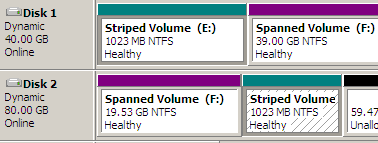
- A striped volume is a type of storage where data is split and stored across multiple physical disks, with each disk containing an equal portion of the data. This type of volume is not fault-tolerant and cannot be mirrored or extended. It is also known as RAID-0.
-
Mirrored Volume
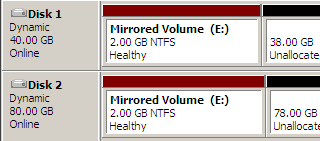
- A mirrored volume is a fault-tolerant volume that duplicates the same data on two physical disks. This allows for continued access to data even if one disk fails, as the data can be retrieved from the other disk. Mirrored volumes are often used for critical data and are also known as RAID-1. However, they cannot be extended once created.
-
Raid-5 Volume
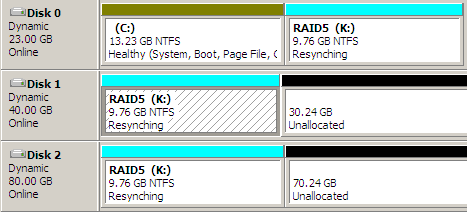
- A RAID-5 volume is a fault-tolerant volume that distributes data and parity across three or more disks, allowing it to recover from a single disk failure by recalculating the lost data from the remaining data and parity.
The system volume, which contains hardware-specific files, can be the same as the boot volume but does not have to be, and includes files such as Ntldr, Boot.ini, and Ntdetect.com.
The boot volume contains the Windows operating system files, specifically in the %Systemroot% and %Systemroot%\System32 folders, and can be the same as the system volume but does not have to be.
How to Manage Dynamic Disks
To create a volume on a dynamic disk in Windows, you can use the Disk Management tool. To access it, press the Windows key + R, type "diskmgmt.msc," and press Enter.
How to Create a Volume on Dynamic Disk
With the help of Disk Management, you can create volumes on dynamic disks by yourself. Here we shows you how to create simple volumes.
Step 1. Go to "This PC" > "Manage" > "Disk Management".
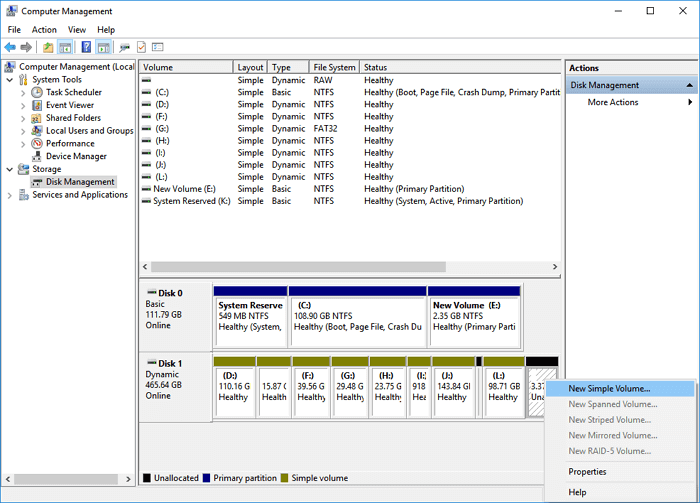
Step 2. Right-click the unallocated space on the dynamic disk and choose "New Simple Volume".
Step 3. Follow the onscreen instruction to finish the remaining process.
The process of creating a new volume varies depending on the type of volume you want to create.
How to Convert Between Dynamic Disk and Basic Disk
Disk Management also allows you to convert a basic disk to a dynamic disk.
Step 1. Go to "This PC" > "Manage" > "Disk Management".
Step 2. To convert a basic disk to a dynamic disk, right-click on the basic disk and select the option to convert it to a dynamic disk. Confirm the conversion by clicking "OK" and then "Convert" in the resulting prompt.
Step 3. Confirm your operation in the windows coming up. When it has done, you have successfully converted a basic disk to a dynamic disk.
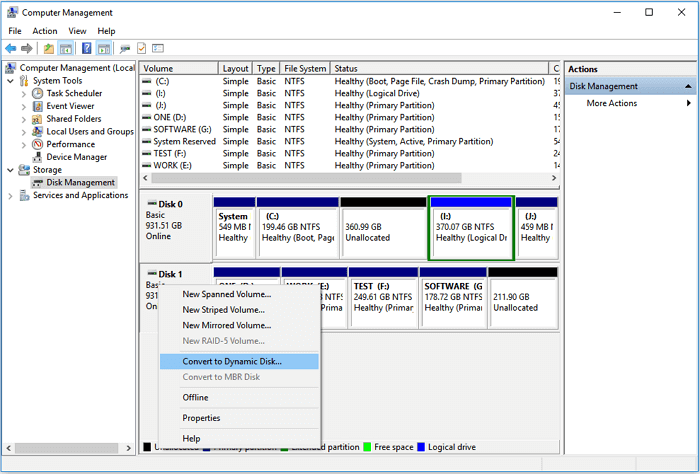
If you want to convert a dynamic disk to a basic disk, Disk Management won't help, as it only allows you to change a basic disk to a dynamic one. To achieve this, you'll need a third-party tool, such as Qiling Partition Master, a professional partition tool that enables you to manage dynamic disks, including resizing, moving, cloning, checking, creating, formatting, deleting, and exploring volumes. This tool can help you better manage your disks.
How to Restore Lost Data on Dynamic disk
Data loss can occur on various devices, including dynamic disks. If you lose data on a dynamic disk, a powerful hard drive recovery software like Deep Data Recovery can help. This software enables you to recover lost or deleted dynamic disk volume data within three simple steps in Windows 10/8/7 PCs, effectively retrieving your precious data.
Step 1. Select file types
Launch Qiling file recovery software on your Windows computer, select the file types you want to recover, and click "Fast Scan" to initiate the recovery process.

Note: You can choose different search modes based on where and why the data was lost.
Step 2. Choose the exact location where you lost the files and click the "Scan" button.

Step 3. The software will quickly scan the drive and display deleted files. You can stop the scan if you find the files you need, or use the file format filter to quickly locate the target file.

Step 4. To recover files, select the desired files such as Word, Excel, PDF, photos, videos, or emails, and click the "Recover" button. You can then choose a different location to save the recovered files.
The Bottom Line
Now that you know what a dynamic disk is and other related knowledge, you can use it to store your data, just like a basic disk. To better manage your computer disks and protect your data, it's a good idea to have both a partition manager and data recovery software on your computer. These tools can help you with dynamic disks, as well as basic disks, external hard drives, USB flash drives, SD cards, memory cards, and more, making them a powerful addition to your computer.
Related Articles
- 2022 FIX: Excel Keeps Crashing Windows 10 - All Too Easy to Handle
- Fixes for The Type of the File System Is RAW, CHKDSK Is Not Available for RAW Drives
- Your PC Ran into a Problem and Needs to Restart in Windows 10/11
- 10 Best Data Recovery Software for Windows 7 Free Download Full Version
- XLS VS XLSX | What's the Real Difference of .xls VS .xlsx [Full Guide]
What is XLS VS XLSX? What are the differences between .xls VS .xlsx? Can you convert XLS to XLSX or convert XLSX to XLS? You can find all answers here. What's more, you can learn how to recover deleted and repair corrupted XLS and XLSX files with Qiling data recovery software. - Excel File Recovery: How to Recover Deleted XLSX Files Without Effort
This tutorial provides a step-by-step guide on how to recover a deleted XLSX file in three ways. You can recover the file from the Recycle Bin, utilize Qiling's Excel file recovery to retrieve the lost XLSX, or restore the deleted Excel file from previous versions.
Products
Articles & Tutorials
- Data Recovery
- Data Backup
- File Recovery
- File Backup
- System Backup and Restore
- Disk and Partition Clone
- Technical articles
- Mobile articles
- Disk Master Help
- Windows Data Recovery Tutorials
- Windows Secure Delete Tutorials
- Windows Partition Management Tutorials
- Windows File Backup and Restore Tutorials
- Windows System Backup and Restore Tutorials
- Windows Disk Backup and Restore Tutorials
- Windows Clone Tutorials