[Solved] Preparing to Delete Takes Forever Windows 11/10, Windows 11/10/8/7 is Slow to Delete Files
If you're experiencing slow deletion of files or preparing to delete taking forever on Windows 11/10, there are several solutions you can try. One approach is to check for disk errors and fix any issues, which can be done through the built-in Check Disk utility.
- Fix 1. Optimize the Hard Disk
- Fix 2. Check File System of Hard Disk
- Fix 3. Run a Clean Boot in Windows 11/10
- Fix 4. Disable Remote Differential Compression
- Fix 5. Delete files Windows 11/10 with a Free File Cleanup Tool
- Fix 6. Use Command Prompt to Delete Files Fast
Windows 11/10 Slow Deleting Files
Windows 11/10 may take a long time to delete files from a cloned drive because it's still trying to verify the integrity of the files, especially if they were copied from a previous backup. This process can be slow, especially if the files are large or numerous. To speed up the deletion process, you can try disabling the "Quick Delete" feature or using the Command Prompt to delete files in bulk. Additionally, you can also try deleting files in a different order, such as deleting empty folders first, to help speed up the process. However, if the issue persists, it's possible that there's a problem with the drive itself, and you may need to seek further assistance from a tech support specialist.
To delete large files quickly on Windows 11/10, you can use the built-in "Disk Cleanup" tool or third-party software like CCleaner or Glary Utilities. Alternatively, you can use the command line to delete files using the "del" command or the "rd" command for directories. You can also use the "robocopy" command to delete files by copying them to the Recycle Bin and then emptying it. If you have a large number of files, you can use a script to delete them.
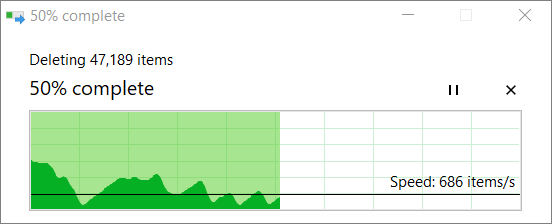
Why Windows 11/10 Deleting Files Takes Long Time
On Windows 11/10, deleting a large number of files using Shift+Delete with File Explorer can be slow due to the operating system's need to run calculations, analyze, and show updates in real-time as files and folders are deleted. This can be particularly time-consuming when dealing with thousands of files and folders. Additionally, other factors such as system resource usage, disk space availability, and file system fragmentation can also contribute to slow file deletion on Windows 11/10.
- Hard disk drive not running well
- Conflicts with other programs
- Problematic file system
- Too many or too large files
- Use File Explorer
Windows 11/10 Slow Deleting Files - How to Fix
When deleting or moving large files on Windows 11/10, the process can be slow and seem like it won't end. However, there are several solutions to help you delete files quickly and resolve the slow issue.
Fix 1. Optimize the Hard Disk
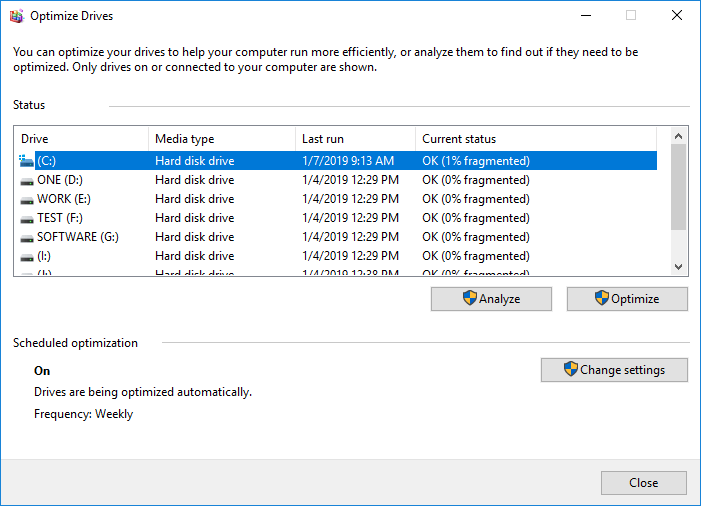
When Windows 10 takes a long time to delete files, the first step is to check and optimize the hard disk. This can help resolve the issue.
Step 1. To view the properties of a drive, go to My Computer or This PC, right-click on any drive (such as C:, D:, etc.), and select "Properties" from the context menu.
Step 2. To optimize and defragment your drive, go to the Tools tab, select "Optimize" and choose the drive you want to work on.
Step 3. To optimize your computer's performance, select all the drivers and click on Analyze. If any drive shows that it needs optimizing, optimize it.
Fix 2. Check File System of Hard Disk
To optimize your disk and fix the slow problem of deleting files, consider checking the integrity of your hard disk and fixing various file system errors. This can help ensure that your disk is functioning properly and can help resolve issues related to slow file deletion.
To fix the file system, you can use a free partition management tool like Qiling Partition Master, which can help you check and repair corrupted or damaged file systems with ease.
This ultimate hard disk management software offers a range of stunning and free features, making it a must-have tool for anyone looking to optimize their hard disk performance.
- Resize/move partitions, create, format, delete, and merge partitions
- You can clone an entire disk to another, even if the target partition is smaller than the source, by using a cloning tool. This process involves creating a sector-by-sector copy of the source disk, which includes all data, operating systems, and applications.
- To convert a logical partition to primary or primary partition to logical, FAT32 to NTFS partition, MBR disk to GPT, or GPT disk to MBR, you can use the built-in Disk Management tool in Windows. First, open Disk Management by searching for it in the Start menu, right-click on the disk you want to modify, and select the desired operation from the context menu.
- Completely wipe out all the data on the hard disk to prevent information from being leaked or recovered. This can be done by using a software that securely deletes data, or by physically destroying the hard drive.
To fix the file system, download and use a comprehensive partition master to check and repair the file system with ease.
Step 1. Right-click the target partition that has a problem.
Step 2. Choose "Advanced" > "Check File System".
Step 3. In the Check File System window, select the "Fix the error on the disk" option.
Step 4. Click "Proceed" to check errors on your partition.
Fix 3. Run a Clean Boot in Windows 11/10
Performing a clean boot can help identify software-related conflicts that affect a computer's normal operation, caused by apps and services that run in the background when Windows starts normally.
To perform a clean boot on Windows 11/10, log on as the administrator and follow these steps:
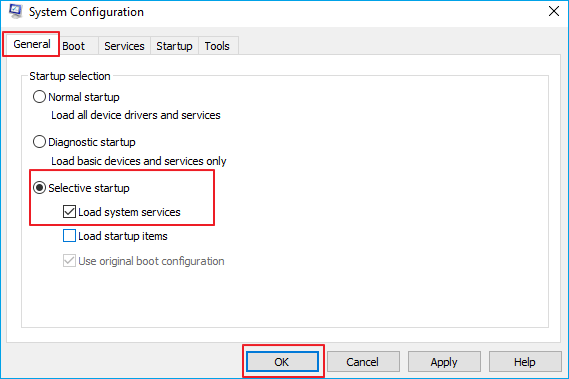
Step 1. To open the System Configuration Utility, type msconfig in the Start search bar and press Enter.
Step 2.To enable selective startup, click on the "General" tab and then select "Selective startup". Make sure to check the boxes for "Load System Services" and "Use Original boot configuration".
Step 3.To disable all Microsoft services, click the Services tab, select the "Hide All Microsoft Services" checkbox, and then click "Disable all".
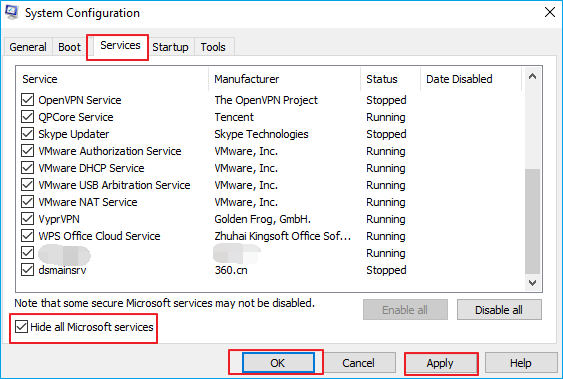
Step 4.To troubleshoot the issue of Windows being slow to delete files, put the operating system into a Clean Boot State by clicking "Apply/OK" and restarting the computer, and then check if the problem persists.
Fix 4. Disable Remote Differential Compression
The Remote Differential Compression feature allows users to copy data using compression techniques, but turning it off can help troubleshoot Windows 11/10 slow deleting files.
Step 1. Type Windows Features in the search box to open the window.
Step 2. To disable Remote Differential Compression API Support, uncheck the box next to it and click "OK" to apply the change.
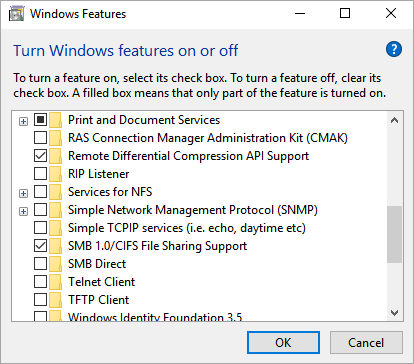
Once done, restart your computer and check the result.
Fix 5. Delete files Windows 11/10 with a Free File Cleanup Tool
Qiling CleanGenius is a free PC cleanup tool that helps remove large files and junk files quickly, making it a useful tool for speeding up Windows 11/10.
Step 1. To resize a Windows partition, download and install Qiling Partition Master Suite for free, then launch it on your Windows PC.
To install and launch Qiling CleanGenius, hover your mouse on the "PC Cleaner" option on the suite, click the Download icon to initiate the installation process, and then launch the application once it's installed.
Step 2. On Qiling CleanGenius, select "Cleanup" on the main screen, and click "Scan" to initiate the scanning process.
Step 3. When the scanning process is complete, select any unnecessary large files and click "Clean" to remove them.
Step 4. After Qiling CleanGenius completes cleaning the files you selected, click "Done" to complete the cleaning process.
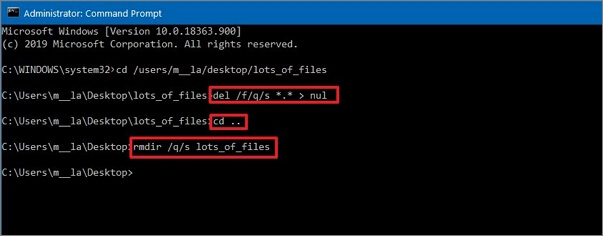
Fix 6. Use Command Prompt to Delete Files Fast Windows 11/10
Warning: Be very careful when typing commands and paths to avoid accidental file deletions. Make sure to input the correct command lines carefully to prevent unintended consequences.
Step 1. To open Command Prompt as an administrator on Windows 11/10, start by opening the Start menu. Then, type "Command Prompt" into the search bar and select the result. Right-click on the Command Prompt icon and choose the "Run as administrator" option from the context menu.
Step 2. To delete a folder, type the full path to the folder you want to delete, followed by the command to delete it, in this case `rmdir /s /q`. The path should be enclosed in quotes if it contains spaces.
Step 3. The command `del /f/q/s *.* > nul` is used to delete all files in a folder without displaying the output. The `/f` option forces deletion, `/q` option suppresses the prompt, and `/s` option is used to delete files in all subfolders.
Step 4. To go back one level in the folder path, you can type cd.. and press Enter. This command will take you to the parent directory of your current location.
Step 5. To delete a folder and all its subfolders, use the command `rmdir /q/s foldername` and press Enter.
To Sum Up
You can resolve the issue of slow file deletion in Windows 11/10 using the effective methods provided. If you still have any questions, feel free to contact our technical support team for further help via live chat or email.
FAQs About Windows 11/10 Slow Deleting Files
If you're experiencing issues with deleting files on Windows 11/10, you're not alone. The problems you may be facing, and their brief solutions, include: follow the steps below.
How do I delete thousands of files at once?
Step 1. Download and install Qiling CleanGenius for free and install it on your computer.
Step 2. Launch Qiling Qiling CleanGenius in Windows PC. Select Large File Cleanup on the main screen.
Step 3. Select the drive and click "Scan" to let the program locate, find all large files on your disk.
Step 4. Select useless large files and click "Delete" to permanently delete all the files at once.
How do I quickly delete files in Windows 11/10?
You can use the Del and Rmdir commands to remove a large number of files at a time. The Del command can be used to delete single files, while the Rmdir command can be used to delete empty directories.
1. Tap on the Windows-key, type cmd.exe, select command prompt and run as administrator.
2. Navigate to the folder that you want to delete.
3. The command "DEL /F/Q/S *.* > NUL" is used to delete all files in a folder structure. The "/F" option forces deletion, "/Q" option is used for quiet mode, "/S" option is used to delete files in the current directory and all subdirectories, and "*.
4. Use cd.. to navigate to the parent folder afterwards.
5. To delete a folder and all of its subfolders, you can run the command `RMDIR /Q/S foldername` in the Command Prompt. This will permanently remove the folder and all of its contents.
How can I permanently delete permanently deleted files in Windows 11/10?
To permanently delete a file, select it and press Shift+Delete keys instead of using the Delete feature, which will bypass the recycle bin and prevent restoration unless using professional data recovery software or a tool like Qiling CleanGeinus.
Related Articles
- [2022] How to Convert Primary Partition to Logical Partition
- [Solved]How to Create EXT4 Partition in Windows 11/10
- Windows 11/10 Search Not Working 2022? Fix It Now!
- [Free] Best Low Level Format Tool in Windows 11/10/8/7
- How to Fix SanDisk Cruzer Flash Disk Is Write Protected, Help
SanDisk Cruzer flash disk is write-protected when you want to format it, and you can't continue to operate. This article will show you how to solve this problem with a few easy clicks. - How to Fix USB Is Write Protected or Read Only, Help
This article can explain why write protection or read-only happen and provide practical solutions to help you remove the write protection and get the USB back to use.
Products
Articles & Tutorials
- Data Recovery
- Data Backup
- File Recovery
- File Backup
- System Backup and Restore
- Disk and Partition Clone
- Technical articles
- Mobile articles
- Disk Master Help
- Windows Data Recovery Tutorials
- Windows Secure Delete Tutorials
- Windows Partition Management Tutorials
- Windows File Backup and Restore Tutorials
- Windows System Backup and Restore Tutorials
- Windows Disk Backup and Restore Tutorials
- Windows Clone Tutorials