[Solved]How to Create EXT4 Partition in Windows 11/10
You can use a tool called Qiling Partition Master or MiniTool Partition Wizard to create an ext4 partition on your micro SDHC card under Windows 10. These tools allow you to create, resize, and format partitions, including ext4, without the need for a Linux system. They are reliable and safe to use, and can help you store Linux data on the card.
Creating a Windows 11/10 system to create an EXT4 partition can be a tedious process, but with the help of Qiling Partition Master, it can be done quickly and easily. By following the detailed guide provided by Qiling Partition Master, you can learn how to set up your Windows system to create an EXT4 partition in no time.
Content
- What Is EXT4 File System
- Can Windows 11/10 Create EXT4 Partition
- How to Create EXT4 Partition in Windows 11/10 with Qiling Partition Master
- FAQ about Create EXT4 Partition under Windows
What is the EXT4 file system
EXT4 is the file system used in Linux, succeeding ext3. It was developed from 2003 to 2006 to improve upon ext3, with many of its significant enhancements coming from the Cluster file system. These improvements expanded storage limits and enhanced performance, making EXT4 a more robust and efficient file system.
The Linux kernel developers were hesitant to add extensions to EXT3 due to stability concerns, so they suggested forking the source code and renaming it to EXT4, which would allow for further development and improvements without affecting the stability of the original EXT3 file system. This led to the announcement of a new plan for EXT4 in 2006.
Main Features of EXT4:
- Larger file system/file size.
EXT3 has a maximum file system size of 16TB and a maximum file size of 2TB, while EXT4 supports a maximum file system size of 1EB (1 exabyte) and a maximum file size of 16TB, thanks to its 48-bit block addressing.
- More sub-directories
EXT4 supports an unlimited number of sub-directories, unlike EXT3 which has a limit of 32,000.
- Log verification function
The log, a fundamental structure of the file system, is prone to damage, making data recovery from a damaged log a potentially hazardous process that can result in further data damage.
EXT4 enhances the logging mechanism by adding a check function to the log data, allowing for quick identification of damaged log data. Additionally, EXT4 simplifies the two-stage logging mechanism of EXT3 into a single stage, improving performance while maintaining security.
Can Windows 11/10 create EXT4 partition
Is it possible to use a Linux file system partition on Windows 11/10?
1. In Disk Management, you can't choose to format a partition as EXT4, but you have three default options: FAT, FAT32, or NTFS.
2. When accessing an EXT4 partition through the File Explorer on Windows, it displays as "RAW" instead of showing its contents. This is because Windows does not natively support the EXT4 file system, which is commonly used on Linux systems. To view the contents of the EXT4 partition, you would need to use a third-party tool or a Linux-based operating system that supports EXT4.
3. The diskpart command is unable to create an EXT4 volume due to a compatibility issue, resulting in a warning message stating that file systems are not compatible.
To create an EXT4 partition under Windows, you typically need to use third-party software or have a dual-boot system with Linux. However, if you have a dual-boot setup and want to access data on the Linux system from Windows, there is a method to achieve this, which is the focus of this guide.
How to create Windows 11/10 EXT4 partition with Qiling partition master
We were unable to create an EXT4 partition using Windows Disk Management, File Explorer, or Diskpart cmd. However, we recommend using Qiling Partition Master, a tool specifically designed to create Linux partitions with ease, requiring just a few clicks.
Step 1. Launch Qiling Partition Master, right-click on the unallocated space on your hard drive or external storage device and select "Create" from the context menu.
Step 2. To create a new partition, adjust the partition size, file system (selecting a suitable file system based on your needs), and label as desired, then click "Proceed" to initiate the partition creation process.
To save data based on Linux, you can use partitioning to devices, allowing you to store and organize your files efficiently.
Tips: Qiling Partition Master only allows you to create EXT4 partitions. If you want to access Windows 11/10 EXT4 partitions, you can refer to the following two methods for further guidance.
Further reading - can Windows 11/10 read EXT4 partition
In this part, we introduce two software that can read EXT4 partition under Windows 10.
1. The first is Ext2Read.
It can view EXT2/3/4 partitions, copy files and directories from them, and support LVM2 and EXT4 extent. Additionally, it can recursively copy entire directories.
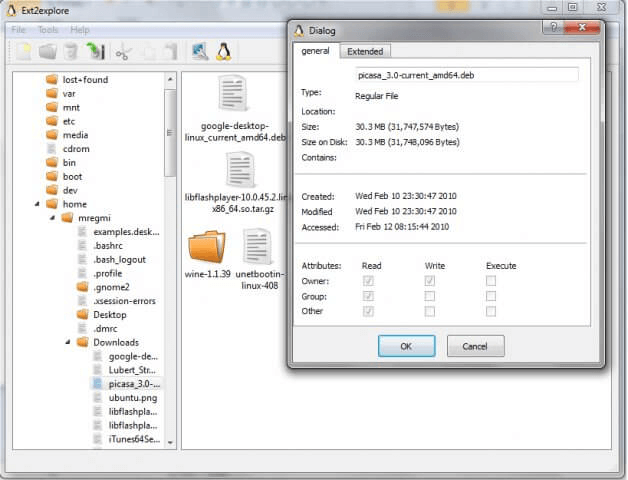
Tips: It supports only read EXT2 / 3 / 4.
2. The second is the Ext2Fsd.
EXT2/3/4 Reader is a software that allows Windows users to access Linux file systems, specifically EXT2/3/4 partitions, directly. It supports both reading and writing, although there are limitations with EXT4 - users must add a specific parameter to turn off the extent feature when formatting an EXT4 partition.
Linux distributions provide access to standard file systems under Windows, including NTFS and FAT32. However, Windows has not yet offered software to access EXT4 disk partitions. Fortunately, Ext2Fsd can run on various Windows platforms, including Windows 2000, XP, Vista, Server 2003/2008, Windows 7/8/10, and supports both x86 and AMD64 processors.
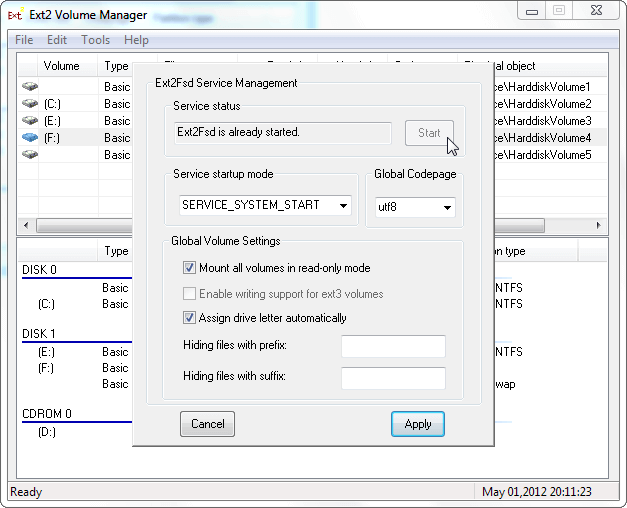
Tips: It supports reading and writing to ext2/3/4 partitions, but has limited support for ext4, requiring the -O ^ extent parameter to turn off the extent feature when creating/formatting an EXT4 partition.
FAQ about Create EXT4 Partition under Windows
1. Can Windows 11/10 use EXT4?
EXT4 is a popular file system type on Linux systems, offering various benefits. However, despite Linux's support for NTFS, Windows 10 does not natively support EXT4, requiring users to rely on third-party software to access it.
2. How do I create EXT4 partition in Windows 11/10?
- Download Qiling Partition Master.
- Choose the unallocated space you want to create.
- Select the File system as EXT4.
3. Can Windows 11/10 read EXT4?
Windows 10 can't read EXT4 files natively, but you can use software like Ext2Read or Ext2Fsd to access them.
Related Articles
- How to Convert Basic Disk to Dynamic or Dynamic Disk to Basic in Windows 10/8/7
- How to Apply Wipe Data/Factory Reset on Android
- Windows 11 VS Windows 10 Gaming: Is Windows 11 Better for Gaming
- File Copy Stuck at 5 Seconds Remaining [Fixed]
- Fix Steam Not Recognizing External Hard Drive Error
This guide provides a step-by-step solution to fix the 'Steam not recognizing external hard drive' error, allowing you to easily make your external hard drive a game drive for Steam on your computer. - Surface Pro Stuck on Windows Logo - Reasons & Fixes
If your Surface Pro is stuck on the Windows logo, you can try restarting it in safe mode, checking for corrupted system files, running a System Restore, or performing a System Reset.
Products
Articles & Tutorials
- Data Recovery
- Data Backup
- File Recovery
- File Backup
- System Backup and Restore
- Disk and Partition Clone
- Technical articles
- Mobile articles
- Disk Master Help
- Windows Data Recovery Tutorials
- Windows Secure Delete Tutorials
- Windows Partition Management Tutorials
- Windows File Backup and Restore Tutorials
- Windows System Backup and Restore Tutorials
- Windows Disk Backup and Restore Tutorials
- Windows Clone Tutorials