File Copy Stuck at 5 Seconds Remaining [Fixed]
File copy stuck at 5 seconds remaining problem often occurs when you are transferring files between your computer and a USB drive. How to troubleshoot? Here are five feasible methods you can figure out.
| Workable Solutions | Step-by-step Troubleshooting |
|---|---|
| Fix 1. Change a USB cable/port | The transfer speed of the USB 3.0 interface will be significantly faster than that of USB 2.0...Full steps |
| Fix 2. Convert from FAT32 to NTFS | NTFS works more stable and compatible with file saving and data transferring than FAT32...Full steps |
| Fix 3. Update device driver | If the computer or USB hard drive drivers are outdated, file copying may be affected. So, update...Full steps |
| Fix 4. Reinstall USB controllers | Open Device Manager and expand "Universal Serial Bus controllers". Find your external USB/SD...Full steps |
| Fix 5. Cleanup and optimize hard disk | Cleaning up and optimizing hard drive or USB can improve the performance of computers and devices...Full steps |
USB File Copy Stuck at 5 Seconds Remaining, How to Fix?
The USB file copy stuck error can be caused by various factors, including a faulty USB drive, a slow computer, or a corrupted file system. To resolve this issue, try restarting your computer, checking the USB drive for errors, or using a different USB drive. If the problem persists, you can also try using a file transfer software like RoboCopy or TeraCopy, which can help to speed up the file transfer process and avoid getting stuck. Additionally, you can also try to copy the files in a different order or try to copy them in smaller chunks to avoid the issue. If none of these solutions work, it might be worth checking the file system for any corruption or errors.
You waited for 20 minutes but the file copy process stuck at the last 5 seconds, and restarting it didn't resolve the issue. This is a known problem in Windows 10, 8, and 7, often caused by a bug in the Windows copy engine. To resolve this, try using the built-in Robocopy command instead of the standard copy command, or use a third-party file transfer utility like TeraCopy or CopyHandler. These alternatives can help ensure a successful file transfer.
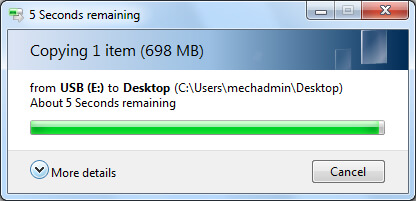
File transfers on Windows can be affected by various factors, including USB drive or HDD performance, available free space on the device, system resources like RAM and processor, USB port quality, file size, and device driver issues, which can cause a file copy to get stuck at 5 seconds remaining.
5 Fixes for File Copy Stuck at 5 Seconds Remaining
If you're experiencing issues with file copying getting stuck at 5 seconds remaining, ! Simply wait patiently for the file copy process to finish, or if you're short on time, stop the current process and follow these helpful tips to resolve the issue.
Fix 1. Use Another USB Cable or USB Port (3.0)
If your computer and USB drive support USB 3.0, use a USB 3.0 cable or port to get a faster transfer speed than USB 2.0.
Fix 2. Convert from FAT32 to NTFS free without Data Loss
If a USB flash drive is formatted in FAT32, its file transfer speed will be slower compared to NTFS, which is a more modern and improved file system format. NTFS offers better performance, reliability, and disk space utilization, making it more stable and compatible for file saving and data transferring than other file systems like exFAT, FAT, etc.
To solve the issue of a file copy being stuck at 5 seconds remaining on Windows 10/8/7, you can try formatting the USB drive to NTFS, but this will result in data loss. Alternatively, you can use a free partition manager like Qiling Partition Master Free to convert the FAT32 to NTFS without formatting, thus avoiding data damage.
Step 1. Install and launch Qiling Partition Master on your computer.
Step 2.To convert a FAT32 partition to NTFS, select the partition, right-click on it, and choose "Convert to NTFS". If converting a storage device like an SD card or USB flash drive, first insert it into your PC and then follow the same steps.
Step 3. Click "OK" on the pop-up dialog box to continue.
Step 4. The converting process will start automatically. Wait until the operation process is finished.
Qiling Partition Master Free is the most comprehensive disk/partition management software that has many outstanding features, including disk partitioning, disk cloning, disk wiping, and disk recovery, among others. It allows users to easily resize, move, merge, and split partitions, as well as create and delete partitions, making it a versatile tool for managing hard drives and solid-state drives.
- Resize/move partitions, create, format, delete, and merge partitions with this feature, which also allows for allocating space from the D drive to the C drive without deleting the partition, a capability exclusive to the Pro version.
- You can copy and clone an entire disk to another, even if the target partition is smaller than the source. This means you can clone a larger disk to a smaller one, effectively shrinking the source disk to fit the target.
- Convert a logical partition to primary or primary partition to logical, FAT to NTFS partition, MBR disk to GPT, or GPT disk to MBR.
- Completely erase all data on the hard drive to prevent any information from being leaked or recovered.
- Upgrading your Windows computer's hard drive to a Solid State Drive (SSD) can significantly improve its performance and speed. By migrating your operating system to an SSD, you can enjoy faster boot times, quicker application loading, and smoother overall performance.
Fix 3. Update HDD or USB Device Driver
If the computer or USB hard drive drivers are outdated, it may cause issues with basic functions like file copying, and updating the drivers can potentially increase the maximum USB transfer size. (Note: I've kept the original wording and tone, but condensed it into a single paragraph)
Step 1. Right-click on the Start button and select "Device Manager".
Step 2. To update your device driver, expand one of the categories to find the name of your device, then right-click it and select "Update Driver".
Step 3. Select "Search automatically for updated driver software".
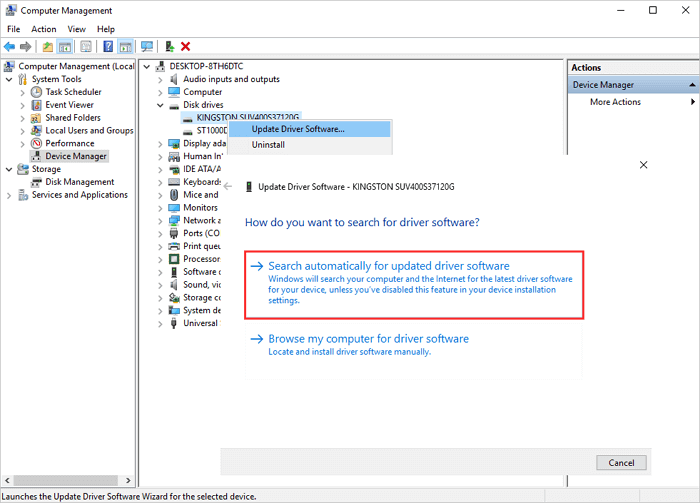
If Windows can't find a new driver for your device, you can try looking for one on the device manufacturer's website and following their instructions. If that doesn't work, you can try reinstalling the driver by going to Device Manager, right-clicking on the device, selecting "Update driver," and then selecting "Search automatically for updated driver software." If that still doesn't work, you can try uninstalling the driver and then restarting your computer, which may prompt Windows to reinstall the driver.
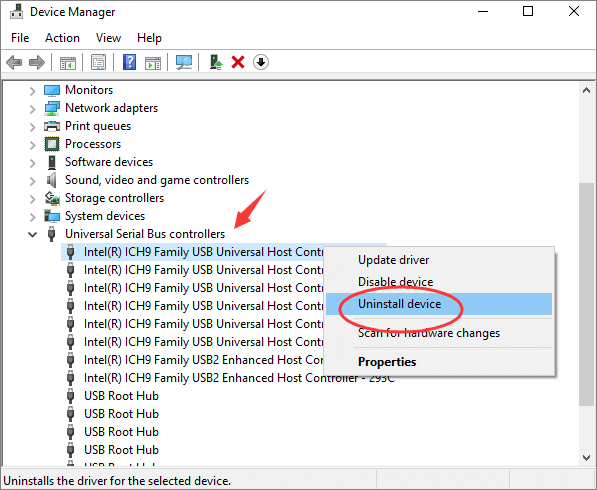
Step 1. In the Device Manager, right-click the name of the device, and select "Uninstall device".
Step 2. Restart your PC, and Windows will attempt to reinstall the driver.
Fix 4. Remove and Reinstall All USB Controllers
If the copying files stuck at 5 seconds remaining issue is still not resolved, removing and reinstalling all USB controllers may help resolve the issue.
Step 1.To connect your external USB drive, simply plug it into your computer. Then, open the Device Manager and expand the "Universal Serial Bus controllers" section.
Step 2. To remove external USB/SD devices, go to Device Manager, right-click each device under the Universal Serial Bus controllers node, and click "Uninstall" to remove them one at a time.
Step 3. To resolve the issue, simply restart your computer. This will allow Windows to automatically install the necessary USB controller drivers, which should resolve the problem.
Step 4. To resolve the issue, simply plug in your USB device, and then verify that the problem has been resolved.
Also Read: Fix WD My Passport Ultra Not Detected/Showing Up
Fix 5. Cleanup and Optimize Hard Drive/USB
Useless junk files can consume valuable disk space, potentially causing issues like file copy operations getting stuck at 5 seconds remaining due to lack of memory space. To resolve this, you can quickly and easily perform system cleanup and large file cleanup using a free and compact tool, freeing up space and helping to speed up your Windows 10.
Step 1. To resize your Windows partition, download and install Qiling Partition Master Suite for free, then launch it on your Windows PC.
To install and launch Qiling CleanGenius, hover your mouse on the "PC Cleaner" option on the suite, click the Download icon, and then follow the prompts to install and launch the software.
Step 2. To start scanning on Qiling CleanGenius, select "Cleanup" on the main screen and click "Scan".
Step 3.When the scanning process is complete, select the unnecessary large files and click "Clean" to remove them.
Step 4. When Qiling CleanGenius finishes cleaning the files you selected, click "Done" to complete the process.
To Sum Up
Windows 7 file copying issues, such as files hanging or being stuck at 5 seconds remaining, can be caused by various factors. To resolve this problem, try the following five practical solutions. If you still encounter issues, you can reach out to our technical support team via email or live chat for further assistance.
Related Articles
- [Fixed] Windows Has Detected File System Corruption Error on Windows 10/8/7
- There Is No Disk in the Drive. Please Insert a Disk into Drive
- System Reserved Partition Recovery in Windows 11/10/8/7
- How to Wipe a USB Drive and Permanently Delete Files from USB Flash Drive
- How Long Do SD Cards Last?
This guide provides a comprehensive overview of performing an SD card lifespan test, including expert insights and practical steps, as well as discussing various factors that affect an SD card's lifespan. - [Fixed] Seagate External Hard Drive Slow on Windows 11/10
The article offers nine solutions to address Seagate external hard drive slow error, including using professional tools to test speed, deleting unnecessary files, defragmenting, and fixing bad sectors, among other methods, to resolve issues with slow read/write or transfer speeds.
Products
Articles & Tutorials
- Data Recovery
- Data Backup
- File Recovery
- File Backup
- System Backup and Restore
- Disk and Partition Clone
- Technical articles
- Mobile articles
- Disk Master Help
- Windows Data Recovery Tutorials
- Windows Secure Delete Tutorials
- Windows Partition Management Tutorials
- Windows File Backup and Restore Tutorials
- Windows System Backup and Restore Tutorials
- Windows Disk Backup and Restore Tutorials
- Windows Clone Tutorials