[Fixed] Windows Has Detected File System Corruption Error on Windows 10/8/7
If you encounter the error "Windows has detected file system corruption on local disk C," there are three simple and useful ways to fix it. You can try running the built-in Check Disk (chkdsk) utility, which can identify and potentially fix file system errors. Alternatively, you can use the System File Checker (SFC) tool to scan and replace corrupted system files. If these methods don't work, you can try running a System Restore to revert your system to a previous point when the issue wasn't present. These solutions are outlined in more detail below.
| Workable Solutions | Step-by-step Troubleshooting |
|---|---|
| Fix 1. Check the disk for errors | When Windows has detected file system corruption error occurs, you can try to check the disk for errors...Full steps |
| Fix 2. Run SFC scan | Run SFC scan to check the Windows system file that can be a reason for the disk Windows C has errors...Full steps |
| Fix 3. Run CHKDSK C: /f | If there is a file system error on the C drive, run CHKDSK C: /f can solve the problem. Use a free tool...Full steps |
| File system error - 2147219196 | What is File system error - 2147219196 and how to fix the issue when open a jpg or png file using Photos...Full steps |
Windows Has Detected File System Corruption Error Overview
- The local disk (C:) has errors, with Windows detecting file system corruption, prompting a check for errors before it can be restored.
- "Windows has detected file system corruption on your local disk (C:) and is prompting you to check the disk for errors before it can be restored."
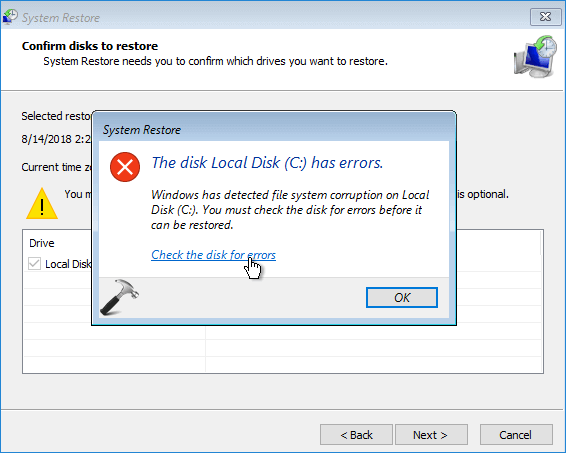
Windows 10/8/7 System Restore errors are typically caused by a damaged file system on the selected hard disk or corruption of Windows system files. This prevents system restore points from being created until the issue is resolved.
This tutorial will explain several useful ways to solve the Windows has detected file system corruption on local disk C error. We will provide a step-by-step guide to help you resolve this issue and get your computer running smoothly again. The methods we will cover include running a System File Checker, checking for malware, using the Check Disk utility, and more.
How to Fix Windows Has Detected File System Corruption Error
When you restore your system and Windows detects file system corruption on local disk C, start troubleshooting by first checking the disk recommended by Windows.
Fix 1. Check the Disk for Errors to Fix the Disk Local Disk Has Errors
When Windows detects file system corruption, it will display an error message with a link to "Check the disk for errors". Clicking this link allows Windows to run a disk check and repair any issues, which may resolve the problem. After completing this step, reboot your computer and attempt the restore process again.
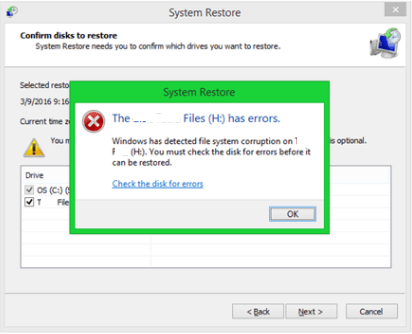
If you're unable to resolve the issue after the initial attempt, consider moving on to more advanced solutions.
Fix2 . Run System File Checker Scan (Sfc) to Fix Corrupted System Files
Windows has detected file system corruption is often caused by corrupted Windows system files. To resolve this issue, you can use the System File Checker tool to scan system files and repair missing or corrupted system files, which are often the reason why Windows can't run System Restore properly.
Step 1. Right-click the "Start" button and select "Command Prompt (Admin)".
Step 2. To run a full system scan, type `sfc /scannow` into the Command Prompt window and press Enter. This will initiate a scan of your entire system for any corrupted or missing system files and replace them if necessary.
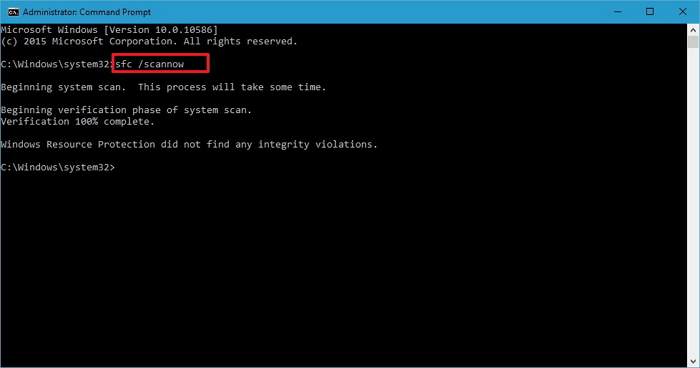
If you see the message "Windows Resource Protection did not find any integrity violations", it means there are no issues with the Windows system files. However, the corrupted file system on the local disk still needs to be checked and repaired.
Fix 3. Run CHKDSK to Check File System and Repair Bad Sectors
Windows has detected file system corruption, which is often caused by bad sectors and a corrupted file system. To address this issue, you can use the CHKDSK utility to check and repair the corrupted file system. We will show you two ways to do this.
1. Use a Free Partition Manager to Check File System
Qiling Partition Master is a free disk management tool that offers full-around partition organizing options, including resizing/moving partitions to solve low disk space issues, cloning disks, merging partitions, creating/deleting/formatting partitions, wiping data, and converting disks/partitions, all of which are available for free.
To fix a corrupted file system, download a free partition manager to check and repair the issue with ease.
Step 1. Open Qiling Partition Master, locate the disk, right-click the partition, and choose "Advanced" > "Check File System" to check the partition.
Step 2. In the Check File System window, select the "Fix the error on the disk" option and click "Proceed".
Step 3. The software will start scanning your partition file system on your disk. Once finished, click "Finish".
2. Run CHKDSK in Command Prompt
To manually run CHKDSK in Command Prompt, open Command Prompt as an administrator, type `chkdsk /f` and press Enter, then type `y` and press Enter to confirm the scan. This will scan your hard drive for errors and bad sectors, and fix any issues it finds.
Step To access the Command Prompt, click the Search button, type "CMD", and right-click on the Command Prompt result, then select "Run as administrator".
Step 2To run a check on the C drive, type 'chkdsk c: /f' and press Enter.
Step 3To schedule the volume to be checked when you next restart your operating system, you need to type Y. This is because the volume is currently in use by another process, so you must restart your operating system to free up the volume for checking.
Tip: If the CHKDSK process gets stuck at a certain percentage number, try the methods described in the linked post to resolve the issue.
To Sum Up
If you encounter the "Windows has detected file system corruption" error on system restore, You can resolve this issue by checking and repairing Windows system files, addressing bad sectors, or fixing the partition file system. If the corruption is on the local C drive, you can use Qiling free partition management software to assist with the repair.
This free partition tool is designed for professionals and beginners to manage disks and enhance computer capabilities, offering features such as creating, resizing, cloning, moving, merging, and formatting partitions.
See More: What Is File System Error - 2147219196
You may see the File system error (2147219196) or File system error - (-2147219194)/(2147416359) on Windows 10 when trying to open image files or other apps like Calculator, preventing you from using them.
The error message appears because:
- The file you are trying to open has become corrupted.
- The application you are trying to use to open the image file has become corrupt. To resolve this issue, you can try reinstalling the application or updating it to the latest version.
- There is a bug in Windows Update.
To fix the File system error - (2147219196), you can try the following methods: Run the System File Checker tool to scan and replace corrupted system files, check for malware using an antivirus program, run a full disk cleanup and disk defragmentation, and update your operating system to the latest version. Additionally, you can use the built-in Windows utility, SFC, to scan and fix corrupted system files, or use the DISM tool to repair corrupted system files and components.
- Open photos or other files with another application
- Run system error check and SFC scan
- Upgrade Windows 10 version
- Run Windows update
- Run Windows Troubleshooter
Windows Has Detected File System Corruption FAQs
Windows has detected file system corruption on the local disk, indicating errors. This can be caused by various issues, such as disk errors, file system corruption, or other problems. The system is attempting to check for and potentially fix these issues, but it's essential to address the root cause to prevent further corruption and data loss.
What causes file system corruption?
File system corruption is often caused by improper shutdown or startup procedures, hardware failures, virus attacks, or other errors. Hardware failures can also occur, resulting from issues such as bad sectors, a faulty disk controller, or a power outage, leading to file system corruption.
When a file system corruption occurs, running the CHKDSK tool can help check and repair bad sectors and damaged file system.
How do I fix corrupted Windows files?
You can try to fix corrupted system files on Windows 10 by running an SFC scan. This scan checks and replaces corrupted system files with a cached copy.
Step 1. Press Windows Key + X to open the Win + X menu and choose Command Prompt (Admin).
Step 2. When Command Prompt opens, enter sfc /scannow and press Enter.
Step 3. The system file repair process will now start.
How do I fix a corrupted NTFS file?
You can fix the corrupted NTFS partition in Windows File Explorer.
Step 1. Right-click the corrupted NTFS partition
Step 2. Go to "Properties" > "Tools", click "Check" under "Error Checking". Then, Windows will check the selected partition for file system error.
You've likely tried a solution to fix the "Windows has detected file system corruption" error, but it's not working, and you've had to perform system restore multiple times.
Related Articles
- How to Partition 1TB Hard Disk in Windows 11/10/8/7
- [Guide] How to Permanently Delete Files from Recycle Bin in Windows 11/10/8/7
- 6 Fixes for Not Enough Space for Windows 10 Update
- [Fixed] Windows Resource Protection Found Corrupt Files but Was Unable to Fix Some of Them
- How to Disable Write Protection From USB Drive, Help
This page will provide a complete guide on how to disable write protection from a USB drive. Reading this article will help you recover the write-protected USB drives. - How to Find Hard Disk Serial Number in Windows 10
Do you want to check the serial number of your disk without taking out the hard drive? If so, continue reading, and I will tell you how to find hard disk serial number in Windows 10 in an easy way.
Products
Articles & Tutorials
- Data Recovery
- Data Backup
- File Recovery
- File Backup
- System Backup and Restore
- Disk and Partition Clone
- Technical articles
- Mobile articles
- Disk Master Help
- Windows Data Recovery Tutorials
- Windows Secure Delete Tutorials
- Windows Partition Management Tutorials
- Windows File Backup and Restore Tutorials
- Windows System Backup and Restore Tutorials
- Windows Disk Backup and Restore Tutorials
- Windows Clone Tutorials