How to Partition 1TB Hard Disk in Windows 11/10/8/7
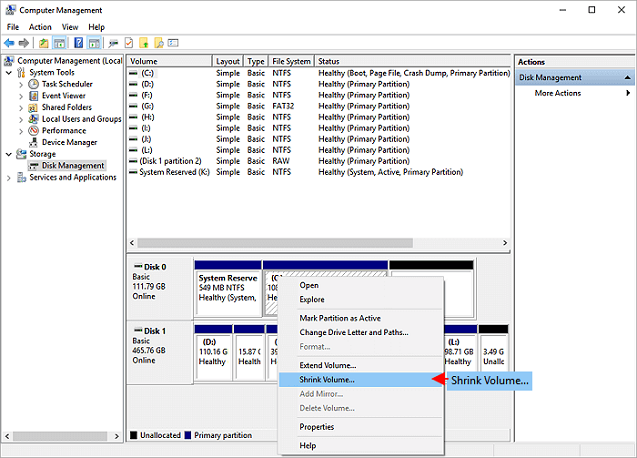
To partition a 1TB hard disk, do as below, please.
- 1. Use Windows+R to open "Run", type diskmgmt.
- 2. To free up disk space, right-click on a partition with a lot of free space and select "Shrink Volume".
- 3. Adjust the partition size and click "Shrink" to confirm.
- 4. Now, you will get an unallocated space...Read More>>
If you prefer a third-party tool, you can download Qiling partition manager software.
How to Partition 1TB Hard Disk in Windows 11/10/8/7
Partitioning a 1TB hard drive, external HDD, or SSD in Windows 11/10 into several volumes is a common practice. Typically, Windows computers have two to four hard drive partitions, such as C, D, E, and F drives, each used for different purposes. The C drive, also known as the system drive, is for Windows OS installation and system files, while the rest are data partitions for storing specific types of data. The number of partitions is flexible and depends on personal preference. In Windows 10, partitioning can be done using either third-party disk and partition software or the built-in Disk Management tool.
| Workable Solutions | Step-by-step Troubleshooting |
|---|---|
| To partition a 1TB hard disk, you can use a partition tool. This tool will allow you to divide the disk into multiple sections, or partitions, which can be used to store different types of data. By using a partition tool, you can create a separate partition for your operating system, programs, and data, making it easier to manage your disk space and keep your files organized. | (Partition Manager) Step 1: Launch Qiling Partition Master. On the main window, right-click on the unallocated space....Full steps |
| Method 2. Partition a 1TB HDD/SSD with Disk Management | Step 1: Open Disk Management in Windows 11/10/8/7; Step 2: Partition the 1TB HDD/SSD in Windows 11/10/8/7...Full steps |
Method 1. Partition a 1TB Hard Disk with a Partition Tool
We recommend Qiling Partition Master for its ease of use, efficiency, and popularity. This free partition manager offers the best solution to partition a 1TB HDD/SSD in Windows 11/10/8.1/8/7/XP/Vista, and its many excellent features make it a top choice.
- Accelerate the performance of SSD with optimized partition alignment
- Extend the C drive and run Windows OS faster
- Create a partition to store copies of data
- Clone an entire disk or partition to another without data loss.
The software has two features that can be used to partition a hard drive. The first feature is the ability to create new partitions, which allows users to divide their hard drive into multiple sections.
- Resize/move partition
- Create a partition
You can also follow the step-by-step guide to partition a hard disk:
Step 1. Launch Qiling Partition Master. On the main window, click on the unallocated space on your hard drive or external storage device and select "Create".
Step 2. To create a new partition, adjust the partition size, file system (choosing the file system based on your needs), label, etc. for the new partition, and then click "Proceed" to create it.
Method 2. Partition a 1TB HDD/SSD with Disk Management
Partitioning a hard disk using Disk Management is a common method in Windows, satisfying the needs of most users. This built-in tool can be used in Windows 11/10/8/7, Vista, and Windows Server 2008 to shrink, extend, create, delete, format, and more. To partition a 1TB HDD or SSD, follow these steps.
Step 1. Open Disk Management in Windows 11/10/8/7
Right-To access the Disk Management tool, click on "This PC" and then click on "Manage". From the window that opens, select "Device Manager" and click on it.
Step 2. Partition the 1TB HDD/SSD in Windows 11/10/8/7
To shrink a partition:
- 1. To shrink a partition, right-click on the partition you want to shrink and select "Shrink Volume" from the context menu.
- 2. Adjust the partition size and "Shrink" to confirm.
To create a partition:
After shrinking a partition, the unallocated space can be used to create another partition. This allows you to utilize the freed-up space for additional storage or organization.
- 1. Right-click the unallocated space and select "New Simple Volume".
- 2. To resize a partition, click "Next" to continue, set the new partition size, drive letter, file system, and click "Finish" to complete the formatting process. This will take some time.
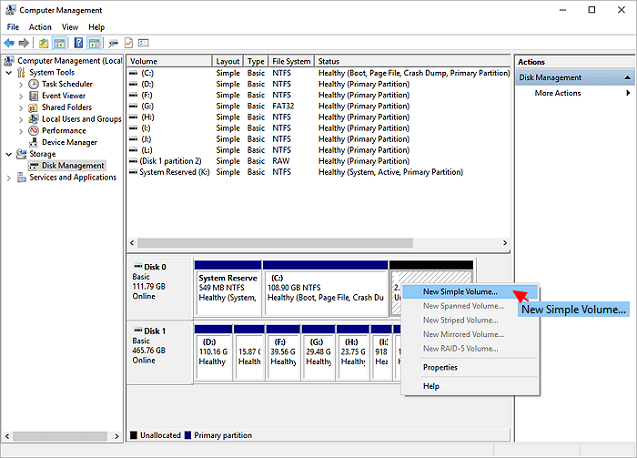
To partition your 1TB HDD/SSD, you can use the Disk Management tool in Windows. This tool allows you to create, delete, and modify partitions on your disk. You can create multiple partitions on your 1TB drive and assign them different drive letters.
To change the drive letter:
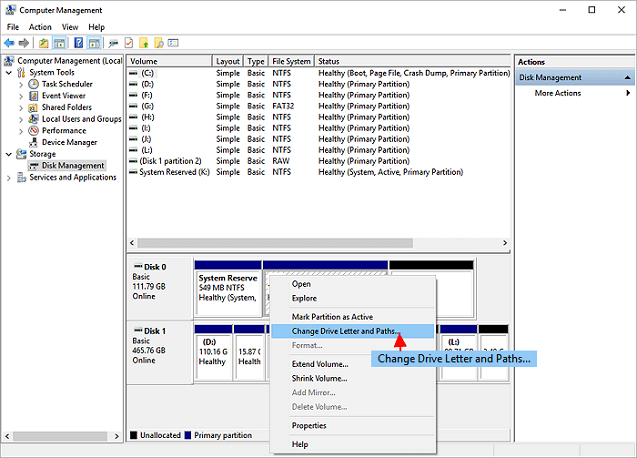
- 1. Right-click on the partition and select "Change Drive Letter and Paths".
- 2. To change the drive letter of a partition, click on the "Change" button. This will allow you to select a new drive letter for the partition.
Extra Tips - How Many Partitions Are Best for 1TB
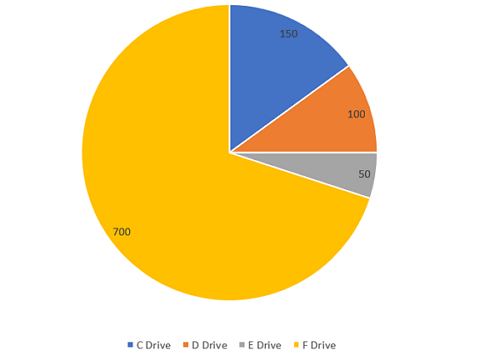
A 1TB hard drive can be partitioned into 2-5 partitions, but we recommend dividing it into four: the Operating system (C drive), Program File (D drive), Personal Data (E drive), and Entertainment (F drive), based on file types and personal habits.
C Drive The C Drive, which is around 100GB-200GB, is the main disk that contains the operating system and system files. It's essential to have sufficient capacity for the C Drive, as the operating system and related files typically take up around 70GB of space. To ensure sufficient space, it's recommended to allocate an additional 100GB-200GB to the C Drive.
D Drive To improve computer system performance, it's a good idea to separate applications from the main operating system drive (C:) by creating a dedicated partition for programs. This can be done using a 1TB hard drive, allocating around 100GB for the program disk, which is sufficient for most users' needs. By keeping applications off the main drive, you can maintain system efficiency and speed.
E Drive 50-100GB of storage space is ideal for personal files, such as office documents, study materials, photos, and videos, which can be stored separately from other data. This size is sufficient for storing vital personal files.
F Drive 600-700GB is mainly used for entertainment, such as watching movies and listening to music, which take up lots of space, so you can allocate as much space as possible for this purpose.
Conclusion
You can easily shrink, create, or extend a partition using a third-party tool or Disk Management, and we've provided guidance on partition numbers and sizes for 1TB hard disks. Additionally, you can use the Qiling disk management tool to merge partitions, migrate your OS, and convert between MBR and GPT disk formats without losing any data.
Partition 1TB Hard Drive Windows 11/10 FAQs
It's generally safe to partition a C drive, but it's essential to understand the risks and take necessary precautions. Partitioning a 1TB hard drive can take anywhere from a few minutes to several hours, depending on the operating system, disk usage, and partitioning method. The process involves creating a new partition table, allocating space, and formatting the new partition, which can be time-consuming if the drive is heavily used or contains large files. To minimize risks, it's recommended to back up important data, use a reliable partitioning tool, and follow proper procedures to avoid data loss or corruption.
How many partitions are best for 1TB?
1TB hard drive can be partitioned into 2-5 partitions, with a recommended configuration of four partitions: Operating system (C Drive), Program File (D Drive), Personal Data (E Drive), and Entertainment (F Drive).
How long does it take to partition a 1TB hard drive?
10 minutes is a short time to create, shrink, and extend partitions using Qiling Partition Master, especially if your computer is in good condition.
What is the best way to partition a hard drive?
The best way to partition a hard drive:
Step 1. Launch Qiling Partition Master
Step 2. Adjust the new partition size, file system, label, etc.
Step 3. Confirm to create a new partition
How long does it take to format a 1TB hard drive?
You can format a hard drive within a short time frame, typically minutes to half an hour, depending on the drive's capacity and used space. However, formatting a large drive like a 1TB hard disk in Windows can take significantly longer, potentially up to 2 hours, and may even take a day if connected via USB 2.0.
Related Articles
- Fix "We could not complete the Updates/Undoing changes" Error Windows 11
- Fix and Repair EFI Bootloader in Windows 10/8/7
- 20 Tips and Tricks on How to Speed Up Windows 11/10 in 2022
- What is New Simple Volume and How to Create New Simple Volume in 2 Reliable Ways
- Guide to Check Disk Space Using PowerShell [2024 Tutorial]
This guide aims to introduce multiple ways to check disk space with PowerShell and an alternative tool to show disk usage. - Guide on Checking Disk Speed in Windows 10 Using CMD [2024 Tutorial]
Protecting your data requires that you keep tabs on your SSD's performance. This article explains how to check disk speed Windows 10 cmd.
Products
Articles & Tutorials
- Data Recovery
- Data Backup
- File Recovery
- File Backup
- System Backup and Restore
- Disk and Partition Clone
- Technical articles
- Mobile articles
- Disk Master Help
- Windows Data Recovery Tutorials
- Windows Secure Delete Tutorials
- Windows Partition Management Tutorials
- Windows File Backup and Restore Tutorials
- Windows System Backup and Restore Tutorials
- Windows Disk Backup and Restore Tutorials
- Windows Clone Tutorials