How to Fix Disk 1 Unknown, Not Initialized Western Digital in Windows 10/8/7
Disk 1 Unknown, Not Initialized - Western Digital
If you've received the message "Disk 1 Unknown, Not Initialized" when plugging your Western Digital external hard drive, you can resolve the issue with these solutions:
| Workable Solutions | Step-by-step Troubleshooting |
|---|---|
| Fix 1. Initialize WD Disk | Download Qiling Partition Master. Connect the hard drive or SSD to PC...Full steps |
| Fix 2. Create a New Partition | Right-click "This PC" and choose "Manage" > "Disk Management"...Full steps |
| Fix 3. Recover WD Partition | Connect the USB, SD card or external hard drive on which you lost partition to your computer...Full steps |
| Fix 4. Check Disk Connection | Connect your WD external hard drive to another USB port on your computer...Full steps |
| Fix 5. Update WD Driver | Right-click on "This PC" and choose "Properties". Click "Device Manager"...Full steps |
| Fix 6. Use Manual Repair | You can contact Western Digital technical support or find an expert...Full steps |
Cases of WD Hard Drive Not Initialized
Here are two cases from some forums where people were bothered with disk not initialized or I/O device error:
Case 1. WD 1TB external hard drive becomes not initialized in PC, help!
"My WD external hard drive is not being detected by my PC and shows up as 'Unknown' and 'Not Initialized' in Disk Management. Can you please help me with some recommended methods or solutions to fix this issue?"
Case 2. WD hard drive displays unknown with I/O error in Windows 10
"My WD hard drive suddenly stopped being recognized by my Windows 10 computer, showing up as 'Unknown' in Disk Management and displaying an I/O device error message. Can you help me figure out how to fix this issue and make the hard drive detectable again?"
Your situation will have different solutions to the problem "disk not initialized" on your computer. The solution will depend on the specific circumstances and the type of disk that's not initialized.
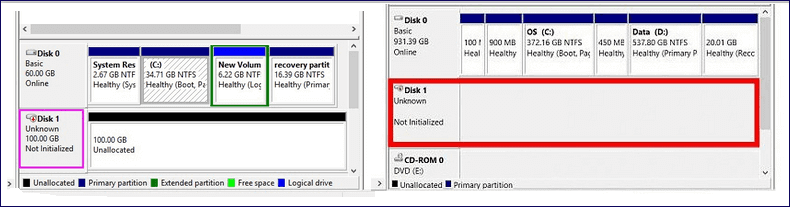
Solution 1. Initialize the WD HDD or External Hard Drive
Applies to: Disk not initialized and shows unallocated space
To fix the "Disk 1 unknown, not initialized" error, start by initializing your hard drive or external device. This is the quickest and easiest solution. You can use Disk Management to initialize the disk or use a tool like Qiling Partition Master, a user-friendly partition manager software compatible with all Windows systems, to directly resolve the WD HDD/external hard drive not initialized error.
Step 1. Open Qiling Partition Master and connect the hard drive or SSD to your PC.
To initialize the target HDD or SSD, click on it and select "Initialize to MBR" if it's an older drive that uses the Master Boot Record (MBR) format, or "Initialize to GPT" if it's a newer drive that uses the GUID Partition Table (GPT) format.
Solution 2. Fix Disk Unknown by Creating a New Partition
Applies to: Disk not initialized and shows unallocated space
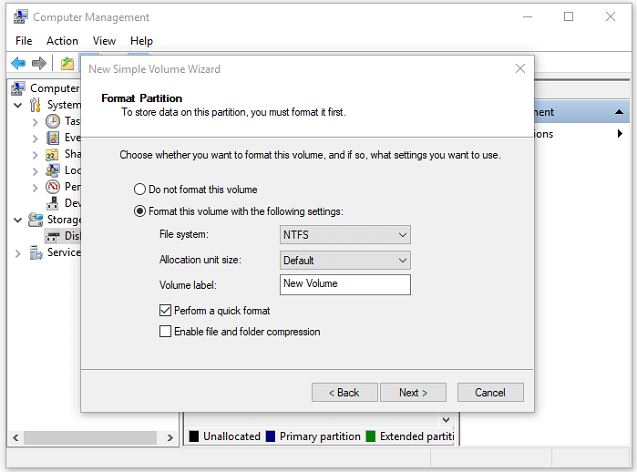
Another way to solve the WD disk unknown or not initialized error is by creating a new partition. You can create a new partition with Qiling Partition Master or with Disk Management. Here are the steps to create a new partition with Disk Management:
Step 1. Right-click "This PC" and choose "Manage" > "Disk Management".
Step 2. Right-click the unallocated space and choose "New Simple Volume..."
Step 3. In New Simple Volume Wizard, click "Next" to continue.
Step 4. The wizard guides you to select the volume size, assign a drive letter, and format the partition with the desired file system.
Solution 3. Fix WD Not Initialized by Recovering Partition
Applies to: Disk not initialized and shows unallocated space
If you find unallocated space in Disk Management, you can try making partition recovery using a software like Qiling Partition Master. This tool cannot only initialize the disk but also recover lost partitions, making it an effective solution for your problem.
Steps to recover lost partition:
Step 1. To recover a lost partition, connect an external storage device to your computer, click "Partition Recovery" on the top menu, choose the target disk, and click "Scan".
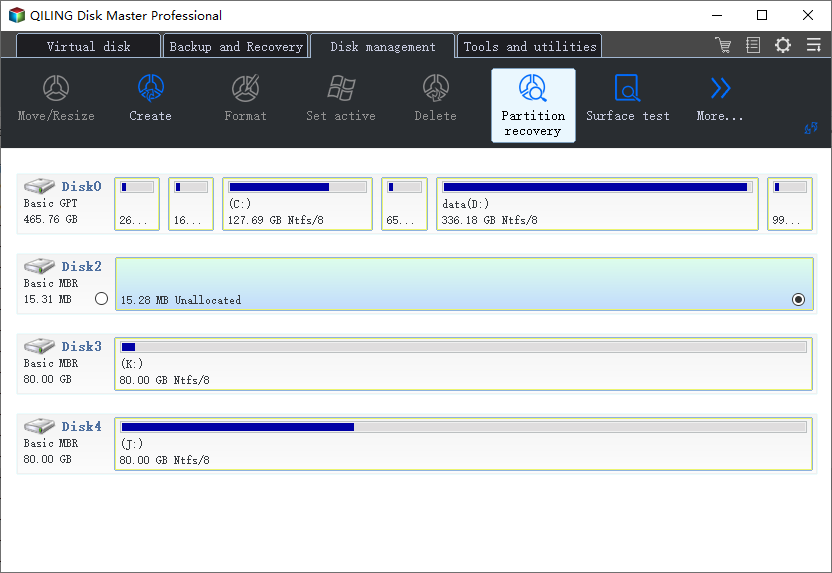
Step 2. Qiling Partition Master scans and displays all existing and lost partitions on the selected disk, allowing you to choose the lost partition and proceed with the recovery process.
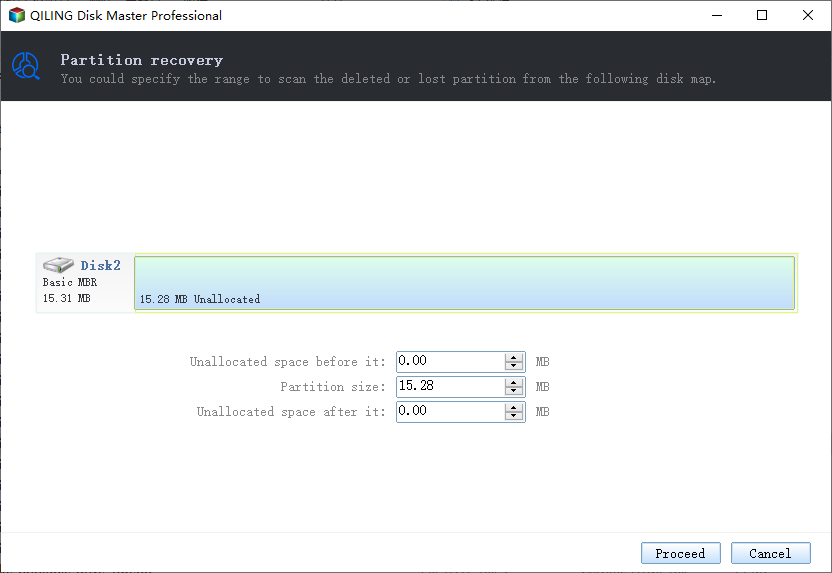
Double-click on a partition will allow you to preview the content.
Step 3. Click "Recover" as along as all the lost data has been found. If not, go on with the "Continue Scanning" option.
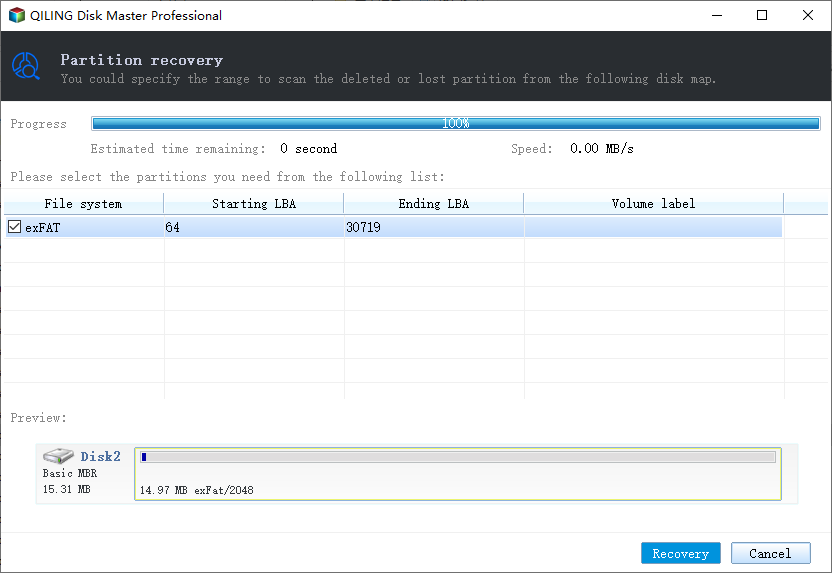
Step 4. The software will process the final recovery, and your lost partition should reappear in the drive.
If Disk Management can't show any information on neither this hard drive nor its disk capacity, the hard drive might be blocked by the "external hard disk not initialized I/O" error. You can try to fix this issue by restarting your computer, checking the hard drive connections, and using the built-in Disk Management utility to initialize the disk. If the problem persists, you may need to use a third-party tool or consult a professional for further assistance.
Solution 4. Check Western Digital Disk Connection
Applies to: Disk unknown, not initialized, no disk space
If you're experiencing the "Connection issue" error, it's essential to verify your internet connection as soon as possible. A connection issue can lead to severe problems. To troubleshoot, check your internet connection by trying to access other websites or online services. If you're still experiencing issues, restart your router or modem, and check for any physical obstructions that might be interfering with the signal.
Step 1. Connect your WD external hard drive to another USB port on your computer.
Step 2. Use the original cable to connect your hard drive
Step 3. Use another cable to connect your WD hard disk
Step 4. Connect your WD hard drive to another computer
Solution 5. Update WD Driver to Fix Not Initialized Error
Applies to: Disk unknown, not initialized, no disk space
If your device driver is out of date, you may encounter a WD not initialized error. To resolve this issue, you can update your device driver by following these steps:
Step 1. Right-click on "This PC" and choose "Properties".
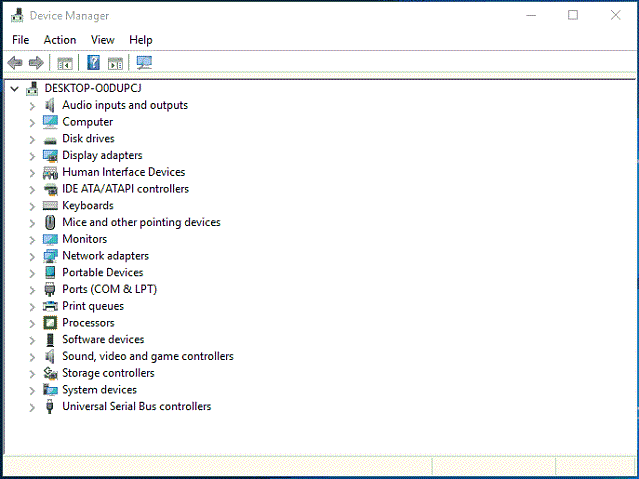
Step 2. To update the WD disk driver, click on "Device Manager" and expand the "Disk drives" section. Then, find and right-click the problematic WD disk and select the "Update driver" option.
Step 3. Click "automatically search for driver software online".
Step 4. The driver for your graphics card needs to be updated. Wait for the update to complete, then restart your computer.
Solution 6. Ask Manual Repair for Help
If all else fails, you can try manual repair or seek the help of a professional, such as Western Digital's technical support or a repair expert. Alternatively, you can use a service like Qiling 1 on 1 Remote Assistance Service, which allows you to schedule a remote desktop session with a dedicated support engineer. This can be a good option to try.
Conclusion
If you encounter the error "Disk 1 Unknown, Not Initialized" on a Western Digital drive, don't hesitate to refer to this post for a full guide to resolve the issue quickly.
Related Articles
- How to Fix Data Error Cyclic Redundancy Check on External Hard Drive
- How to Format Laptop or PC Windows 7 Without CD (Full Guides)
- How to Fix SSD Full for No Reason
- 20 Tips and Tricks on How to Speed Up Windows 11/10 in 2022
- Fix Dynamic Disk Missing/Offline in Windows 10/8.1/8/7 [Case Study]
If you find the dynamic disk shows missing or offline in Disk Management, read this post and you can find the easy yet efftcive solution. - Effective Ways to Repair Invalid Dynamic Disk without Data Loss Using CMD
How to repair invalid dynamic disk without data loss using CMD in Windows 7/8/10/11? Effective ways are provided in this article for you to reactivate invalid dynamic disk.
Products
Articles & Tutorials
- Data Recovery
- Data Backup
- File Recovery
- File Backup
- System Backup and Restore
- Disk and Partition Clone
- Technical articles
- Mobile articles
- Disk Master Help
- Windows Data Recovery Tutorials
- Windows Secure Delete Tutorials
- Windows Partition Management Tutorials
- Windows File Backup and Restore Tutorials
- Windows System Backup and Restore Tutorials
- Windows Disk Backup and Restore Tutorials
- Windows Clone Tutorials