20 Tips and Tricks on How to Speed Up Windows 10 2019/2020/2021
To speed up Windows 10 and make it run faster, you can try the comprehensive solutions provided in this article, which are likely to work for you.
| Workable Solutions | Step-by-step Troubleshooting |
|---|---|
| Fix 1. Restart Your PC | Restarting PC clears out the computer's memory and stops processes that are taking up resources...Full steps |
| Fix 2. Install the Latest Update | Ensure that you have the latest version of Windows 10. When you check for updates, your computer...Full steps |
| Fix 3. Change the Power Settings | The power plan you are using can save energy by decreasing your computer's performance...Full steps |
| Fix 4. Check Startup Apps | Windows 10 PC can become bogged down by the sheer number of running processes. Check startup...Full steps |
| Fix 5. Defrag Your Hard Disk | You can rearrange the files on a disk to occupy contiguous storage space, which will speed up file...Full steps |
| Fix 6. More Effective Tips | Use ReadyBoost, clean up disks, increase system C drive, clean out your Registry, disable OneDrive...Full steps |
Windows 10 may slow down due to various factors, including compatibility issues, bugs, viruses, bloated software, hardware failures, or other issues, despite the operating system's improvements in speed, stability, and power.
- How to speed up Windows 10 startup?
- How to speed up Windows 10 for gaming?
- How to make Windows 10 faster on laptop and PC?
- How to speed up Windows 10 with command prompt?
To speed up Windows 10 and improve your computer's performance, there are 20 effective methods to consider. These methods can help optimize your system and make it run more efficiently.
1. Restart Your PC to Speed Up Windows 10
Restarting your PC is the first step in speeding up Windows 10, as it clears out memory and stops resource-hogging processes that accumulate over time.
To resolve the issue, simply restart your PC. After the reboot, only open the necessary apps and close them when you're done. This should resolve the problem.
2. Install the Latest Update
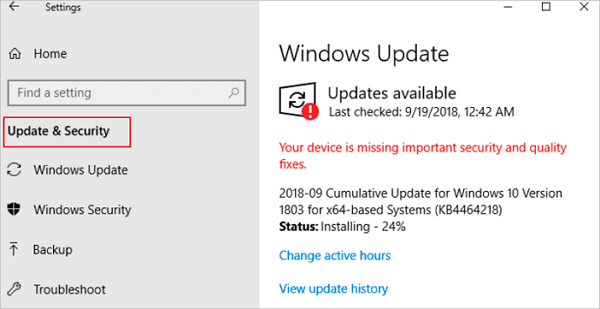
To make the most of your computer, ensure you have the latest version of Windows 10. Updating can fix system bugs that cause slow performance, and it also searches for the latest device drivers, which can improve overall computer performance and speed up Windows 10.
Step 1. Click the "Start" button, then select "Setting" > "Update & Security" > "Windows Update" > "Check for updates".
Step 2. Select the updates you want to install, then select Install. Restart your PC and see if Windows 10 runs better.
3. Change the Power Plan
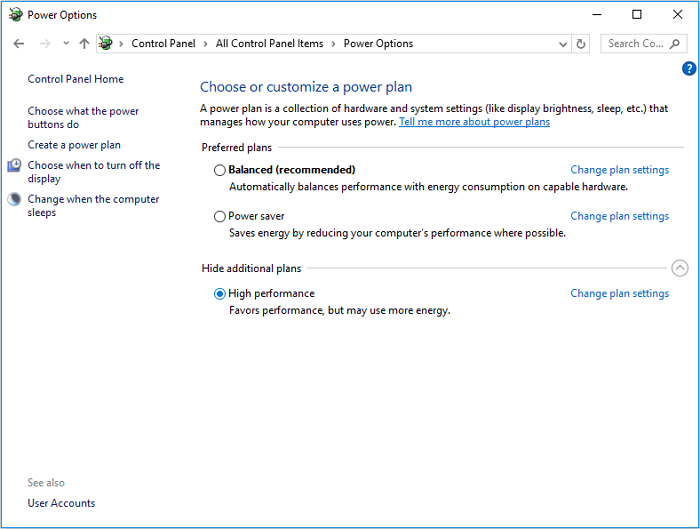
To speed up your Windows 10, change the power plan to High Performance, which uses more energy but offers better performance of your PC. To do this, go to Settings, then select System, then Power & sleep, and finally, choose High Performance from the options. This should improve your computer's performance.
Step 1. To access the Power & sleep settings in Windows, press the Windows Key, type "power & sleep" in the search box, and click on the "Power & sleep settings" result. Alternatively, you can access the setting by going to "Start", then "Settings", followed by "System" and "Power & sleep".
Step 2. Click Additional power settings on the right side.
Step 3. Expand Show additional plans, and then you will see the High-performance option. Choose it as your power plan.
4. Disable Startup Programs
Disabling unwanted startup programs can significantly speed up Windows 10 by reducing the number of programs running in the background and decreasing boot time, making the system run more efficiently.
Warning
Don't disable Microsoft programs that are necessary for booting or anti-virus software that protects your computer from viruses.
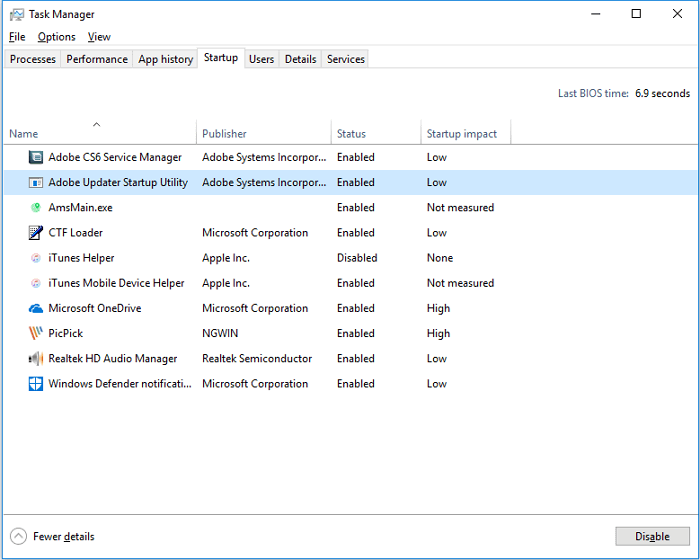
Step 1. Right-click anywhere on your taskbar and choose "Task Manager".
Step 2. In the Task Manager window, go to the "Startup" tab.
Step 3. Select the programs you rarely use, or don't always need on startup, and click "Disable" to remove them from the startup programs.
5. Defragment and Optimize Drives
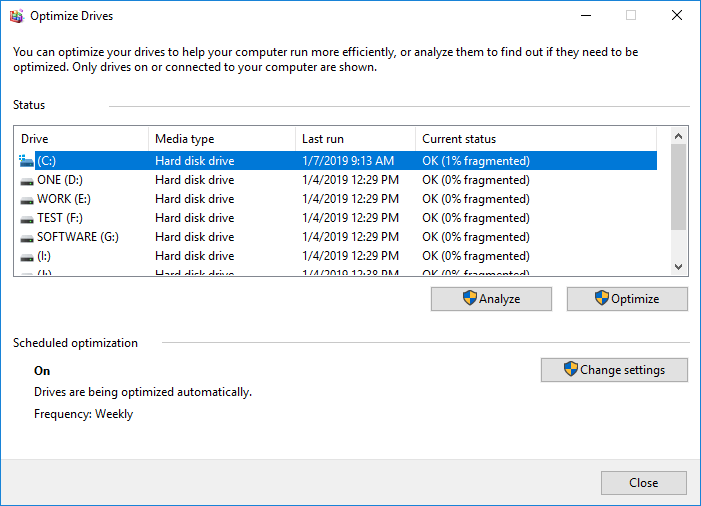
With the built-In Windows, you can use a disk defragmentation utility to rearrange files on a disk, placing them in continuous storage space, which can speed up file access. This can be optimized by using the utility to rearrange the files on your drives.
Step 1. Hit the Windows Key, type defragment and click "Defragment and Optimize Drives" when you see the option.
Step 2. Select your system drive (generally C drive) and click Optimize.
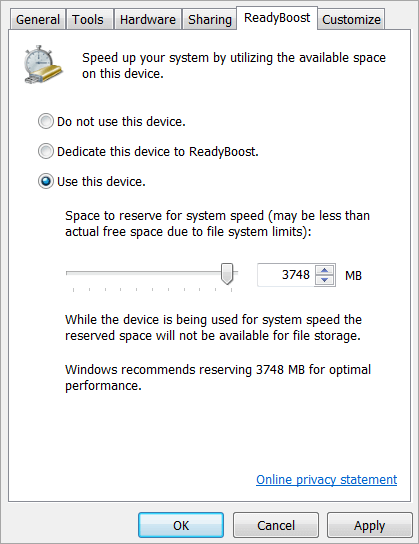
6. Use ReadyBoost to Speed Up Windows 10
ReadyBoost is a Windows 10 feature that speeds up your computer's performance by utilizing the available space on a removable drive, such as a USB flash drive, without the need for additional RAM. To use ReadyBoost, you'll need a USB flash drive or memory card with at least 500MB of free space and a high data transfer rate.
7. Clean Up Disks/Run Disk Cleanup
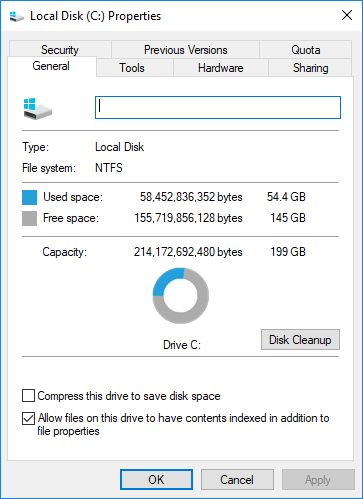
Unlike disk defragmentation, which rearranges files, Disk Cleanup works to remove unnecessary files on the hard drive, helping to reclaim your disk space.
Step 1. Open This PC, right-click on your system drive and choose "Properties".
Step 2. To free up space on your computer, click on the "Disk Cleanup" option under the "General" tab, which will then scan your drive and calculate how much space you can recover.
Step 3. When it is done, choose "Clean up system files" in the window to let the tool scan your disk again.
Step 4. After the second scan, click "OK" in the new window. A notification will then appear asking if you're sure you want to permanently delete these files. Click "Delete Files" to confirm, and rest assured that you won't be deleting any important files, as this operation only removes unnecessary files from your system.
If disk cleanup is not working in Windows 10, you can try running the Task Scheduler, checking for corrupted system files, disabling antivirus software, and restarting the Disk Cleanup process. You can also try running the Disk Cleanup tool as an administrator, checking for any system updates, and using the built-in Windows tool to clean up the disk.
8. Delete Temp Files to Free Up Space
Temporary files are created for temporary use and become unnecessary once their task is complete. They shouldn't occupy valuable disk space, which is limited, making it impractical to keep them stored.
Deleting temporary files can indeed speed up your computer by freeing up disk space and reducing the load on your system's resources. This is because temporary files are often created by applications and can accumulate over time, taking up space and slowing down your computer. By deleting them, you can help improve your computer's performance and overall speed.
Step 1. Hit the Windows Key, type run, and click Run shown in the list.
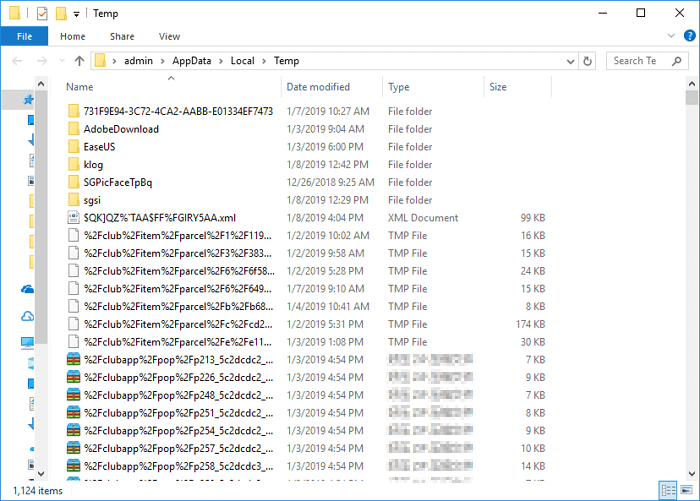
Step 2. Type %temp% and click OK. Then you will be directed to the Windows Temp folder.
Step 3. Select and delete all the files within the folder.
Step 4. Go to the Run box again, type temp and click "OK".
Step 5. When you see a notification saying you don't currently have permission to access this folder, click "Continue".
Step 6. Select and delete all the files.
Step 7. Go to the Run box and enter prefetch. Click "Continue", then delete all files within the folder.
Notice
If you manually free up disk space by deleting temp files, it's generally safe, but be careful not to delete important data. If you do accidentally delete something, you can easily recover Windows 10 deleted files using Deep data recovery software.
9. Extend System C Drive to Boost Windows 10 Performance
Qiling Partition Master Free is a powerful free partition software that allows you to easily enlarge your system drive, thereby improving its performance.
This tool allows you to resize a partition, as well as create new partitions, format, convert, clone, hide, or wipe your disk or existing partition. It's a versatile disk/partition management tool that can help improve your computer's performance in various ways.
To extend the C drive using partition management software, follow these steps: First, download and install the software, such as Qiling Partition Master, on your computer. Next, launch the software and select the option to resize or extend the partition.
Option 1. Extend System C drive with unallocated space
1. To resize or move the C: drive, click on the System C: drive and select "Resize/Move" in the "Disk management" page.

2. To increase the size of the C: drive, drag the system partition end into the unallocated space, adding it to the C: drive, and then click "Proceed".

Option 2. Extend System C drive without unallocated space
1. To resize the D partition, click on the Partition D that is next to the system C drive, then select "Resize/Move" in the "Disk management" page.
2. To resize the D: partition, drag its head to the right, which will decrease its size. Then, click "Proceed" to confirm the changes.
3. Extend System C drive with unallocated space
The pro version of Qiling Partition Master allows for direct space allocation from the D drive to the C drive, increasing the C drive's capacity.
10. Tweak Registry
To speed up your Windows system, you can tweak the Windows Registry to increase the mouse response time, which will help reduce the popup delay time to show popup descriptions faster when you move the mouse cursor over an item. The Windows Registry holds all the settings that are needed for the Windows system and installed programs to function properly. By making adjustments to the Registry, you can optimize your system's performance and improve its overall responsiveness. This includes speeding up the mouse response time, which can be done by modifying specific Registry values.
Warning: The Registry hosts many critical operations for your system, and removing these processes could damage your system considerably. To protect against any harmful results, follow the instructions below precisely.
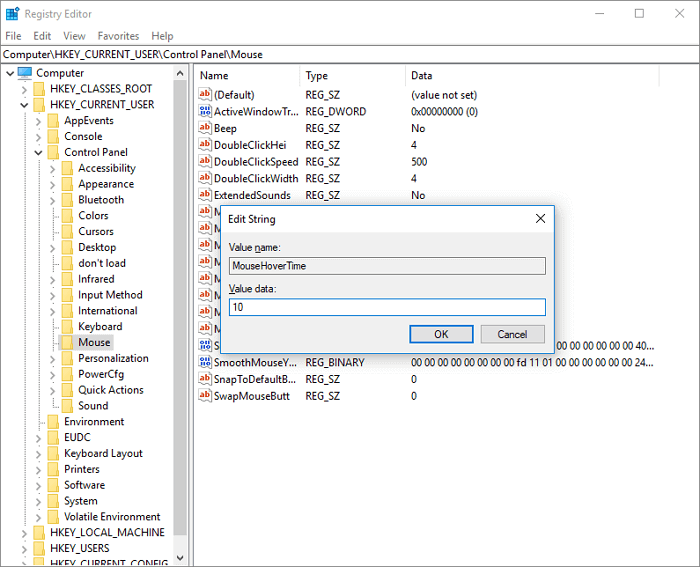
Step 1. Go to the Run box and enter Regedit.
Step 2. Expand HKEY_CURRENT_USER > Control Panel and double-click on the Mouse folder.
Step 3. Double-click on "MouseHoverTime" and change the value to 10.
Step 4. Double-click on the "Desktop folder" > "MenuShowDelay" and change the value to 10.
The changes will take effect after you restart your PC. You can also find more Registry tweaks to make Windows faster by searching the internet.
11. Disable OneDrive syncing
OneDrive is the built-The OneDrive synchronization service in Windows allows you to sync files to the cloud and access them on any PC using the same account, but automatic syncing can slow down your PC. To check if OneDrive syncing is affecting your Windows 10 performance, right-click the OneDrive icon, pause syncing for a time period, and see if your computer's performance improves. If it does, consider disabling automatic syncing and exploring alternative backup methods that don't compromise your PC's speed.
Step 1. Right-click the OneDrive icon and select "Settings" > "Account".
Step 2. Choose "Unlink this PC" > "Unlink account".
The seven methods to make Windows 10 faster include changing computer settings, disabling startup programs, disabling animations, and others. This can be done by utilizing built-in tools or third-party software to easily perform advanced tasks and speed up the system.
12. Adjust the Appearance and Performance of Windows
Windows 10's visual effects can be adjusted to balance appearance and performance, especially on PCs with limited RAM, to speed up the system.
To disable or adjust the visual effects in Windows 10, go to Settings > System > Display > Graphics settings. From there, you can toggle on or off the "Hardware-accelerated GPU scheduling" feature, which can help improve performance.
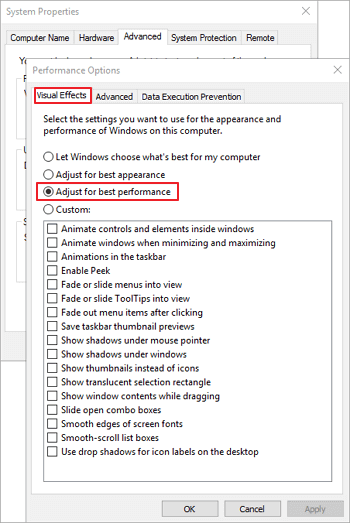
Step 1. In the search box on the taskbar, type Advanced system settings. Click "Advanced" tab > "Settings" > "Visual Effects".
Step 2. On the Visual Effects tab, select "Adjust for best performance" > "Apply".
Restart your PC and see if that speeds up Windows 10. If the fonts on your computer are affected, and you want to keep fonts crisp and more readable, you can select the Custom option.
13. Disable Transparency Effect
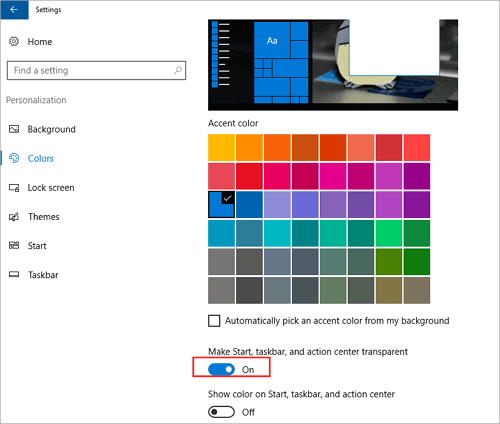
Disabling transparency effects can help reduce memory and resource consumption, potentially alleviating slow system issues caused by resource-intensive transparency.
To disable the transparency effect on the Start, taskbar, and action center, go to Settings > Personalization > Colors and toggle off "Make Start, taskbar, and action center transparent".
14. Migrate OS to SSD/HDD to Speed Up Windows 10
If you're running low on space on your system disk, consider transferring Windows 10 to a larger HDD or upgrading your system disk to a faster SSD. This will free up space and improve performance.
You can migrate the operating system with Qiling Partition Master. Follow the video and written guide to move Windows 11/10 to a new HDD or SSD. Moving Windows 10 to an SSD can noticeably improve startup and application response times.
Here are the steps to migrate OS to SSD or another bigger HDD:
Steps to migrate OS to HDD/SSD:
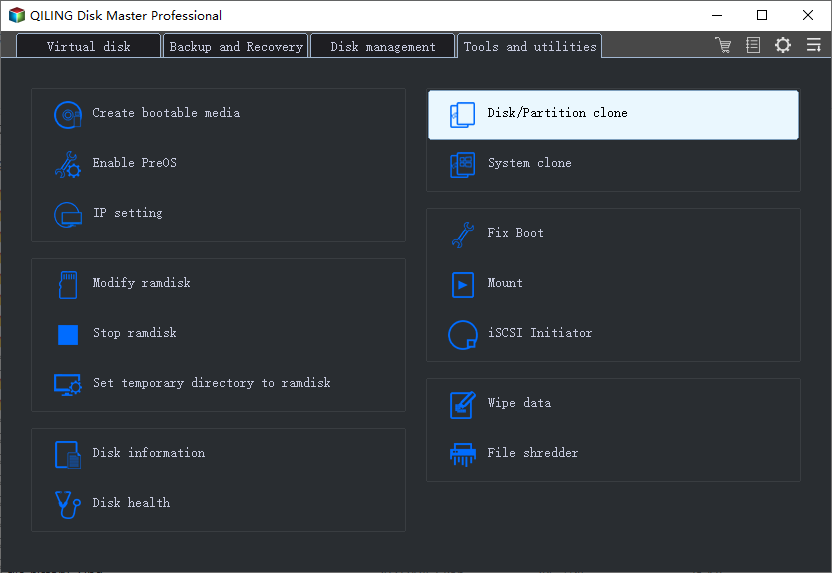
Step 2. Select the SSD or HDD as the destination disk and click Next.
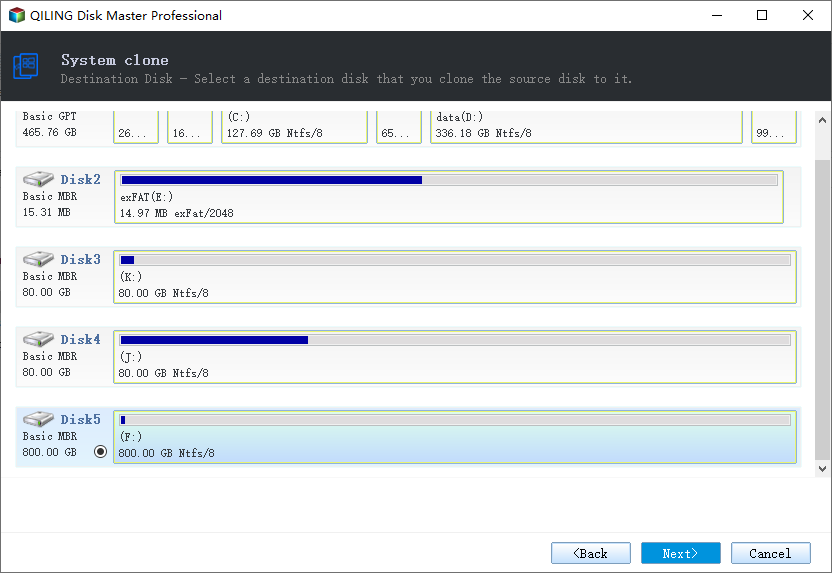
Be aware that the target disk's data and partitions will be erased, so make sure you've backed up any important data before proceeding. If you haven't backed up your data yet, do it now to avoid any potential losses.
Step 3. Preview the layout of your target disk.
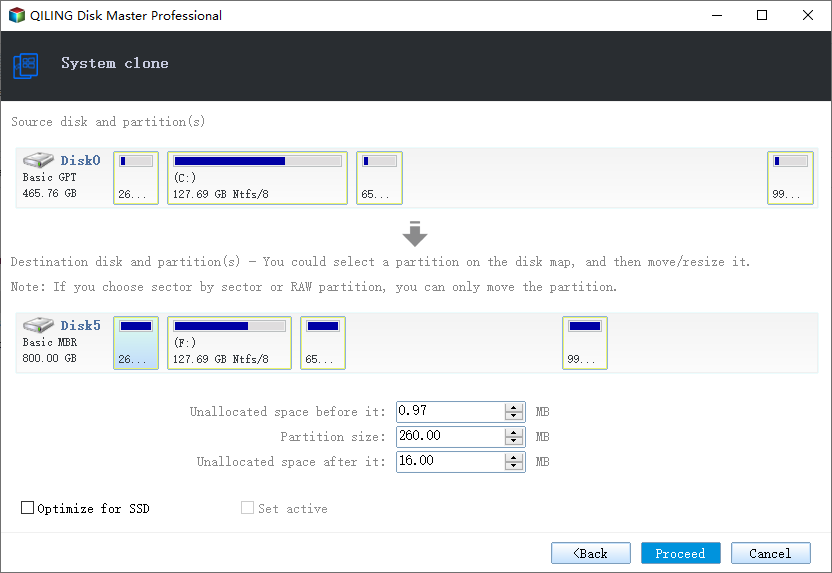
Step 4. Then click "Proceed" to start migrating your OS to a new disk.
Note: When migrating your operating system to a new SSD or HDD, be aware that it will completely erase and remove all existing partitions and data on the target disk if there's not enough unallocated space available. This means any important data saved on the target disk will be lost, so it's essential to back up any crucial files to an external drive beforehand.
15. Disable/Turn off Search Indexing
To speed up Windows 10, you can try disabling search indexing when you know where your files are located, which may temporarily occupy a large number of system resources and affect the performance of Windows 10.
How to turn off search indexing:
Step 1. Type Indexing Options in the search box. Click "Modify".
Step 2. Click "Show all locations" and "Clear all the selected locations". Then, click the "OK" button.
16. Remove Unused Bloatware Software
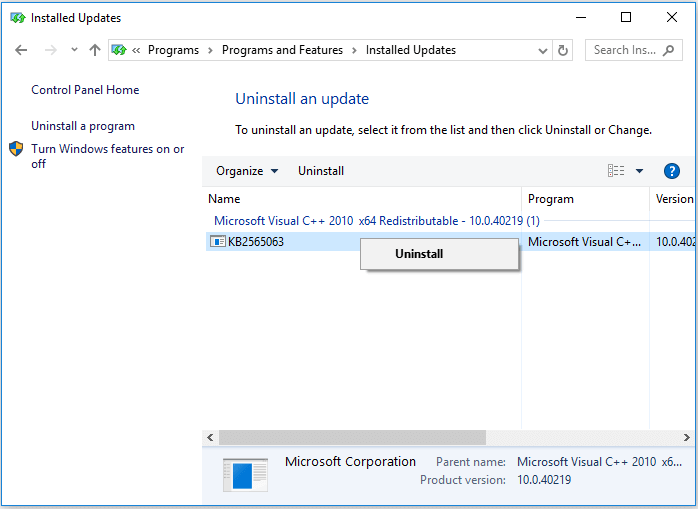
To free up space and make your Windows 10 run faster, you can uninstall the pre-installed apps you don't want or need, which are taking up space on your computer.
Right-To uninstall a program on a Windows computer, click the Start menu, then select "Control Panel" and navigate to the "Programs" section. From there, click "Uninstall a program" and select the program you want to remove. Click "Uninstall" to initiate the uninstallation process.
17. Shut off Windows Tips and Tricks
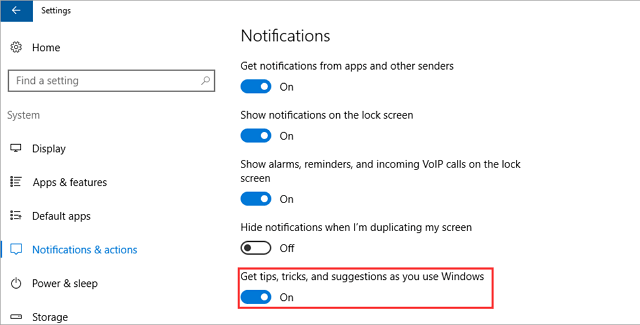
Turning off tips and notifications on Windows 10 can improve performance by reducing the time it takes for Windows to scan and generate notifications, allowing for faster computing.
To disable Windows tips, go to "Start" > "Settings" > "System" > "Notifications & actions" and toggle off "Get tips, tricks, and suggestions as you use Windows".
18. Check for Viruses and Malware
If your computer is running slowly due to a virus or malware, the best solution is to prevent them by running antimalware and antivirus software, such as Bitdefender, Norton, Kaspersky, Avast, and keeping it up to date. This can help remove any malicious software and improve your computer's performance.
You can also scan your PC for viruses or other malicious software by using Windows Security, which is included in Windows 10.
19. Upgrade Your RAM/Add More RAM
Windows 10 can be sped up by increasing the virtual memory, specifically requiring a minimum of 4GB of RAM to run smoothly.
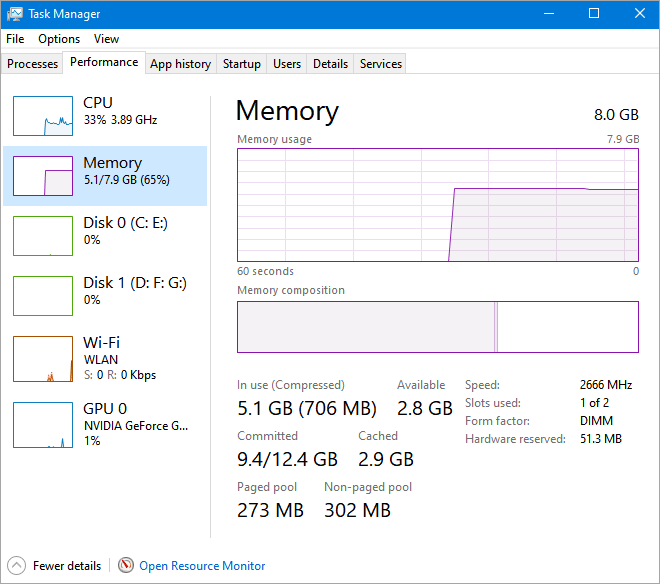
When your laptop or PC has too little RAM, it can't handle multiple applications running smoothly, causing it to run slowly. Installing a new RAM chip can effectively improve your computer's performance by increasing its RAM capacity.
To see the specific condition of your RAM, click on "Performance" and then "Memory" in the Task Manager.
20. Run System Maintenance
Windows 10 has a built-A utility can be developed to automate routine system maintenance tasks, such as defragmenting the hard drive, scanning for updates, and checking for malware. This utility can be designed to run periodically, such as daily or weekly, to ensure that the system remains up-to-date and secure. The utility can also be configured to notify the user of any issues or updates, and provide options for the user to take action or schedule the task for a later time.
These tasks are usually run in the background when your computer is idle, but if you notice system performance issues, you can run maintenance manually if you want.
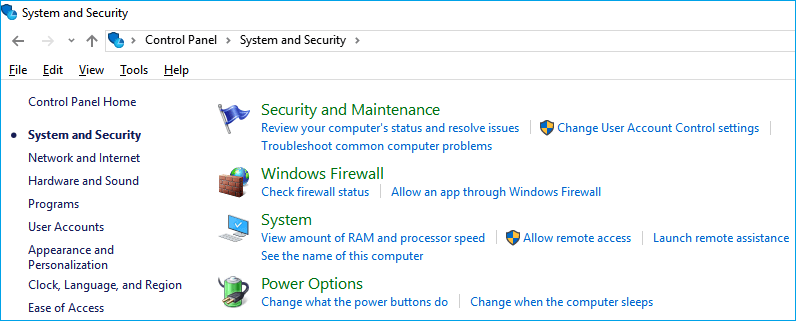
To start Windows maintenance, open the Control Panel, select "System and Security", then choose "Security and Maintenance". Click the arrow to expand the maintenance options and select "Start Maintenance" from the list.
To Sum Up
To speed up Windows 10, consider restarting your PC and only opening the apps you need, using ReadyBoost to improve performance, checking for low disk space and freeing up space, extending your system drive, upgrading to a solid-state drive (SSD), increasing your RAM capacity, and more. You can choose the tip that best suits your computer's situation to improve its performance.
How to Speed Up Windows 10 FAQs
To speed up Windows 10 and make it faster, what are the most effective methods to consider? One key approach is to disable startup programs that are not essential, as they can consume system resources and slow down the computer.
1. Why is my Windows 10 computer so slow?
- Virus or malware attack
- Slow on startup
- Run out of disk space
- Dirty fan or heat sink
- Windows system issue
- Hard drive issue
- Virtual memory not enough
2. How can you increase your computer speed?
To increase your computer speed, you can:
- Install the latest updates for Windows and device drivers
- Restart your PC and open only the apps you need
- Use ReadyBoost to help improve performance
- Make sure the system is managing the page file size
- Check for low disk space and free up space
- Adjust the appearance and performance of Windows
- Stop OneDrive syncing
- Disable unnecessary startup programs
- Check for viruses and malware
- Restore your PC from a system restore point
3. How can I make Windows 10 2021 faster?
How to speed up Windows 10 2019, 2020, or 2021:
- Restart your PC
- Check for update
- Check startup apps
- Run Disk Cleanup
- Remove unused software
- Disable special effects
- Disable transparency effects
- Upgrade your RAM
- Use an SSD
- Run System Maintenance
Other Topics You May Like
- Best Free NAS Backup Software – Qiling
- How Do You Backup Your Computer Data? Find the Best Way to Protect Data!
- How to Fix Second Hard Drive Not Showing Up (Updated)
- Resize/Move Partitions to Solve Low Disk Space Issue
- Convert Unallocated Space to Free Space Windows 11/10
- How to Perform Free Hard Drive Test or Diagnostic to Repair Disk Errors in Windows 10/8/7
Related Articles
- Why Does My Computer Keep Blue Screen | 100% Solved
If your computer is experiencing a blue screen, you're in the right place. This article provides a comprehensive guide to understanding what a blue screen means, why it appears, and how to troubleshoot the issue. - A Quick Answer to: Will Updating My BIOS Delete Anything?
Updating BIOS is something you might have heard about. But have you ever been stuck on a question like, 'Will updating my BIOS delete anything?' This article will describe whether updating BIOS will delete anything on your PC and offer a tool called Qiling Disk Master to protect your data. - How to Backup Windows 10 Before Upgrading to Windows 11✅
Are you looking to install the latest Windows 11 OS on your PC? If so, follow our step-wise guide on how to backup Windows 10 before upgrading to Windows. - How to Perform Windows Folder Backup [Step-by-step Guide]
This page covers Windows folder backup, elaborates on two ways to finish a Windows folder backup, and introduces a professional backup tool. - How to Mount a Windows 10/8/7 System Image Backup as a VHD?
4 ways provided in this article to mount or unmount Windows image backup VHD or VHDX file in Windows 10/8/7 and Servers, just refer to the step-by-step guide to mount VHD/VHDX. Please read on. - Microsoft SQL | How to Back Up All Databases of an Instance?
It's not difficult to back up one or two databases in MSSQL, but how to back up all databases of an instance at once? Normally you can try following 4 methods to do it. I'll also provide an easier alternative.
Products
Articles & Tutorials
- Data Recovery
- Data Backup
- File Recovery
- File Backup
- System Backup and Restore
- Disk and Partition Clone
- Technical articles
- Mobile articles
- Disk Master Help
- Windows Data Recovery Tutorials
- Windows Secure Delete Tutorials
- Windows Partition Management Tutorials
- Windows File Backup and Restore Tutorials
- Windows System Backup and Restore Tutorials
- Windows Disk Backup and Restore Tutorials
- Windows Clone Tutorials