10 Fast Ways to Speed Up Windows 11 | How to Make Windows 11 Faster
Windows 11 has been a game-changer with its revamped interface, improved gaming features, and enhanced Microsoft Store experience. However, some users have experienced issues with Windows 11 running slow, leading to frustration. To optimize Windows 11 performance and ensure a smooth user experience, there are 10 ways to consider, including various tweaks and adjustments that can be made to improve the overall speed and efficiency of the operating system.
Quick Navigation:
- 1. Turn Off Visual Effects
- 2. Enable Power Plan
- 3. Extend C Drive to Make Windows 11 Faster
- 4. Enable Storage Sense
- 5. Disable Startup Programs
- 6. Disable Startup Apps
- 7. Turn Off Notifications
- 8. Clean Up Temporary Files
- 9. Defrag Hard Disk for Optimization
- 10. Use ReadyBoost to Speed Up Windows 11
1. Turn Off Visual Effects
Visual effects can make Windows look more visually appealing, but they can also slow down your computer. If you find that your Windows is running slowly, it's a good idea to disable some of these visual effects to improve performance.
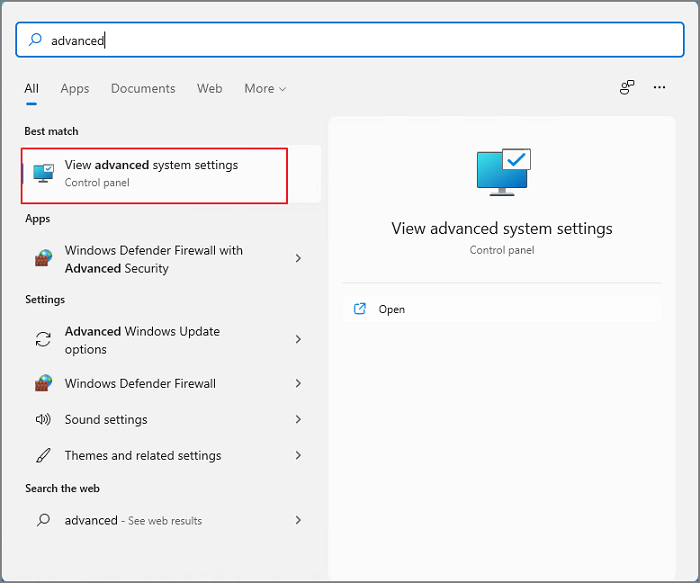
Step 1. To view advanced system settings, click the Search icon, type "advanced" into the search box, and then click "View advanced system settings".
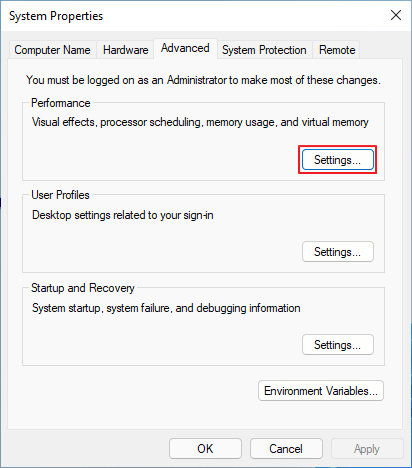
Step 2. Under the Performance section, click the Settings button.
Step 3. To adjust Windows Performance Options, click on Start, then Settings, then System, then Performance, and finally, Performance Options. From there, select "Adjust for best performance" and check the boxes for "Show thumbnails instead of icons" and "Smooth edges of screen fonts".
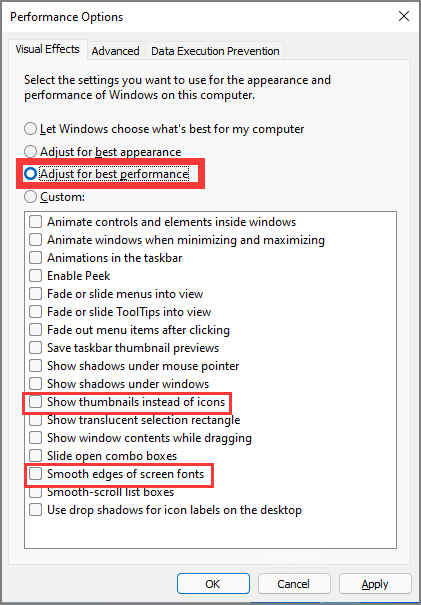
Step 4. Click Apply and then click OK.
2. Enable Power Plan
A Power Plan is a design that helps manage how to consume and save power by optimizing energy usage in various devices and systems. It involves creating a strategy to reduce power consumption while ensuring that essential functions and processes continue to run smoothly. This can include setting up energy-efficient settings on devices, implementing smart home automation, and using renewable energy sources.
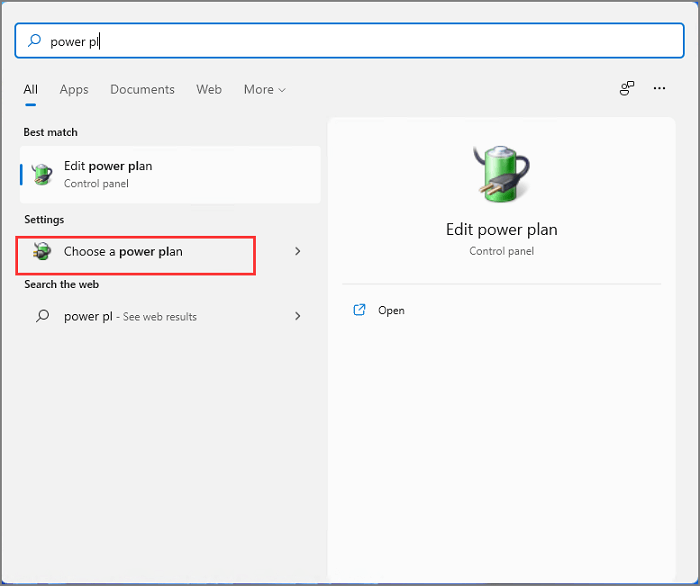
Step 1. To change your power plan, open the Start Menu and type "power plan" in the search box. Then, click on the option that says "Choose a power plan".
Step 2. Go to the next screen, then click on "Change Plan Settings" and finally click on "Change Advanced Power Settings".
Step 3. Processor power management refers to the techniques used to control and manage the power consumption of a processor. The Minimum processor state is a feature that allows the processor to enter a low-power state, reducing its power consumption.
3. Extend C Drive to Make Windows 11 Faster
To improve your Windows 11 computer's performance, you can extend your system drive using a professional partition software like Qiling Partition Master. This allows you to resize your C drive and increase the system drive space, which can enhance your device's performance.
This tool not only allows for resizing, but also enables creating, formatting, deleting, merging, and wiping partitions, making it a reliable and safe tool for use.
How to extend C drive with Qiling Partition Master:
Option 1. Extend System C drive with unallocated space
- 1. Click on the System C: drive and select "Resize/Move".
- 2. Drag the system partition end into the unallocated space so to add it to the C: drive.
- Click "Proceed" to execute the operations and extend the C drive.
Option 2. Extend System C drive without unallocated space
- 1. To resize a partition, click on a large partition with sufficient free space on the system disk, then select the "Resize/Move" option.
- 2. To free up space, drag the end of the big partition to shrink it, creating unallocated space. Click "Proceed" to confirm the changes.
- 3. Select the system drive at Disk management page, and select "Resize/Move".
- 4. To extend the C drive, drag the end of System C drive into the unallocated space, then click "OK" to save the changes. This will effectively extend the C drive.
If you're looking for ways to speed up Windows 10, there are several methods you can try. One approach is to disable animations, which can help improve performance.
4. Enable Storage Sense
Step 1. To access the Settings app, click the Windows icon on the centered toolbar and select Settings.
Step 2. Navigate to System > Storage, click Storage.
Step 3. Under the Storage part, turn on the storage sense button.
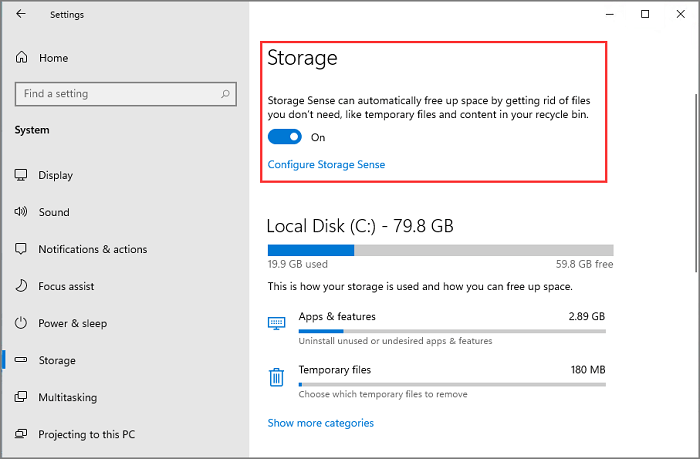
Step 4. To configure Storage Sense, go to the "Storage Sense" page and select the desired cleanup schedule for your storage. This will allow you to specify how often you want your storage to be cleaned up and what types of files and data you want to remove.
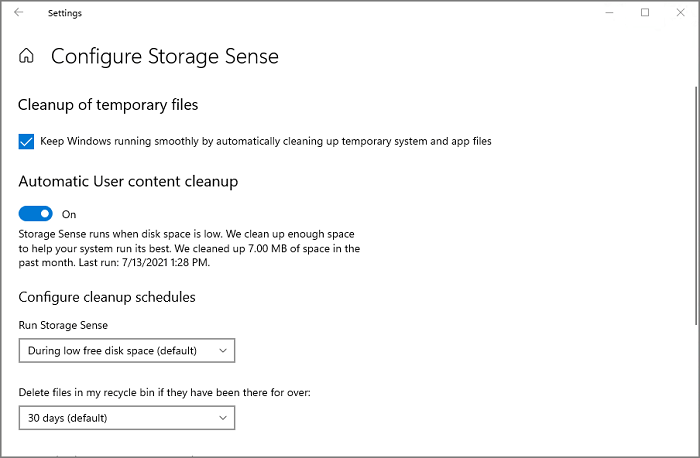
5. Disable Startup Programs
Step 1. To open the Task Manager, click the search icon on the centered toolbar, type "Task Manager" on the search box.
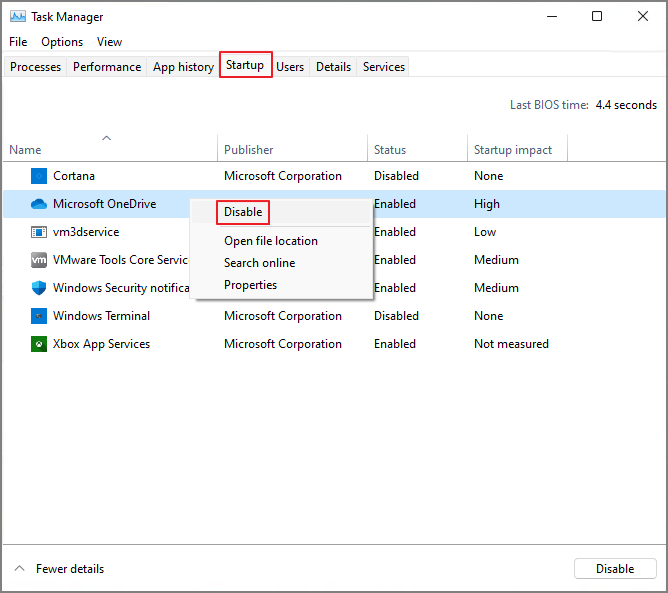
Step 2. To view the apps running at startup, click on the "Startup" tab in the Task Manager. This will display a list of applications that are set to run automatically when your computer starts up.
Step 3. To disable apps from starting at startup, right-click on the apps you don't want to start automatically and select the "Disable" option.
6. Disable Startup Apps
Step 1. To access Settings, click on the Windows icon to open the Start Menu, then click on the "Settings" option.
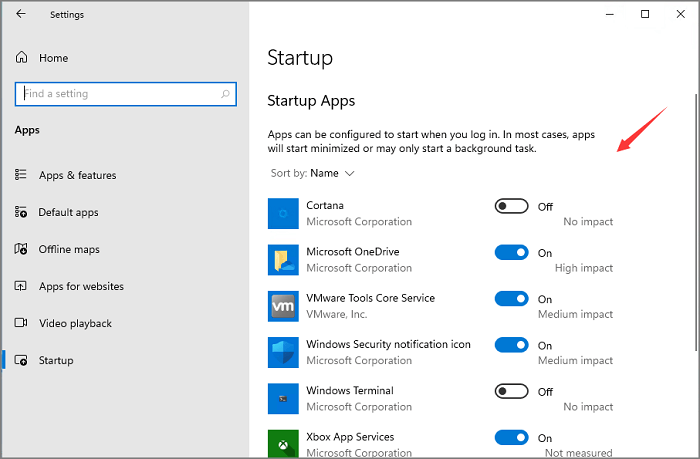
Step 2. To access the Startup Apps page, type "Startup" in the search box and select "Startup Apps" from the result.
Step 3. Turn off any apps that you don't want to start automatically when you turn on your device.
7. Turn Off Notifications
Step 1. Open Settings on your computer.
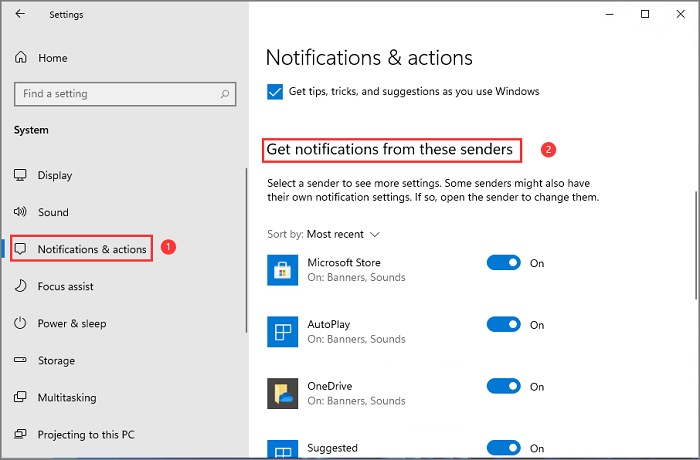
Step 2. To access the Notifications & actions settings, go to the System tab and select Notifications & actions from the left panel.
Step 3. Scroll down to the Notification from apps and other senders section, and toggle off notifications from unwanted apps while keeping them enabled for important ones.
8. Clean Up Temporary Files
Step 1. Open the Settings from Start Menu.
Step 2. Navigate to the System tab and click Storage.
Step 3. On the next screen, you can see the Temporary files.
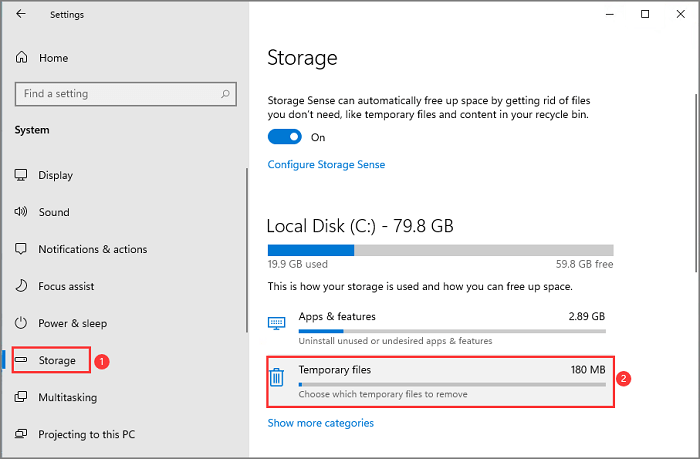
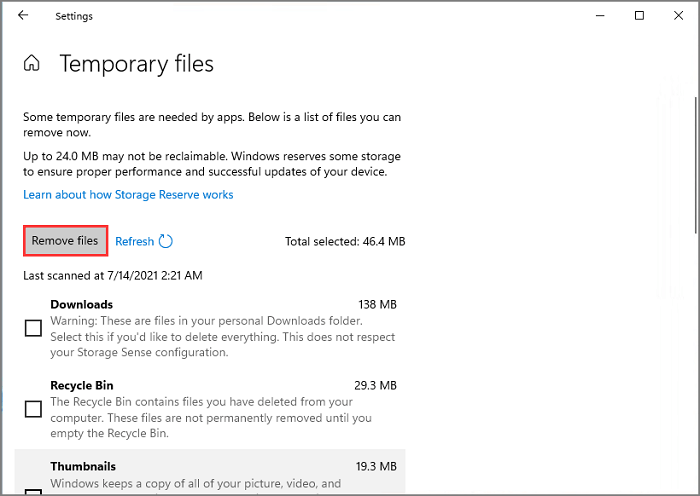
Step 4. To delete temporary files, go to the "Temporary files" or "Temporary items" section, depending on your browser or operating system. Check the boxes next to the files you want to remove, then click the "Delete" or "Remove" button to confirm the deletion.
Step 5. Once it has been done, select Remove files.
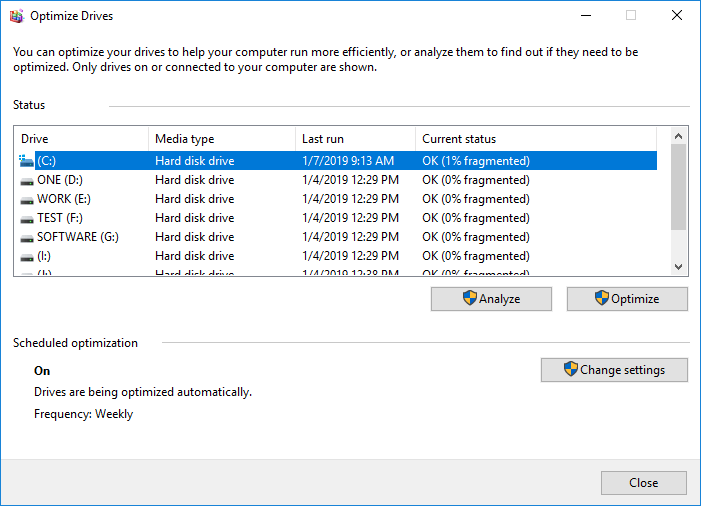
9. Defrag Hard Disk for Optimization
Step 1. Type Defragment and Optimize Drives on the search box.
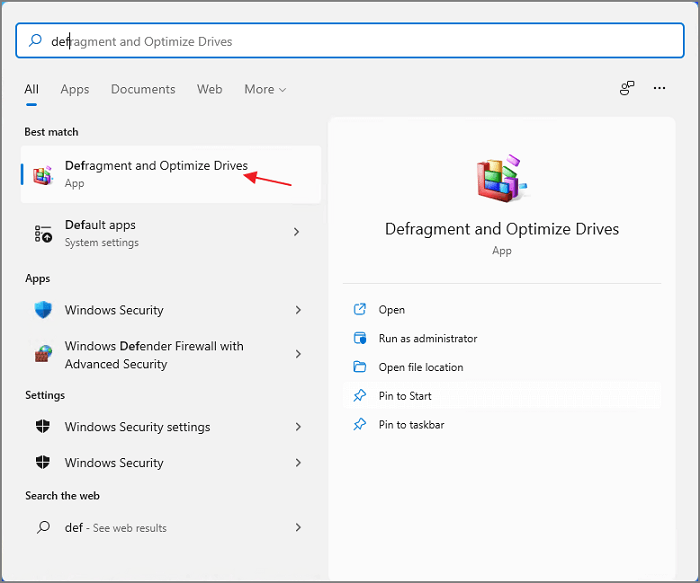
Step 2. Select the system drive and click the Optimize button to see the drive options.
10. Use ReadyBoost to Speed Up Windows 11
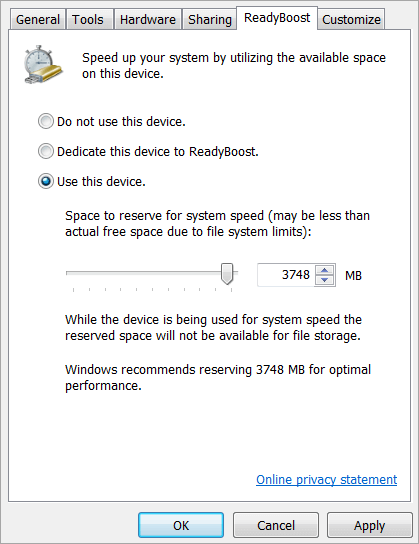
Step 1. Insert a USB or SD card into your computer.
Step 2. Check your device on Windows Explorer, right-click the USB, and click the "Format" option from the menu.
Set the file system to NTFS, select the allocation unit size, check the quick format box, and click start to begin the formatting process.
Step 3. Once the formatting is finished, right-click USB and select Properties.
Step 4. To enable ReadyBoost, go to the ReadyBoost tab, select the "Use this device" checkbox, and then click "OK".
Increase Windows 11 Performance by 10 Methods
To make Windows 11 faster, consider turning off visual effects, changing the Power Plan, extending the C drive, turning on storage sense, disabling startup programs, closing unnecessary apps, updating drivers, running a disk cleanup, and enabling the Quick Settings feature. Whatever method you choose, be sure to back up your important files to ensure they remain safe.
Related Articles
- How to Allocate a Hard Drive to Add Space to Another Partition in Windows 11/10/8/7
- Free Download Kingston DT 101 G2 Repair/Format Tool
- How to Run CHKDSK /F /R/X to Fix Hard Drive Errors in Windows 10/8/7
- How to Fix SSD Full for No Reason
- How to Fix "Unable to Convert Dynamic Disk to Basic"[2023 Newest Guide]
This guide will tell you why you are unable to convert dynamic disk to basic. After figuring out the reasons, you will get several solutions to fix this problem. - Unable to Install Windows 10 on Dynamic Disk? 3 Fixes 💡
If you can't install Windows 10 on a dynamic disk and get an error saying Windows cannot be installed since the partition contains one or more dynamic volumes, this article can help you convert the dynamic disk to a basic one to install Windows 10.
Products
Articles & Tutorials
- Data Recovery
- Data Backup
- File Recovery
- File Backup
- System Backup and Restore
- Disk and Partition Clone
- Technical articles
- Mobile articles
- Disk Master Help
- Windows Data Recovery Tutorials
- Windows Secure Delete Tutorials
- Windows Partition Management Tutorials
- Windows File Backup and Restore Tutorials
- Windows System Backup and Restore Tutorials
- Windows Disk Backup and Restore Tutorials
- Windows Clone Tutorials