Sleep vs Hibernate on Windows 10/8/8.1/7 (Complete Guide)
Many computer users are unsure what to do with their PC when not in use, with some shutting it down to save energy and others keeping it in a power-saving state. While Windows offers options like sleep, hibernate, and hybrid sleep, many are unclear about the differences between these modes.
The most commonly used options are sleep and hibernate, both of which allow the system to function without completely shutting down the PC. While they both have benefits, they also have some drawbacks, and understanding their differences can help you choose the most effective option to save power and time.
This article aims to clarify the distinction between sleep and hibernation, helping you choose the right option for different situations. Whether you're looking to conserve energy, escape extreme temperatures, or simply relax, understanding the differences between these two states can make a big difference. By exploring the characteristics and benefits of each, you can make an informed decision and select the best option to suit your needs.
Quick Access:
Sleep vs. Hibernate
How to Set Sleep and Hibernate Mode
How to Optimize Your PC, Check Disk Error
Sleep vs. Hibernate
Sleep
Sleep mode is a power-Saving mode, also known as sleep mode, allows your PC to quickly resume from where you left off, similar to pausing a DVD player and resuming playback. It stores opened documents, apps, and windows in system RAM, and puts the computer in a standby state.
Your computer stays active by consuming little power and springs back to life instantly with just a click of the mouse or pressing any key, taking only a second or two to startup.
If you're leaving your PC for a short period, sleep mode is a good option. This way, you can quickly resume use when you return, as it allows for a quick launch.
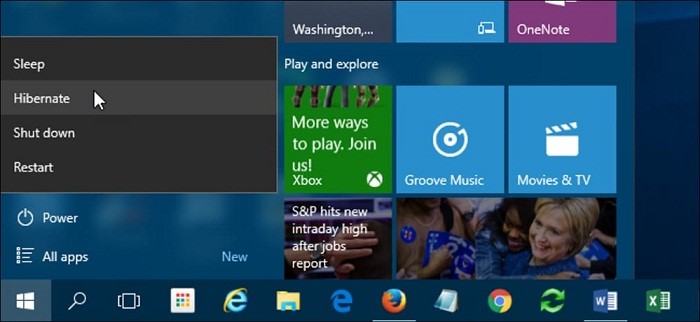
Hibernate
Hibernation is a power-Hibernation mode, similar to sleep mode but with some differences, is designed for laptops. It saves running applications and documents to the PC's hard disk instead of RAM, allowing the computer to turn off completely and use zero power.
When you wake your computer from hibernation, it resumes your activities from where you left off, but it takes a bit longer to wake up than sleep mode. This is because it needs to gather all the information stored in the hard disk at the time of hibernation, with faster speeds if using an SSD.
Hibernation is a useful feature when you're not planning to use your computer for an extended period, allowing you to save your work and resume from where you left off when you're ready to use it again.
How to Set Sleep and Hibernate Mode
How to make your PC Sleep
For Windows 10
- To start, click the Start button and then select Settings from the list of applications. From the settings menu, click on the "System" option, and then select "Power & sleep" from the options listed.
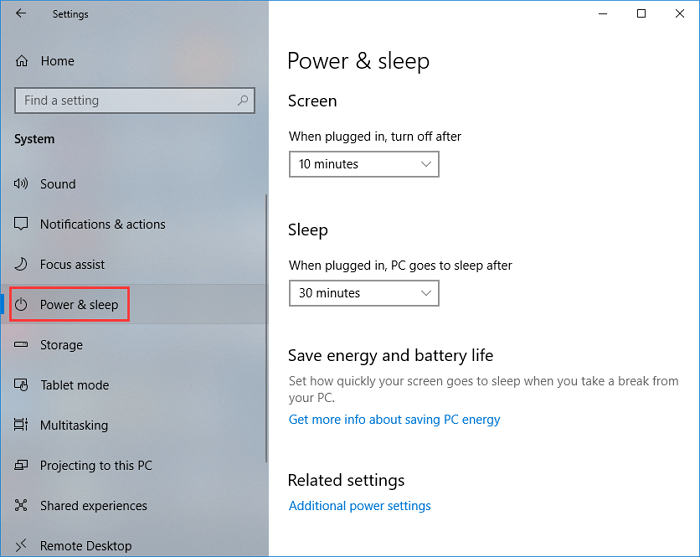
- Locate and click Choose what the power button does in the options displayed and select Sleep.
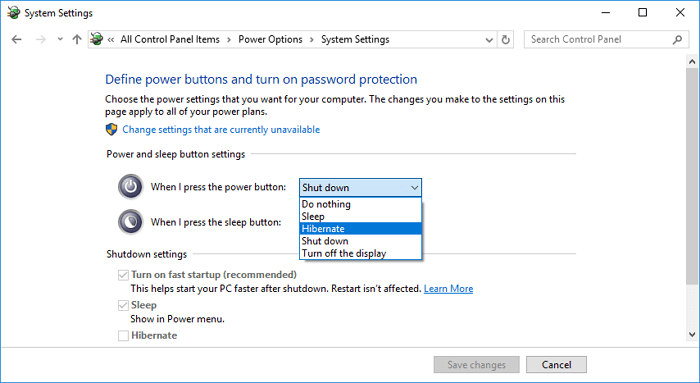
- Click Save changes.
Note:For Laptops, select Choose what closing the lid does, select Sleep, and Save the changes.
For Windows 8.1
- Swipe from the screen edge and tap Search.
- In the search box, enter Power Options.
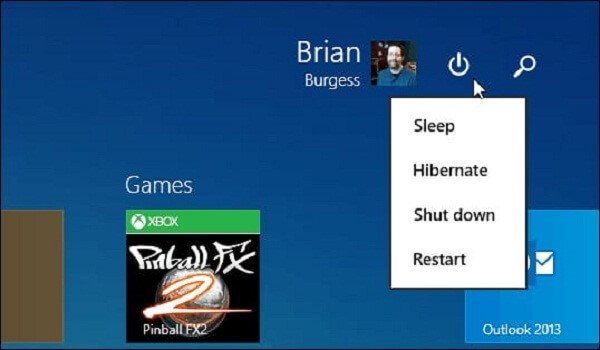
- Then, tap Sleep from the options displayed.
For Windows 7
- Click the Start button and click the arrow button close to the Shut down button at the right side of the start menu.
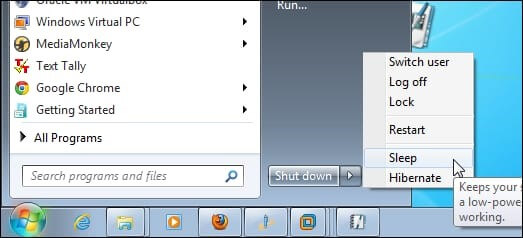
- Next, select Sleep.
How to Hibernate Your PC
For Windows 10
- Click the Start button and then Settings.
- From the applications listed, click Systems and then Power & Sleep.
- Locate and click Choose what the power button does from the displayed options.
- Then, choose Change settings that are currently unavailable.
- Below the shutdown settings, select Hibernate.
- Then, click Save changes.
For Windows 8.1
- Swipe from the screen edge and tap Search.
- In the search box, enter Power Options.
- Next, select Hibernate.
Note:
- Pressing the power button on your computer can quickly wake it from either hibernate or sleep mode, but the exact method may vary depending on the specific computer model. Some may require additional actions, such as clicking the mouse, lifting the laptop lid, or pressing a specific key on the keyboard.
- When your computer is in sleep mode, it uses less battery power by storing your activities in RAM, making it quick to resume. However, if left disconnected from power, the computer can run out of battery and lose unsaved works, as information stored in RAM is temporary and volatile.
- Hibernation mode saves your current work on the hard drive and shuts down the system, allowing your laptop to stay unplugged for longer periods without losing data stored on the hard drive.
How to Optimize Your PC, Check Disk Error
To maintain optimal performance, it's essential to regularly check for hard disk errors, as they can significantly slow down your computer over time. This is because eventually, all computers will experience reduced performance due to various factors such as disk errors, OS upgrades, and more. By monitoring and addressing these issues, you can take proactive steps to keep your PC running faster and more efficiently.
Checking for hard disk errors helps troubleshoot issues like disk read errors, system boot problems, and storage-related errors, and also optimizes your computer's performance by inspecting and repairing hard disk partition errors.
SSD Maintenance Tool: Check Disk Error or Manage Partitions
You can employ a third-Qiling Partition Master is a comprehensive disk checking tool that allows you to automatically fix and check disk errors in Windows 10 and other Windows OS. With this software, you can easily analyze and repair hard drive errors, making it a convenient solution for managing your computer's hard disk partition. Simply download and install Qiling Partition Master, and follow the guide to quickly check and fix disk errors on your computer.
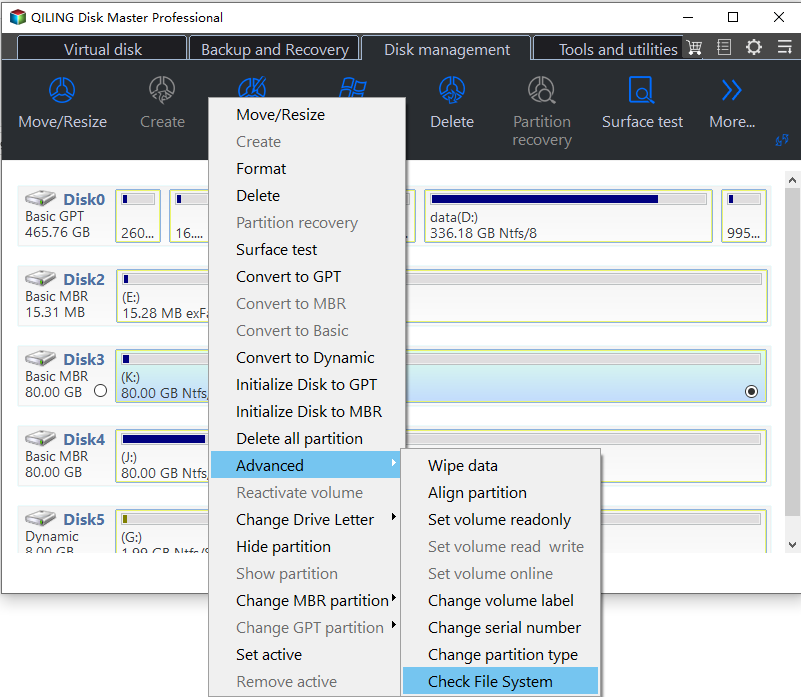
Step 1. Open Qiling Partition Master, locate the disk, click the partition, and choose "Advanced" > "Check File System".
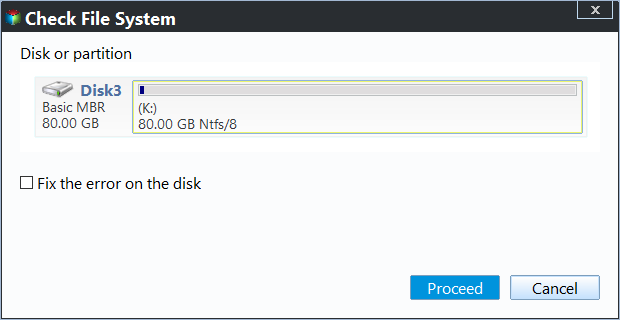
Step 2. In the Check File System window, select the "Fix the error on the disk" option and click "Proceed" to start checking your partition file system on your disk.
To check disk error and optimize your PC, you can use the Qiling Partition Master, which allows you to partition your hard drives effectively and utilize your disk space to the maximum.
Summary
The sleep and hibernate modes share a common goal of conserving power. Sleep mode allows a computer to quickly rest while using low power, whereas hibernation mode enables it to take a longer, power-off nap. Users can choose the mode that best suits their needs at any given time.
Related Articles
- Partition recovery from unallocated space with Qiling Partition Master
- How to Resize Partition Using GParted and Qiling Partition Master
- How to Resize USB Flash Drive Partition with Magic Partition Software
- Check Disk Windows 11/10: How to Check and Scan Hard Drive for Errors
- Tutorial: Surface Pro 8 SSD Upgrade [Step-by-Step Guide]
If you're running low on space on your Surface Pro 8 and want to upgrade the SSD, this guide can help. To do this, follow the step-by-step process outlined in this article, which will guide you through the process of upgrading the SSD on your device. - How to Fix Surface Won't Turn On [100% Working Solutions🚩]
If your Microsoft Surface won't turn on, try charging it for at least 30 minutes, then press and hold the power button for 30 seconds. If that doesn't work, try booting in safe mode or using the Surface's built-in troubleshooting tools.
Products
Articles & Tutorials
- Data Recovery
- Data Backup
- File Recovery
- File Backup
- System Backup and Restore
- Disk and Partition Clone
- Technical articles
- Mobile articles
- Disk Master Help
- Windows Data Recovery Tutorials
- Windows Secure Delete Tutorials
- Windows Partition Management Tutorials
- Windows File Backup and Restore Tutorials
- Windows System Backup and Restore Tutorials
- Windows Disk Backup and Restore Tutorials
- Windows Clone Tutorials