How to Repair or Fix MBR (Master Boot Record) in Windows 11/10/8/7/Vista/XP
The Master Boot Record (MBR) is a crucial part of a Windows operating system, and corruption can cause a range of issues. If the MBR is damaged, you may experience symptoms such as inability to boot, error messages, or failure to load the operating system. Fortunately, fixing the MBR is possible, and the good news is that there are practical fixes available to resolve the issue, which can be found on this page.
Check out the fixes and learn how to repair the corrupted MBR and make your PC boot up normally again. The Master Boot Record (MBR) is a crucial part of your computer's startup process, and when it becomes corrupted, it can cause a range of problems, including the inability to boot up.
PAGE CONTENT:
Note:All troubleshooting fixes are only available for MBR disks on Windows PCs, but if your OS disk is GPT, you should refer to Repair EFI Bootloader in Windows 10/8/7 for assistance.
To repair a damaged MBR, follow these steps: first, ensure you have a Windows installation media, such as a USB drive or CD/DVD; next, boot from the media and select the language and other preferences; then, click on "Repair your computer" and select the Troubleshoot option; after that, click on "Command Prompt" and type the command "bootrec /fixmbr" followed by "bootrec /fixboot"; finally, restart your computer and check if the MBR has been repaired successfully.
| Workable Solutions | Step-by-step Troubleshooting |
|---|---|
| Fix 1. Use MBR rebuild tool |
|
| Fix 2. Rebuild MBR via CMD |
|
What Is the MBR
The Master Boot Record (MBR) is a sector on a hard drive that contains information about the partitions on the drive and loads the operating system. It acts as a loader for the OS and holds the partition table.
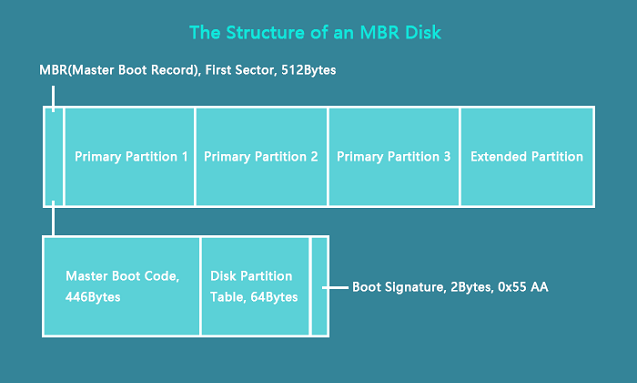
The Master Boot Record (MBR) is created by the MBR generator when Windows is first installed on an MBR disk. It is the first 512 bytes of the hard disk, serving as a crucial part of the disk's boot process.
The MBR partition contains two important components:
- Master Boot Code
- Disk Partition Table
The two components work together to transfer program control to the boot sector of the partition, allowing the boot process to continue and enabling the Windows OS to boot up successfully.
Learn More:What Is MBR Disk.
What Happens if MBR Corrupted
In this part, you'll learn:
- 1. The causes of MBR corruption
- 2. What happens if MBR corrupted
- 3. When do you need to fix and repair MBR
MBR corrupted or damaged error is often caused by improper unplugging, sudden power failure, or virus infection, among other factors.
If the Master Boot Record (MBR) is corrupted, it will prevent you from accessing the operating system, displaying error messages such as "operating system not found" or a blank black screen with no prompt message.
So what are the signs of MBR corruption?
If you encounter error messages during PC boot-up, it likely indicates that the Master Boot Record (MBR) on your PC has become corrupted. This can occur due to various reasons, such as a virus infection, incorrect disk configuration, or a failed system update.
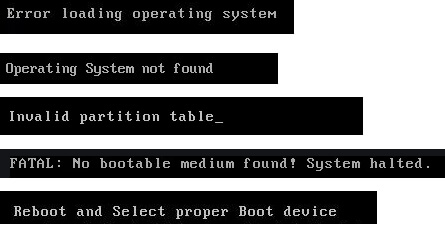
- 1.Error loading operating system
- 2.Operating System not found
- 3.Invalid partition table
- 4. No bootable medium found
- 5. Reboot and select proper boot device
If any of the above symptoms show up on your PC,
You can fix corrupted MBR immediately and make your computer boot up normally again with the fixes as shown in the next parts.
Method 1. Fix MBR in Windows 11/10/8/7 with Qiling Partition Master
The article discusses how to troubleshoot and resolve issues with the Windows Update service, which is responsible for downloading and installing updates for Windows operating systems. It provides step-by-step instructions on how to reset the Windows Update components, disable and re-enable the Windows Update service, and run the System File Checker (SFC) tool to fix corrupted system files. Additionally, it suggests running the Windows Update troubleshooter, checking for malware, and verifying that the Windows Update service is running under the correct account.
Compared to manual fixes, Qiling Partition Master offers an easier solution to fix MBR issues. Its "Rebuild MBR" feature allows you to repair the Master Boot Record without affecting the disk partition table, making it a convenient and effective way to resolve MBR problems.
To fix the Master Boot Record (MBR), you have two options with the help of Qiling Partition Master: you can either repair MBR directly or rebuild MBR completely. The software provides a user-friendly interface to assist you in making the correct choice based on your specific situation.
1. To repair a non-bootable computer, follow these steps: Connect the MBR hard disk to another working computer for repair, and create a WinPE bootable disk to make your computer bootable. This will allow you to access the hard disk and perform necessary repairs.
If you have a spare computer, you can follow the guide in Step 2 to fix the corrupted MBR. However, if you don't have a spare computer, you can still fix the issue on your own by following the process outlined here. This will allow you to recover from a corrupted Master Boot Record (MBR) without needing a second computer.
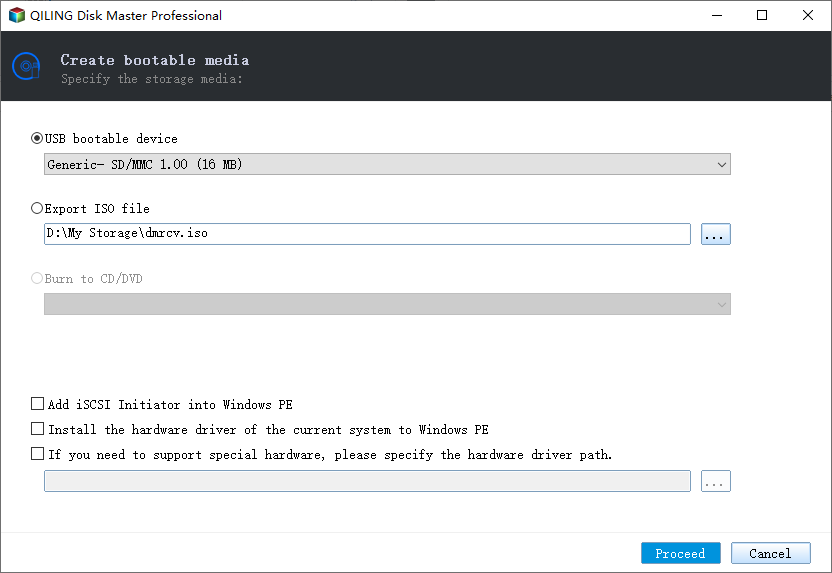
Step 1.Create a WinPE bootable disk
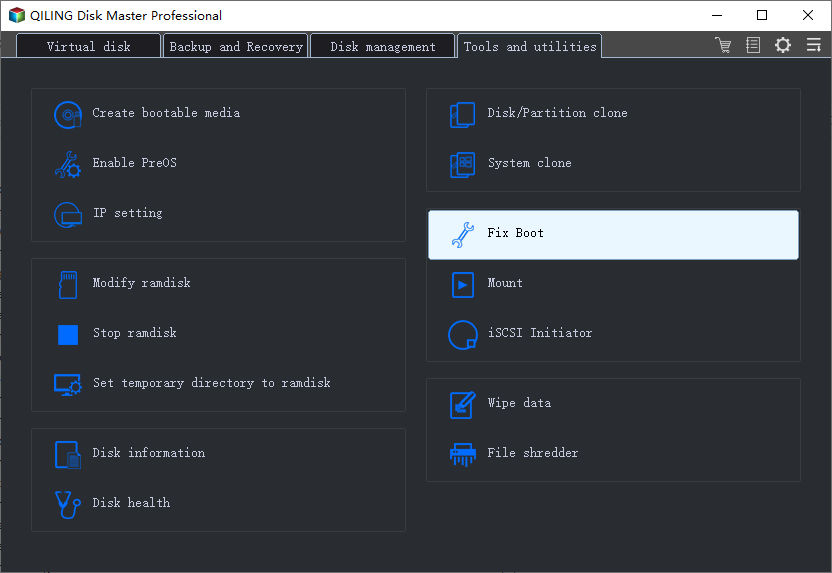
- To create a bootable media with Qiling Partition Master, launch the program and click on "Create bootable media" from the tools page. You can then select to create the bootable disk on a USB drive or, if your computer has a CD/DVD drive, create it on a CD/DVD instead.
- Click "Proceed" to finish the process.
Step 2. Boot Qiling Partition Master Bootable USB
- Connect the bootable USB or CD/DVD to your PC.
- To enter the BIOS screen and set your computer to boot from a CD-ROM drive or removable device, press F2 or Del when restarting the computer. This will allow Qiling Partition Master to run automatically once you've set your computer to boot from that device.
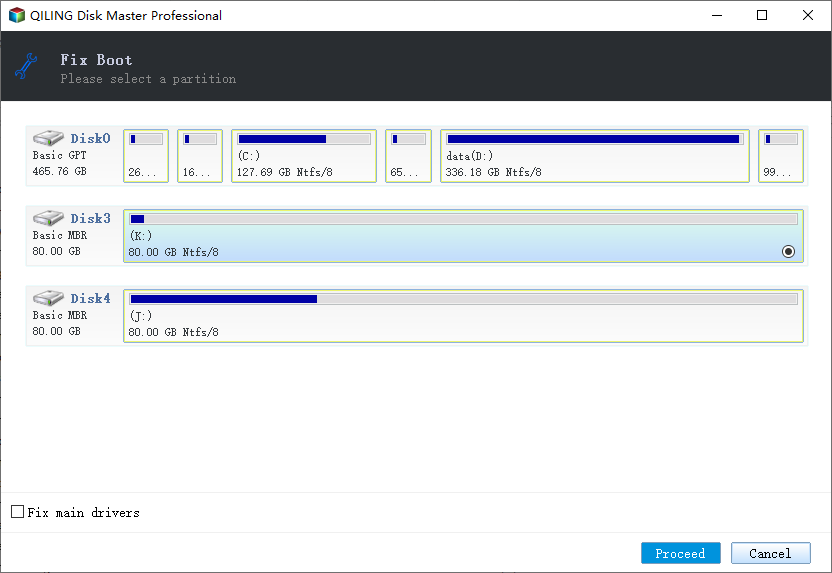
Step 3. Rebuild MBR
- Choose "Rebuild MBR" to continue.
- Right-To fix a damaged Master Boot Record (MBR), click on the disk where the MBR is damaged, select the type of MBR that matches your current operating system, and then click "Proceed" to rebuild the MBR. This should allow your computer to boot normally again.
Method 2. Fix MBR Using Command Prompt on Windows 10/8/7/Vista/XP
Applies to: Manually repair corrupted MBR on Windows 10/8/7, Vista, etc.
When the Master Boot Record (MBR) is corrupted on a Windows PC, you can manually fix it using the Command Prompt. The steps to do so vary depending on the Windows version, so it's essential to follow the specific instructions for your PC. By applying these methods, you can recover your system and get back to normal functioning.
To fix the Master Boot Record (MBR) on your Windows PC, you can try booting from a Windows installation media, such as a USB drive or CD/DVD, and running the built-in command-line tool, Command Prompt, to run the `bootrec` and `fixboot` commands. Alternatively, you can use a third-party tool like Qiling Partition Master to repair the MBR.
- #1. Fix MBR on Windows 10
- #2. Fix MBR on Windows 8.1/8
- #3. Fix MBR on Windows 7
- #4. Fix MBR on Windows Vista
- #5. Fix MBR on Windows XP
Fix MBR on Windows 10 via CMD
To help you fix MBR in a more straightforward way
Step-Here's a one-paragraph, step-by-step guide to open Command Prompt to fix MBR in Windows 10:
Step 1. Boot PC from the original Windows installation DVD (or the recovery USB).
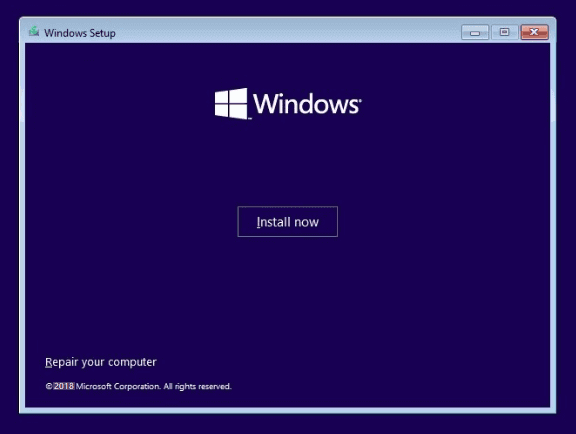
Step 2.At the Install screen, click "Repair your computer".
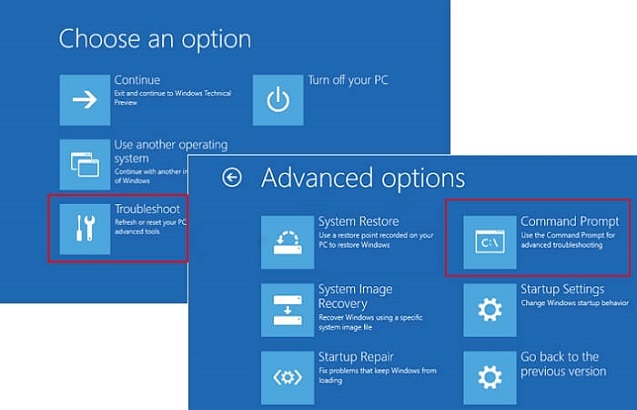
Step 3.Choose "Troubleshoot" > "Advanced Options" > "Command Prompt".
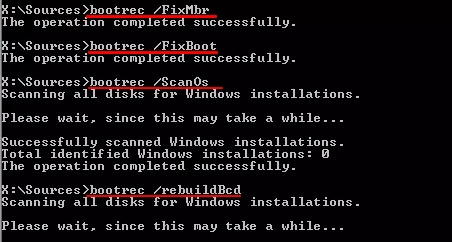
Step 4.Enter the following lines in Command Prompt and hit Enter each time:
- bootrec /fixmbr
- bootrec /fixboot
- bootrec /scanos
- bootrec /rebuildbcd
Step 5. After this, type exit to close Command Prompt and restart Windows 10.
You should be able to boot Windows 10 successfully now.
Fix MBR in Windows 8.1/8 Using Command Prompt
Step 1. Boot from Windows installation DVD or recovery USB.
Step 2. Select "Repair your computer" at the Install screen.
Step 3. Go to Troubleshoot > Command Prompt.
Step 4. Type the following command lines and hit Enter each time:
- bootrec /fixmbr
- bootrec /fixboot
- bootrec /scanos
- bootrec /rebuildbcd
Step 5. Type exit and restart PC.
Your Windows 8 computer should be able to boot up normally now.
Fix MBR in Windows 7 via CMD
Step 1. Boot Windows 7 from its installation DVD.
Step 2. Press any key to boot from DVD.
Step 3. Select a language, keyboard layout, click "Next".
Step 4. Select "Operating System" and click "Next".
Remember to check "Use recovery tools that can help fix problems starting Windows".
Step 5. Click "Command Prompt" at the System Recovery Options screen.
Step 6. Type the following lines and hit Enter each time:
- bootrec /fixmbr
- bootrec /fixboot
- bootrec /rebuildbcd
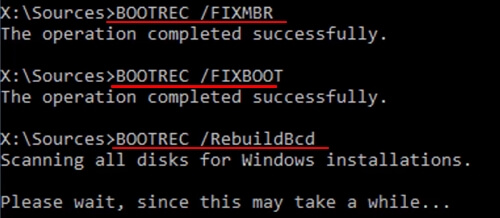
Step 7. Type exit to close the window and restart your PC.
Windows 7 has been re-enabled, allowing you to access files and applications on your computer again.
Fix MBR on Windows Vista
Step 1. Boot from Windows Vista installation CD or DVD.
Step 2. Select a language, keyboard layout, click "Next".
Step 3. Click "Repair your computer" at the Install screen.
Step 4. Select "Operating System" and click "Next".
Step 5. When the System Recovery Options appears, click "Command Prompt".
Step 6. Type the following lines and hit Enter each time:
- bootrec.exe /fixmbr
- bootrec.exe /fixboot
- bootrec.exe /rebuildbcd
Step 7. Type exit and hit Enter to close the window.
To resolve the issue, you can try restarting your Windows 7 computer. This will likely resolve the problem and allow you to use your computer normally again.
Fix MBR on Windows XP
Step 1. Boot from Windows XP CD.
Step 2. Open Recovery Console on the Welcome screens.
Step 3. Type 1 and hit Enter.
Step 4. Enter your password and hit Enter.
Step 5. Type fixmbr and hit Enter.
Step 6. TypeY and hit Enter.
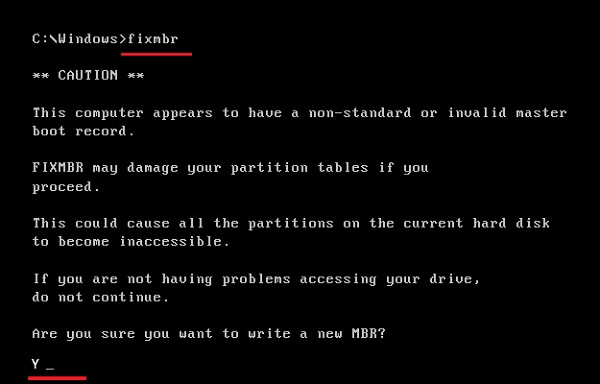
Step 7. Type exit and hit Enter.
To resolve the issue, restart your Windows XP computer. This will allow it to boot up normally again.
Conclusion
This page explains what MBR is, what happens if it becomes corrupted, and when you'll need to fix it. It also provides two practical ways to fix MBR in Windows 10/8/7/Vista, XP.
For the easiest resolution, Qiling Partition Master is worth trying. It's easy and efficient in fixing MBR, making your PC bootable again.
How to Fix MBR FAQs:
1. What does rebuild MBR mean?
Rebuild MBR is a process to repair a corrupted Master Boot Record (MBR) and restore the partition table, allowing a computer to load and boot Windows again.
Reinstalling Windows can fix the issue, but it's a complex and inconvenient process, especially for Windows beginners. A simpler and more time-saving solution is to rebuild the Master Boot Record (MBR).
Qiling Partition Master has a feature that allows users to rebuild the Master Boot Record (MBR), which can help resolve MBR corruption issues with ease and in just a few clicks.
2. Does delete MBR erase data?
If the Master Boot Record (MBR) is deleted, the entire hard drive and its data will become inaccessible, making it impossible to access or view in Windows File Explorer or Disk Management. Furthermore, the MBR cannot be directly edited or modified to make the operating system bootable.
3. Where is the Master Boot Record MBR located?
The Master Boot Record (MBR) is created when you first install Windows, specifically on the first partition you create, and it's the first 512 bytes sector on your hard disk.
4. How to fix MBR error: Bootmgr is missing
Here are some quick fixes that you can try to fix the "BOOTMGR is missing" error: Try booting your computer in Safe Mode, check the boot order in the BIOS settings, and ensure the Windows installation media is properly connected. If none of these work, try running a System File Checker (SFC) scan, booting from a Windows installation media and running a repair, or using a bootable USB drive to repair the boot sector.
- Restart PC
- Reset all internal data and power cables
- Remove all removable media
- Change the boot order in BIOS
- Copy or recreate BCD file
- Repair corrupted MBR
To fix the "BOOTMGR Is Missing" error, try booting from a Windows installation media, such as a USB drive or CD/DVD, and run the built-in repair tool to fix the issue. If that doesn't work, you can try booting from a Linux Live USB and using the GParted tool to check and repair the disk.
5. How to fix MBR error: Operating system not found
Try the listed fixes, you'll be able to make your PC bootable again from the Operating System Not Found error. The solutions include checking the boot order, booting from a live USB, checking the boot drive, checking the bootable flag, checking for malware, running a boot repair, and reinstalling the operating system.
- Check BIOS
- Reboot from a bootable disk
- Set BIOS to its default settings
- Rebuild MBR using CMD or partition manager software
- Set correct partition active
For a step-by-step guide, follow Missing Operating System for help.
Related Articles
- How to Convert GPT to MBR (Without Data Loss) with 3 GPT to MBR Converter
- How to Corrupt A Flash Drive on Purpose
- Locate, Remove and Delete Large Files in Windows
- How to Shrink Partition in Windows 11/10
- How to Fix HP Laptop Running Slow on Windows 11/10 [2024 Newest]
If your HP laptop is running slow on Windows 11/10. This article offers 8 practical solutions to help you overcome the issue and get your laptop back to its optimal performance. - Solved: HP Recovery Drive Full on Windows 10/8/7
The HP recovery drive can get full due to various reasons, including the presence of unnecessary system restore points, duplicate files, and other system data. Additionally, you can also try using the HP Recovery Drive Cleanup tool, which is specifically designed for HP devices.
Products
Articles & Tutorials
- Data Recovery
- Data Backup
- File Recovery
- File Backup
- System Backup and Restore
- Disk and Partition Clone
- Technical articles
- Mobile articles
- Disk Master Help
- Windows Data Recovery Tutorials
- Windows Secure Delete Tutorials
- Windows Partition Management Tutorials
- Windows File Backup and Restore Tutorials
- Windows System Backup and Restore Tutorials
- Windows Disk Backup and Restore Tutorials
- Windows Clone Tutorials