FIX: Missing Operating System (Operating System Not Found) for Windows 10/8/7/XP/Vista
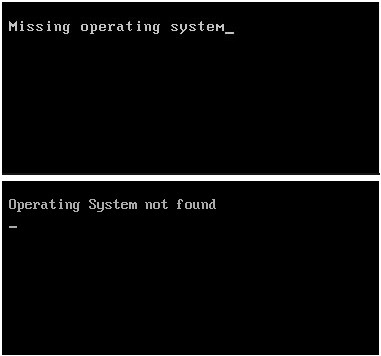
The "missing operating system" or "operating system not found" error message typically appears on a black window when starting a Windows computer, preventing it from booting. This error is common in Dell, Acer, Lenovo, HP, and Sony desktops and laptops.
| Workable Solutions | Step-by-step Troubleshooting |
|---|---|
| Fix 1. Check BIOS | Press and hold "F12/F10" to enter BIOS...Full steps |
| Fix 2. Reboot from a bootable disk | Press and hold "F10" and press "Power"...Full steps |
| Fix 3. Set BIOS to default settings | Find BIOS and enable the default setup option...Full steps |
| Fix 4. Rebuild MBR using cmd | Insert the Windows installation CD/DVD...Full steps |
| More Fixes | Boot PC from Qiling Partition Master ...Full steps |
Causes of Missing Operating System/Operating System Not Found
When the BIOS configuration, hard drive health, or Master Boot Record (MBR) goes wrong, it can prevent the Windows from booting, resulting in the "Operating System Not Found" error message. This issue can be caused by a variety of problems, including issues with the BIOS configuration, hard drive health, or the Master Boot Record (MBR).
- The Basic Input/Output System (BIOS) is unable to detect the hard disk, which is a critical issue that can prevent the computer from booting up properly. This problem can be caused by a faulty or loose connection between the hard drive and the motherboard, a malfunctioning BIOS chip, or a corrupted BIOS configuration.
- The hard disk drive is damaged
- Improper/incorrect BIOS settings
- Windows Master Boot Record (MBR) is corrupt/damaged
- An incompatible partition is set as active
Note: If the BIOS fails to detect the operating system, you will receive an error message indicating that the operating system was not found, which is the same problem on different operating system versions.
Error message 1: Missing Operating System
Error message 2: Operating system not found
7 Solutions to Fix Operating System Not Found or Missing
After understanding the causes of an operating system not found or missing in Windows, it's time to apply effective solutions to restore the missing operating system. The causes include a corrupted system file, incorrect BIOS settings, or a failed Windows installation.
Solution 1. Check if the hard drive is detected by BIOS
Step 1: To turn on a PC, press and hold the power button while also pressing the F12/F10 key. This will initiate the boot process.
Step 2: Release F12/F10 when the BIOS Setup Utility is displayed.
Step 3: The task is to find and verify the existence of IDE Primary Master, IDE Primary Slave, and IDE Secondary Master, checking if they can be detected or not.
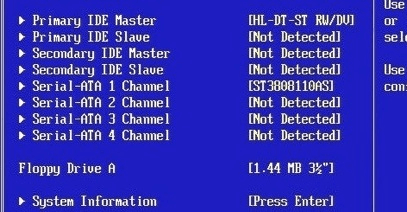
If the BIOS doesn't detect the drive, it may display as None/Not Detected, and selecting None to Auto might resolve the OS not found error.
If the system disk information is displayed, it means that BIOS can detect the hard drive, and you should exit BIOS.
Solution 2. Test hard drive problems
Step 1: To turn on your PC, press and hold the "F10" key, then press the "Power" button. Keep holding "F10" until the PC screen displays a test, then release the key.
Step 2: To select the "Tools" menu in the BIOS Setup Utility, navigate to the menu and press the right arrow key until the "Tools" option is highlighted, then press Enter to access it.
Step 3: To run a hard drive self test, select the "Hard Drive Self Test" option and press "Enter" to start the test.
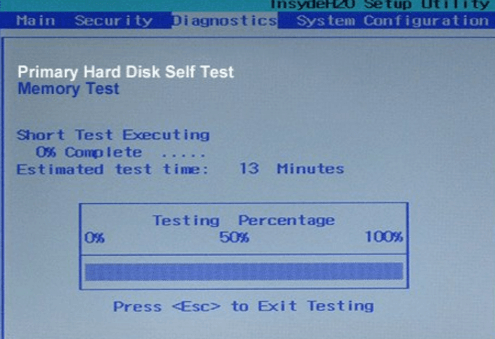
After the test, you'll get two results:
#1. All tests passed
The hard drive is not damaged. You may jump to Solution 3 to reset BIOS to the default state.
#2. The test failed
You should contact your hard disk or computer manufacturer for a replacement if these devices are under warranty.
Solution 3. Set BIOS to default settings
Improper settings or incorrect BIOS settings may cause the 'operating system not found' issue, which can be resolved by setting the BIOS to its default settings.
Step 1: Restart PC and enter BIOS.
Step 2: To enable the default setup option in BIOS, look for the "Load Setup Defaults" or "Load Optimized Defaults" option, which allows you to revert to the original settings. This feature is usually located under the "Advanced" or "Setup" tab, and may also be referred to as "Load Default Values" or "Get Default Values".
Step 3: Press "F10" to save changes and quit from BIOS.
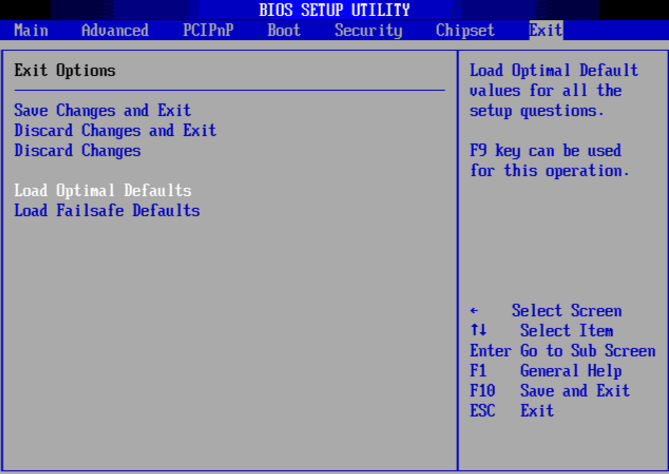
If this method doesn't work, the MBR disk could be damaged and you may jump to Solution 4 to find the MBR disk repair method.
Solution 4. Repair MBR with the installation CD/DVD
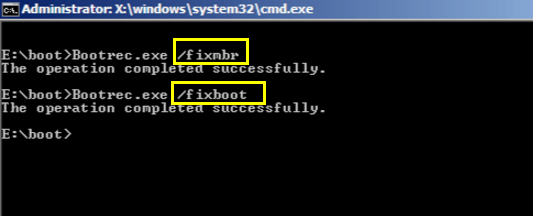
Both wrong operation and virus infection can damage the Master Boot Record (MBR), which is usually located in the first sector of the hard disk. This can prevent Windows from booting. To resolve this issue, you can try repairing the MBR using the Windows installation disk in Command Prompt.
- Notice:
- Microsoft warns that the fixmbr command may damage your partition table if a virus or hardware issue is present, potentially making existing partitions inaccessible and data unusable. However, Qiling Partition Master can safely rebuild the MBR without harming data or partitions, operating on the master boot record only. For detailed steps, refer to Solution 5.
Insert Windows Operating System Disc to the optical (CD/DVD) drive
Step 1: To turn on the PC, press the power button. When the Boot from CD prompt appears, hit the Enter key.
Step 2:In the Windows Setup Menu, press the "R" key to initiate the Recovery Console.
Step 3: Type: FIXMBR at the C:\> prompt and hit "Enter".
Step 4: Press the "Y" key and then hit the "Enter" key when prompted to write a new Master Boot Record (MBR).
Step 5: Once the MBR has finished writing, press the "Power" button to restart your PC. This will complete the process.
Solution 5. Rebuild MBR without Windows installation CD/DVD
You can use third-party partition magic software, such as Qiling Partition Master, to automatically repair or rebuild the MBR disk, making the process easier and safer.
To repair your MBR, simply boot your Windows from the WinPE environment you created, and with a few clicks, you can easily restore your Master Boot Record to its original state.
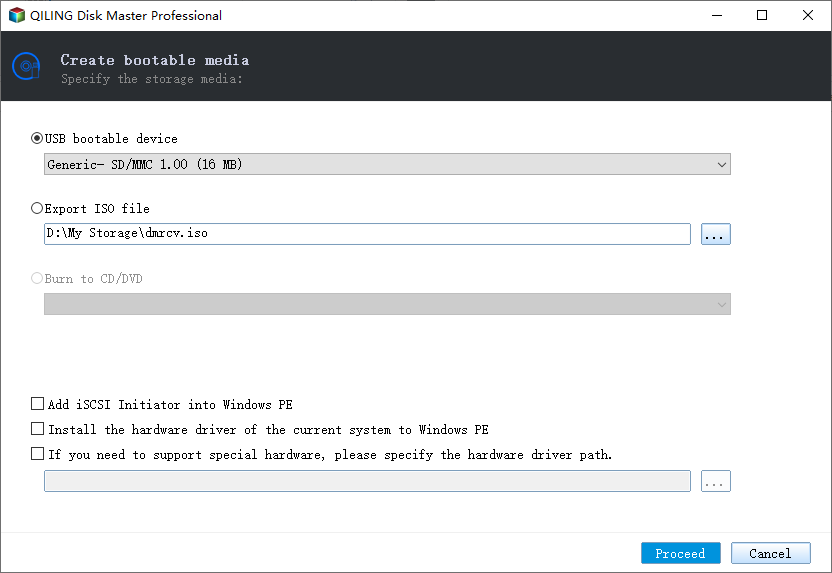
Step 1. Create a WinPE bootable disk
- Launch Qiling Partition Master, click "Create bootable media" on the tools page, and select to create the bootable disk on a USB drive or CD/DVD.
- Click "Proceed" to finish the process.
Step 2. Boot Qiling Partition Master Bootable USB
- Connect the bootable USB or CD/DVD to your PC.
- To enter the BIOS screen, press F2 or Del when restarting the computer. This will allow you to set your computer to boot from the removable devices or CD-ROM drive. Once set, Qiling Partition Master will automatically run.
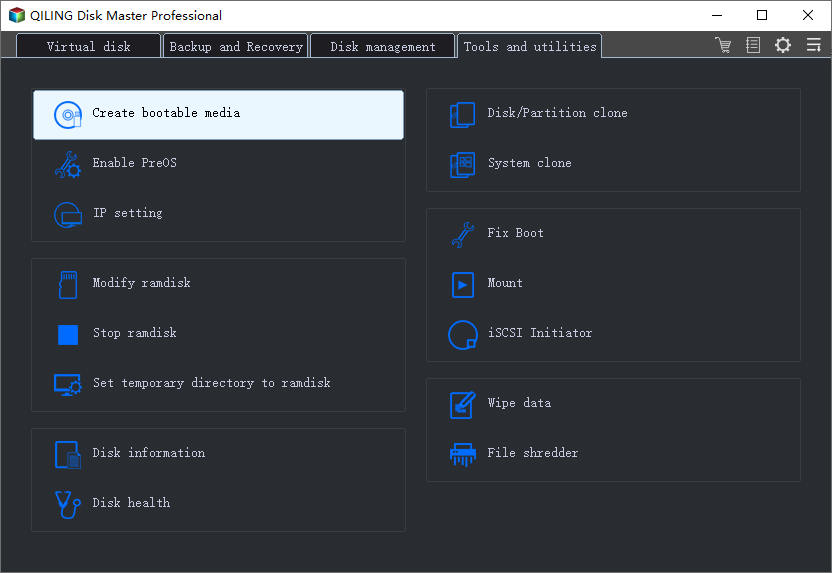
Step 3. Rebuild MBR
- In the Tools and utilities page, select Fix Boot to proceed.
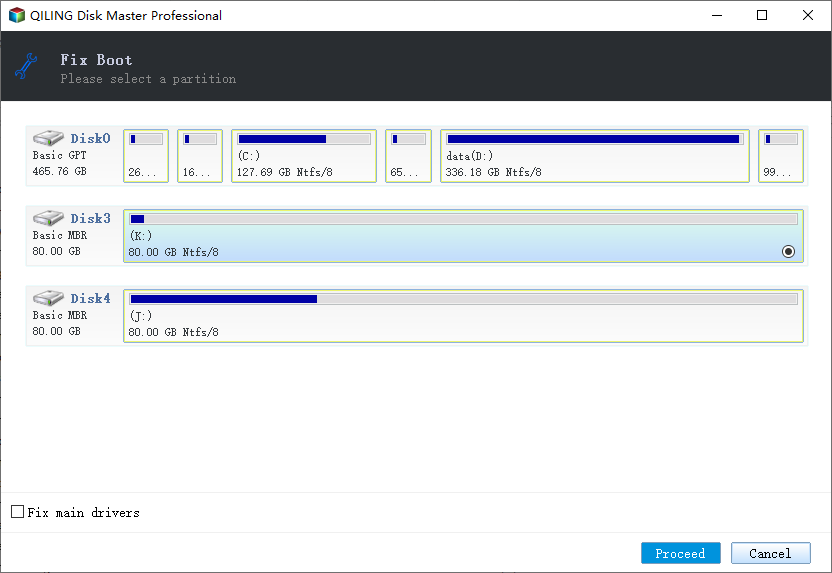
- Identify the disk with the damaged MBR, click "Proceed" to rebuild the MBR, and the computer should boot normally afterwards.
Solution 6. Repair MBR for HP
Various computer and laptop brands, including HP, provide tools to repair the Master Boot Record (MBR), which is corrupted, using their inbuilt tools or a Windows Operating System Disc (OSD).
Follow all steps at https://support.hp.com/us-en/document/c00476274
Solution 7. Set the correct partition active
When Windows is running under Legacy BIOS + MBR mode, the boot partition/system partition should be set as active to allow MBR to pass boot rights to the boot manager and find Windows, preventing the "operating system not found" issue. If it's not set to active, you may encounter this problem. This is necessary for the operating system to be found and loaded properly.
In the same partition tool, create the Qiling Partition Master bootable USB first, and follow the steps to set the boot partition active:
Step 1.Run the Qiling partition manager software and navigate to the disk map. From there, click on the target partition.
Step 2. The software automatically creates an active partition by selecting "Set Active" from the toolbar in the Disk management page, which then executes the operation and sets the partition as active.
Conclusion
If you're experiencing the "Missing Operating System" or "Operating system not found" error, there are effective solutions presented on this page to help you resolve the issue. You can try any of the methods to get your Windows system back up and running smoothly again.
If Windows 10 displays the exact message 'An operating system wasn't found,' the Windows 10 operating-system-not-found guide starts with drive detection and firmware settings.
Related Articles
- Download Partition Magic Alternative Software to Resize Partition under Windows 10
- Get Qiling Partition Master Key (v6.0) in 2022 | No Cracking
- How to Extend C Drive in Windows 7/8/10
- Solved: Can't Remove Windows.old Folder in Windows 11/10
- Easily Solved: Can't Delete System Partition of Windows 10, 8, 7
If you're unable to delete the system partition within Windows Disk Management, this article can provide a solution. It offers a guide on how to delete the C drive in Windows 7, 8, or 10. - [Easily Solved] Delete Volume Greyed Out in Windows 10, 8, 7
Find Delete Volume grayed out in Disk Management? In this article we introduce Qiling Disk Master to solve the problem.
Products
Articles & Tutorials
- Data Recovery
- Data Backup
- File Recovery
- File Backup
- System Backup and Restore
- Disk and Partition Clone
- Technical articles
- Mobile articles
- Disk Master Help
- Windows Data Recovery Tutorials
- Windows Secure Delete Tutorials
- Windows Partition Management Tutorials
- Windows File Backup and Restore Tutorials
- Windows System Backup and Restore Tutorials
- Windows Disk Backup and Restore Tutorials
- Windows Clone Tutorials