How to Increase C Drive in Windows Server
| Workable Solutions | Step-by-step Troubleshooting |
|---|---|
| Using Third-Party Server Disk Manager | To expand the disc space on the C drive...Full steps |
| Increase C drive on Disk Management | Step 1. Go to the start menu and open disk management...Full steps |
| Using CMD to Add Space | 1. Increase C Drive with Unallocated Space...Full steps |
Storing important data and files on the C drive, which is the system's default drive, is not advised. This is because large data stored on the C drive can slow down the system's speed and performance, eventually leading to a disk space shortage. Additionally, if a virus or a Windows upgrade is required, data stored on the C drive may be lost.
While the C drive typically has ample storage capacity, exceeding its limits can impact the Windows system. The space consumed by files, applications, and documents is not just determined by their file size, but also by cache memory, which can add up quickly. This means that even with a large capacity drive, the C drive's storage limit can still be a concern.
When you need to store a lot of data, you'll need a lot more storage space. To efficiently manage space on a Windows server, consider creating a separate partition for data storage, rather than relying on temporary solutions like removing unwanted files. This allows for a more stable and organized approach to storage.
The disc size will be increased by removing old volumes and merging them into a C drive to make more room, solving the low disc space issue.
We'll explore expanding disc space in this article, starting with a trustworthy third-party service that we recommend, and then covering the system's built-in capabilities step by step.
This article will explore both disk management and command line (CMD) approaches, helping you decide which one is best for you. We'll delve into the specifics of each, so you can make an informed decision by the end. Let's take a closer look.
Method 1. Using Third-Party Server Disk Manager
To expand the disc space on the C drive, we recommend using Qiling Partition Master, a third-party utility that allows you to quickly perform various tasks with its user-friendly interface. This tool enables you to create a partition and distribute space accordingly, making the most of your available space. It offers several key features, including the ability to resize partitions, move partitions, and merge partitions, among others. By using Qiling Partition Master, you can efficiently expand the disc space on the C drive and optimize your storage capacity.
- The remarkable Extend/ Shrink Function
- Increases C Drive Space, extend partitions without data loss
- Allows you to directly drag to increase storage space
- Tech support available
Some of the silent features of Qiling Partition Master include a comprehensive set of tools for managing and manipulating disk partitions.
- It supports converting NTFS to FAT32
- Capable of creating split partitions
- Reduce restart requirement.
- For low disk space, it merges partitions to create a large partition.
- Identifies and fixes the error in partitions
- Capable of cloning partitions
- Change label partition and improve data organization
- Free trial available
- Provide 100% data security
If you're using the third-Qiling Partition Master is a party tool that allows you to expand your partition, effectively dividing the space. The trial version can be downloaded from the official website, but to access complete features, you need to purchase the software.
To resize a hard drive partition, start by installing the program on your system. Select the disc you want to increase in size, then choose the resize/remove option. The program will start enlarging the partition, and if you want to use the unallocated space on another disc, be sure to select it as well. The program will then resize the disc partition according to the available space.
Option 1. Extend System C drive with unallocated space
- 1. Click on the System C: drive and select "Resize/Move".
- 2. Drag the system partition end into the unallocated space so to add it to the C: drive.
- Click "Proceed" to execute the operations and extend the C drive.
Option 2. Extend System C drive without unallocated space
- 1. To resize a partition, click on a large partition with sufficient free space on the system disk and select "Resize/Move".
- 2. To free up space, drag the end of the big partition to the left to shrink it, making room for the unallocated space. Then, click "Proceed" to confirm this change.
- 3. Select the system drive at the Disk management page, and select "Resize/Move".
- 4. To extend the C drive, drag the end of System C drive into the unallocated space and click "Proceed" to save the changes. This will extend the C drive into the unallocated space.
Method 2. Increase C drive on Disk Management
Disk management is a built-To increase the C drive space using Disk Management, you can extend the volume by adding unallocated space behind it. However, if there is no adjacent unallocated space, you'll need to shrink or delete the volume first to make space available for extension. The steps to achieve this are:
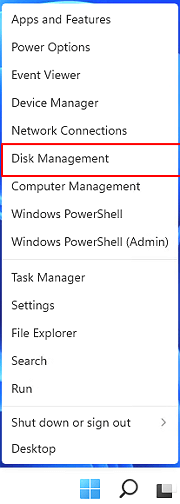
Step 1. Go to the start menu and open disk management
Step 2. Select the target volume. Right-click and select delete volume.
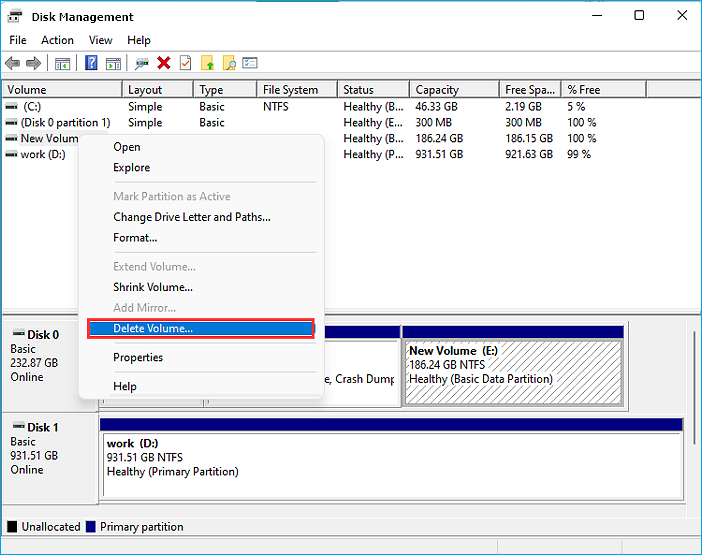
Now you will have the unallocated space available
Step 3. Now, select the C drive to right-click and select "Extend Volume".
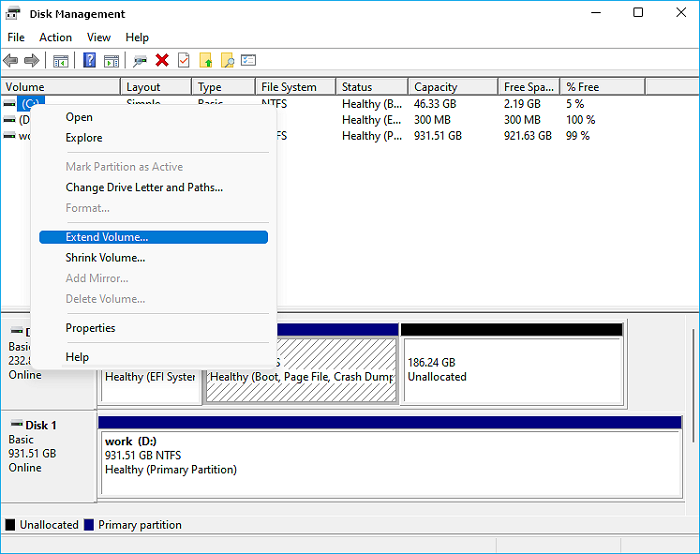
Step 4. To extend the volume, follow these steps: Go to Computer > Properties > Device Manager. In the Device Manager, click on Disk Management. In Disk Management, right-click on the volume you want to extend and select Extend Volume.
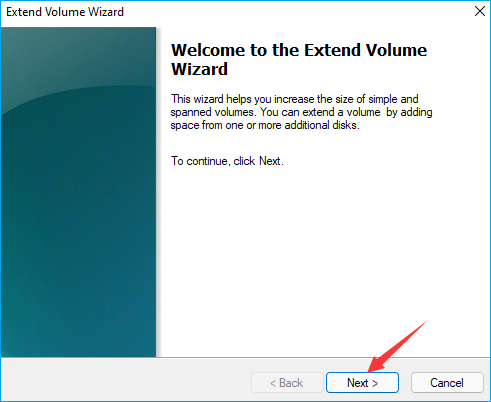
Step 5. Here enter the space you want to get allocated in C drive and press Next.
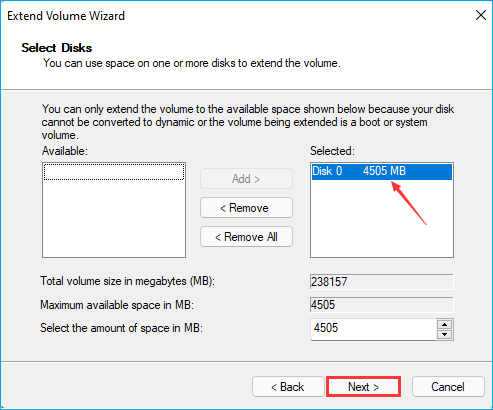
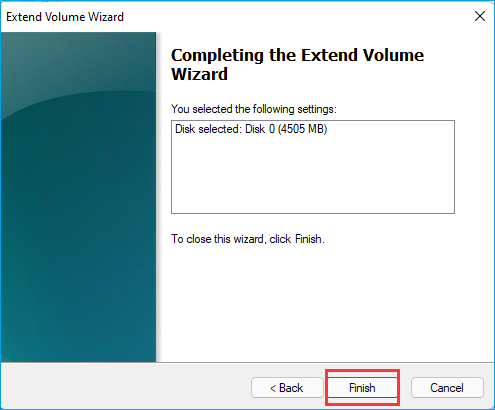
Step 6. Click on Finish
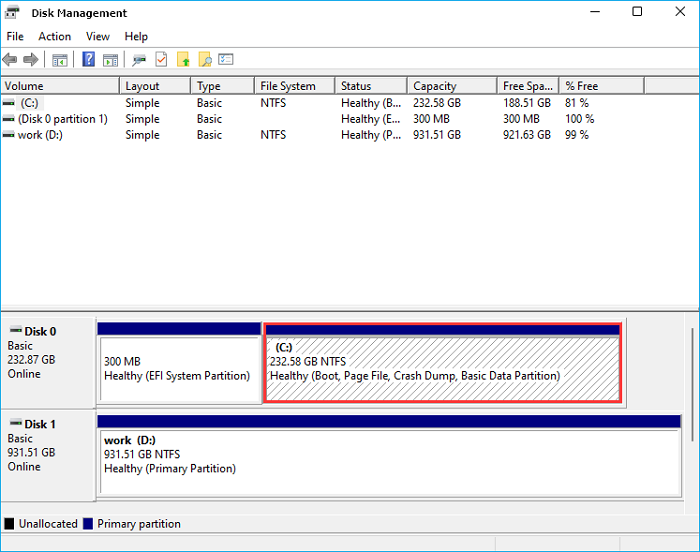
Step 7. You have your C drive with allocated new space.
Method 3. Using CMD to Add Space
The second built-To increase the C drive using the Command Prompt (CMD), you can follow these steps:
1. Increase C Drive with Unallocated Space
Step 1. Click Windows + R to open the Run dialog box.
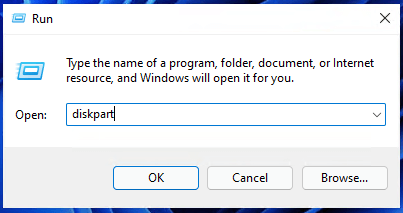
Step 2. Type CMD, and click Enter to open Command Prompt as Administrator.
.png)
Step 3. Type diskpart and click Enter to open DiskPart.
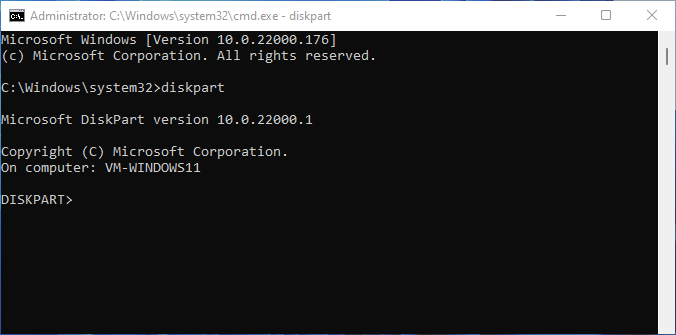
Step 4. Type the following CMD command lines and press Enter each time to extend C drive:
- To select the disk where Windows is installed, type `select disk X` in the command prompt, replacing X with the disk number of your system disk. For example, if your system disk is on disk 1, you would type `select disk 1`. This command is used to specify which disk to manage or modify within the command prompt.
- list volume
- The command "select volume x" (Replace X with the partition number of your C drive) is a Windows command used to select the C drive as the active drive. This command is typically used in the Diskpart tool, which is a command-line utility for managing disk partitions. By running this command, you are essentially telling the Diskpart tool to focus its operations on the C drive, allowing you to perform tasks such as formatting, deleting, or modifying partitions on that drive.
- extend size =number (Normally, the default size unit is MB.)
- exit
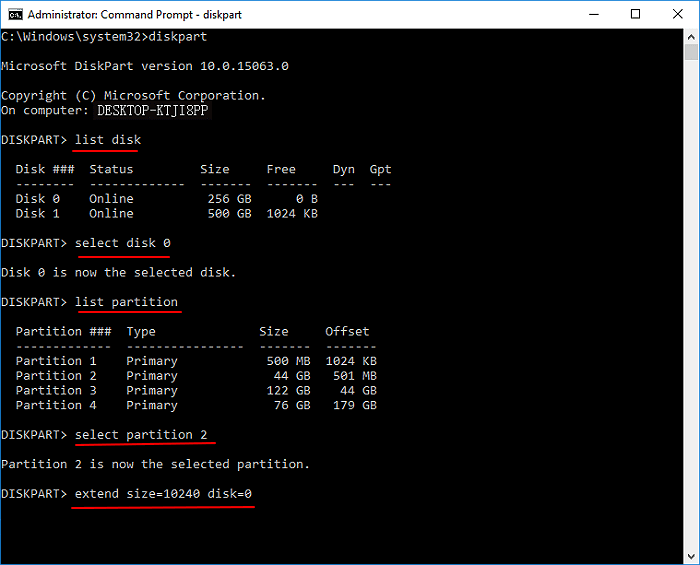
After this, you can restart the system and you'll have a larger C drive on your computer.
2 - Enlarge C Drive without Unallocated Space
If you don't have unallocated space behind your C drive, you'll get an error message saying "Virtual Disk Service error: There is not enough usable space for this operation". To resolve this, you need to delete the adjacent drive behind the C drive to create an unallocated space.
Don't forget to back up all your data to another location before doing this. Now, follow the steps below to extend the C drive, which are the same as before:
Step 1.To open DiskPart as Administrator, open the Run dialog, type "cmd" and hit Enter to open Command Prompt, then type "diskpart" and hit Enter.
Step 2. Type command lines given below and click Enter each time:
- list disk
- select disk x (Replace X with the disk number of your system disk.)
- list volume
- To delete a volume, you can use the command `select volume *` in the Command Prompt, replacing the asterisk (*) with the partition number that you want to delete. For example, if you want to delete the third partition, you would type `select volume 3`. This will prompt you to confirm the deletion, and you can then proceed with the deletion by typing `yes` or `y`.
- delete volume
- select volume x (Replace X with the disk number of your C drive.)
- extend size =number (Normally, the default size unit is MB.)
- exit
To expand your C drive, you need to delete the page file, which is usually located in the C drive. This will free up space on your C drive.
Final Words
We propose three approaches to increase C drive space, but the default method using disk management may not accurately identify available space, and using CMD could result in data loss. Instead, we recommend using Qiling Partition Master, a reliable and user-friendly application that allows you to quickly accomplish tasks.
Related Articles
- Fixed: Hard Drive Missing After Windows 11/10 Update (Without Data Loss)
- How to Change BIOS Mode from Legacy to UEFI Windows 10/11
- [Full Guide] How to Rebuild MBR | Fix Damaged MBR
- How to Free Up Disk Space for Gaming?
- Format RAW SD Card/USB Drive in Windows 11/10/8/7
To format a RAW SD card, USB flash drive, pen drive, or RAW partition, you can use a RAW SD card formatter or Qiling Partition Master. This software allows you to easily format the device to FAT32, NTFS, EXT2, or EXT3 in Windows 11/10/8/7. - How to Format Read Only Disk to Normal Windows 11
This article will explore how to format a read-only disk to normal in Windows 11, providing a step-by-step guide to achieve this. Let's get started.
Products
Articles & Tutorials
- Data Recovery
- Data Backup
- File Recovery
- File Backup
- System Backup and Restore
- Disk and Partition Clone
- Technical articles
- Mobile articles
- Disk Master Help
- Windows Data Recovery Tutorials
- Windows Secure Delete Tutorials
- Windows Partition Management Tutorials
- Windows File Backup and Restore Tutorials
- Windows System Backup and Restore Tutorials
- Windows Disk Backup and Restore Tutorials
- Windows Clone Tutorials