How to Change BIOS Mode from Legacy to UEFI Windows 10/11
- 1. Why Do We Change BIOS Mode from Legacy to UEFI
- 2. How to Check You Are Using Legacy or UEFI
- 3. How to Change BIOS Mode from Legacy to UEFI
Why Do We Change BIOS Mode from Legacy to UEFI
The BIOS (Basic Input/Output System) is a crucial component that enables communication between computer hardware and operating systems. Stored on a ROM (Read-Only Memory) chip on the motherboard, the BIOS contains a set of instructions that the computer executes to perform basic operations, such as booting up.
UEFI (Unified Extensible Firmware Interface) offers several advantages over Legacy BIOS, including a more user-friendly interface, better support for large hard drives and long filenames, faster boot times, and improved security features such as encrypted boot processes and password-protected BIOS settings. These advantages make it desirable to switch from Legacy BIOS to UEFI mode, providing a more efficient and secure computing experience.
However, some computers still use Legacy BIOS, so it's still important to know the difference between the two types of BIOS. Follow this link to know more information about BIOS and UEFI.
How to Check You Are Using Legacy or UEFI
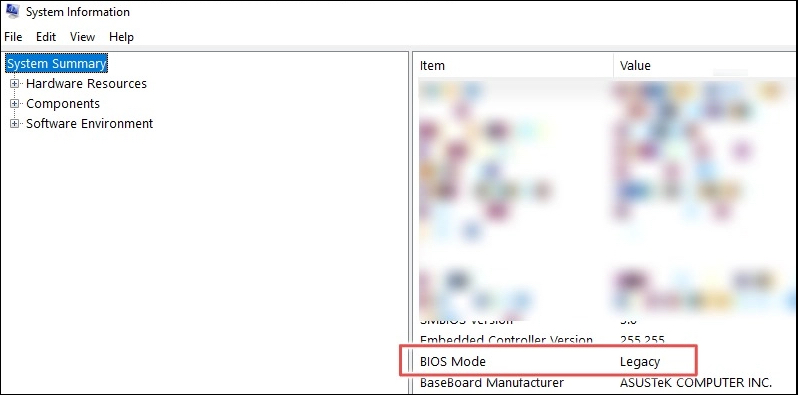
You can check if your computer is using Legacy or UEFI mode by checking the System Information, which can be accessed by right-clicking on the Start button and selecting System Information, then looking for the BIOS Mode or UEFI Firmware field. Alternatively, you can also check the BIOS settings by pressing F2, F12, or Del during boot-up, or by checking the manufacturer's website for specific instructions. Additionally, you can check the boot mode by looking for the "Legacy" or "UEFI" label on the boot menu or by checking the system's documentation.
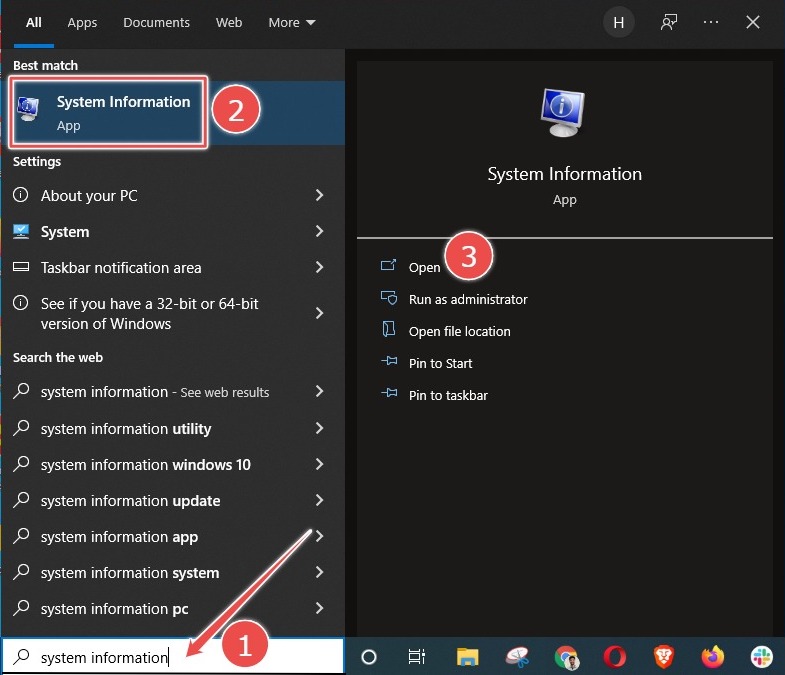
Step 1: Search "System Information" in the search bar and open it.
Step 2: Check your BIOS Mode.
To check whether your Windows is using Legacy or UEFI firmware, you can check the BIOS settings. To do this, you will need to restart your computer and enter the BIOS settings by pressing a key such as F2, F12, or Del. Once in the BIOS settings, look for the Boot Mode or Boot Order option.
How to Change BIOS Mode from Legacy to UEFI
Users may need to change the BIOS mode from Legacy to UEFI for various reasons, such as upgrading to a new operating system that requires UEFI, and it's not as difficult as users think.
Prerequisites
To change the BIOS mode from legacy to UEFI, there are a few prerequisites that must be met. These include ensuring that the motherboard and CPU support UEFI, having a UEFI firmware available, and being able to access the firmware settings.
- Windows version must be at least Windows 10 v1703.
- The MBR disk should not have more than three partitions. If there are more than three, consider merging or deleting some to meet the limit.
- To convert a Windows installation from Legacy BIOS to UEFI, you need to turn off BitLocker first. This is because BitLocker doesn't allow Windows to convert the drive.
- The operating system must be 64-bit.
- No dual boot.
Before converting your file, it's a good idea to back up your data to prevent any potential loss in case something goes wrong during the conversion process. This will ensure that your data remains safe and accessible.
Part 1. Convert MBR to GPT
Converting a hard drive from MBR to GPT is necessary when changing BIOS mode from Legacy to UEFI, and Qiling Partition Master makes it easy to do so with just a few clicks.
Step 1. Download and launch Qiling Partition Master on your Windows computer.
Step 2. To convert a Master Boot Record (MBR) disk to a GUID Partition Table (GPT) disk, select the MBR disk you want to convert, click the "More" button, and then choose the option "MBR -> GPT".
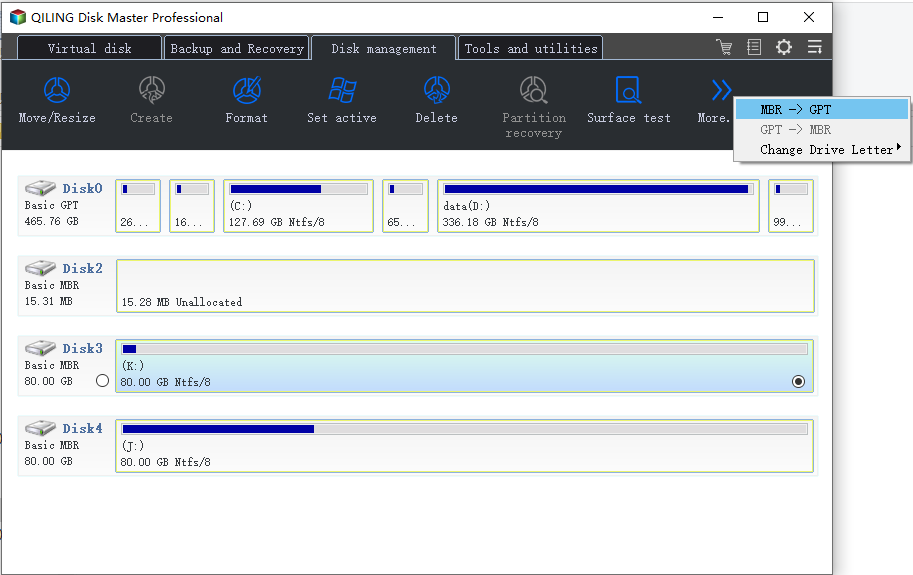
Step 3. Waiting the conversion from MBR to GPT.
In addition, Qiling Partition Master offers a number of other benefits.
- Migrate Windows 11 to a new SSD in one click.
- Resize/extend/shrink/create dynamic volume easily.
- Convert file system from FAT32 to NTFS.
The tool is ideal for anyone who needs to change their BIOS mode or convert their hard drive, making it a perfect solution for those who require these specific functions.
You can also learn how to convert MBR to GPT by command prompt in our related article, which is more time-consuming.
Part 2. Convert Legacy BIOS to UEFI
Open the BIOS setting to choose UEFI as the boot mode. The general procedure is as follows, although some details may vary by the computer manufacturer.
Step 1: Turn on or restart your computer.
Step 2: When the computer manufacturer's logo interface appears, long-press F2 to enter the BIOS Setup, as most computers use F2, but some may use other keys like ESC, DEL, or F12.
Note: If you don't open the BIOS Setup in time, Windows will load normally and you'll need to restart the computer to switch to BIOS mode.
Step 3: Use arrow keys to select the "Boot" tab.
Step 4: Select "UEFI" in the "UEFI/BIOS Boot Mode". Press Enter.
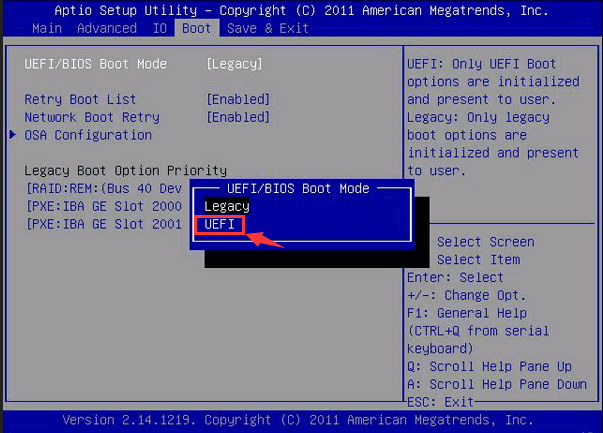
Step 5: Move to the "Save & Exit" tab and press Enter.
Conclusion
To change the BIOS mode from legacy to UEFI in Windows 10/11, use Qiling Partition Master to convert the MBR to GPT before making the switch, ensuring data is not lost during the process. Once converted, access the firmware settings screen for your motherboard and convert Legacy BIOS to UEFI.
Related Articles
- How to Wipe External Hard Drive on Windows 10 and Mac Without Recovery
- How to Initialize SSD in Windows 10/8/7, How to Initialize a Hard Drive
- [2022] How to Convert Primary Partition to Logical Partition
- Mini SD Card | What Is Mini SD Card, How to Format It
- I Can't Format USB to exFAT on Windows 10, What Should I Do
This short page explains why you are unable to format USB to exFAT on Windows 10. And you can use the best solution to fix the format error on Windows. - Can't Safely Eject External Hard Drive on Windows 10, How to Solve It?
If you encountered the 'Problem Ejecting a USB Mass Storage Device' problem and can't safely eject an external hard drive on Windows 10, you can try the practical ways in this post to fix this issue.
Products
Articles & Tutorials
- Data Recovery
- Data Backup
- File Recovery
- File Backup
- System Backup and Restore
- Disk and Partition Clone
- Technical articles
- Mobile articles
- Disk Master Help
- Windows Data Recovery Tutorials
- Windows Secure Delete Tutorials
- Windows Partition Management Tutorials
- Windows File Backup and Restore Tutorials
- Windows System Backup and Restore Tutorials
- Windows Disk Backup and Restore Tutorials
- Windows Clone Tutorials