Turn On Secure Boot for Windows 11 Installation
Windows 11 has introduced mandatory system requirements for users upgrading from Windows 10, including the use of UEFI boot method, GPT disk style, TPM 2.0, and secure boot.
To enable secure boot for Windows 11 installation, you need to create a bootable USB drive with the Windows 11 installation media, boot from the USB drive, and then enable secure boot in the BIOS settings of your computer. You can create a bootable USB drive by downloading the Windows 11 installation media from Microsoft's official website and using a tool like Rufus to create a bootable USB drive.
What is Microsoft Secure Boot?
Secure Boot is a feature that ensures only trusted software components are used during startup, providing security measures that were not possible before, by verifying the digital signatures of software components signed by Microsoft or OEMs.
Windows 11 requires UEFI boot mode, and Secure Boot is associated with UEFI-based computers. To use Secure Boot, users must enable this option, which is a necessary step for those with UEFI-based computers. We'll explore how to enable Secure Boot in the next part.
How to Enable Secure Boot for Windows 11
Don't be afraid if you're not a computer expert - follow the step-by-step guide and you can do it on your own. Just remember to change your boot mode to UEFI before turning on secure boot, and if you're unsure, refer to the page on how to check your computer's boot mode.
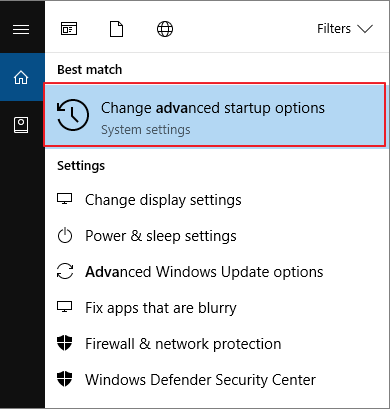
Step 1.Search for "Advanced startup" in the Windows search bar, then select "Change advanced startup options".
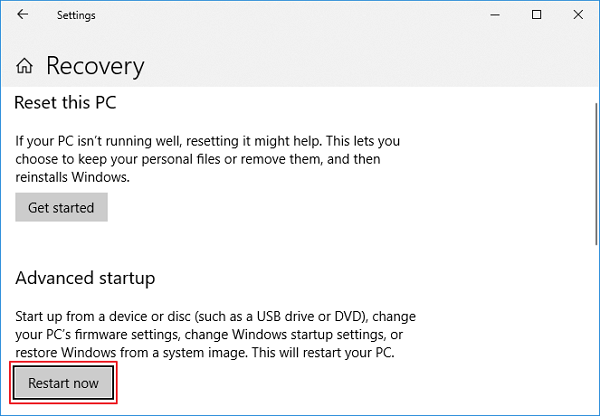
Step 2.Under Recovery > Advanced startup, click the Restart nowbutton.
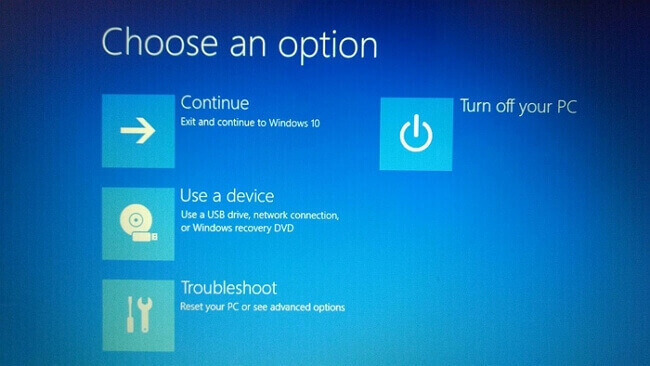
Step 3.Your computer will restart and display the "Choose an option" screen. Select the "Troubleshoot" option.
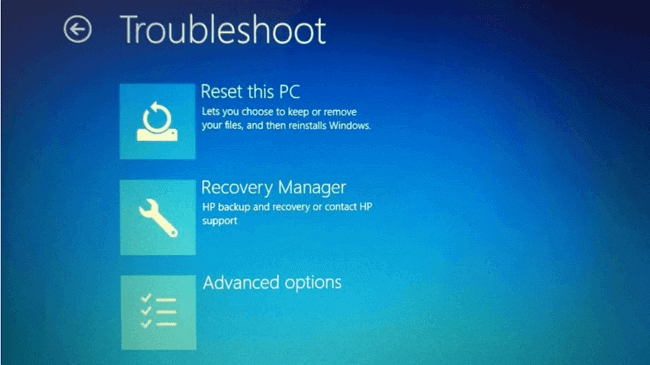
Step 4.Choose Advanced options.
Step 5.Choose UEFI Firmware Settings.
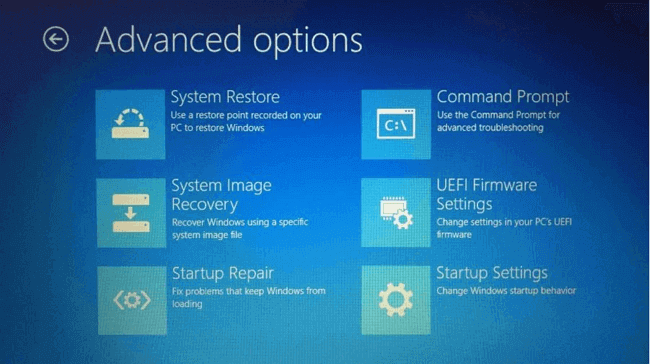
Step 6.The computer will restart and boot into the BIOS settings, allowing you to access and configure the system's hardware settings.
Step 7.Under the BIOS settings, you need to click the Securitytab.
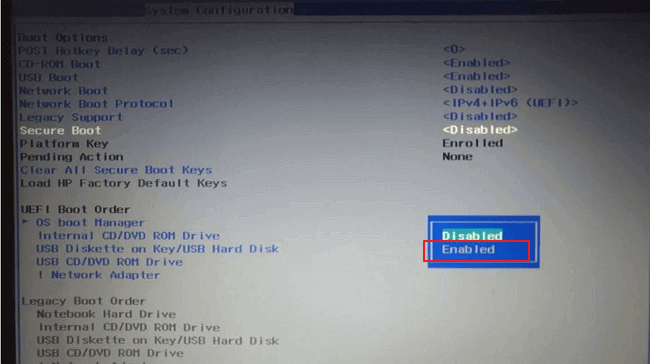
Step 8.To enable Secure Boot, navigate to the Boot settings, select Secure Boot, and toggle the switch to Enabled.
Download and Install Windows 11
After enabling the secure boot of your computer, you can check the status using a tool to ensure your PC meets the system requirements of Windows 11. This page also provides Windows 11 download and installation solutions, including a toolkit developed by Qiling to make the installation process easier.
Windows 11 Requirements Free Checker
Extra Tip: Windows 11 MBR or GPT?
Windows 11 requires a UEFI boot mode and a GPT disk style, but if your disk is MBR, you can convert it to GPT using a partition manager like Qiling Partition Master without losing any data.
Qiling Partition Master is a user-friendly tool that makes managing computer partitions easier and more convenient, even for those without extensive computer knowledge. It allows users to convert from MBR to GPT while keeping their disk data intact, making it a suitable choice for those who want to make this transition without losing any data.
To convert MBR to GPT, you can download the tool and follow the guide below. The tool allows you to convert the partition table from Master Boot Record (MBR) to Globally Unique Identifier (GPT), which can be useful for various reasons such as increasing the disk size limit or improving disk management.
Windows 11 requires a GPT disk, but if you have a Windows 10 MBR disk with partitions, you can convert it to GPT without deleting partitions using a tool like Qiling Partition Master. These tools allow you to convert the disk to GPT while preserving the existing partitions, making it possible to upgrade to Windows 11 without losing any data.
To prepare for updating to Windows 11, you need to check your partition style and consider converting from MBR to GPT. This can be done by running the command "wmic diskdrive get status" in Command Prompt, which will display the partition style of your disk.
More to Know: Does Secure Boot Affect Performance?
Enabling Secure Boot adds protections to prevent virus attacks, but it won't slow down your computer. It only protects your computer, not affecting its performance.
Conclusion
Upgrading to Windows 11 requires more effort than other Windows 10 updates, but with our guides, you can easily upgrade without worrying about the process. If you find Windows 11 not to your liking, you can still roll back to Windows 10. The journey to the new Windows OS can be enjoyable.
Related Articles
- We Couldn't Install Windows 11 - Error Code 0x800f0830
- Reset This PC Not Working on Windows 11 (4 Fixes)
- How to Stop Windows 11 Update (Block It Forever)
- Windows 11 Download: How to Download and Install Windows 11 [3 Ways]
- How Do I Convert Bootable Disk or Bootable USB to Normal in Windows 11
Learn how to convert a bootable disk or bootable USB back to normal in Windows 11 using safe formatting and partition methods. - How to Convert MBR to GPT Using CMD in Windows 11
Converting a Master Boot Record (MBR) to a GUID Partition Table (GPT) using the Command Prompt in Windows 11 can be a bit tricky, but it can be made easier by using a tool or employing the command prompt. - Windows 11 Secure Boot Certificate Expired in 2026 (Fix)
Products
Articles & Tutorials
- Data Recovery
- Data Backup
- File Recovery
- File Backup
- System Backup and Restore
- Disk and Partition Clone
- Technical articles
- Mobile articles
- Disk Master Help
- Windows Data Recovery Tutorials
- Windows Secure Delete Tutorials
- Windows Partition Management Tutorials
- Windows File Backup and Restore Tutorials
- Windows System Backup and Restore Tutorials
- Windows Disk Backup and Restore Tutorials
- Windows Clone Tutorials