How Do Experts Free Disk Space in Windows Server in 2022 [5 Ways]
Your Server computer's disk space can become full after using it for a year or two, especially if the data disk has a small capacity, leading to "Low Disk Space" or slow computer errors in Windows Server systems.
To free up disk space in Windows Server computers, there are several efficient ways to clean up and optimize performance. Windows experts and Server administrators often apply these methods to make more available free space, including deleting unnecessary files, uninstalling unused programs, disabling hibernation, deleting system restore points, and running the built-in Disk Cleanup tool to remove temporary files and system logs. These simple yet effective techniques can help declutter your Server computer's disk space and improve its overall performance.
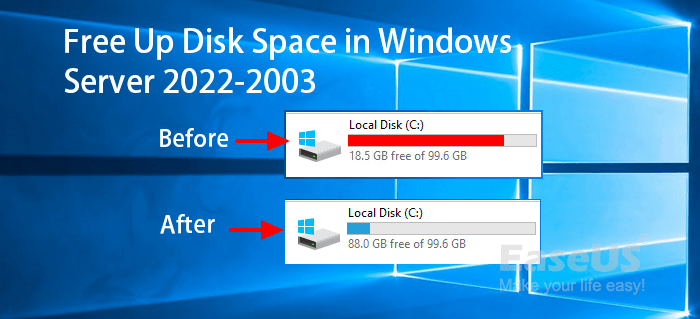
Disk Gets Full? 5 Ways That Experts Apply to Free Disk Space in Windows Server
Applies to: Windows Server versions include 2022, 2019, 2016, 2012, 2012 R2, 2008, and 2008 R2, among others.
To free up disk space in Windows Server computers, follow these 5 ways that most exports apply: by deleting unnecessary files, uninstalling unused software, emptying the Recycle Bin, disabling hibernation, and running the Disk Cleanup tool. By implementing these simple steps, you can successfully make your Server computer as fast as new immediately.
- #1. Disk Cleanup
- #2. Uninstall Apps
- #3. Reset Virtual Memory Page File Size
- #4. Add More Space, or Upgrade Disk to a Larger One
- #5. Move Large Files, Programs to Another Drive
IMPORTANT: When freeing up disk space on Windows Server computers, don't forget to back up your valuable server data to an external disk or cloud drive in case you accidentally delete any essential content.
Your Quick Guide:
- Methods 1, 2, and 3 are free methods that help remove junk files, useless apps, or temporary content.
- To boost your computer's speed, consider adding more space to your target drive using four main methods. Firstly, expand your hard drive by upgrading to a larger capacity drive.
- Method 5 helps you move large files and programs to a different location, freeing up space on the target drive.
To free up disk space in Windows Server, follow the experts' guide: disable any unnecessary Windows features, remove temporary files, delete system logs, and check for any duplicate files. Additionally, consider compressing files, cleaning up the Windows update cache, and removing any unused Windows components or services.
#1. Disk Cleanup
Disk Cleanup is a Windows built-in tool that helps users efficiently clean up and delete large and useless files from all existing hard drive partitions, making it easier to free up space on their computer.
What can you delete:
- Windows upgrade log files
- Downloaded Program Files
- Temporary Internet Files
- System error minidump files
- Windows error reports and feedback diagnostic files
- DirectX Sharder Cache
- Delivery Optimization Files
- Recycle Bin
- Temporary Files
- User file history
How Does Disk Cleanup Free Up Disk Space:
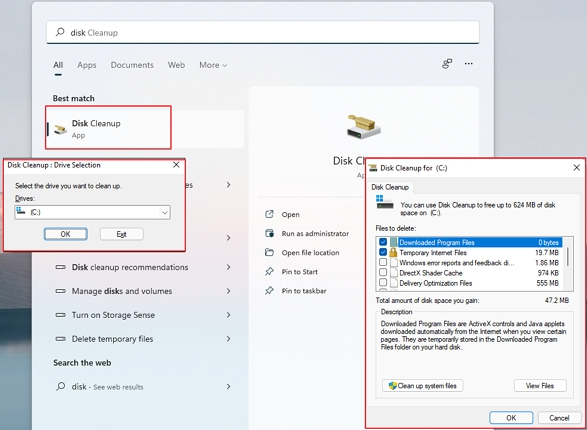
Step 1. To open the Disk Cleanup tool, press the Windows key + S, type "disk cleanup" in the search box, and then click on "Disk Cleanup" to open it.
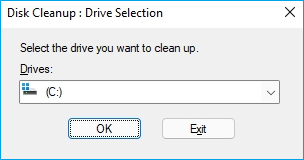
Step 2. To clean up a drive, select the drive number you want to clean up from the list and click "OK".
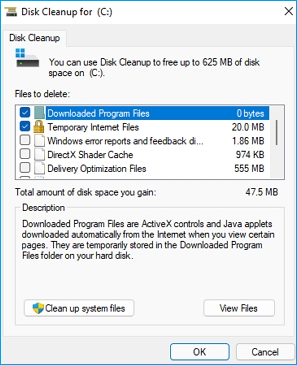
Step 3. Check the files or useless data that are taking up big space on the target drive, click "OK" to start freeing up space.
#2. Uninstall Apps
Removing corrupted or uninstalling unwanted applications is another effective way to free up disk space on Windows Server, aside from deleting large, useless files. By getting rid of unnecessary programs, you can make the most of your disk space and keep your Server running efficiently. Wise Windows experts know the importance of managing applications to optimize disk space, and they would never allow big, useless apps to take up valuable space.
What to be removed? Here is a list:
- Huge & unnecessary applications
- Useless games
How to Free Up Disk Space by Uninstalling Apps:
To remove unwanted programs on Windows, you can use the Programs and Features tool. This tool allows you to view the size of each application and safely uninstall them.
Step 1. Press Windows + X keys.
Step 2. Click "Programs and Features" from the result list to open this tool.
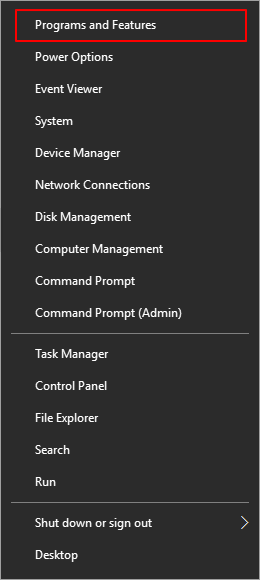
Step 3. To uninstall unwanted programs in Server, open the Programs and Features window, find the programs you no longer need, right-click on them, and select "Uninstall".
Repeat the steps above till you remove all useless apps on Server.
#3. Reset Virtual Memory Page File Size
The Page file is a virtual RAM component that occupies disk space on the system C drive, and excessive size can lead to high disk usage issues in Windows and Windows Server systems.
To free up disk space on Server, consider resetting the virtual memory page file size. You can either set it to 0 to disable it, or adjust its size to a smaller value, such as 1024 MB, to release some space. This can be done through the System Properties or by editing the registry directly.
Option 1. Reset Virtual Memory:
Step 1. Press Windows + R keys, type sysdm.cpl ,3 and hit Enter.
Step 2. Click "Settings" under Performance at the Advanced tab.
Step 3. To adjust virtual memory settings, go to the Performance page, click on the Advanced tab, and then click "Change" under the Virtual Memory section.
Step 4. The "Automatically manage paging file size for all drives" box should be unchecked.
Step 5. Set the initial size of the virtual memory to be the same as the size of the Windows drive, such as C:. For example, if the Windows drive is 64 GB, enter 64 GB as the initial size for the virtual memory.
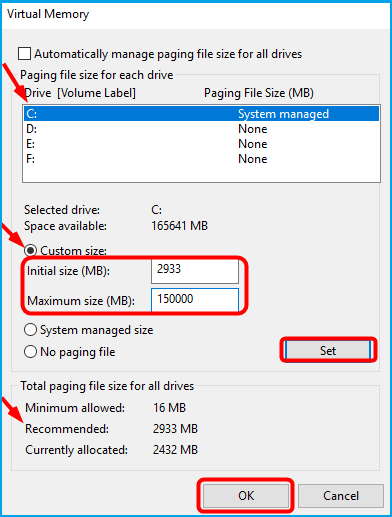
Option 2. Move Page File from C Drive to Another Drive:
Step 1. Press Windows + R keys, type sysdm.cpl ,3 and hit Enter.
Step 2. Click "Settings" under Performance at the Advanced tab.
Step 3. To adjust virtual memory settings, go to the Performance page and click on the Advanced tab. Then, click "Change" under the Virtual Memory section.
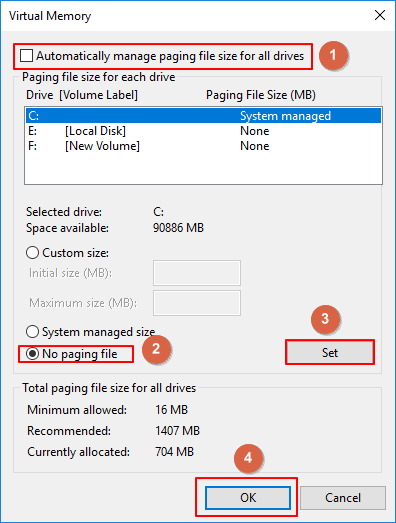
Step 4. Uncheck "Automatically manage paging file", then click C drive and select "No paging file".
Step 5. Click "Set" to disable the page file on C drive.
Step 6. To transfer the page file, select a target drive, click "System managed size", and then click "OK".
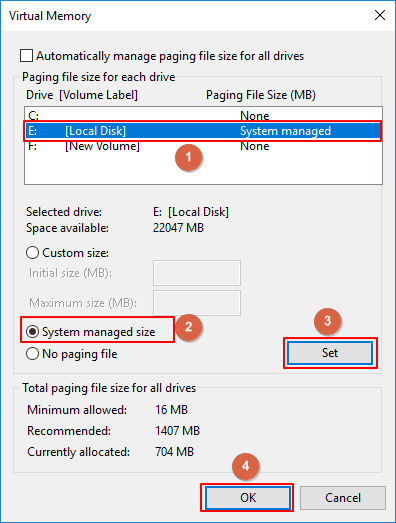
You need to restart the computer to apply the changes made to the registry. This is a required step to ensure the changes take effect.
Notice: If your Server computer's hard drive partition has limited storage capacity, but still has unallocated or free space on the disk, you're in luck. In this case, you can try Methods 4 and 5 to make the most of your available space.
#4. Add More Space, or Upgrade Disk to a Larger One
When your hard drive has unused space, you can expand the partition or clone the drive to a larger disk using reliable software. This allows you to utilize the unallocated space or upgrade to a bigger drive.
Windows Server administrators would prefer reliable Server partition manager software for help. Experienced Server users know how to pick such a tool, and Qiling Partition Master Enterprise is one of the favored partition managers for Server users.
You can easily add more space to your target drive or upgrade to a bigger disk using this tool. To do so, simply apply the tool and follow the prompts. This makes it easy to expand your storage capacity without any hassle.
1. Add More Space to Target Drive Volume
Step 1. Locate the Target Partition
To extend a partition, start by locating the target partition and selecting the "Resize/Move" option.
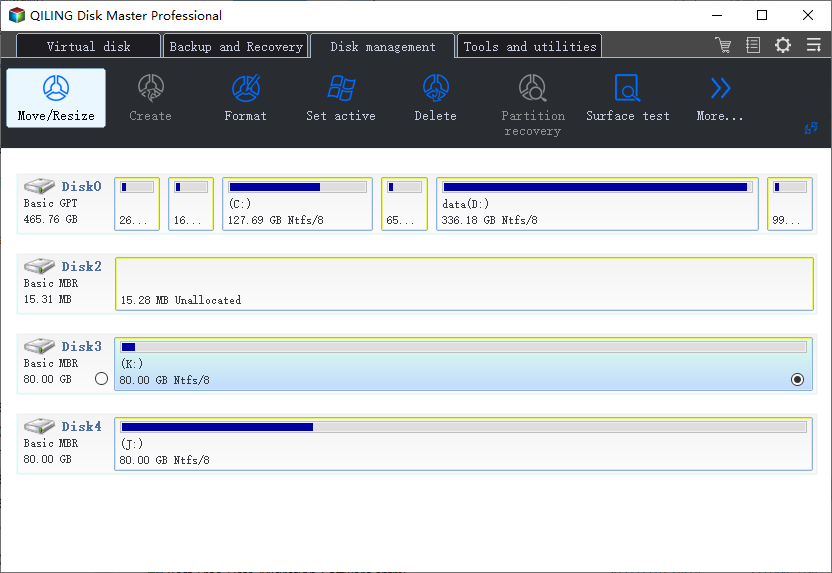
Step 2. Extend the Target Partition
To add unallocated space to your current partition, drag the partition panel to the right or left, incorporating the unallocated space into your existing partition.
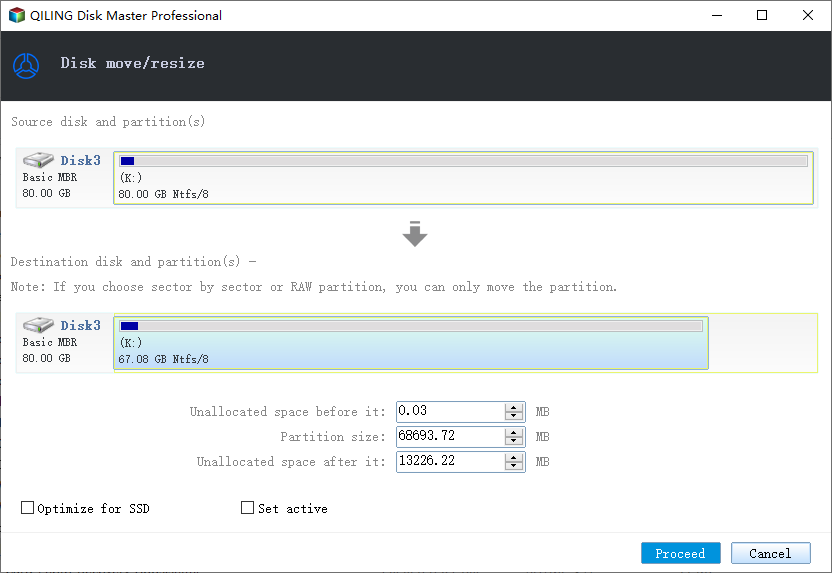
Extra Option: Get Space from Another Drive
If there's not enough unallocated space on your disk, click on a big partition with enough free space, select "Resize/Move" to shrink it.
To extend the target partition, select the partition you want to expand at the "Allocate space to" column.
Step 3. Execute Operations to Extend Partition.
Drag the target partition dots into the unallocated space and click Proceed to keep all the changes.
2. Upgrade Disk to A Larger One
Step 1. Select the source disk.
Right-Click the disk you want to copy or clone, then select "Clone".
Step 2. Select the target disk.
Select the desired hard drive or solid-state drive as your target and click "Next" to proceed.
Step 3. To view and edit the target disk partition size, you can use the disk layout feature, which allows you to visualize and modify the partition scheme of your disk. This can be useful for resizing partitions, adjusting the size of the target disk, or reorganizing the layout of your disk storage. By using this feature, you can ensure that your disk is properly configured and that you have sufficient storage space for your needs.
To erase all data on a target disk, select the disk in the Disk Management console, right-click on it, and choose "Delete Volume". Then, click "Continue" when the program warns it will wipe out all data on the target disk, taking care to back up any valuable data beforehand.
You can customize your disk layout by selecting "Autofit the disk", "Clone as the source", or "Edit disk layout". If you want to leave more space for the C drive, it's best to choose the last option.
Step 4. Click "Proceed" to start the disk cloning process.
#5. Move Large Files, Programs to Another Drive
Windows Server Managers often add a second or third hard drive to increase storage capacity when the system drive runs low on free space. As a last resort, wise Server Experts will move large files and programs to another drive to free up disk space.
Reliable Windows Server app migration software can be helpful, and Qiling Disk Master Technician is a tool that can't be missed.
Experts move large files, apps, and programs to another drive to free up disk space in Server computers.
Step 1. Launch Qiling Disk Master and select transfer mode
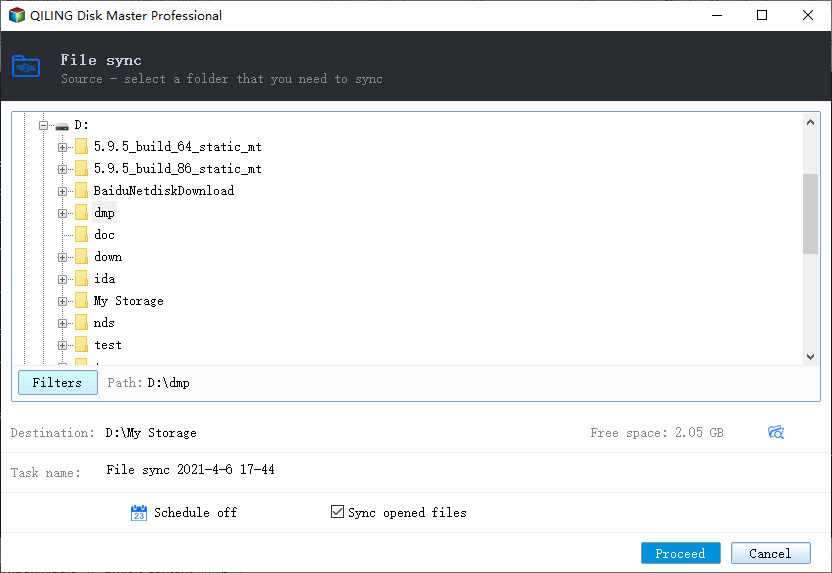
Go to the "Backup and recovery" page on the main screen of Qiling Backup, then click "File sync" to proceed.

Step 2. Select apps and another drive to transfer
1. Select the source partition and choose the applications, programs, and software you want to migrate by ticking the "Yes" option next to them.
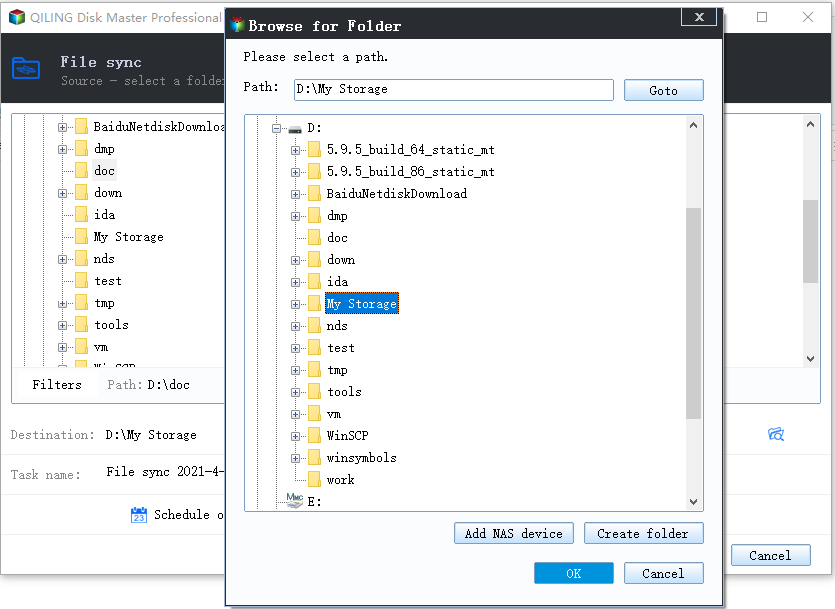
2. To initiate the migration process, click on the browser icon to select another drive or disk as the target device, and then click on the "Proceed" button to start the migration.
Free Up Disk Space in Windows Server Is Easy, Follow Tips Here to Be an Expert
Wise Windows Server experts often apply several methods to free up disk space when their computer runs slow or warns of low disk space. These methods include follow the steps below.
Among the first 3 manual methods, Disk Cleanup is the most efficient way to clean up drive space by deleting junk files and temporary files.
Qiling Partition Master is a tool that can help with adding more free space to a target drive or upgrading to a bigger drive.
To become an expert in extending or freeing up disk space on your Server computer, follow these methods. By doing so, you'll be able to master the art of optimizing your Server's storage and become a professional in no time. it's easier than you think!
Related Articles
- Top 5 SD Card Formatter Free Download | Format SD Card on Windows 11/10/8/7
- Can I Upgrade SSD to M.2 Without Reinstalling OS? Yes, Here Is Your Guide
- How to Extend System Partition in Windows 11/10
- 2022 Tutorial: How to Resize C Drive in Windows 10/8/7
- Free Format Hard Drive Partition with Qiling Disk Master
To free format a hard drive partition, you can use Qiling Disk Master, a software that allows you to separately format each partition on a hard drive. - Guide on How to Partition a Hard Drive
How to partition a hard drive in Windows 8/7/XP/Vista/2000 and Server 2012/2003/2008 easily? This time, you'll find the best Windows partition manager.
Products
Articles & Tutorials
- Data Recovery
- Data Backup
- File Recovery
- File Backup
- System Backup and Restore
- Disk and Partition Clone
- Technical articles
- Mobile articles
- Disk Master Help
- Windows Data Recovery Tutorials
- Windows Secure Delete Tutorials
- Windows Partition Management Tutorials
- Windows File Backup and Restore Tutorials
- Windows System Backup and Restore Tutorials
- Windows Disk Backup and Restore Tutorials
- Windows Clone Tutorials