How to Format Hard Drive in Windows 11/10 [5+ Fixes]
| Workable Solutions | Step-by-step Troubleshooting |
|---|---|
| Format a New Hard Drive |
Method 1. Qiling Partition Master...Full steps Method 2. Disk Management...Full steps |
| Format an Internal/External (Used) Hard Drive |
Method 1. Qiling Management Software...Full steps Method 2. File Explorer...Full steps Method 3. Disk Management...Full steps Method 4. Command Prompt...Full steps |
| Reformat or Wipe a Hard Drive | Wipe a hard drive using Qiling Partition Master...Full steps |
Learn how to format a hard drive in Windows 11/10, wipe it clean, and prepare it for storing data, installing Windows, or other purposes. This guide will walk you through the process, making your drive ready for use.
Formatting a hard drive or an external hard drive before using it on Windows 11/10/8/7/XP/Vista is a crucial step to ensure data security and prevent potential issues. To format a hard drive, you can follow these steps: choose the drive to format, select the file system, choose the allocation unit size, and confirm the formatting. This process will erase all existing data on the drive, so be sure to back up any important files before proceeding.
Windows 11/10 Hard Drive Format Overview
People may need to format a hard drive or external hard drive in Windows 11/10 for various reasons, including the need to erase personal data, fix errors, or prepare the drive for reuse. This process can be beneficial in freeing up space, resolving issues with the drive, and making it ready for new files and data. Formatting a hard drive or external storage device can also be necessary when upgrading to a new operating system or when the drive is no longer recognized by the computer. Overall, formatting a hard drive or external storage device can provide a clean slate and help to resolve issues related to the device.
- Format new hard drive before usage
- To change a hard drive file system for specific purposes, you can format it. Formatting a hard drive erases all data on the drive and reinitializes its file system, allowing you to create a new file system with a specific purpose, such as formatting for a new operating system, creating a dedicated storage space for a particular program or application, or optimizing the drive for video editing or gaming.
- To format a hard drive for a clean Windows installation, follow these steps:
- To completely erase data from a hard drive, one can either reformat the drive or wipe it. Reformatting the drive essentially restores its full capacity, allowing it to be used as if it were a brand new drive.
Formatting a hard drive in Windows 11/10 can be a straightforward process, but it requires some knowledge. To format a new hard drive, internal or external, you can follow a series of steps to ensure it's done correctly. This includes formatting the drive on your own, which involves reformatting or wiping the hard drive to prepare it for use.
You may need to use various tools such as Windows Disk Management, Windows File Explorer, Windows DiskPart, and even a third-party partition manager during the process for assistance.
- Notice:
- Before formatting your Windows 11/10 disk, make sure to back up all your files to another safe location to avoid losing them.
How to Format a New Hard Drive in Windows 11/10
Applies to: To format a new hard drive or external hard drive on Windows 11/10, follow these steps: Open File Explorer, right-click on the drive you want to format, and select "Format." Alternatively, you can also format the drive from the Disk Management tool.
Requested Tools: To transfer data from an old computer to a new one, you will need three main components: a new HDD/SSD or external HDD, a connection cable (such as a SATA cable, power cable, or USB 3.0 connection cable), and a format tool (such as Qiling partition manager or Disk Management).
When you get a new hard drive, you need to initialize it and create a partition so it shows up in File Explorer before you can format it.
But you can use a third-To partition a new hard drive in Windows 11/10, you can use party partition manager software like Qiling Partition Master or Disk Management. First, insert or connect your new hard drive to the computer, then start initializing a new HDD/SSD. After that, you can format it in Windows 11/10.
Method 1. Initialize and Format a New Hard Drive using Qiling Partition Master
Best for: Windows beginners
Advantages: Easy to operate
To make a new hard drive usable again, Windows beginners can try using Qiling Partition Master, which simplifies the operating process of Windows disk management.
You can start to format your new hard drive now. Simply insert the drive into your computer, open the Disk Management tool, select the drive you want to format, and click the "Format" button. You can also use the built-in formatting tool in your operating system to format the drive.
First. Initialize New Hard Drive
Step 1. Qiling Partition Master. Connect the hard drive or SSD to PC.
Step 2. Initialize your HDD/SSD
To prepare your hard drive or solid-state drive (HDD or SSD) for a fresh installation of Windows, you need to initialize it. This process essentially prepares the drive for Windows setup.
Step 3. Click "Proceed" to keep the changes.
Next. Create Partition on New Hard Drive
Step 1. Launch Qiling Partition Master. On the main window, right-click on the unallocated space on your hard drive or external storage device and select "Create".
Step 2. To create a new partition, adjust the partition size, file system (selecting the file system based on your needs), and label as desired, then click "Proceed" to initiate the partition creation process.
Watch this video tutorial to learn how to create a partition in various file systems, including NTFS, FAT, and EXT.
During the partitioning process, Qiling Partition Master automatically formats the created partition, making it ready for immediate use.
Method 2. Format New Hard Drive on Windows 11/10 using Disk Management
Best for: Experienced Windows users
Advantages: Free
To format a new hard drive using Disk Management, you'll need to be very careful. Start by opening Disk Management, then right-click on the new hard drive and select "Initialize" to prepare it for formatting. Next, right-click on the unallocated space and select "New Simple Volume" to create a new partition.
Step 1. To open Disk Management, press the "Windows + R" keys, type "diskmgmt.msc" and click "OK".
Step 2. Right-click the hard drive or SSD marked as "Unknown" and "Not Initialized," and select "Initialize Disk".
If the disk shows as Offline, right-click it and select "Online" to resolve the issue.
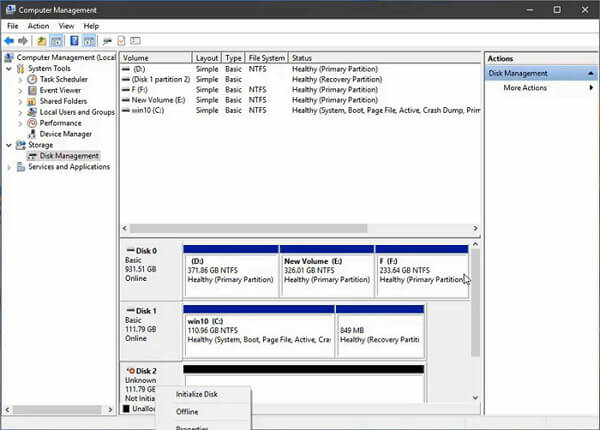
Step 3. To initialize a disk, select the disk to initialize from the dialog box, and click "OK" to proceed with the default partition style, or choose a different partition style (GPT or MBR) if desired.
- The Master Boot Record (MBR) is specifically designed for hard drives with a size of less than 2TB.
- The GUID Partition Table (GPT) is a type of partition table used for hard drives larger than 2TB in size.
Step 4. To create a new simple volume, right-click the unallocated space on the initialized disk and select the "New Simple Volume" option.
Step 5. Set up and format the created partition on the new hard drive.
Follow the on-To set up the volume, click on the "New" button, then select the desired volume size in the "Size" field. Next, assign a drive letter to the volume by selecting it from the dropdown menu. Ensure that the file system is set to NTFS.
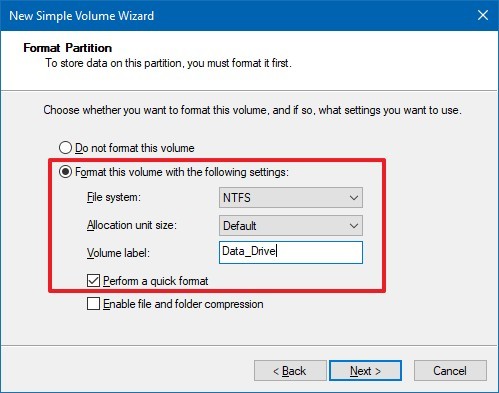
Step 6. Click the "Next" > "Finish" button.
The process of cloning a hard drive can take some time, depending on the size of the drive, and once completed, the new hard drive will be initialized, partitioned, and formatted for use.
How to Format an Internal/External (Used) Hard Drive in Windows 11/10
Applies to: Format a used internal or external hard drive in Windows 11/10/8/7/XP, etc.
Requested Tools: To set up a storage device, you'll need to choose between an internal HDD/SSD or an external HDD, then select a connection cable such as a SATA cable, power cable, or USB 3.0 connection cable, and finally, decide on a format tool like Qiling partition manager, Disk Management, File Explorer, or DiskPart.
If you have a hard drive or an external hard drive already organized with partitions, you can format the existing partition to remove its content and start fresh with a clean drive. There are three popular ways to format a partition, which include.
To format your hard drive or external HDD, keep it connected to your PC and choose a method that suits you best.
Method 1. Format Hard Drive in Windows 11/10 with Qiling Management Software
Best for: All levels of Windows users, specially designed for Windows beginners
Advantages: Easy & 4-Step Formatting
Qiling Partition Master is a versatile tool for managing hard disk partitions, offering features such as formatting, extending system partitions, resolving low disk space issues, and converting between MBR and GPT disk formats without losing data.
This tool can even work when you failed to format a disk with Windows 11/10 or couldn't format a hard drive using other Windows formatting tools.
Step-by-step Guide to Format Hard Drive/External HDD in Windows 11/10
Step 1. Right-click the hard drive partition and choose the "Format" option.
Step 2. In the new window, set the Partition label, File system, and Cluster size for the partition.
Step 3. Click the "Proceed" button to initiate the formatting process for the hard drive partition.
Step 4. You can see a warning window, click "Yes" to continue.
To format all existing partitions on your hard drive one by one, start by selecting the first partition from the list of existing partitions. Then, click on the "Format" button to initiate the formatting process.
Method 2. Format Windows 11/10 Hard Drive Partition using File Explorer
Best for: Windows beginners
Advantages: Free
To format a hard drive using Windows File Explorer, start by opening File Explorer, then right-click on the drive you want to format and select "Format" from the context menu. You will be prompted to confirm that you want to format the drive, and then you will be asked to choose a file system (FAT32, exFAT, or NTFS) and a volume label. Once you have made your selections, click "Start" to begin the formatting process.
To format an external hard drive, plug it into your computer and open the File Explorer or Disk Management utility, depending on your operating system. Select the external drive from the list of available drives, right-click on it, and choose the format option.
Step 1. Press the "Windows key + E" to open the Windows Explorer.
You can access the Computer or This PC folder by clicking on it in the Start menu.
Step 2. Right-click on the connected external or internal hard drive partition and select "Format".
Step 3. On the format window, select the desired file system, such as NTFS, for your device.
Step 4. Check "Quick Format" and click "Start".
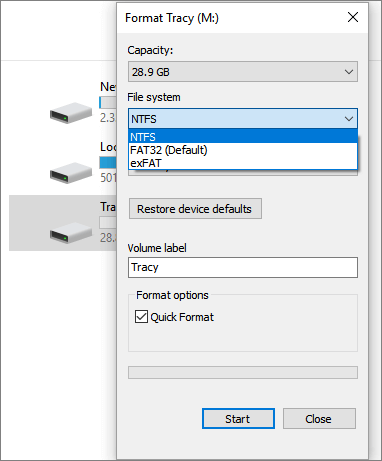
To format a hard drive, first, click on the "Start" button and select "Computer" or "This PC." Then, right-click on the hard drive you want to format and select "Format" from the context menu. In the "Format" window, select the file system (e.
Method 3. Format Hard Drive with Windows Disk Management
Best for: Experienced Windows users
Advantages: Free
Here are the steps to format a hard drive partition using Disk Management in Windows 11/10:
Step 1. Right-click on Windows icon and select "Disk Management".
Step 2.To format a drive or partition, right-click on the target drive or partition and select the "Format" option. This will erase all data on the drive and prepare it for new files and data.
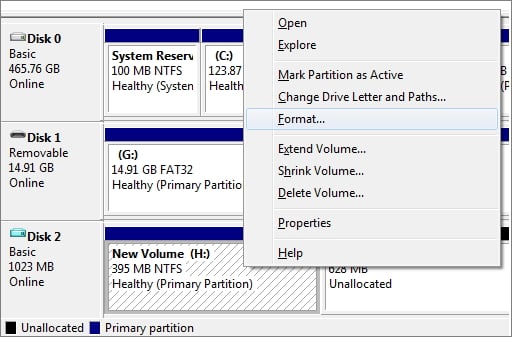
Step 3. Select the file system and set the cluster size.
Step 4. Click "OK" to format the drive.
To format the rest partitions on your hard drive, start by opening the Disk Management console. Next, locate the partition you want to format and right-click on it.
Method 4. Format Hard Drive with Diskpart in Command Prompt
Best for: Experienced users & administrators
Advantages: Free
Unlike Disk Management and File Explorer, the DiskPart Command Prompt offers more advanced features beyond just formatting a disk. It allows users to perform various operations on their computer, making it a more powerful tool for managing and manipulating disk-related tasks.
To format a hard drive partition using DiskPart Command Prompt, exercise caution as incorrect operations can lead to serious consequences. Begin by opening the Command Prompt as an administrator, then type 'diskpart' and press Enter. Next, list the available disks by typing 'list disk' and identify the disk number of the partition you wish to format.
Step 1. To run Command Prompt as an administrator in Windows 11/10, type cmd in the search box, right-click on Command Prompt, and choose "Run as administrator".
Step 2. In the command prompt, type diskpart and press "Enter".
Step 3. Type the following command lines and hit Enter each time:
- list disk
- select disk + disk number ( for example, select disk 2)
- list volume
- select volume + volume number
- format fs=ntfs
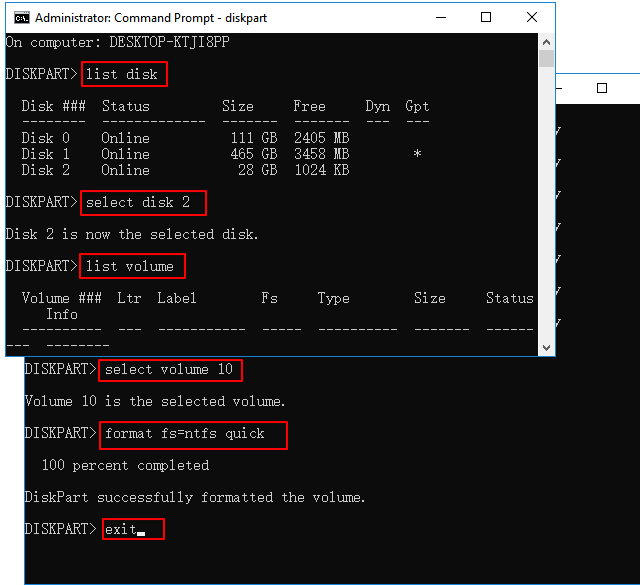
To format all existing volumes on your hard drive, you'll need to repeat the process of selecting each volume, clicking "Format" and confirming the action. This process will erase all data on the selected volume, so make sure to back up any important files before proceeding. Once you've selected the volume you want to format, click "Format" and follow the prompts to complete the formatting process.
Step 4. Type exit and hit Enter to close the command window.
Formatting a used hard drive or external hard drive in Windows 11/10 can be achieved through various methods, including using the built-in Disk Management tool, Command Prompt, or third-party software like Qiling Partition Master. This comprehensive solution can help you easily manage your disk and provide a range of features to make the process smoother.
How to Reformat or Wipe a Hard Drive in Windows 11/10
Applies to: To completely clean up a whole hard drive in Windows 11/10/8/7, you can either re-format or wipe the hard drive at one time, effectively removing all data.
Requested Tools: The necessary tools for a hard drive wipe include a hard drive (HDD/SSD or external HDD), a connection cable (such as a SATA Cable, power cable, or USB 3.0 connection cable), and a hard disk wipe tool (such as Qiling partition manager).
Reformatting a hard drive can be an effective way to clean up existing data on the device, but it may require repeated formatting to thoroughly erase all data.
This guide provides an efficient method to wipe hard drive data, clearing all existing data on the device at once.
Wipe a Hard Drive using Qiling Partition Master
Best for: All levels of Windows users
Advantages: One-click to wipe a hard drive several times
How to Recover Data from Formatted Hard Drive
Data loss due to misformatted hard drive or formatting without backups can occur. Formatting only removes address tables, not erasing data on the disk.
However, without a data recovery tool, you cannot recover data from a formatted hard drive. Fortunately, a tool like Deep Data Recovery is capable of recovering lost data even if you accidentally format a disk without a backup.
This top-Notch file recovery software allows for the quick and easy restoration of lost data due to various reasons such as hard drive formatting, emptying the recycle bin, partition loss, OS crashes, and virus attacks. It can also be used to recover deleted files in Windows 11/10 with minimal effort.
Download a robust data recovery program to recover data after formatting your hard drive.
Step 1. Launch Deep Data Recovery on your PC, and click "Format Scan" to begin the process.
Select file types, and click "Format Scan" to start.

Note: You can choose different search modes based on where and why the data was lost.
Step 2. Scan the hard drive partition
Select the drive on your hard disk where you lost or deleted files, click "Scan" and let the software scan for all lost data and files on the selected drive.

Step 3. Check the results
When the scan completes, you can apply the "Filter" feature or click the "Search files or folders" option to find the lost files on the hard drive.

Step 4. Restore lost hard drive data
Select the desired files that were lost on the drive and click "Recover" to save them to a different location.
Conclusion and Format Hard Drive FAQs
This page provides comprehensive solutions to help you resolve formatting hard drive issues on your own. You can easily format a brand new hard drive, format an internal or external hard drive, and thoroughly wipe a hard drive in Windows 11/10 using the presented methods.
For Windows beginners, it's recommended to back up important data first before attempting to format. A practical formatting tool like Qiling Partition Master can then be used to assist with the process.
We collected some top concerned questions and list answers here. If you have the same questions about hard drive formatting in Windows 11/10, check the following FAQs.
1. Can't format hard drive in Windows 11/10, how to fix?
If you're having trouble formatting a hard drive using Disk Management or File Explorer, you can try using Qiling Partition Master, which has a direct format feature that can resolve the issue.
You can also refer to Windows Was Unable to Complete the Format for further fixes.
2. How do I format hard drive when the disk management format option greyed out?
When using free disk management tools for hard drive maintenance, you may encounter the issue where the "Format" option is greyed out in Disk Management. This can be frustrating, but it's usually due to a few common reasons.
If the "Format" option is greyed out in Windows 11/10/8/7, you can't format a partition. To resolve this issue, try the following solutions:
- Restart PC
- To format a hard drive using a Disk Management alternative like Qiling Partition Master, follow these steps: first, download and install Qiling Partition Master on your computer; next, launch the software and select the hard drive you want to format from the list of available drives; then, click on the "Format" button to initiate the formatting process; finally, confirm that you want to format the drive and wait for the process to complete. This alternative method provides a safe and efficient way to format a hard drive without using the built-in Disk Management tool.
- Run CMD to format hard drive
For a detailed guide, you may refer to "Format Option Greyed Out" for help.
3. How do I format HDD or external hard drive to FAT32?
To format a hard drive or external hard drive to FAT32, players can use the built-in Disk Management tool in Windows or the Disk Utility tool in macOS. However, if the drive is larger than 32GB, the normal formatting way won't work. In this case, players can use a third-party tool like Qiling Partition Master to format the drive to FAT32.
When there is no FAT32 option in Windows 11/10 File Explorer or Disk Management, you can use the Windows CMD or a third-party partition manager like Qiling Partition Master to format a device to FAT32 in Windows 11/10/8/7.
For assistance with formatting a disk to FAT32, consider utilizing professional formatting tools. These tools can provide the necessary support to successfully format the disk to FAT32. With their expertise, you can now format your disk to FAT32.
Related Articles
- How to Fix PS3 Can't Read NTFS USB Drive
- 3 Best Free Partition Manager For Windows 7/8/XP 32 Bit and 64 Bit
- Best Answer: Format USB Drive to FAT32 or NTFS
- Top 10 Best Free Partition Manager Tools for Windows 11/10 (2022 Guide)
- How Can You Convert GPT to MBR without Data Loss Using Command Prompt?
This article will show how can you convert GPT to MBR without data loss using command prompt. - How to Resize Dynamic Disk Volume in Windows 2012 (R2)?
Here you can learn how to resize dynamic disk, especially extend dynamic disk partition in Windows 10, 8, 7 or Windows Server 2008 (R2), 2012 (R2), 2016 and 2019.
Products
Articles & Tutorials
- Data Recovery
- Data Backup
- File Recovery
- File Backup
- System Backup and Restore
- Disk and Partition Clone
- Technical articles
- Mobile articles
- Disk Master Help
- Windows Data Recovery Tutorials
- Windows Secure Delete Tutorials
- Windows Partition Management Tutorials
- Windows File Backup and Restore Tutorials
- Windows System Backup and Restore Tutorials
- Windows Disk Backup and Restore Tutorials
- Windows Clone Tutorials