How to Format BitLocker Partition in Windows 11
| Workable Solutions | Step-by-step Troubleshooting |
|---|---|
| Remove or Turn Off BitLocker, and Back up Valuable Data | Step 1: Unlock Encrypted Drive; Step 2: Disable BitLocker; Step 3: Backup Valuable Data...Full steps |
| Format BitLocker Partition in Windows 11 with Format Tools | 1. Qiling Partition Master...Full steps 2. File Explorer...Full steps 3. Disk Management...Full steps |
To format the BitLocker partition in Windows 11, you can follow these steps:
Don't Worry!
This blog explores various methods to format BitLocker partitions, providing a comprehensive guide for users to understand and implement different formatting techniques for their encrypted drives.
What is BitLocker Partition?
In Windows 11, the whole disk drive encryption feature is still available, allowing users to encrypt their entire disk drive for added security.
This is done using the Bitlocker technology.
The BitLocker partition is a protective layer that safeguards all system data from unauthorized access, even if the computer is stolen or lost.
The data in a BitLocker-protected partition is encrypted and requires a password or recovery key to access, making it inaccessible without proper authorization.
Can't Format a BitLocker Partition in Windows 11, Help!
To access the C drive, you'll need to enter the BitLocker password or use a USB recovery drive to unlock the partition. If you don't have a password or recovery drive, you won't be able to access the data on the C drive.
To resolve the issue, you can try disabling BitLocker on the drive, then format it. To do this, you'll need to open the Control Panel, go to System and Security, and then click on BitLocker.
Should you take your computer to the repair shop?
Or is there a workaround?
Yes, there are multiple methods that you can follow without going to a repair shop!
Here is the most effective one.
We have divided the method into two parts.
If you need to backup your data in the encrypted drive first before formatting, you can start from Part 1. Otherwise, you can directly jump to Part 2.
Part 1. Remove or Turn Off BitLocker, Then Back up Valuable Data
You can remove, disable or turn off BitLocker in many ways, but one of the easiest methods is to follow the steps.
Step 1: Unlock Encrypted Drive
To unlock the encrypted drive without deleting your necessary data, follow these steps: First, ensure you have the BitLocker recovery key or password. Then, insert the USB drive or CD that contains the recovery key or password.
1. To access BitLocker, go to the Control Panel, click on System and Security, and select BitLocker Drive Encryption.
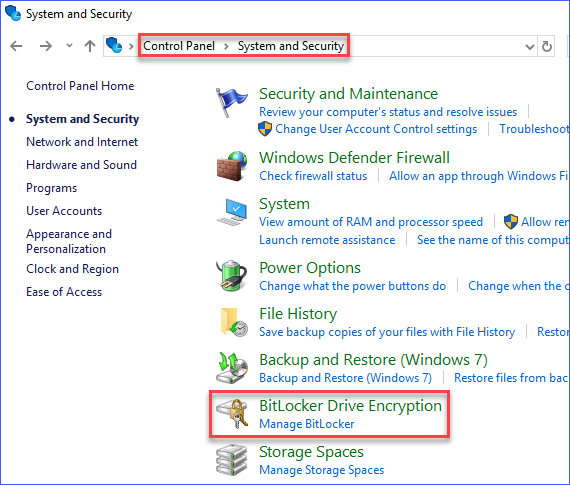
2. Click Manage BitLocker.
3. Click Unlock Drive.
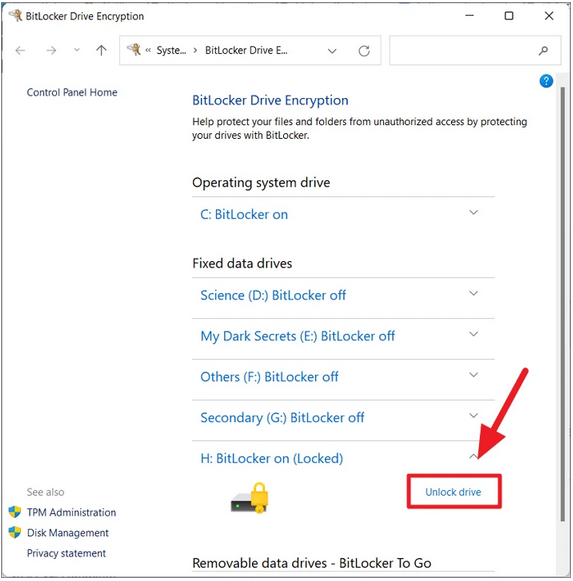
3. Select the drive that you want to unlock and click Continue.
4. Choose one of the following options:
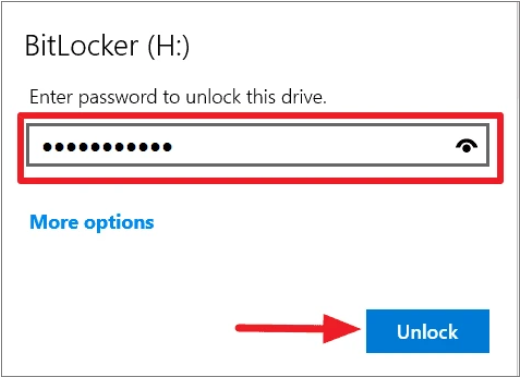
- Enter a 48-If you have a previously backed up digit recovery key, you can use it to regain access to your account. This key is a unique string of characters that you created when you set up your account, and it can be used to recover your account even if you've forgotten your password or username.
- OR Enter your password (if you have one).
Step 2: Disable BitLocker
Next, you can disable BitLocker encryption by Control Panel:
1. To access BitLocker Drive Encryption, go to the Control Panel, click on "System and Security", and then click on "BitLocker Drive Encryption".
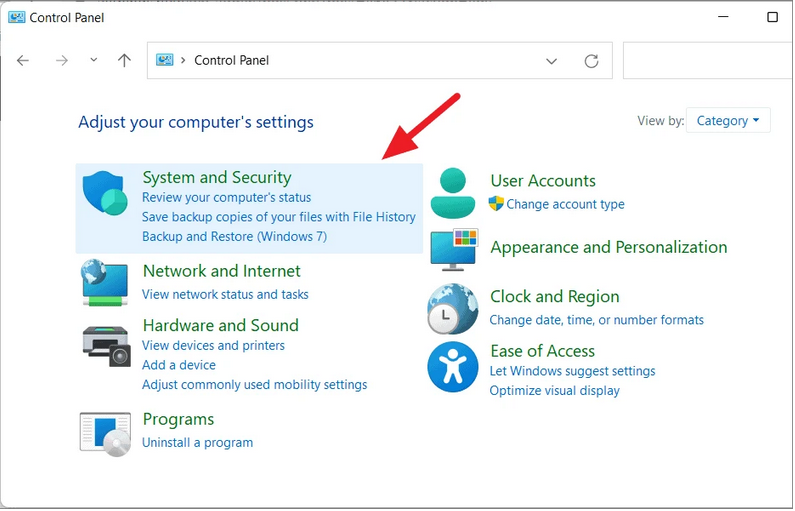
2. To disable BitLocker on a selected drive, go to the list of drives and choose the one for which you want to disable BitLocker.
3. To disable BitLocker on a selected drive, click on the "Turn Off Bitlocker" link next to it.
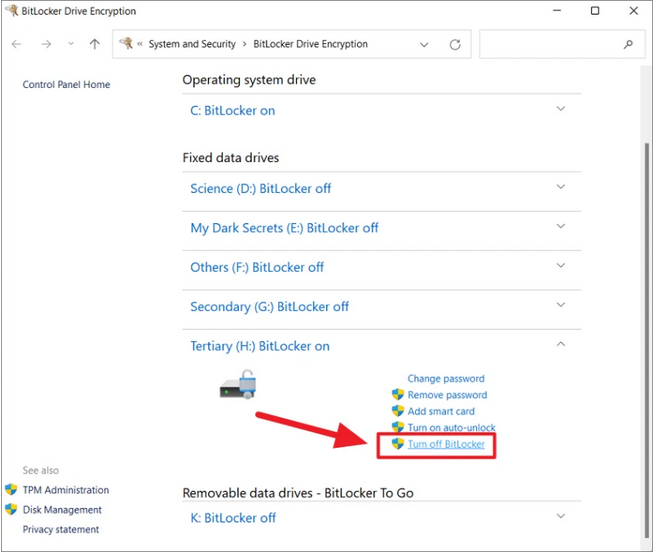
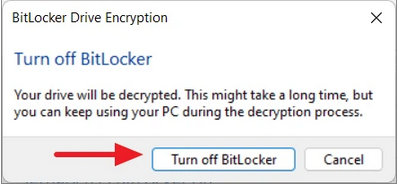
4. To disable BitLocker, click on the "Turn off BitLocker" option in the dialog box that appears. This will initiate the process of disabling BitLocker on your device.
Step 3: Backup Valuable Data
Once your encrypted drive is unlocked and BitLocker Encryption is disabled, you can access the drive and move or copy your files to another partition, USB, external hard drive, or wherever you want.
Part 2. Format BitLocker Partition in Windows 11 with Format Tools
Formatting a partition can be a risky process if not done correctly, as it can potentially damage your hard drive. It's highly recommended to use professional partition software to avoid any issues.
Windows 11 users can use the following top 3 format tools to format their BitLocker partition: follow the steps below.
1. Qiling Partition Master - A Professional Partition Manager Software
Qiling Partition Master is a reliable software that can format BitLocker partitions in Windows 11 and Windows 7/8/10, making it a trusted and effective tool for managing partitions.
This user-A user-friendly partition manager comes in Free and PRO versions with 100% disk partition managing functions.
The free version of the Qiling Partition Master Disk Management tool allows users to convert, resize, move, merge, format, and delete partitions without losing data, making it a useful tool for disk management.
The Pro version of the software offers a range of additional features, including improving computer performance, combining two SSDs into one, and securely wiping difficult disks. It also allows for safe migration of the operating system (Windows/Linux) to an SSD or HDD without requiring a system reinstall and application reinstallation.
- To format a USB drive or external hard drive, select it by clicking on it, then choose the "Format" option.
- Set the Partition label, File system (NTFS/FAT32/EXT2/EXT3/EXT4/exFAT), and Cluster size, then click "Proceed" to initiate the partitioning process.
- Check message warning, and click "OK" to format the hard drive partition.
This partition software can be used for various operations beyond partitioning, including system cache cleanup.
2. File Explorer
Bitlocker Partition can be formatted using File Explorer, but doing so without a recovery key or password will result in data loss.
If you have the password or recovery key and want to back up your essential data, follow the steps in Part 1 before proceeding.
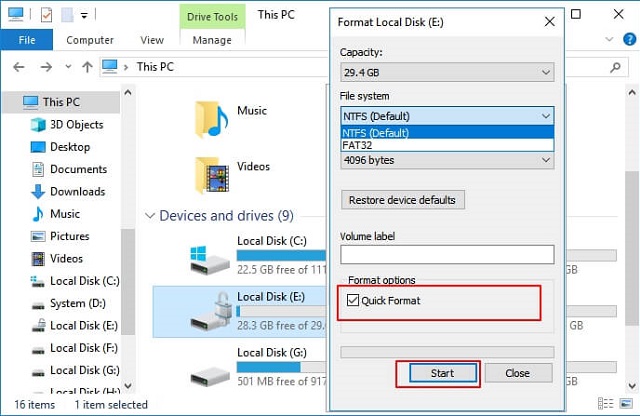
To format BitLocker partitions in Windows 11 using File Explorer, follow these steps:
Step 1: To open the Windows Explorer window, click on the File menu.
Step 2: To format a BitLocker drive, right-click on the drive you want to format and select "Format".
3. Disk Management
To format a BitLocker partition using Disk Management in Windows 11, follow these steps: Open Disk Management by searching for it in the Start menu or by typing "diskmgmt.msc" in the Run dialog box.
Step 1. To access Disk Management, go to the Start Menu, click on Administration Tools, and select Computer Management. From the left side menu, choose Disk Management, or search for Disk Management in the taskbar.
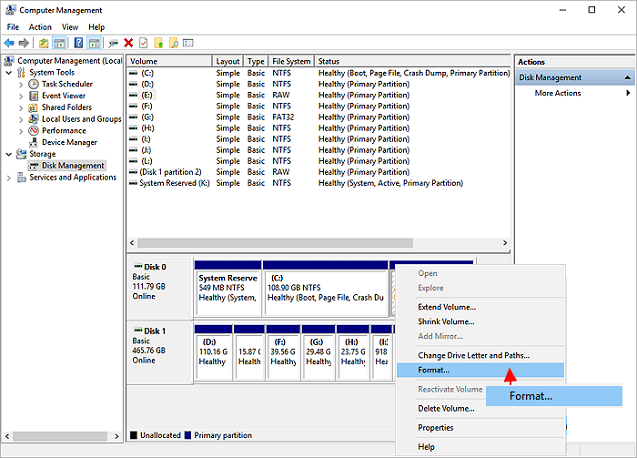
Step 2. Right-click the BitLocker partition you want to format, click on "Format", and give it a name and assign it an NTFS file system.
Step 3. Click OK to begin formatting.
Conclusion
The article offers straightforward methods to format and remove BitLocker from a partition, all while preserving essential data. This includes instructions on how to format BitLocker without losing data, as well as steps to completely remove BitLocker from a partition, ensuring that your important files and information remain safe and accessible.
To format your computer, you must remember to disable or turn off the BitLocker Partition and backup your important data before proceeding. This ensures that your data is safe and you can start with a clean slate.
If you're still unsure or want to make the process easier, you can use our Qiling Partition Master software to help you with the task.
For those who are beginners, using software to format a BitLocker-encrypted partition can be a more straightforward and user-friendly approach, allowing them to easily manage and format the partition without needing to delve into complex command-line operations or advanced partition management techniques. This can be particularly helpful for those who are new to partition management or are not familiar with the specific requirements for formatting BitLocker-encrypted partitions.
Related Articles
- Home Office Setup: Setting Up Home Office for Remote Work
- How Do I Clone HDD to SSD in Windows 11 and Make It Bootable? 2022 Complete Guide
- [New] Get 2022 Official Qiling Partiton Master License Code, Serial Key Here!
- Download Free Toshiba Format Tool and Format Toshiba Device with Ease
- Freeware: Reformat Hard Drive to FAT32 from NTFS or exFAT
If you need to reformat a hard drive from NTFS to FAT32 or exFAT, you can use various tools such as Disk Management, Diskpart, or a free partition manager to complete the task. - 5 Free Ways to Remove Write Protection from USB/Pen Drive
This tutorial will guide you through the process of removing write protection from a USB/Pen drive in Windows 11, 10, 8, 7, providing a step-by-step solution to restore write functionality to your device.
Products
Articles & Tutorials
- Data Recovery
- Data Backup
- File Recovery
- File Backup
- System Backup and Restore
- Disk and Partition Clone
- Technical articles
- Mobile articles
- Disk Master Help
- Windows Data Recovery Tutorials
- Windows Secure Delete Tutorials
- Windows Partition Management Tutorials
- Windows File Backup and Restore Tutorials
- Windows System Backup and Restore Tutorials
- Windows Disk Backup and Restore Tutorials
- Windows Clone Tutorials