3 Ways to Fix Convert to Dynamic Disk Greyed Out
"The option to extend a basic volume to a dynamic volume is likely greyed out because the basic volume is already at its maximum size, which is 3TB in your case. To resolve this, you can try to shrink the volume by a small amount (e.g., 1-2 GB) using the Disk Management tool or the command line, and then try to extend it again. Alternatively, you can also try to convert the volume to a dynamic volume using the command line with the `convert` command, but be aware that this will delete all data on the volume.
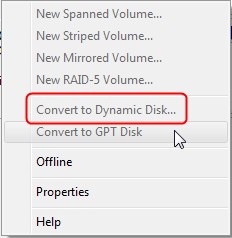
The "convert to dynamic disk" option is greyed out when trying to extend a 3TB basic volume to a dynamic disk. This issue arises because the volume is already at the maximum size for a basic disk, which is 2TB for MBR partitions and 4TB for GPT partitions. To resolve this, you can create a new dynamic disk and then add the existing volume to it, effectively converting it to a dynamic disk. Alternatively, you can extend the volume by using the "extend" option in the Disk Management console, which will increase the size of the volume without converting it to a dynamic disk.
What Causes Convert to Dynamic Disk Greyed Out
The issue arises when trying to convert a basic volume over 2TB to a dynamic disk, as the MBR partition system has a 2TB storage space limit, preventing Disk Management from performing the conversion.
How to Fix Convert to Dynamic Disk Greyed Out
To solve the problem of MBR disk capacity limitations, consider converting the disk to GPT, which can hold a nearly unlimited number of partitions and has no size limit on disk capacity, unlike MBR's 2TB limit. This can be done using a partition management tool like Qiling Partition Master, the Disk Management feature on your computer, or the DiskPart Command Prompt.
- 1. Convert Disk from MBR to GPT without Data Loss
- 2. Convert Disk from MBR to GPT with Disk Management
- 3. Convert MBR Disk to GPT with DiskPart Command Prompt
1. Convert Disk from MBR to GPT without Data Loss
Conventional methods of converting file systems can result in data loss, and even if you have made full backups of all your volumes, restoring them can take a long time. To avoid this, we recommend using Qiling Partition Master.
Qiling Partition Master allows you to convert a disk from MBR to GPT or GPT to MBR without deleting or erasing data, eliminating the need for lengthy backup and restore processes. Additionally, it can be used to resize partitions, format partitions, or merge partitions into a larger one.
Download Qiling Partition Master now and follow the guide below to explore a safe and sound conversion.
2. Convert Disk from MBR to GPT with Disk Management
To convert a disk from MBR to GPT in Disk Management, you can follow these steps. However, please note that this method involves deleting a volume, so make sure to make a full backup first. In Disk Management, you can convert the disk type, delete a volume, and extend and shrink a volume, etc. To proceed, go to Disk Management, right-click on the disk you want to convert, and select "Convert to GPT Disk". Follow the prompts to complete the conversion, but be aware that this process will delete the existing volume, so make sure to have a backup before proceeding.
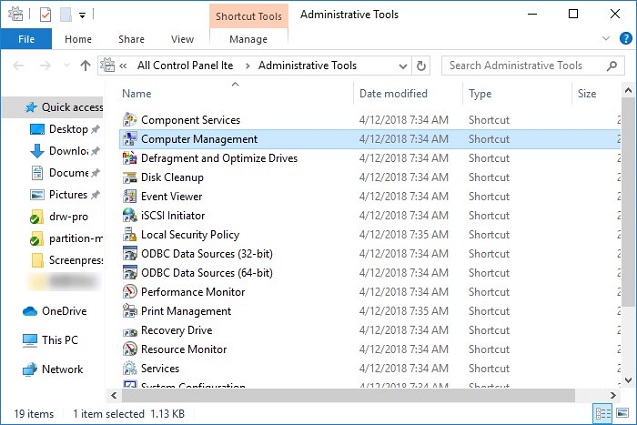
Step 1. To access the "Computer Management" tool, go to the Control Panel, then navigate to the "Administrative Tools" section, and finally select "Computer Management" from the options available.
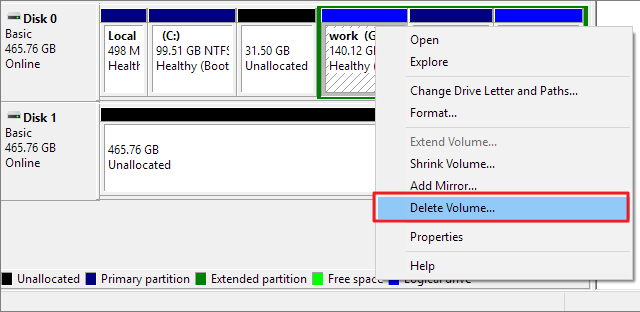
Step 2. To delete all disk volumes, open Disk Management, right-click on each volume and select "Delete Volume", repeating the process for all volumes.
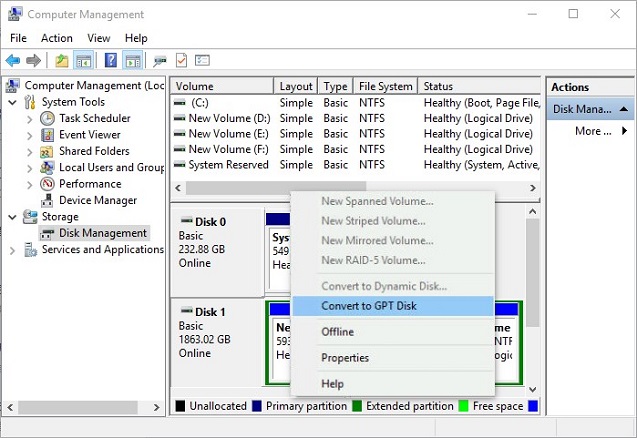
Step 3. Now right-click the MBR disk and choose "Convert to GPT Disk".
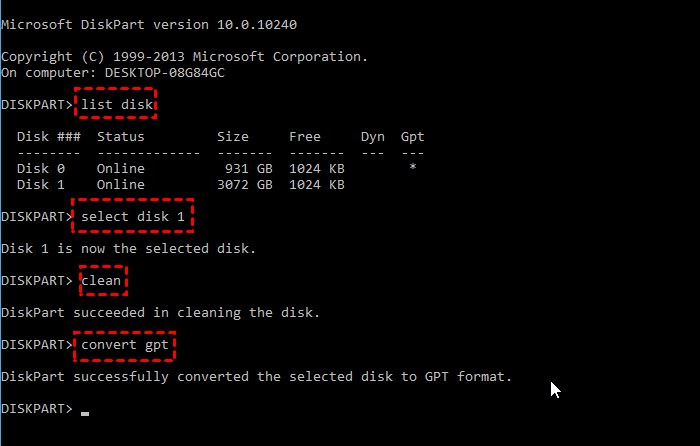
3. Convert MBR Disk to GPT with DiskPart Command Prompt
To convert a disk to GPT using the command prompt, you can use the `convert` command with the `/fs:ntfs` and `/m:offset` options. This will delete all data on the disk, so make sure to back up your files first. The command is `convert /fs:ntfs /m:offset D:` where `D:` is the drive letter you want to convert. Note that this method will not work if the disk is already in use, so make sure to boot from a different drive or boot from a live USB.
Step 1. Run as an administrator, press Win, and select "Command Prompt".
Step 2. Type the command diskpart, then type list disk and press Enter.
Step 3. To remove all data on the MBR disk, select the disk by typing `select disk 1` and then type `clean`.
Step 4. Now type convert GPT and press Enter to proceed.
The Bottom Line
The dynamic greyed out issue occurs due to the MBR disk system limitation. To resolve this, check the size of the MBR disk first, then choose a preferred method to solve the problem. The Qiling Partition Master is recommended as it saves user data and is easy to use.
Related Articles
- How-to: Create USB Bootable Partition Manager to Manage Partitions Safely
- NTFS or exFAT, Which is Better for HDD, SSD, M.2, or NVMe? Find Your Answer Here
- How to Fix DiskPart Virtual Disk Service Errors in 2022
- Instruction for SanDisk Write Protection Removal and Formatting Tool
- How to Fix Unexpected Store Exception in Windows 10/11
If your Windows computer is affected by a blue screen of death (BSoD) error, specifically an Unexpected Store Exception error, - this guide can help. This post offers 10 practical solutions to help you fix this issue in Windows 10/11, providing a tested and reliable way to resolve the problem. - Solved: Unlock Bitlocker Without Recovery Key and Password
How do you unlock BitLocker drive Without a Recovery Key and Password? How can you access these data stored on a BitLocker drive? Dive into this guide and learn more.
Products
Articles & Tutorials
- Data Recovery
- Data Backup
- File Recovery
- File Backup
- System Backup and Restore
- Disk and Partition Clone
- Technical articles
- Mobile articles
- Disk Master Help
- Windows Data Recovery Tutorials
- Windows Secure Delete Tutorials
- Windows Partition Management Tutorials
- Windows File Backup and Restore Tutorials
- Windows System Backup and Restore Tutorials
- Windows Disk Backup and Restore Tutorials
- Windows Clone Tutorials