How to Fix DiskPart Virtual Disk Service Errors in 2026
What Is DiskPart Virtual Disk Service Error
Microsoft's Virtual Disk Service is a Windows service that handles queries and configuration requests from users, scripts, and applications, allowing them to manage disk hard drives, volumes, and other storage components through the DiskPart command prompt.
You may encounter a DiskPart virtual disk service error when using the DiskPart command to manage disk partitions, such as formatting a disk to FAT32, cleaning a disk, deleting partitions, converting a MBR disk to GPT or vice versa, and more.
The fixes for different errors on DiskPart may vary, but on this page, we list typical Virtual Disk Service errors along with their solutions.
Common DiskPart Virtual Disk Service Errors and Solutions
Check the exact error that you are having and refer to the right solution to get rid of it from your computer immediately.
8 Common DiskPart Virtual Disk Service Errors and Fixes:
- # Error 1: Clean is not allowed on the disk containing the current boot, system, pagefile, crashdump or hibernation volume
- The error message "The specified disk is not convertible" indicates that the disk in question, likely a CDROM or DVD, cannot be converted or used for a specific purpose, such as creating a bootable USB drive or installing an operating system. This is because CDROMs and DVDs are read-only media and do not contain a bootable operating system, making them unsuitable for conversion or use as a bootable disk.
- The error message indicates that you're trying to delete a volume that is currently being used by the operating system. This can include the boot drive, system drive, pagefile drive, crash dump drive, or hibernation drive.
- # Error 4: There is no media in the device
- # Error 5: The volume size is too big
- The error "There is not enough usable space for this operation" typically occurs when a system or application requires more free space on the disk than is currently available. This can be due to various reasons such as low disk space, fragmented files, or large temporary files.
- # Error 7: The service failed to initialize
- # Error 8: The media is write protected
You Must-Have Tool
To resolve Diskpart Virtual Disk Service errors, consider using a powerful third-party disk management tool like Qiling partition tool, which has received praise from many users and can resolve errors in a few simple steps.
Download it, and let's see how it works to help.
Error 1: Clean is not allowed on the disk containing the current boot, system, pagefile, crashdump or hibernation volume
Applies to:
Virtual Disk Service error:
The operating system prevents the Clean command from being run on the disk that contains the current boot, system, pagefile, crashdump, or hibernation volume, as it is not allowed on the disk containing the current boot, system, pagefile, crashdump or hibernation volume.
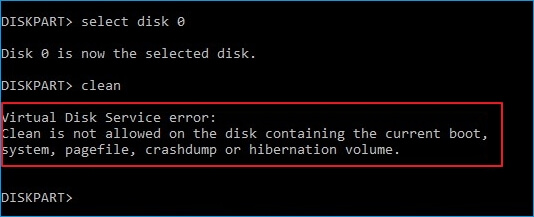
This error occurs when running the DiskPart clean command on a system disk, typically when cleaning up an old system disk or a running system disk to reinstall Windows OS. To resolve this, create a bootable disk using Qiling Partition Master.
The Delete All feature in Qiling Partition Master functions similarly to the clean command, effectively deleting all partitions that you may need assistance with.
Tutorial: Two Options to Fix Virtual Disk Error - Clean is not allowed
#1. Clean Up OS Disk - Delete all partitions with OS:
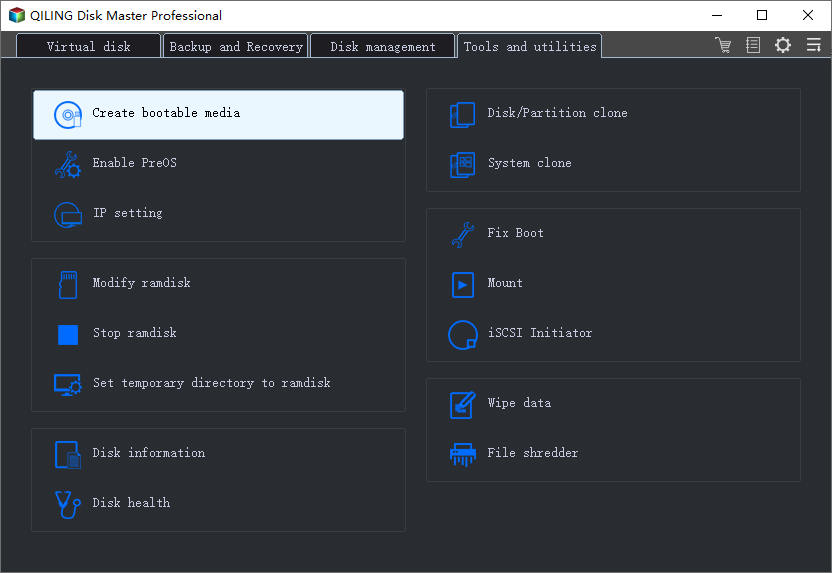
Step 1.To create a bootable disk of Qiling Partition Master, prepare a storage media such as a USB drive, flash drive, or CD/DVD disc, and connect it to your computer. Then, launch Qiling Partition Master, go to the "Create bootable media" feature on the tools page, and click on it.
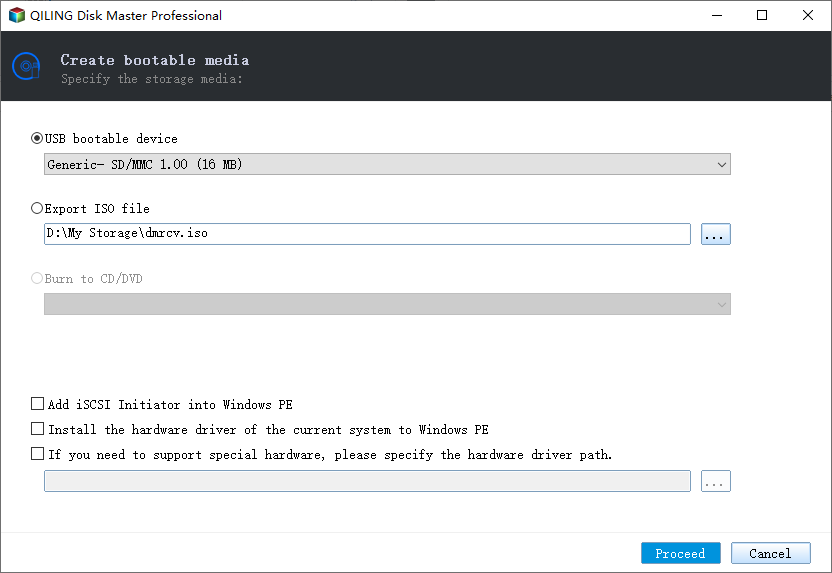
Step 2. If the USB or CD/DVD drive is available, you can choose to save the ISO file to it. Alternatively, you can save the ISO file to a local drive and burn it to a storage media later. Once you've made your choice, click "Proceed".
Step 3. Connect the WinPE bootable disk to the computer, restart it, and press F2/Del to enter BIOS. Set the PC to boot from the removable device (USB) or CD-ROM drive (CD/DVD) instead of the hard drive, and save the changes by pressing F10.
Step 4. Install and launch Qiling Partition Master. And Choose "Wipe Data".
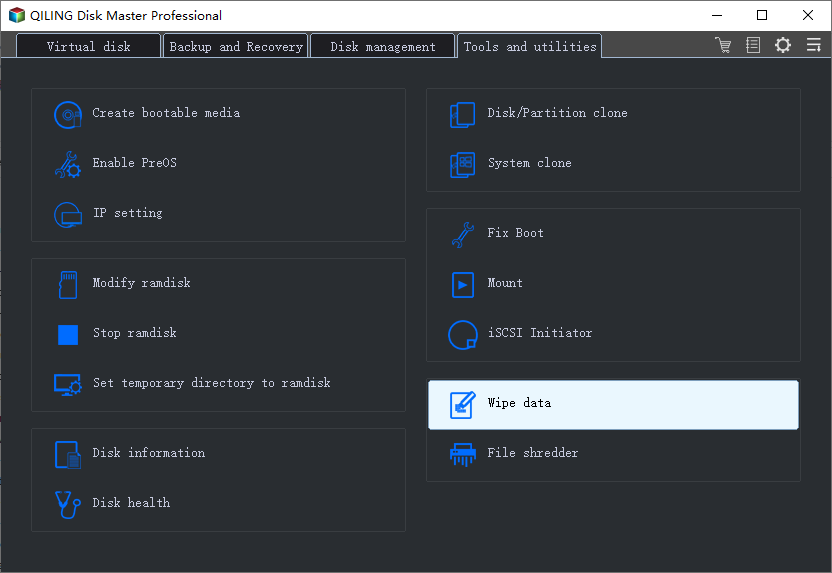
Step 5.To wipe a hard drive or solid state drive, select the drive you want to erase, choose the number of times to wipe the data (up to 10 times), and then click "Proceed".
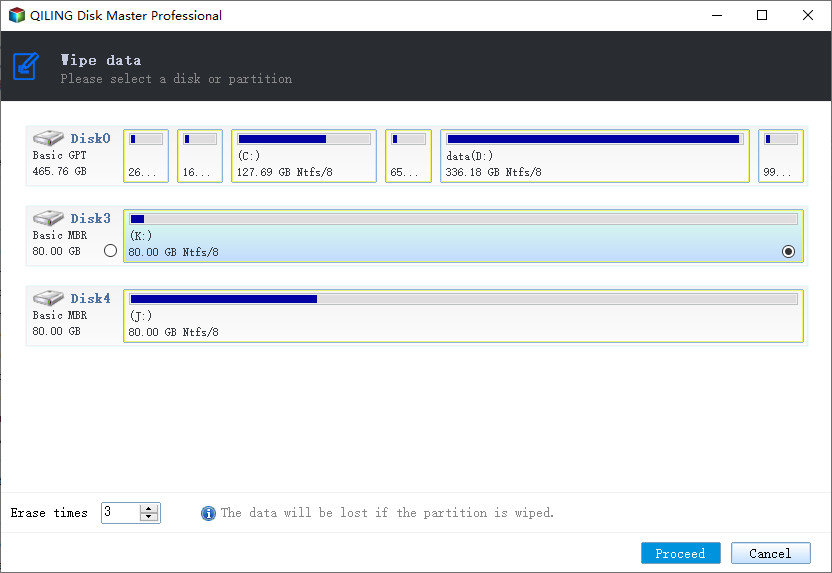
Step 6.A message informs you that the computer will restart after the disk erase is recommended.
#2. Clean up and delete all existing partitions on the data disk:
To delete all partitions on a disk, launch Qiling Partition Master, right-click on the target disk, and select "Delete All". Then, confirm the deletion by clicking "Yes".
Error 2: The specified disk is not convertible. CDROMs and DVDs are examples of disks that are not convertible
Applies to:
Virtual Disk Service error:
The specified disk is not convertible, as it's a type like a CDROM or DVD, which can't be converted.
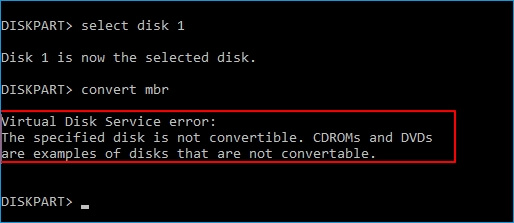
When attempting to convert a disk to GPT or MBR using the command "list disk", "select disk *", and then "convert GPT" or "convert MBR", an error message is received stating that a virtual disk service error is occurring on the current disk. This issue arises due to existing partitions on the drive.
To fix the error, you can either remove the duplicate line of code or refactor the code to avoid the duplicate line. This will prevent the error from occurring. If you're unsure about how to do this, you can also try reordering the code or checking for any other potential issues that might be causing the error.
Two Fixes for Virtual Disk Service Error - Specified Disk Is Not Convertible
#1. Directly Convert Disk to MBR or GPT using Qiling Partition Master
Qiling Partition Master is a great alternative to DiskPart that allows you to convert a disk to MBR or GPT without deleting partitions, making it a safe and data-loss-free process.
Follow the steps below to fix the virtual disk service error - the specified disk is not a convertible error on your own:
- Convert MBR to GPT:
Step 1. Download and launch Qiling Partition Master on your Windows computer.
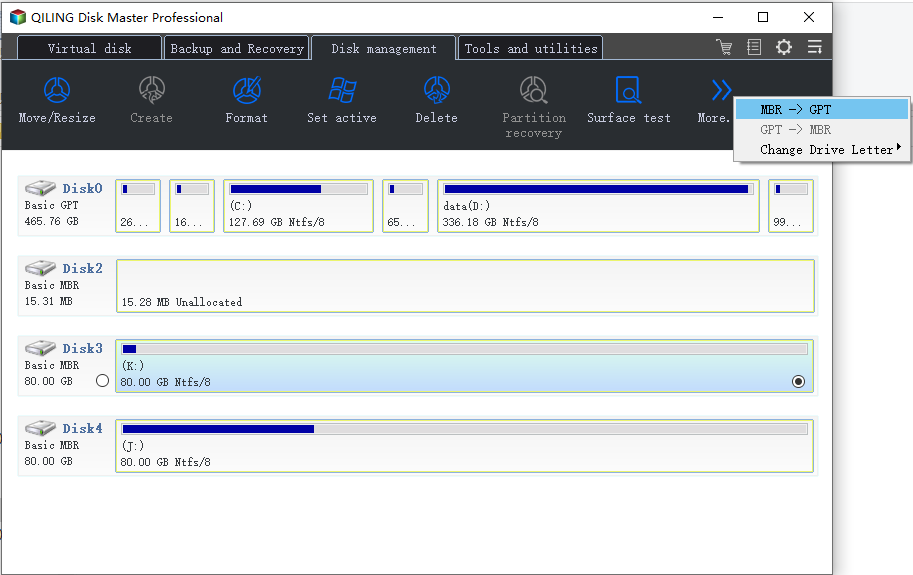
Step 2. Choose the MBR disk that you want to convert, click "More..." and select "MBR -> GPT" to convert it.
- Convert GPT to MBR:
To convert a GPT disk to MBR using Qiling Partition Master, select the disk in the main window, click on "More" in the top toolbar, and then click on "GPT -> MBR" in the dropdown menu. This will initiate the conversion process. It's worth noting that this operation will delete all existing data on the disk, so it's essential to back up any important files before proceeding. Additionally, the conversion process may take some time, depending on the size of the disk and the number of partitions. Once complete, the disk will be converted to MBR, and you can proceed with partitioning it as needed.
#2. Clean and Convert Disk to MBR/GPT using DiskPart Command
To convert a drive from MBR to GPT or vice versa, you need to delete the existing partition before using the DiskPart conversion command. This is because the conversion process cannot be done while the drive still has partitions. Therefore, it's essential to back up any important data on the target disk to an external hard drive before proceeding.
Here are the steps:
Step 1. To access DiskPart, open the Command Prompt as an administrator by typing "cmd" in the Windows Search bar, right-clicking on the Command Prompt result, and selecting "Run as Administrator".
Then type diskpart and hit Enter.
Step 2. Type the following commands and hit Enter each time:
- list disk
- select disk * (replace * with the target disk number)
- clean
- convert gptor convert mbr
- exit
Error 3: Delete is not allowed on the current boot, system, pagefile, crashdump or hibernation volume
Applies to:
Virtual Disk Service error:
The message indicates that the "Delete" operation is not permitted on a specific volume, which is currently being used for booting the system, storing system files, pagefile, crash dump, or hibernation. This means that you cannot delete files or folders on this volume until it is no longer being used for these purposes.
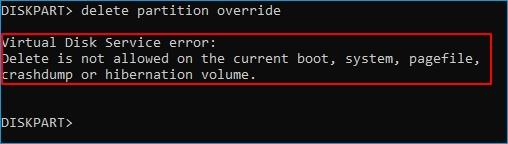
This error often occurs when attempting to delete the boot or system partition using DiskPart, and typically results from inputting the wrong volume number, leading to repeated attempts to delete the partition with the correct volume number.
If your goal is to delete the OS partition or boot partition, try the below tutorial.
Fix: Delete Boot/System Volume via Qiling Partition Master Bootable Disk
Qiling Partition Master allows users to safely delete the OS partition or boot drive from a bootable disk, providing a secure way to manage and modify disk partitions.
- To create a Qiling Partition Master WinPE bootable disk, you first need to create a WinPE bootable disk.
- 2) Boot the PC from the Qiling Partition software using a bootable disk.
- In the Qiling Partition Master main window, right-click on the system or boot partition and select "Delete", then confirm with "Yes".
Error 4: There is no media in the device
Applies to:
Virtual Disk Service error:
There is no media in the device.

When running DiskPart to perform operations on a target disk, you may encounter the "Virtual Disk Service error: there is no media in the device" issue, indicating that DiskPart cannot find or access the specified device or media. This error typically occurs when DiskPart is unable to load or interact with the device, resulting in an inability to complete the intended operation.
2 Fixes for Virtual Disk Service Error - There Is No Media in The Device
To reconnect an external storage device or reinstall an HDD/SSD disk, you would typically need to change the USB port on your computer. This involves physically removing the device or disk from the current port and reinserting it into a different USB port, which can sometimes resolve connectivity issues or problems with the disk's installation.
#2. Update No Media Device Drive Driver:
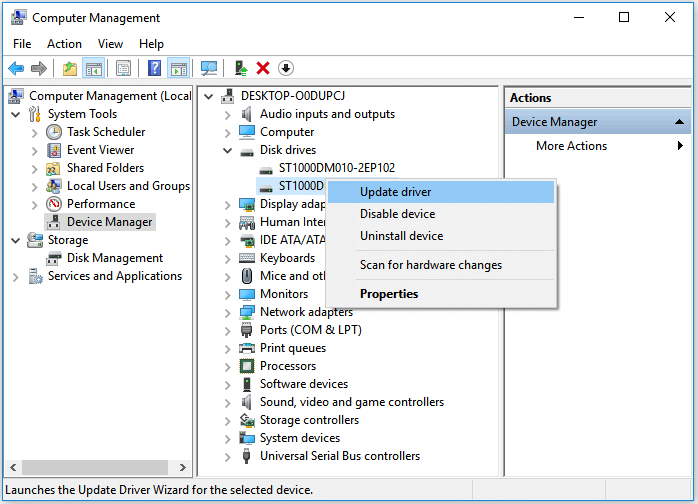
Step 1. Right-click "This PC" and choose "Manage" > "Device Manager".
Step 2. To resolve the issue of a disk drive showing no media, expand the "Disk Drives" section in the Device Manager, right-click on the problematic device, and select the option to "Update Driver". This will initiate the driver update process, which may resolve the issue and allow the disk drive to function properly.
Step 3. In the new window, choose "Search automatically for updated driver software".
You may also refer to: There Is No Media in The (Specified) Device for further fixes.
Error 5: The volume size is too big
Applies to:
Virtual Disk Service error:
The volume size is too big.
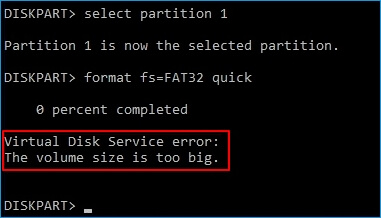
This error often occurs when you tend to format a large partition or a USB/external hard drive to the FAT32 file system using DiskPart utility. Due to the limit of the FAT32 file system, Windows doesn't allow you to format a device larger than 32GB into FAT32. To fix this error, you have two options, as listed below.
2 Methods to Fix Virtual Disk Service Error - The Volume Size Is Too Big
#1. Using Third-Party Formatting Tool to Format Large Device to FAT32
If you use a large device as a FAT32 removable drive, consider using Qiling Partition Master, a professional formatting tool that breaks the limit of FAT32, allowing you to set devices over 32GB to FAT32 via its Format feature.
- To format a USB drive or external hard drive, click on the device you want to format and select the "Format" option.
- Set the Partition label, File system (NTFS/FAT32/EXT2/EXT3/EXT4/exFAT), and Cluster size, then click Proceed.
- Click "OK" to format the hard drive partition.
#2. Format Device to Other File Systems
To resolve the issue, you can try changing the file system to a Windows-supported format, such as NTFS for internal hard drives or solid-state drives, or exFAT for external hard drives. This may resolve the problem.
Step 1.Right-click "This PC" and choose "Manage".Then go to "Disk Management".
Step 2.Right-click the target hard drive partition and choose "Format".
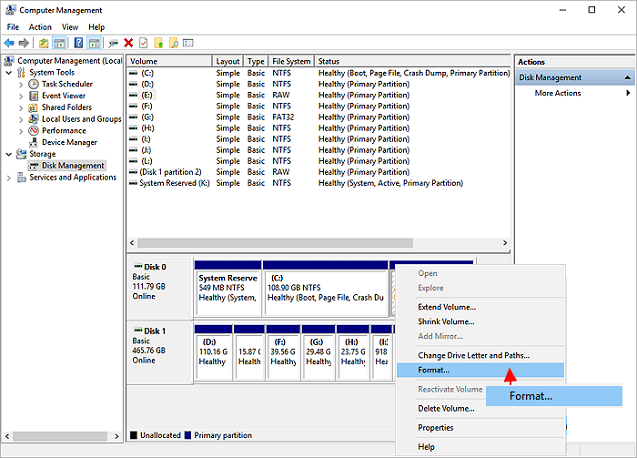
Step 3.To format the drive, click on the drive you want to format in the list, click on the "Format" button, set the volume label and file system, and click "OK" to start the formatting process.
Error 6: There is not enough usable space for this operation
Applies to:
Virtual Disk Service error:
There is not enough usable space for this operation.
This error typically occurs when there is insufficient free space or unallocated space on a hard disk, hindering operations like partition extension or creation using DiskPart.
Two Fixes:
- 1]. Shrink Partition to leave unallocated space
- 2]. Extend Partition with or without unallocated space
Error 7: The service failed to initialize
Applies to:
Virtual Disk Service error:
The service failed to initialize.
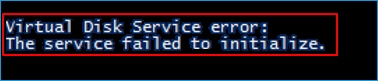
The Virtual Disk Service may not start or initialize properly on a Windows PC, which is its normal default behavior.
Two Fixes:
To start the Virtual Disk Service (VDS) in Windows, open the DiskPart utility and type "net start vds" and press Enter.
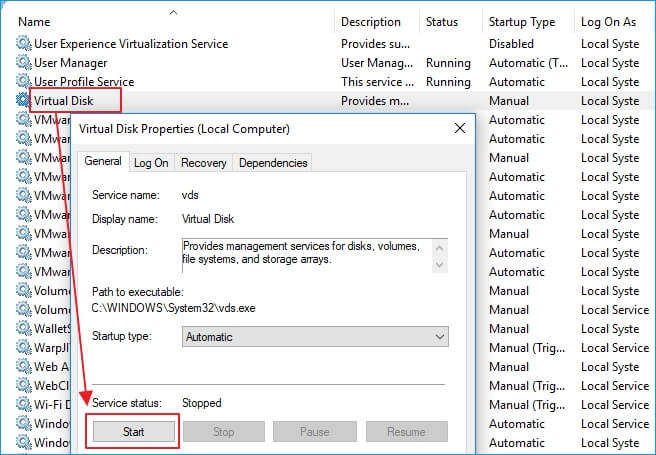
To manually restart the Virtual Disk Service, open the Services console by typing "services" in the search box and hitting Enter. Then, right-click or double-click on the "Virtual Disk" service and select "Start".
This will change the Virtual Disk service startup type from Manual to Automatic, then restart Windows.
Error 8: The media is write protected.
Applies to:
Virtual Disk Service error:
The media is write protected.
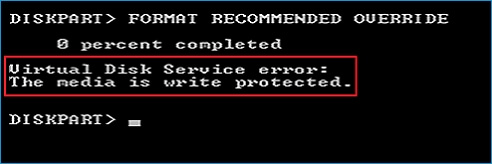
The error often occurs when a storage device is encrypted or locked due to some manual operation or device error, and can be fixed in multiple ways.
Full Fixes:
If your USB, SD, internal or external hard drive has write protection, there are several ways to remove it in Windows 10/8/7. One method is to use the built-in Diskpart utility, which can be accessed by typing "Diskpart" in the Command Prompt and then using the "attributes" command to disable write protection.
Conclusion
Multiple solutions can fix Virtual Disk Service errors that occur while managing disk partitions using Diskpart. These solutions can resolve various Virtual Disk Service errors, enabling users to successfully manage their disk partitions.
To fix the errors in DiskPart, you need to identify the specific problem you're experiencing, as the solutions vary. Once you've confirmed the issue, you can try the methods we've outlined to troubleshoot and resolve the problem. We've collected the most common solutions to help you out.
If the problem you're having isn't listed, use the search bar on our homepage to find a solution.
Related Articles
- How to Format USB Flash Drive to FAT32 (Applies to 32GB/64GB/128GB...)
- Can I Upgrade Windows 8.1/8 to Windows 11? 2022 Step-By-Step Guide
- How to Disable Low Disk Space Warning in Windows 11/10
- Two Easy Ways to Wipe Data from Hard Drive in Windows 11/10
- How To Check Storage on PC [Step-by-Step Guide]
Storage is an important value for monitoring the status of the computer. This article aims to teach users how to check storage on PC. - How to Format M.2 SSD? [Easy Instructions]
How to format M.2 SSD? Users have to format a new M.2 SSD before storing data on it. This article will address the steps to install and format M 2 SSD.
Products
Articles & Tutorials
- Data Recovery
- Data Backup
- File Recovery
- File Backup
- System Backup and Restore
- Disk and Partition Clone
- Technical articles
- Mobile articles
- Disk Master Help
- Windows Data Recovery Tutorials
- Windows Secure Delete Tutorials
- Windows Partition Management Tutorials
- Windows File Backup and Restore Tutorials
- Windows System Backup and Restore Tutorials
- Windows Disk Backup and Restore Tutorials
- Windows Clone Tutorials