File System Comparison: NTFS, FAT32, exFAT, and EXT, Which File System Should I Use
This page provides information on file system formats and the best file system for different uses. It also offers a handy file system conversion tool to easily switch between NTFS, FAT32, exFAT, and EXT2/3/4. If you encounter file system errors, such as a warning about a file system error on your drive, you can follow the solutions on this page to resolve the issue like an expert.
Are you ready? Let's get started here.
In this article, you'll learn:
- What Is File System
- NTFS is a good option for most users due to its reliability and compatibility with Windows. FAT32 is suitable for older systems and devices that don't support NTFS.
- To change the file system format between NTFS, FAT32, exFAT, and EXT2/3/4, you can use the built-in disk management tools in Windows or Linux, or third-party software. In Windows, go to Disk Management (Press Win + R, type 'diskmgmt.
- File System Error Troubleshooting - Full Solutions
What Is File System
Definition of File System:
A file system is a structure used by an operating system to organize and manage data in a logical and orderly way, applying rules to group and categorize files.
Why Is File System Important
The file system is a crucial component that helps the operating system manage data and files in a logical and organized manner. It enables users to easily access, secure, read, write, and modify data stored on their devices, making it a vital tool for efficient data management.
The file system helps organize data on a drive, storing it in an orderly manner, making it easier to access and find desired files, and also allows for easy retrieval of lost files.
What's The Relationship Between File System and Operating System
To grasp the connection between the file system and operating system, it's crucial to learn about their interdependent roles. The operating system serves as the intermediary between the computer hardware and the user, managing resources, providing services, and controlling input/output operations.
How the file system works
A file system is a way to organize and manage data on a storage device, keeping track of information such as the size of each file, its attributes, location, and hierarchy within the directory structure. It also defines the path to a file through a specific directory format.
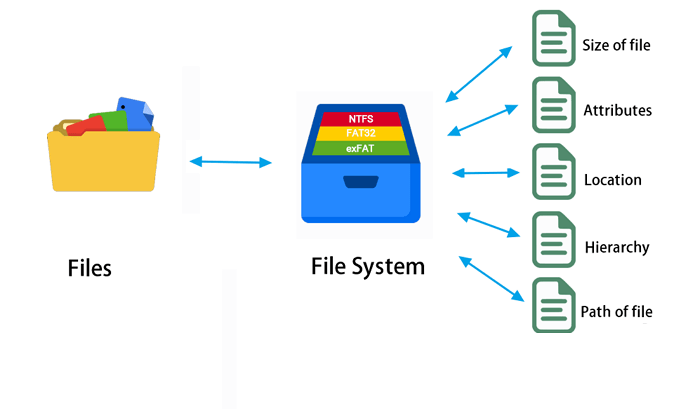
Structure of file system metadata
All file information on a storage drive is stored in the file system metadata. This includes details such as file name, type, size, creation date, and permissions.
- Date created
- Date modified
- Last date of access
- Last backup
- User ID of the file creator
- Access permissions
- File size
How the operating system access file system
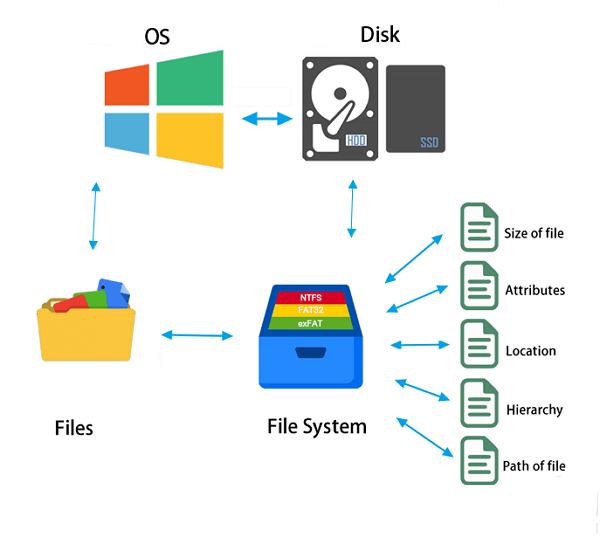
The operating system uses the file system to process and access files on a storage device by breaking down the device into a logical structure of directories and files. It assigns a unique identifier, called an inode, to each file and directory, which contains metadata about the file, such as its permissions, ownership, and location on the device.
- To create a partition on a hard drive or external drive, you start by opening the Disk Management utility on your computer. From there, you can select the drive you want to partition and click on the "New" button to initiate the partitioning process.
- You add a file system format to the drive.
- You store a file in a folder, directory, or subdirectory on the drive.
- The file system record the location information of these files.
- The operating system uses the file system to store and locate files on storage devices.
The operating system (OS) and file system are closely related, but they serve different purposes. The OS manages the computer's hardware resources and provides a platform for running applications, while the file system organizes and manages the files and directories on the computer.
Types of File System Format
There are over 10 types of file systems, including disk, flash, tape, database, transactional, network, shared-disk, special, minimal, and flat file systems.
The file systems mentioned (NTFS, FAT32, HFS) refer to the format of disk drives, also known as disk file system formats. They are not like the ones you already know.
The Windows, Mac, and Linux operating systems use various file system formats, including FAT32, NTFS, HFS+, APFS, ext2, ext3, ext4, and XFS, among others, each with its own characteristics and compatibility with different devices.
- Windows File System - FAT, NTFS, exFAT
- macOS - HFS, APFS, HFS+
- Linux - EXT2/3/4, XFS, JFS, Btrfs
File System Format: NTFS, FAT32, exFAT, or EXT2/3/4, Which Should I Use
The best file system format on Windows is a matter of debate, with options including NTFS, FAT32, exFAT, and EXT. Each has its own strengths and weaknesses, and the choice ultimately depends on the specific use case. NTFS is a popular choice for its reliability and security features, while FAT32 is a good option for older systems or devices that don't support NTFS. exFAT is a good choice for external drives or devices that need to be compatible with multiple operating systems, and EXT is a Unix-based file system that's not natively supported on Windows. By understanding the characteristics of each file system, users can make an informed decision about which one to use for their specific needs.
What Is NTFS, FAT32, exFAT, and EXT2/3/4 File System
NTFS, FAT32, and exFAT are file systems used for storing data on computers. NTFS is a Windows-specific file system that offers advanced features like security and compression. FAT32, on the other hand, is an older file system that was widely used on Windows and other operating systems, but has limitations in terms of file size and partition size.
1. NTFS File System
The NTFS file system is the default file system format in Windows operating systems, surpassing the FAT file system in several ways. It is a more advanced and secure file system that provides better data protection and management features, making it a popular choice for Windows users.
- Initial Release: 1993
- Developer: Tom Miller, Gary Kimura, Brain Andrew, and David Goebel.
- Last Version: V3.1, (Commonly called NTFS 5.1)
NTFS File System Structure:
The NTFS file system is composed of five key components: the Boot Record, MFT1, MFT Metadata, MFT2, and the Data Area.
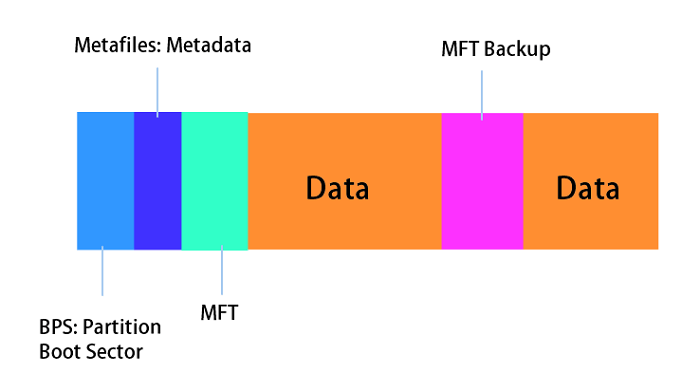
Learn More About NTFS:
To learn more about the NTFS file system format, visit the link What Is NTFS File System, Do I Need It to get detailed information.
2. FAT or FAT32
FAT is a file system developed for personal computers, originally for floppy disks in 1977, and later adapted for hard disks and other devices. It remains supported for compatibility reasons by current operating systems, allowing data interchange between systems. Wikipedia
FAT32, a successor to FAT16, was designed by Microsoft as a new file system version. It supports an increased number of possible clusters and reuses most of the existing codes, overcoming the volume size limit of FAT16 and allowing DOS real-mode code to handle the format.
- Initial Release: 1977
- Developer: Microsoft, NCR, IBM, Caldera, and more.
- Last Version: FAT32
FAT File System Structure:
The FAT file system is composed of four primary components: Reserved sectors, FAT Region, Root Directory Region, and Data Region.
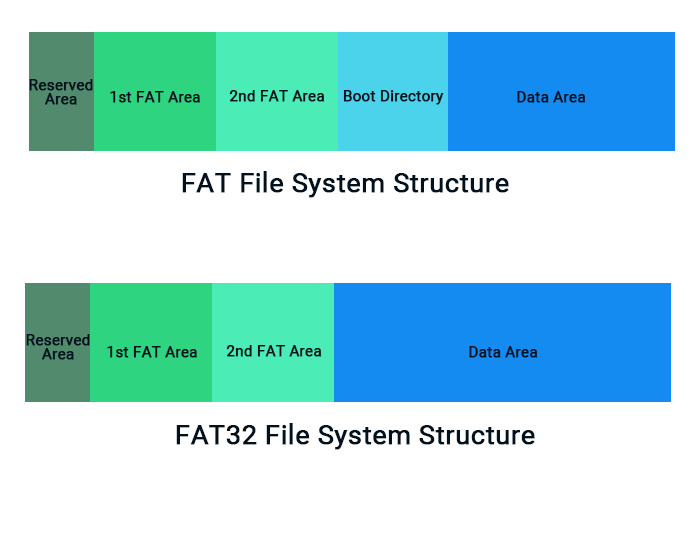
3. exFAT File System
The exFAT file system is a new format designed for removable storage devices, such as USB flash drives and SD cards.
- Initial Release: 2006
- Developer: Microsoft
- Last Version: exFAT
exFAT File System Structure:
The exFAT file system is composed of four primary sections: the Main Boot Region, Backup Boot Region, FAT Region, and Data Region.
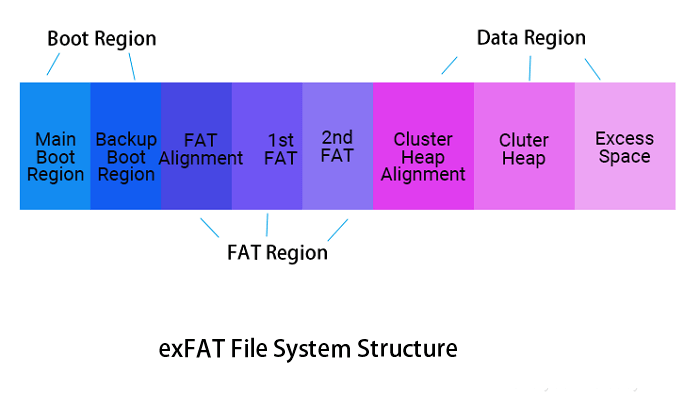
Learn More About exFAT:
The exFAT file system is designed for large storage devices, such as external hard drives and USB drives, where the NTFS file system is not supported. It is a more modern and efficient alternative to FAT32, offering better performance and larger file size limits. exFAT is widely supported by modern operating systems, including Windows, macOS, and mobile devices, making it a popular choice for storing and transferring large files.
4. EXT File System - EXT2/3/4
The EXT file system is a Linux format that replaced the MINIX file system, as per Wikipedia.
- Initial Release: 1992
- Developer: Remy Card
- Last Version: EXT4
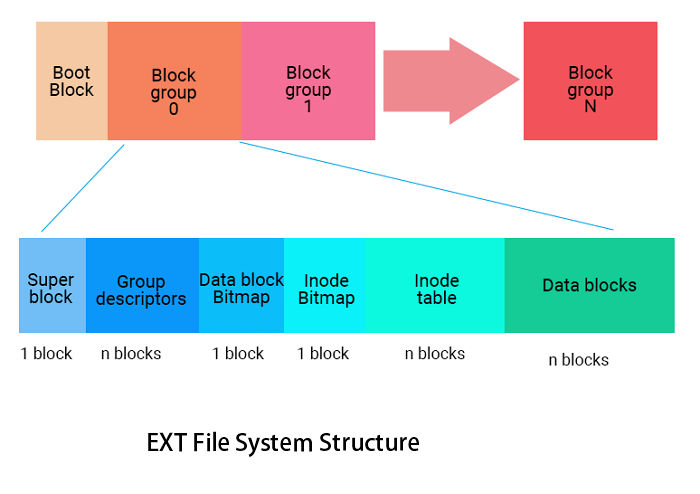
EXT File System Structure:
The EXT file system can be divided into one block and two groups, including the Boot Block, Block Group 0, and Block Group n, with Block Group 0 containing the Super Block, Group Descriptors, Data Block Bitmap, Inode Bitmap, Inode Table, and Data Blocks.
NTFS VS FAT32 VS exFAT VS EXT2/3/4, What's The Difference
The main difference between NTFS, FAT32, exFAT, and EXT/2/3/4 file systems lies in their design for specific circumstances and purposes. Each format has its own strengths and weaknesses, making them suitable for various use cases. For instance, NTFS is commonly used on Windows systems, while FAT32 and exFAT are often employed on devices that require compatibility with multiple operating systems.
Comparison: NTFS VS FAT32, FAT32 VS exFAT, exFAT VS EXT2/3/4
Here we compared NTFS, FAT32, exFAT, and EXT2/3/4 file systems, highlighting their differences in a table. The comparison includes characteristics such as maximum file size, maximum number of files and clusters, and whether they support compression, encryption, and journaling. Additionally, we noted the operating systems that support each file system, including Windows, macOS, and Linux.
| Differences | Max File Size | Max Volume Size | Operating System |
|---|---|---|---|
| NTFS |
|
|
|
| FAT32 |
|
|
|
| exFAT |
|
|
|
| EXT2/3/4 |
|
|
|
The table highlights the differences in file system support across various operating systems, with each OS supporting its own file system. Additionally, maximum file sizes and maximum volume sizes vary significantly between operating systems.
If you're curious about the differences between NTFS, exFAT, and FAT32 file systems, you can click on the links provided to learn more. For instance, NTFS vs. exFAT vs. FAT32, NTFS or FAT32, and Best File System for USB are some topics you can explore to get a better understanding of these file systems.
Which File System Should I Use, NTFS, FAT32, exFAT, or EXT?
When deciding between NTFS, exFAT, and FAT32, consider the following: use NTFS for Windows systems, as it's the most compatible and secure option. For devices that don't require Windows, exFAT is a good choice, offering better compatibility and performance. FAT32 is best for older devices or systems that can't handle NTFS or exFAT, but it's not recommended for new devices due to its limitations.
Here is when to use the right file system:
On Windows -
- NTFS - Set it for the OS or data drive, huge file storage or transfer (bigger than 4GB), or use it on a gaming disk.
- Fat32 - You can use a small-capacity USB or SD card (32GB or smaller) as an external gaming drive for Android, or as a memory card for small-capacity devices.
- exFAT - You're looking for a huge external hard drive that can store 8K videos, which require a lot of space. A 64GB or larger external hard drive would be sufficient for this purpose, as it would be able to hold a large number of videos, depending on their resolution and file size.
On macOS -
- APFS - macOS 10.13-10.15, external SSD
- HFS+ - Mac OS X (pre-2-16), Time Machine backup, Mechanical hard drive
- The exFAT file system can be used on both Mac and Windows operating systems, making it a versatile choice for external hard drives. This allows for seamless file sharing and compatibility between different devices, eliminating the need for multiple file systems.
- MS-DOS (FAT32) - To save individual files less than 4GB on a USB flash drive, simply select the file you want to save, right-click on it, and choose the "Copy" option. Then, go to your USB drive, right-click and select "Paste" to copy the file to the drive.
On Linux-
- EXT4 is considered the most popular and widely used Linux file system, and is currently considered the best option for most users.
Tutorial: How to Change File System Format Between NTFS, FAT32, exFAT, and EXT2/3/4
To change the file system format on your drive or external storage devices, you can use the command line interface (CLI) or graphical user interface (GUI) provided by your operating system. For example, on Windows, you can use the built-in Disk Management tool to format a drive with a different file system, such as NTFS or exFAT. On Linux or macOS, you can use the `mkfs` command to create a new file system with a specific format, such as ext4 or HFS+. Additionally, you can use third-party software, like Qiling Partition Master or Disk Utility, to change the file system format on your drive or external storage devices.
2 Ways to Change File System Format on Disk:
- #1. Format to Change File System Format to NTFS, FAT32, exFAT or EXT2/3/4
- #2. Convert File System to NTFS/FAT32 with Third-Party Conversion Tool
Formatting and converting a file system can be useful when you need to switch the file system format on a storage device or internal disk. This can be done to change the file system from one format to another, such as from FAT32 to NTFS, or to repair a corrupted file system. It's usually recommended to format the device if it's not recognized by your computer or if you're experiencing issues with the file system.
The formatting method is suitable for simple and small-scale conversions, such as converting units of measurement, time, or currency. On the other hand, the conversion tool is more suitable for complex and large-scale conversions, such as converting between different units of measurement, or converting data from one format to another. It's also worth noting that the conversion tool can be more accurate and efficient than the formatting method, especially when dealing with large datasets.
#1. Format Drive to Change File System Between NTFS, FAT32, exFAT, and EXT2/3/4
- Benefit: Directly change the file system format by formatting a drive.
- Drawback: Formatting will remove all existing data on a storage device.
- Applies to: You can use an external hard drive, a USB drive, or an SD card to transfer files from your old computer to your new one. Make sure to choose a storage device that's not essential to your daily life, so you can safely use it for the transfer process.
- Tools: Windows Explorer, Disk Management.
Note: Formatting a drive to a new file system format will remove all existing data, so make sure to back up all essential files before proceeding.
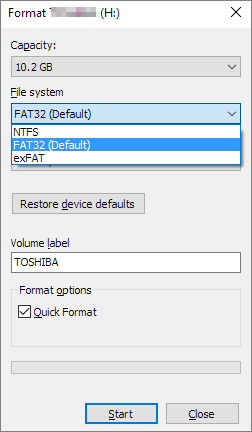
Step-By-Step Guide
To change the file system on your drives, USB drives, and SD cards, you can follow detailed guides available online, such as learning how to change the file system to NTFS, FAT32, or EXT2/3.
#2. Convert File System to NTFS/FAT32 with a Thrid-Party File System Conversion Tool
- Benefit: Easy to use, no data loss, no formatting.
- Drawback: Only support converting NTFS to FAT32 and FAT32 to NTFS.
- Applies to: switch the file system on an important data drive without losing any data.
- Tools: Third-party file system conversion tool or FAT32 converter tool.
Qiling Partition Master's Convert feature allows for a seamless conversion of file system formats, enabling users to switch between NTFS and FAT32 without data loss. Additionally, it supports changing the file system to EXT2/3/4 for Linux compatibility.
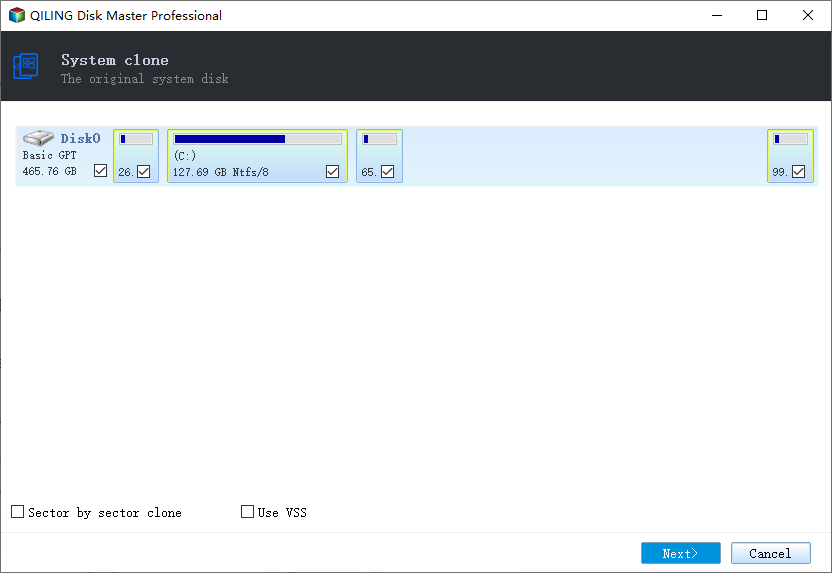
Step-By-Step Guide
If you're wondering how to switch file systems on your disk, you can learn how to convert NTFS to FAT32 or exFAT to NTFS on your own in Windows by clicking here.
To change the file system format on your disk, follow these operational processes and you'll be able to achieve your desired file system format on your storage devices, allowing you to start a new task.
File System Error Troubleshooting - Full Solutions
Changing file system formats on a storage device or Windows computer is a relatively simple process. However, if you encounter unknown file system errors or invalid file systems that prevent certain operations, you may need to take additional steps. In such cases, you can try using the built-in Windows tools like the File System Error Checker or the built-in disk checking tool to identify and potentially fix the issues. Alternatively, you can also consider using third-party software or formatting the drive as a last resort, but be sure to back up any important data first.
To learn and get help, first, learn the symptoms of file system errors and then get an efficient solution to fix them immediately.
Symptoms of File System Error
Regardless of the cause, if your drive is malfunctioning, check the symptoms and you'll likely find that one or two errors on your disk are the culprit. In this case, you'll need a solution to fix the file system error to get your drive working again.
- NTFS file system error - BSOD, boot loop, etc.
- RAW file system error
- Stop code file system
- The file is too large for the destination file system
- Volume does not contain a recognized file system
- The device or disk becomes inaccessible
- The device is not appearing in File Explorer, but it is visible in Disk Management, suggesting that the device is recognized by the system but not properly configured to be accessible through File Explorer. This could be due to a variety of reasons, such as incorrect driver installation, file system corruption, or a misconfigured device.
What Caused File System Error?
A file system error on your drive can be caused by various factors, including software issues, hardware problems, or even user errors. This type of error can occur when the file system is damaged or corrupted, leading to problems accessing or writing data to the drive.
- Virus, malware, spyware infection
- Sudden power failure or unstable power supply
- Interruption of the file transfer
- Bad sectors
- Unplug the device improperly, more.
Troubleshooting File System Errors - Full Solutions
Here are the fixes for file system errors on your drives:
#1. Restore Data First If Your Drive Is Still Detectable
If you lose important files on a problematic drive, use a reliable data recovery software to scan and restore all existing data before attempting to repair or replace the drive.
Deep Data Recovery is one of the tools that you can rely on.
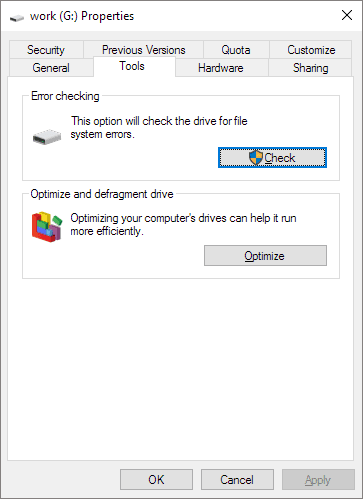
#2. Run File System Checker - Check and Fix File System Errors Immediately
The Windows operating system has a built-in check disk tool named ScanDisk, and you can simply run it to scan your disk and fix existing file system errors on your drive:
- Press Windows + E to open File Explorer.
- Right-click the problematic drive and select "Properties".
- To resolve the issue, go to the Tools tab and click "Check" below the Error-checking section.
- Click "Scan drive" and let this tool scan and fix all found errors.
#3. Advanced Troubleshooting Solutions Toward Complex File System Errors
File system errors can be complex and challenging to fix, but if your disk is experiencing issues, try checking the fixes below for an instant solution. These fixes may help resolve the problems and get your disk back to normal operation.
- File System Is RAW - Convert RAW to NTFS With or Without Formatting
- The file is too large for the destination file system on the USB/external hard drive, which means the drive does not have enough free space to store the file. This can be due to the drive being full or the file size exceeding the drive's capacity.
- Windows Has Detected File System Corruption on Local Disk
- The Volume Does Not Contain A Recognized File System
- The error message "The type of the file system is RAW; CHKDSK is not available" typically occurs when the system is unable to access the file system due to it being in a RAW state. This usually happens when the system is unable to mount the file system due to corruption or other issues, and CHKDSK (Check Disk) is not available to repair the file system.
Hint: If the provided solutions don't work for your problem, try searching the Qiling website or contact the support team at support@idiskhome.com for assistance.
Conclusion
This page provides an overview of file system formats and the most popular ones used on Windows, Mac, and Linux operating systems.
To simplify things, you don't need to know which file system is the best. Instead, you can refer to the provided list and choose the correct file system for your device based on that.
- FAT32 - 32GB or smaller USB/SD card, compatible with Windows, Mac, and Android devices.
- NTFS - Windows disk partitions, transfer 4GB+ big files, gaming disk.
- exFAT - 64GB or bigger external hard drives or USB drives, compatible with both Windows and Mac operating systems.
- EXT4 - Create a Linux partition for a specific environment.
- APFS - Latest macOS operating system disk.
Changing a file system from one type to another, such as NTFS, FAT32, exFAT, or EXT, can be done through various methods, including using File Explorer, Disk Management, and even the Command Prompt. However, these options are not the most straightforward or user-friendly for simple disk format conversions.
A third-Qiling Partition Master is a party disk conversion tool that is easy, user-friendly, and secure for some file system format conversion tasks.
Related Articles
- What Is HDD? See The Ultimate Guide of Hard Disk Drive
- Computer Won't Boot? Causes & Fixes for PC Not Turning On [Full Guide]
- One for All Guideline: How to Format/Reformat A Hard Drive
- Partition Magic Software Free Download with How-To Tutorial [Full Guide]
- Sony VAIO Boot Menu: Everything You Should Know
This guide will introduce the Sony VAIO boot menu and Sony BIOS key, allowing you to easily boot Sony VAIO from USB drives. - How to Speed Up Computer Performance in Windows 11/10/8/7 [Step-by-Step Guide]
This article provides a guide on how to speed up computer performance in Windows 11/10/8/7, addressing the issue of computers running slow. A professional tool is also introduced to help extend your partition, which is a key solution to resolving computer performance issues.
Products
Articles & Tutorials
- Data Recovery
- Data Backup
- File Recovery
- File Backup
- System Backup and Restore
- Disk and Partition Clone
- Technical articles
- Mobile articles
- Disk Master Help
- Windows Data Recovery Tutorials
- Windows Secure Delete Tutorials
- Windows Partition Management Tutorials
- Windows File Backup and Restore Tutorials
- Windows System Backup and Restore Tutorials
- Windows Disk Backup and Restore Tutorials
- Windows Clone Tutorials