Computer Won't Boot? Causes & Fixes for PC Not Turning On [Full Guide]
Do you know what to do when your computer is having one or two of the following listed symptoms:
- Computer has power but won't turn on
- Computer won't turn on or charge
- Power supply green light but the computer won't turn on
- PC won't turn on, but the motherboard light is on
- Computer won't boot up with black screen
- Computer won't turn on even though it's plugged in
When you are with this issue on your PC, stay calm and follow this quick guide to see if the issue gets resolved:
- Step 1. To safely shut down your computer, you should first unplug all external devices such as keyboards, mice, and monitors. Then, press the power button to shut down the computer.
- Step 2. Reboot the computer and wait for the computer to load.
- If the computer boots up, congratulations. You may stop here.
- If the computer still won't turn on, it's possible that there's a hardware issue that needs to be addressed. This could be due to a faulty power supply, a short circuit, or a problem with the motherboard.
In this article, you'll learn:
- Why Won't My Computer Turn On - Causes
- If your computer won't turn on but the motherboard light is on and it's plugged in, there are several potential causes. The power supply unit (PSU) might be faulty, or the motherboard might not be receiving power. Check the PSU by trying a different power source, such as a wall adapter or a different PSU.
- If your computer won't boot after a Windows update or rebuild, it's likely due to a corrupted system file or a problem with the Windows Update process. To fix this, try booting in Safe Mode and running the System File Checker (SFC) to scan for and replace any corrupted system files. If that doesn't work, try running the DISM tool to repair any corrupted system images.
- To fix a PC not turning on with a BSOD (Blue Screen of Death) and black screen, try the following steps: First, unplug the power cord and press the power button for 30 seconds to discharge any residual power. Then, check for loose connections and ensure all cables are securely connected. Next, try booting in safe mode by pressing the F8 key during startup.
- Troubleshooting: Dell, HP, Lenovo, ASUS/Acer Computer/Laptop Won't Turn On
Why Won't My Computer Turn On - Causes
If your computer won't turn on or won't boot up, there are several potential causes. These can be broadly categorized into two types: hardware issues, such as a faulty power supply, motherboard, or RAM, and software problems, like a corrupted operating system or BIOS. In some cases, a dead battery, loose connections, or a malfunctioning graphics card can also prevent the computer from booting up. Knowing the cause of the issue is crucial to taking the correct steps to resolve the problem and get your computer up and running again.
- - Physical Reasons
- - Logical Reasons
Your computer won't turn on due to a variety of reasons, including a dead power supply, faulty motherboard, loose or damaged power cord, malfunctioning power button, insufficient power source, or a loose or damaged connection between the power supply and motherboard. Additionally, a short circuit, overheating, or a faulty graphics card or CPU can also prevent your computer from turning on.
Physical Reasons:
- Monitor issue
- Corrupted hard drive
- Failing pr dying hard drive
- Power supply or battery issue
Logical Reasons:
- Virus or malware infection
- Problematic or buggy windows update
- System crash
- Corrupted MBR
- No boot drive detected in BIOS
LEARN MORE
Aside from the reasons above, your computer may fail to turn on because of a dead or loose power cord, faulty power supply, short circuit, malfunctioning motherboard, failing hard drive, loose or faulty RAM, malfunctioning graphics card, faulty CPU, keyboard or mouse issue, or a connected external hard drive.
You can skip trying to figure out why your computer isn't booting up and instead directly check the listed symptoms, follow respective tutorials to fix the error, and have your computer working normally again on your own.
- 1. Computer Won't Turn on But Motherboard Light Is On/Plugged In
- 2. Computer Won't Boot After Windows Update or Rebuild (Dead Gaming PC)
- 3. PC Not Turning on with BSOD + Black Screen
- 4. Dell, HP, Lenovo, ASUS/Acer Computer/Laptop Won't Turn On
Fix 1. Computer Won't Turn on But Motherboard Light Is On/Plugged In
Applies to:
- Power supply green light but the computer won't turn on
- If your computer won't turn on even though it's plugged in, try checking the power cord and outlet for any issues. Make sure the power cord is securely connected to both the computer and the wall outlet.
- PC not turning on the motherboard has power
- Sorry to hear that the computer is still not turning on after replacing the power cable. This could be due to a few other potential issues.
If you've restarted the computer and the Power connection cables are fine, the issue might be with the Power supply, battery, monitor, or a virus infection.
To fix the issue and reboot your PC into a healthy state, follow these tips. First, restart your computer in Safe Mode to isolate the problem.
#1. Restart PC
- Hold the power button to shut down the computer.
- Press the power button to start the computer.
- Repeat the process 3-5 times and see if your computer turns on.
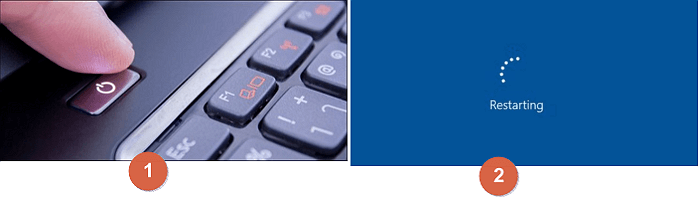
If yes, stop here. If not, try the next tip.
#2. Charge Computer
- Change the plug and recharge the computer.
- Charge the computer for 10 minutes.
- To troubleshoot a computer that won't turn on, start by checking the power cord and ensuring it's securely plugged into both the computer and the wall outlet. Next, press the power button to see if you can boot up the computer.
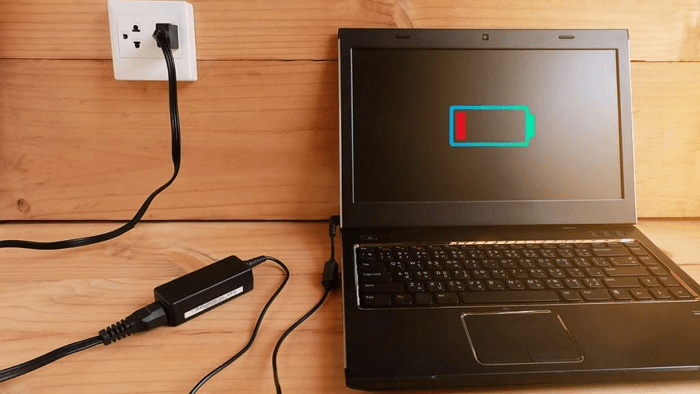
If you're experiencing a black screen on your computer, try plugging it in and charging the battery to full. If that doesn't work, check for loose connections, dust, or overheating. You can also try booting in safe mode or using a bootable USB drive to troubleshoot the issue.
If your laptop won't turn on, first try taking out the battery and plugging it in directly to see if it works. If it doesn't, the issue is likely with the battery. If it does work, try the next troubleshooting step.
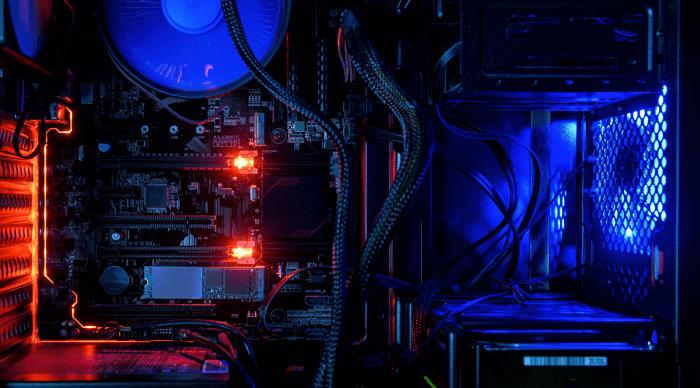
#3. Check Motherboard Light (For Desktop)
- Plug in and charge your computer.
- The motherboard light is blinking, indicating that the computer is trying to boot up. This could be due to a hardware issue, such as a faulty power supply or a malfunctioning hard drive.
If the battery is the problem, it's likely that the battery is dead or has a low charge, and you just need to replace it with a new one. This is a relatively simple and inexpensive fix, and you should be able to get a replacement battery from the manufacturer or a third-party supplier.
If not, continue with the next tip.
#4. Check and Change Monitor
To prepare a second healthy monitor, you'll need to set up a second monitor at home or in your office. This involves physically connecting the monitor to your computer, which may require a VGA or HDMI cable. Once connected, you'll need to configure your computer to recognize the new monitor, which may involve adjusting display settings or installing additional software.
- Unplug your computer from the display monitor.
- And connect a new health monitor to your computer.
- Press the power button on the computer to see if it turns on and boots up normally. If it does, check if all the components are functioning properly.
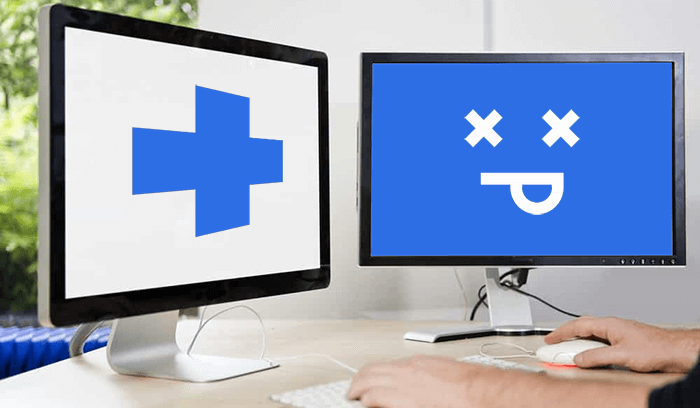
If your computer is not turning on, it's likely due to a hardware issue. The first step is to check the power cord and make sure it's properly connected to both the computer and the wall outlet. If that's not the issue, try unplugging the power cord, pressing the power button for 30 seconds, and then plugging it back in.
If not, try the next tutorial guide.
#5. Boot Into Safe Mode and Scan Virus
- Turn off the computer, hold the power button for 10 seconds, and then turn it back on. This will usually resolve the issue.
- Turn off the computer and re-hold the power button for 10 seconds.
- Unplug the power cord from the back of the PC, wait for 10 seconds, and then plug it back in. Press the power button to turn it on.
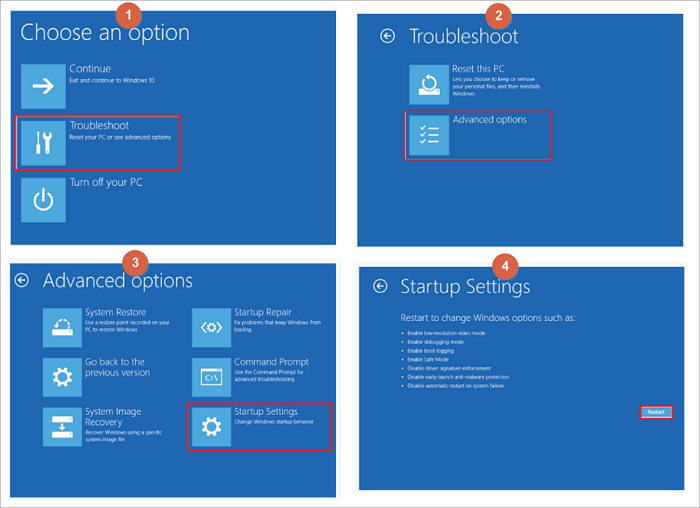
- Repeat the process of pressing the power button, holding it for a few seconds, and releasing it until the computer fully restarts and enters the Windows Recovery Environment (WinRE).
- Select "Troubleshoot > Advanced options > Startup Settings > Restart".
- Sign in computer with your account and password.
- Run antivirus software to scan and remove viruses from your PC.
BONUS TIP:
If your computer won't turn on despite being plugged in, check if it's overheating or connected to an external hard drive. For more practical solutions, you can refer to a tutorial like "Computer Won't Turn On Even Though It's Plugged In" as a guide.
Fix 2. Computer Won't Boot After Windows Update or Rebuild (Dead Gaming PC)
If your computer won't turn on after installing the latest Windows update or rebuilding it, you can try solutions from this page to fix the issue.
Applies to:
- Press the power button on my computer nothing happens
- Computer won't boot after Windows update.
- Computer won't boot after Windows rebuild or reinstallation.
If your Windows computer is unbootable or dead, you can revive it by following these methods. First, try booting in safe mode or using a bootable USB drive to access the system. If that doesn't work, try running a system file checker or a virus scan to identify and fix any issues.
#1. Explore BIOS and Configure BIOS Settings
If your computer won't turn on after installing a new Windows update, it's possible that the issue lies in the BIOS settings. You can try accessing the BIOS and configuring the settings to resolve the problem.
- Press the computer power button to restart the computer and hold the F2/F8/F11 or Del key.
- Wait for the computer to enter BIOS settings.
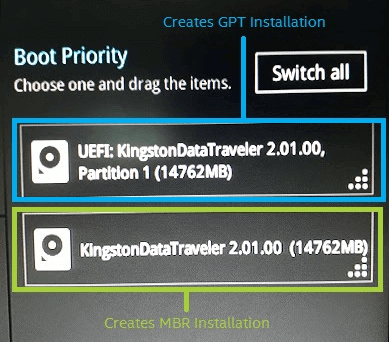
- To set the OS drive as the boot drive, follow these steps: Go to the boot menu, confirm and select the OS drive as the boot drive. This will ensure that the operating system loads from the correct drive during the next boot cycle.
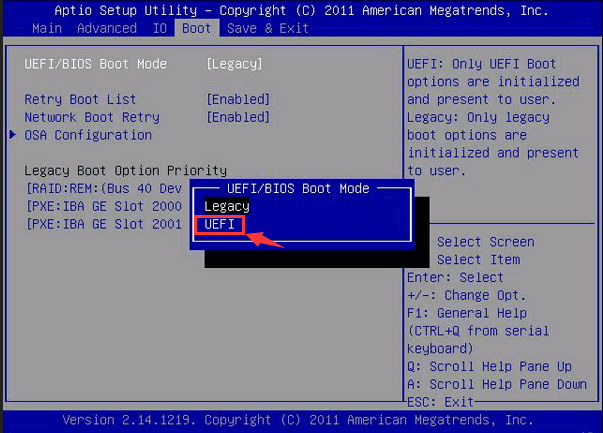
If you're using Windows 11, you'll also need to enable UEFI and Secure Boot Modes in BIOS, in addition to the other requirements.
- Go to the Boot tab, select UEFI/BIOS Boot Mode, and configure the boot mode to UEFI.
- If not, switch to UEFI and save the changes.
- To enable Secure Boot, go to the Security tab, select Secure Boot, and toggle the mode from Disabled to Enabled.
- Save the changes and reboot the PC.
If this doesn't work, stay close to the next method.
#2. Rebuild MBR
Another possible reason why your computer won't turn on is a corrupted MBR table, which is responsible for loading operating system files and information. To resolve this, you may need to rebuild the MBR.
For Windows beginners, rebuilding the MBR boot table can be complex, but experienced users can apply CMD to do so. However, a more reliable and user-friendly option is to use a partition manager software, such as Qiling Partition Master, which can help with this task.
Qiling's Rebuild MBR feature allows Windows users to quickly and easily repair the Master Boot Record (MBR) in just a few clicks, making it accessible to users of all skill levels.
Step 1. Create a WinPE bootable disk
- To create a bootable media, launch Qiling Partition Master, click on "Create bootable media" on the tools page, and select to create the bootable disk on a USB drive or CD/DVD.
- Click "Proceed" to finish the process.
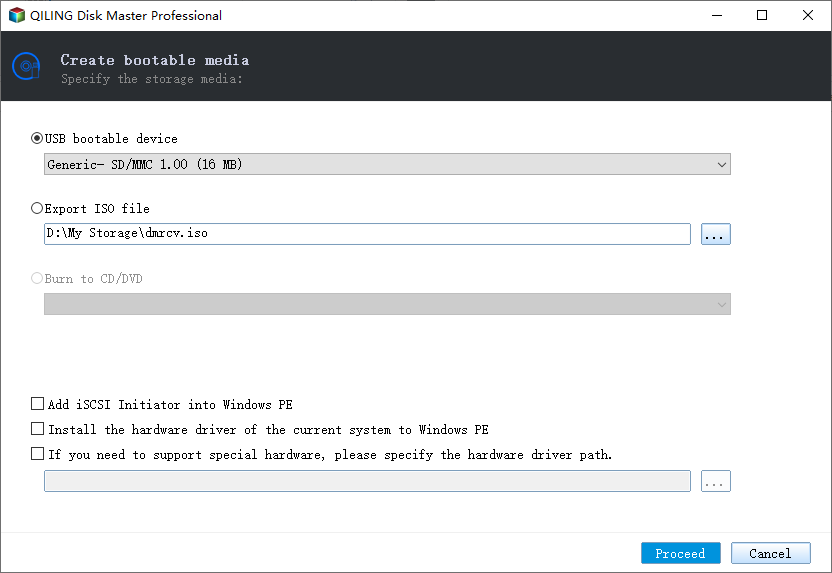
Step 2. Boot Qiling Partition Master Bootable USB
- Connect the bootable USB or CD/DVD to your PC.
- To access the BIOS screen, press F2 or Del when restarting the computer. Once in the BIOS, set the computer to boot from a removable device or CD-ROM drive. After doing so, Qiling Partition Master will automatically run.
Step 3. Rebuild MBR
- Right-A user's disk is damaged, so they click on the disk to select it. They then choose the option to fix the boot problem to continue the process.
- Select the type of MBR with the current operating system.
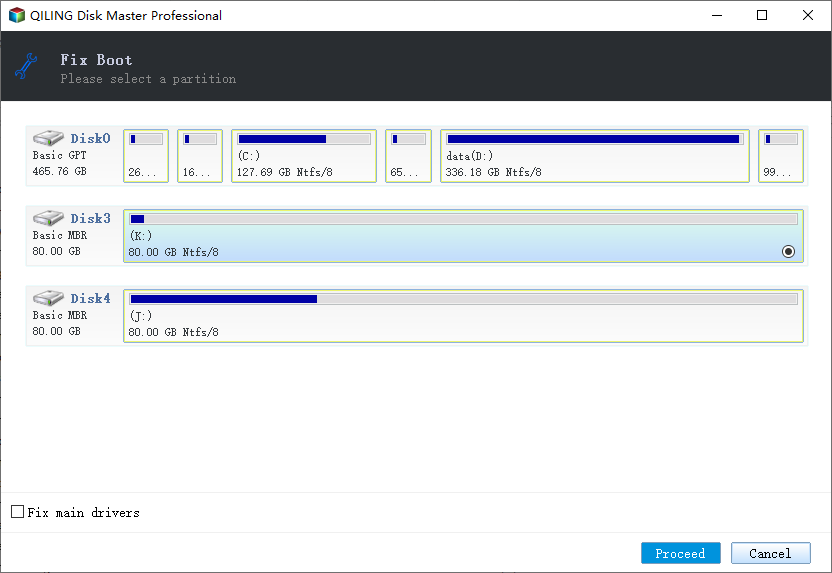
- Once you have completed the necessary steps, click the "Proceed" button to build the Master Boot Record (MBR). This will allow your computer to boot normally again.
#3. Roll Back a Problematic Windows Update
If you encounter a buggy Windows update, such as an unstable Windows 11 update, you can roll back a problematic update to an earlier build. To do so, follow these steps: 1) Open the Settings app, 2) Click on the "Update & Security" option, 3) Select the "Recovery" tab, 4) Click on the "Go back" button, 5) Choose the date and time you want to roll back to, and 6) Confirm your selection.
- Go to Windows settings, click "System > Recovery".
- Click "Go Back" under Reset this PC section.
- You're planning to go back to a previous version or state, but you want to check if there are any updates available first. Before making the change, you need to know what's changed and what's new. If you go back without checking, you might end up locked out of certain features or functionality.
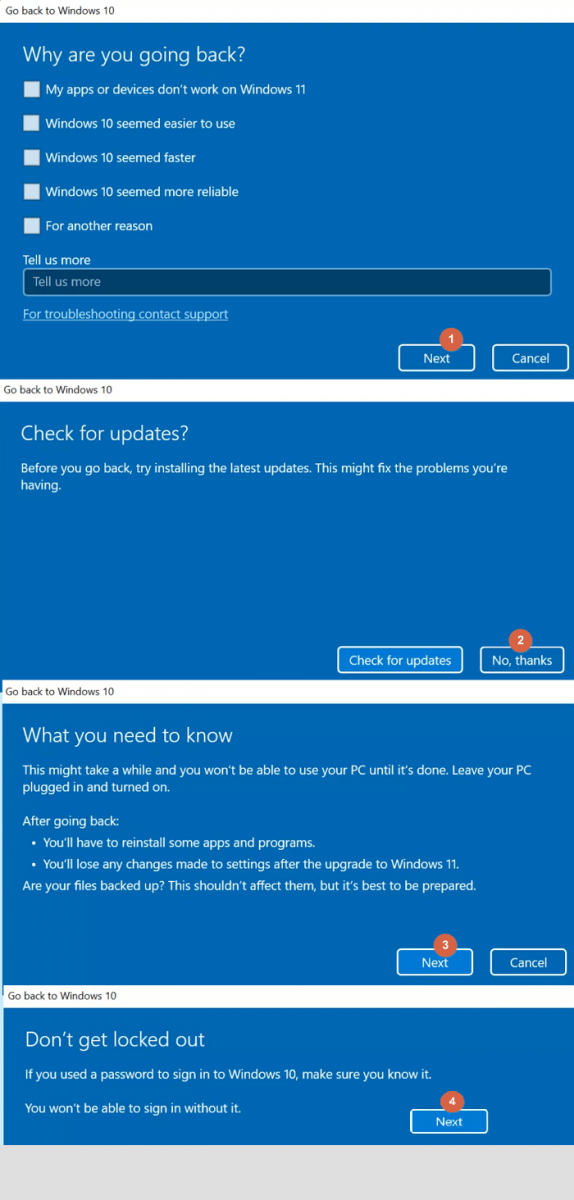
- Click "Go back to an earlier build".
Follow the onscreen guide to complete the process.
#4. Reinstall Windows
When the rolling back method doesn't work well, you can also reinstall Windows to get rid of the computer won't boot issue after Windows update or rebuild, which can be a more straightforward solution.
- Download Windows 11 or Windows 10 ISO files.
- Create a Windows installation creation media to an empty USB (8GB or bigger).
- To reboot the PC from a USB, boot the PC from the USB by setting the USB as the first boot drive in the BIOS settings. This will allow the PC to start from the USB instead of the hard drive, allowing you to access the operating system and other files from the USB.
- Enable UEFI and safe boot mode if you need to install Windows 11.
- Once the PC boots up, select the option to choose the USB flash drive as the media to boot from.
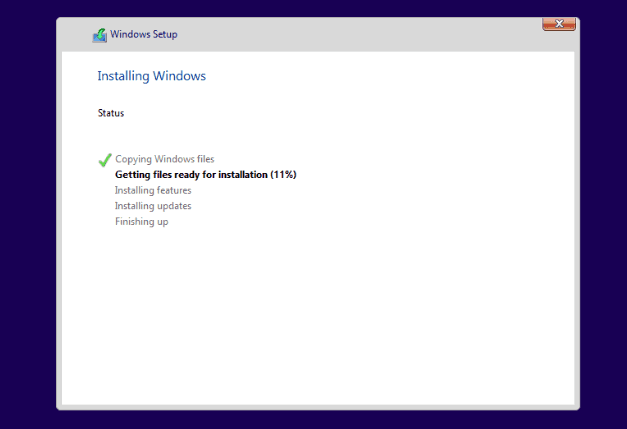
- Click "Install Now", configure the product key, version, language, etc.
- Follow the on-screen guidelines to finish installing Windows.
BONUS TIPS:
The Windows computer won't boot issue can have multiple fixes. This tutorial guide provides a comprehensive resolution for the problem of Windows 11 not booting after an update, as detailed in the article "Windows 11 Won't Boot After Update".
Fix 3. PC Not Turning on with BSOD + Black Screen
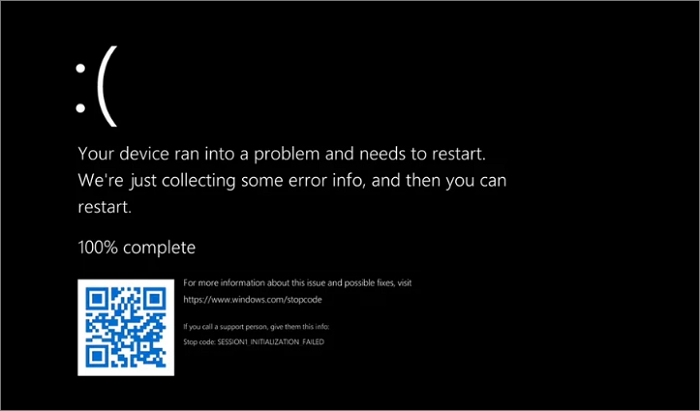
A computer that won't boot may display a BSOD (Blue Screen of Death) error, indicating that the system has encountered a critical problem and is unable to continue booting. This symptom is characterized by the computer appearing to be unresponsive and not displaying any signs of life after attempting to boot up.
Applies to:
- My computer turns on but the screen is black.
- Reboot the computer but nothing happens
- Computer is not turning on with BSOD error
When you get a black screen of death error after rebooting the PC, try to fix some basic issues first, such as battery, power supply, or monitor problems, before moving on to more complex solutions.
Here are the methods to resolve the BSOD error:
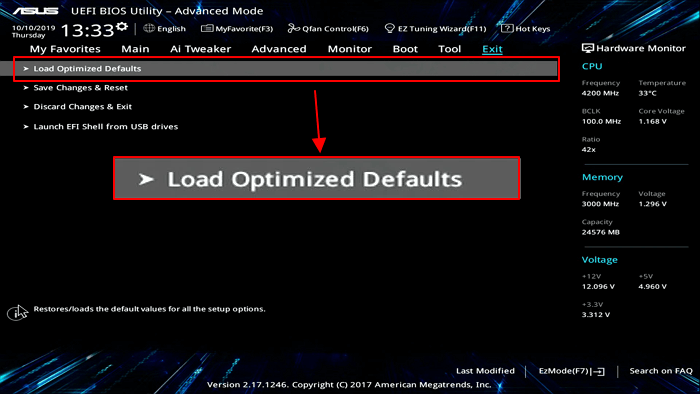
#1. Reset Hardware
- Unplug all connected storage devices and reboot the PC.
- Press F2/F8/F11 to enter the BIOS settings.
- Go to "Save and Exit" section, click "Load Optimized Default".
- Save the changes and exit BIOS to reboot the PC.
#2. Check the Beep - Loading Sound
- Reboot the PC and check the beep sounds coming from the motherboard. If the beep sounds are coming from the motherboard, it means the issue is with the PC's hardware, not the BIOS.
- - Single beep indicates that everything is alright.
- Long continuous beeps often indicate a power supply issue, specifically an unstable or incorrect power supply.
- The computer might have serious problems if it emits a series of short and long beeps.
- For the single beep, just reboot your computer.
- For long and continuous beeps, check the power cables and recharge your computer.
- If your computer's speaker is producing only short beeps or long beeps, it's likely a sign of a hardware issue. To troubleshoot, shut down your computer and have it checked by a professional at a local repair center.
#3. Check and Fix Corrupted Hard Drive
To fix a computer hard drive that won't boot due to corrupted file system errors or bad sectors, you can use the Scan Disk feature in Windows to check for disk errors.
- To reboot the PC in Safe Mode, press and hold the Power Button to shut down the computer, then press the Power Button again to turn it back on. Repeat this process several times until the PC enters Safe Mode.
You may follow this guide to boot PC into Safe Mode.
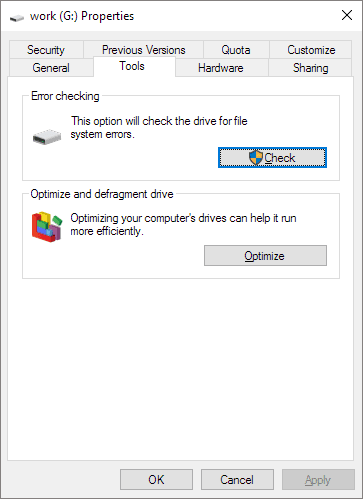
- Open Windows File Explorer, right-click the problematic drive, and select "Properties".
- Go to the Tools tab, and click "Check" under Error-checking.
- To fix all corrupted file systems on the drive, click on "Scan drive" or "Scan and fix".
You May Also Like:
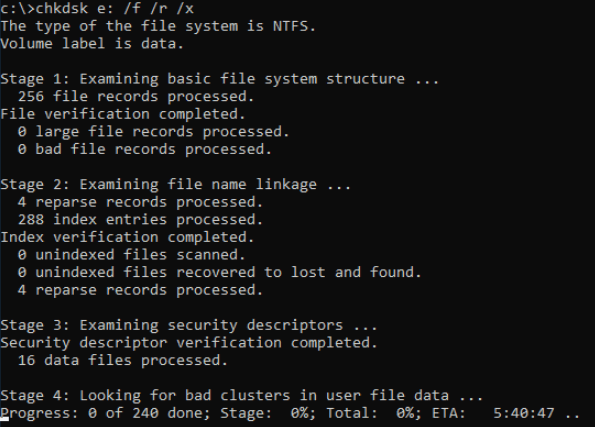
Run CHKDSK to Check and Fix Disk Errors
Alongside the Scan Drive feature, you can also apply CHKDSK to fix hard drive errors and make your computer boot normally. To do this, see the instructions on how to fix it.
#4. Upgrade and Migrate OS to New Disk
A serious problem that can occur is when a Windows computer won't boot due to a malfunctioning hard drive. This can happen when a hard drive contains too many bad sectors, corrupted file system errors, or other unknown issues, preventing the computer from accessing and booting the operating system from it.
To upgrade the OS to a new disk on a computer that won't boot, you'll need to migrate the OS to the new disk. This process involves booting from a live Linux environment, creating a new partition on the new disk, copying the OS to the new disk, and finally, updating the boot loader to point to the new disk. This will allow you to upgrade the OS to the new disk and get your computer up and running again.
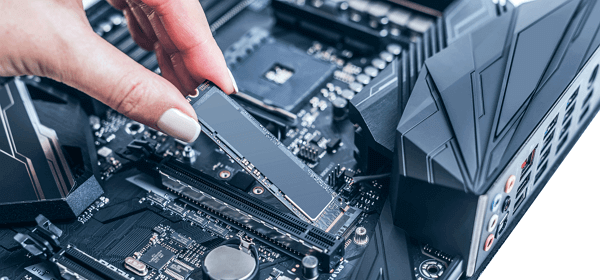
1. Install a New Hard Drive or SSD
- To migrate the old OS to the new hard drive or SSD, you'll need to prepare a new drive that's equal to or larger than the used space on the old OS disk. This ensures that the new drive has enough space to hold the entire operating system, programs, and data.
- Install the SSD or HDD to the computer.
2. Create WinPE Bootable Disk with Qiling Partition Master
Step 1. To create a bootable disk of Qiling Partition Master, prepare a storage media like a USB drive or CD/DVD disc. Correctly connect the drive to your computer and follow the software's instructions to create the bootable disk.
Step 2. Launch Qiling Partition Master, find the "WinPE Creator" feature on the top, and click on it.
Step 3. Once the drive is available, you can choose between saving the ISO file to a USB or CD/DVD. If you don't have a storage device, you can save the ISO file to a local drive and burn it to a storage media later. After making your choice, click the "Proceed" button to start the process.
After creating a Qiling Partition Master WinPE bootable disk using the process, you have successfully created a bootable drive that allows you to manage your hard disks and partitions even when your computer fails to boot normally.
To load the RAID driver under WinPE environment, click on "Add Driver" from the menu bar, which enables you to add the driver for your device, especially helpful for devices that cannot be recognized by WinPE without the necessary drivers, such as RAID or specific hard disks.
3. Boot PC from Qiling Partition Master WinPE Bootable Disk
- To access the BIOS settings, press the computer power button and hold the F2/F8/F11 or Del key, depending on the computer model, to enter the BIOS settings.
- Set the computer to boot from the bootable disk.
- Wait for Qiling Partition Master to boot up.
- Right-To initialize the new disk, click on it and select the "Initialize Disk" option. Then, choose the appropriate partition style for your operating system, either Master Boot Record (MBR) or GUID Partition Table (GPT), and set it as your OS disk.
4. Upgrade and Migrate OS to New Disk
You can use Qiling Partition Master to migrate Windows OS to the new disk. This tool allows you to transfer your operating system to a different drive, making it easy to upgrade your storage without reinstalling Windows.
Steps to migrate OS to HDD/SSD:
- Run Qiling Partition Master, select Migrate OS from the top menu.
- Select the SSD or HDD as the destination disk and click Next.
- Be aware that the data and partitions on the target disk will be erased. Make sure to back up any important data before proceeding. If you haven't done so, do it now to avoid losing any critical information.
- Then click Continue.
- Preview the layout of your target disk. Then click Proceed to start migrating your OS to a new disk. This will initiate the process of moving your operating system and all its components to the new disk, effectively replacing the old one.
Note: When migrating your OS to an SSD or HDD, be aware that it will erase all data and partitions on the target disk if there's not enough unallocated space. Make sure to back up any important files to an external drive beforehand to avoid losing them.
5. Set New Disk as Boot Drive and Make Computer Bootable
- When the OS Migration process is complete, close Qiling Partition Master and shut down the PC.
- Reboot the PC and enter the BIOS settings.
- To set the new disk as the boot drive, follow these steps: 1. Restart your computer and enter the Boot menu.
- Save the changes and reboot your PC.
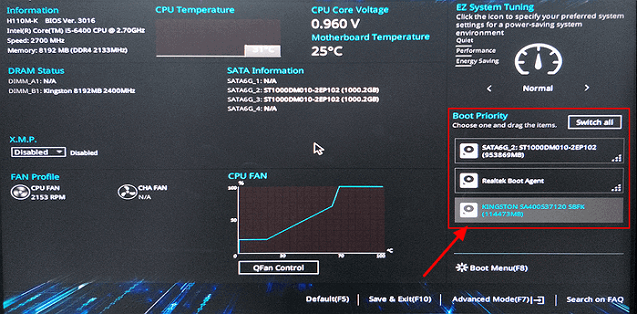
Wait for the process to complete, and your computer will be able to boot up again with everything on the desktop.
LEARN MORE
Fixing BDC errors with CMD and updating outdated drives may also resolve computers won't boot with a BSOD issue. Additionally, aside from the above fixes, you can follow to obtain more solutions to get rid of Windows 11/10 BSOD errors on your own.
Troubleshooting: Dell, HP, Lenovo, ASUS/Acer Computer/Laptop Won't Turn On
If your computer won't turn on, there could be several logical or physical reasons behind it. The issue might be with the power supply, a faulty motherboard, a dead battery, or a malfunctioning power button.
- 1. Computer Won't Turn on But Motherboard Light Is On/Plugged In
- 2. A computer that won't boot after a Windows update or rebuild is often referred to as a "dead gaming PC." This can be frustrating, especially for gamers who rely on their PC for entertainment.
- 3. PC Not Turning on with BSOD + Black Screen
If issues occur on your Dell, HP, Lenovo, ASUS, Acer, or other brands of computers, you can revert back to the respective tutorial guide and fix the problem on your own.
Here are some normal fixes that you can try toward Windows computer not turning on the issue: Check the power cord and make sure it's properly connected to both the computer and the wall outlet. Try unplugging the power cord, waiting for 30 seconds, and then plugging it back in.
- Check Power Supply
- Replace CMOS Battery
- Fix Overheating
- Check Monitor
- Scan Malware or Virus
- Set Safe Mode
- Unplug External Devices
- Check or Replace with a New Hard Drive
Here are other two troubleshooting tutorials that you can follow to fix your computer not booting error:
Troubleshooting 1: Boot Device Not Found
Error Cause: The bootable storage device is not detected or not enabled.
Fixes:
- Check BIOS Settings and Boot Order
- Reset Primary Partition as Active
- Check Internal Hard Drive Status
- Create Windows Bootable Media
Step-By-Step Guide: How to Fix a No Bootable Devices Found Error
Troubleshooting 2: Your PC Ran Into a Problem and Needs to Restart
Error Cause:
- Changes in Registry
- Corrupted system files
- Problematic driver
- Virus or malware infection
- Loosen hard drive connection
- Improper shutdown of the system
Fixes:
- Boot into Safe Mode
- Check Disk error
- Extend C drive
- Check System Log
- Perform System Restore
- Restore Registry Configuration
Step-By-Step Guide:To resolve the issue "Your PC ran into a problem and needs to restart" in Windows 11/10, try the following fixes: run the System File Checker (SFC), run the DISM (Deployment Image Servicing and Management) tool, check for Windows updates, reset Windows, run a System Restore, run a System Update, disable and re-enable the problematic device, run a full disk cleanup, run a virus scan, and check for malware. If none of these solutions work, consider resetting Windows to its default settings or seeking professional help.
If your problem gets resolved here, congratulations. Also, it doesn't matter if you tried all solutions on this page but your computer is still not turning on.
Our technical support team also provides customized services to fix PC not turning on issues. To get help, visit our remote assistant page and request online support, and our tech support team will be ready to assist you anytime.
Related Articles
- File System Comparison: NTFS, FAT32, exFAT, and EXT, Which File System Should I Use
- Disk Partition: How to Partition A Hard Drive You Must Know in 2022
- One for All Guideline: How to Format/Reformat A Hard Drive
- Ultimate Guide: What Is GPT Disk, How to Use GPT in Windows
- BSOD (INVALID_DATA_ACCESS_TRAP) when upgrade to Windows 11 from Windows 10
There are some reports that errors like BSOD would happen during the process. One of the common error codes is 'INVALID_DATA_ACCESS_TRAP'. Continue reading, and you will find the way to resolve BSOD (INVALID_DATA_ACCESS_TRAP) when upgrade to Windows 11 from Windows 10. - Can I Format a 64GB USB Flash Drive to FAT32 and How?
You can only format a USB flash drive of at most 32GB to FAT32 in Windows. However, this article explains how to format a 64GB USB flash drive to FAT32 in an effective and easy way.
Products
Articles & Tutorials
- Data Recovery
- Data Backup
- File Recovery
- File Backup
- System Backup and Restore
- Disk and Partition Clone
- Technical articles
- Mobile articles
- Disk Master Help
- Windows Data Recovery Tutorials
- Windows Secure Delete Tutorials
- Windows Partition Management Tutorials
- Windows File Backup and Restore Tutorials
- Windows System Backup and Restore Tutorials
- Windows Disk Backup and Restore Tutorials
- Windows Clone Tutorials