eMMC vs. SSD: What's The Difference and How to Replace eMMC with SSD
eMMC and SSD storage share similarities, using NAND flash memory, but differ in key aspects. eMMC is a type of internal storage found in some laptops, offering a balance between cost and performance. On the other hand, SSDs are more expensive but provide faster data access and higher storage capacity. When considering storage expansion or upgrade, understanding the differences between eMMC and SSD is crucial to make an informed decision.
The key differences between eMMC and SSD storage lie in several critical aspects, including storage components, capacity, price, speed, application, and performance.
eMMC vs. SSD FAQs:
1. What Is eMMC
2. What Is SSD
3. eMMC vs. SSD: Which Is Better
4. Can eMMC Be Upgraded
5. How to Replace eMMC with SSD
What Is eMMC
eMMC (embedded MultiMediaCard) is a type of storage derived from MMC, and is commonly used in mobile devices, as it's a more compact and efficient version of SD cards.
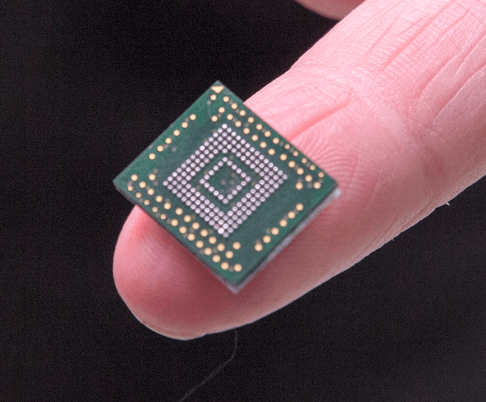
eMMC (embedded MultiMediaCard) is a type of storage that combines a controller and NAND flash memory in a single integrated circuit. This flash memory-based storage requires little to no power to retain data, making it energy-efficient. The "embedded" part means that eMMC storage chips are directly soldered onto a device's motherboard, much like a body part is fastened to the rest of the body.
The eMMC is a type of storage that is commonly used in mobile devices such as phones, tablets, and budget laptops, due to its affordability, small size, low power consumption, quiet operation, and durability.
What Is SSD
While SSDs (Solid-State Drives) and eMMCs are both NAND flash memory products, they serve different purposes and have distinct core technologies, making them suitable for different applications.
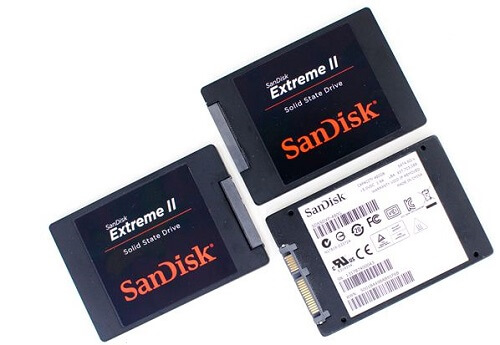
The key components of an SSD include a flash controller, multiple NAND flash memory chips, and a circuit board. These components work together to enable the SSD to function as a removable or secondary storage device, often connected to a computer via a closure or SATA power cable.
Despite being smaller, thinner, and lighter than traditional Hard-Disk Drives (HDDs), SSDs are actually larger in volume size and heavier in weight than eMMC. However, they typically come with a larger capacity, making them a popular choice for high-end laptops and desktop computers with rich features.
eMMC vs. SSD: Which Is Better
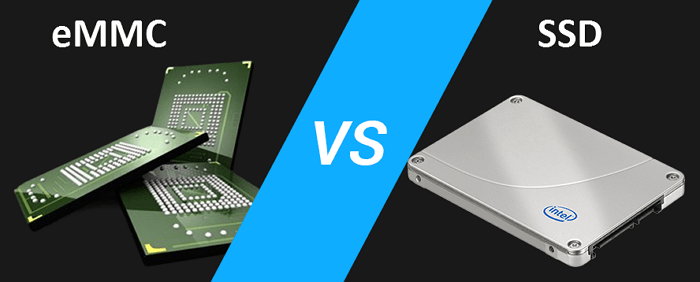
When choosing between eMMC and SSD flash memory storage, it's essential to understand their distinct differences. While eMMC and SSD are designed for specific markets, they vary significantly in terms of speed, capacity, and price, making one more suitable than the other depending on your specific needs. Ultimately, the best choice for your storage device will depend on your individual requirements.
1. Transmission Speed
SSD stands out from other storage drives, including eMMC, with its superior performance. Compared to HDD, fusion drive, and other storage forms under the same specification, SSD is the most substantial and efficient option.
The data transfer speed of eMMC has been improving, but it is nearing its upper limit due to its 1,4,8 bit bus width. While eMMC is not inherently slow, its potential for speed is limited, reaching a maximum of around 400MB/s. In contrast, SSDs have the capacity to exceed this speed.
eMMC data transfer speed:
- eMMC 4.41 104MB/s
- eMMC 4.5 200MB/s
- eMMC 5.0 400MB/s
Higher-performance SSD data transfer speed:
Read speeds are ranging from 500MB/s to over 3,000MB/s
Write speeds vary from 300MB/s to over 3,000MB/s
2. Data Capacity
eMMC packages the NAND flash chip and control chip into one chip, simplifying memory design and reducing components, making it suitable for mobile devices and compact notebooks. However, its limited size makes it less ideal for large files or bulk storage.
eMMC capacity:
- Popular capacity 32 GB and 64 GB
- Available capacity 128GB and 256 GB
Larger sizes over 128 GB are rarely seen these days.
eMMC supports a microSD card connection as an expandable storage option, allowing users to increase storage capacity beyond the built-in eMMC storage.
SSDs are designed to replace HDDs by providing faster performance, but they typically have lower storage capacities, with the most common sizes starting from 128GB.
SSD capacity:
Between 128 GB and 1 TB
3. Price
The truth about SSD value is that they offer better performance, but at a higher cost. This seems to be a common label associated with Solid-State Drives, indicating that they come with a price tag.
Buying a 1TB SSD is equivalent to buying a 4TB HDD or bigger with the same amount of money, as the cost per gigabyte is roughly $0.20.
In contrast, eMMC devices are significantly cheaper due to their lower unit price and higher total capacity, making even the 128 GB and 256 GB options relatively inexpensive.
Can eMMC Be Upgraded
eMMC provides a budget-friendly option for laptops, allowing for basic tasks like internet browsing and streaming videos. However, it lacks the firmware, multiple flash memory chips, high-quality hardware, and fast interface found in SSDs, restricting its use to ultra-portable and consumer digital devices, and may have a longer lifespan.
SSDs offer larger storage volumes and faster transmission speeds, making them an ideal choice for fully-featured laptops and desktops. They provide the best user experience for tasks such as booting the operating system, playing games, handling large files, and retaining bulk storage.
If you've outgrown your eMMC storage on your PC, you can upgrade to an SSD without too much hassle. You can use a reliable disk cloning tool to make the transition smoother. This will help you transfer your data and settings to the new SSD, making the upgrade process more efficient.
How to Replace eMMC with SSD
To upgrade your laptop's storage, download Qiling Partition Master, a versatile disk & partition management tool that allows you to manage various hard drives and replace the eMMC storage with a Solid-State Drive, which has become more affordable over the years.
You can control the storage on various devices, including HDD, SSD, eMMC, USB thumb drives, and memory cards, that are recognized by Windows. This control allows you to resize or move partitions, format, delete, wipe data, migrate the OS, copy or clone a disk or partition, and more.
The point is, you'll use the "Clone" feature to replace the existing eMMC with an additional SSD, which shouldn't take much time or effort if you follow the user guide carefully.
Step 1. Select the source disk.
To clone a disk, select "Clone" from the tools page, then choose the disk you want to copy or clone.
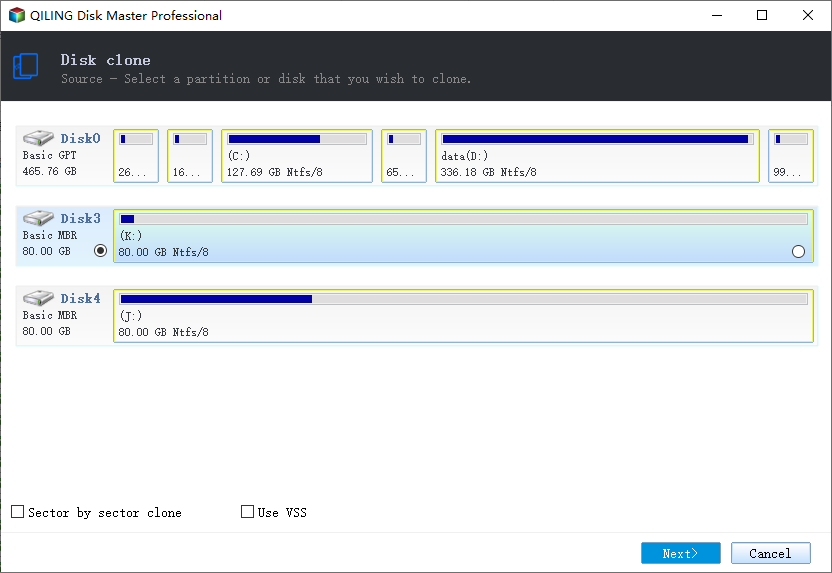
Step 2. Select the target disk.
Select the desired hard drive or solid-state drive as your destination and click "Next" to proceed.
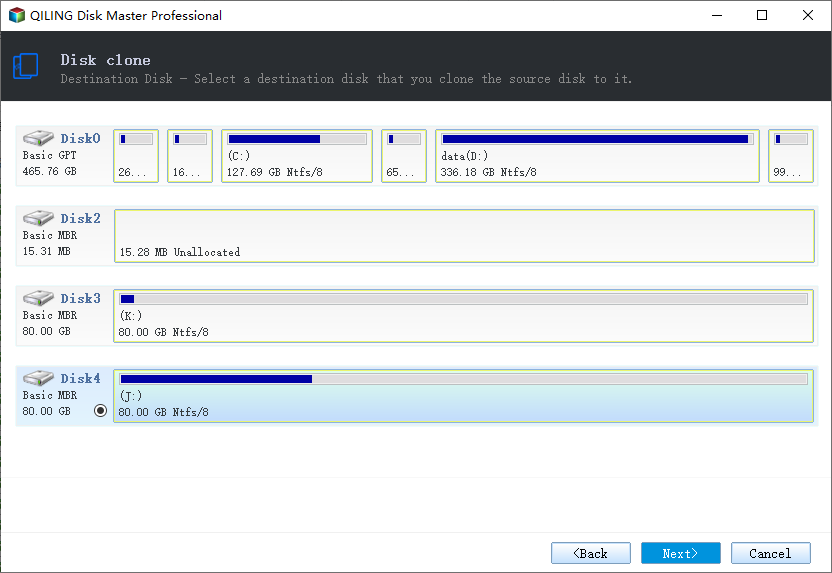
Step 3. View the disk layout.
You can choose how to set up your disk layout by selecting "Autofit the disk", "Clone as the source", or "Edit disk layout", with the last option being best if you want to leave more space for the C drive.
Click "Proceed" to start cloning process.
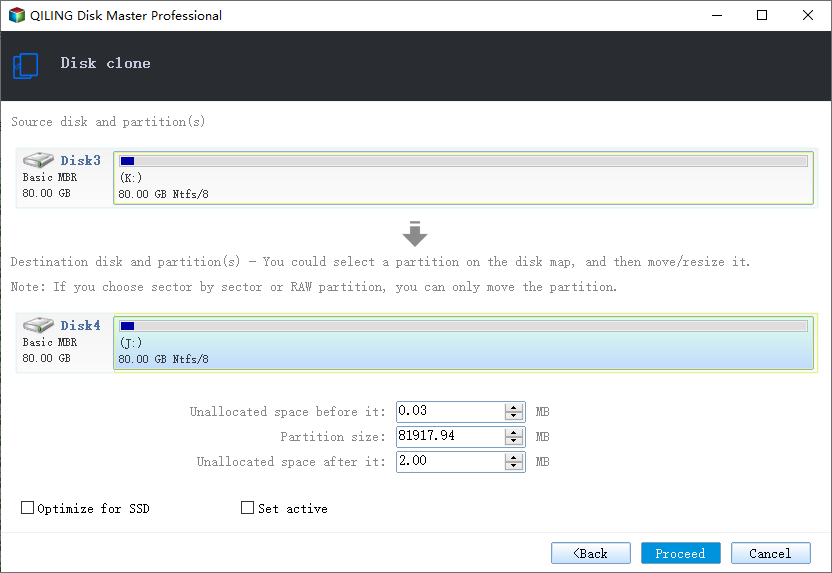
Step 4. Execute the operation.
Then click "OK" when the program warns it will wipe out all data on the target disk. (If you have valuable data on the target disk, back up it in advance.)
To make the most of your new SSD and avoid issues with your eMMC, ensure that only one storage drive (the SSD) is left on your laptop. If you have both drives, Windows will automatically mark one of them as offline. This will help you utilize the full potential of your SSD and prevent any potential problems.
Related Articles
- How to Erase and Format CD or DVD in Windows 10/11
- 3+ Solutions: Solve C Drive Is Full and Out of Space in Windows 11/10/8/7
- 2 Ways to Clone Seagate HDD to SSD | Try Seagate Disk Clone Software
- Download Corrupted Memory Card Formatting Software for Free
- How to Make MSI Boot From USB | Best Tutorial🔥
Additionally, if you're trying to install MSI, you may need to use a third-party tool or software to create a bootable USB drive specifically designed for MSI, as the process can vary depending on the specific model and version of MSI you're trying to install. - How to Fix MSI Laptop Black Screen Efficiently [Tutorial]
Learn how to resolve the MSI laptop black screen issue in this comprehensive guide. Whether your MSI laptop is stuck on the black screen, this guide will walk you through the steps to get it up and running again. Dive in and start learning now!
Products
Articles & Tutorials
- Data Recovery
- Data Backup
- File Recovery
- File Backup
- System Backup and Restore
- Disk and Partition Clone
- Technical articles
- Mobile articles
- Disk Master Help
- Windows Data Recovery Tutorials
- Windows Secure Delete Tutorials
- Windows Partition Management Tutorials
- Windows File Backup and Restore Tutorials
- Windows System Backup and Restore Tutorials
- Windows Disk Backup and Restore Tutorials
- Windows Clone Tutorials