2 Ways to Clone Seagate HDD to SSD | Try Seagate Disk Clone Software
Can I Clone Seagate HDD to SSD
If you're looking to upgrade or replace your Seagate HDD with an SSD, this guide is for you. It provides a detailed step-by-step process for cloning your Seagate HDD to an SSD, including recommendations for picking the right Seagate disk cloning software to suit your specific situation. Whether you're looking to transfer your data, programs, or both, this guide can help.
- Upgrading from a traditional hard disk drive (HDD) to a solid-state drive (SSD) can significantly improve your computer's performance, making it feel more responsive and faster overall. This upgrade can enhance your overall user experience, especially when it comes to tasks that involve loading and accessing files, applications, and games.
- The old hard drive is run out of space - upgrade smaller HDD to larger SSD
- Replace the failing hard drive - fix the disk failure problem.
Seagate's DiscWizard is a cloning software that can quickly transfer data from an old hard drive to a new one. Alternatively, Qiling Partition Master offers powerful functions to help you clone your hard drive and transfer all your data to a new one.
Tips before cloning operation
1. Back up data on the target disk.
Regardless of the software used for cloning, the cloning function will delete all partitions on the destination hard disk drive. Therefore, if the new disk contains large files, it's essential to back them up before proceeding.
2. Connect the new Seagate SSD to the computer or laptop by SATA cable or install disk correctly by connecting it to the correct slot.
3. Initialize New Seagate SSD.
To prepare the new disk, search for Disk Management in the search box, open it, and right-click on the new disk to select "Initialize Disk". Then, choose the partition style that matches the source disk, which can be found by right-clicking on the source disk, selecting Properties, and looking under Volumes for the partition style.
4. To clone a Seagate SSD, start by downloading the necessary software, either Seagate DiscWizard or Qiling Partition Master, which will guide you through the cloning process.
How to Clone A Hard Drive Using Seagate DiscWizard
DiscWizard is a software that allows you to clone your operating system, applications, and data from an old disk to a new one, making the transfer process easier.
The clone feature can clone the entire disk, not just a single partition.
The dynamic disk can't be cloned, only basic disks can.
Step 1. Download and run Seagate DiscWizard.
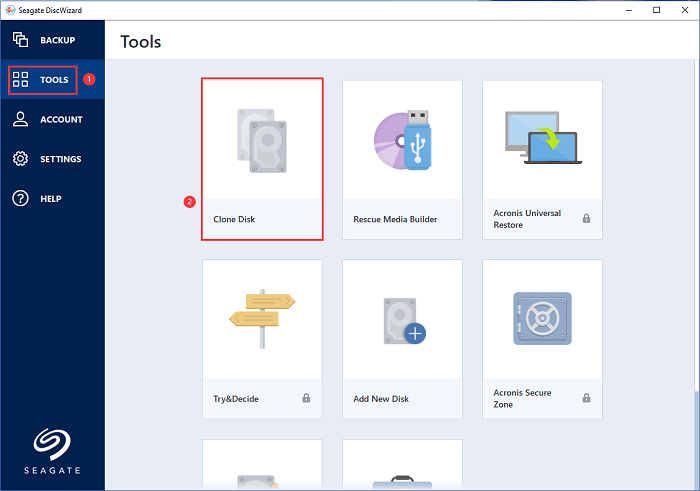
Step 2. Click the Tools tab on the left panel.
Step 3. Select the Clone Disk feature.
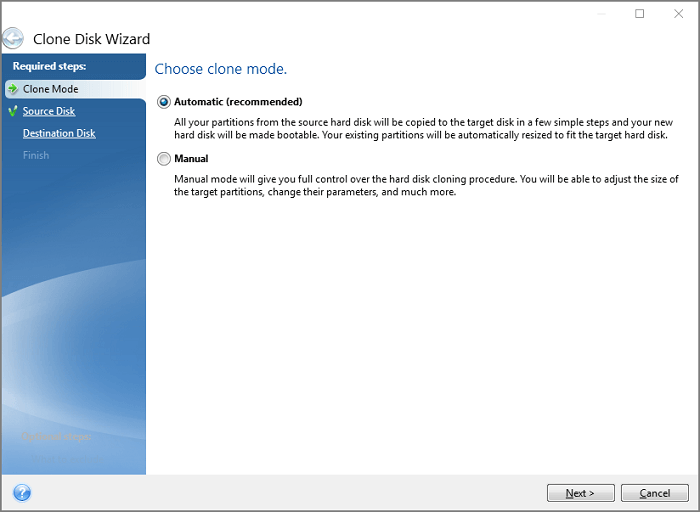
Step 4. Select the clone mode - either Automatic or Manual, and then click the "Next" button.
As this image shows, we choose Automatic (Recommended):
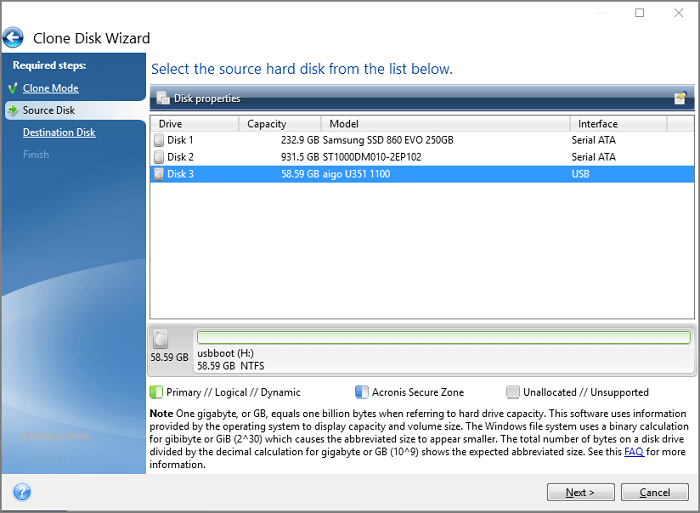
Step 5. Select the source hard disk from the drive list, choose the disk you want to clone and click Next.
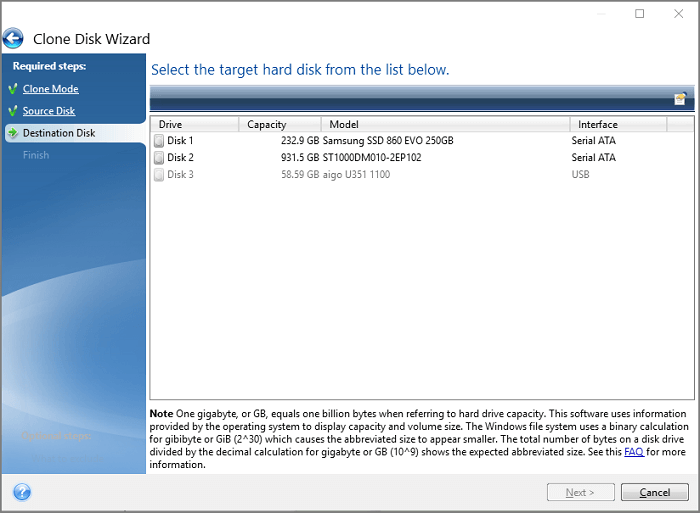
Step 6. You will choose a destination disk and click "Next". Then you will confirm the prompted window.
To ensure a successful upgrade from a hard disk drive (HDD) to a solid-state drive (SSD), it's essential to focus on the target SSD being larger than the source HDD. This means choosing an SSD with a capacity that exceeds the storage space of the HDD you're replacing.
If you want to clone a larger HDD to a smaller SSD, you may need to delete some larger files from the HDD to make the cloning process possible.
Step 7. Select the required cloning method in the next step.
Choose one mode like "Copy partitions without changes" or "Copy partitions and use a disk as non-system, GPT style" and click Next to proceed.
If you want to convert the partition style of your destination disk, we recommend using the second method. However, your disk can still be used as a boot drive.
Step 8. Check the Finish page and click Proceed.
Seagate DiscWizard works well but has some drawbacks. If you're looking to clone a single partition, a larger HDD to SSD, or dynamic volumes, you might want to consider more powerful software. For these tasks, Qiling Partition Master is a reliable option that offers more features.
Clone Seagate HDD to SSD with Qiling Partition Master
Regardless of whether you want to clone an entire disk or a single partition, Qiling Partition Master offers two modes: Disk mode and partition mode. Alternatively, if Qiling Partition Master is not suitable for your needs, you can use a different HDD to SSD cloning tool to explore more options.
Before launching the software, please complete the essential preparation tasks outlined in the second part.
Step 1. Select the source disk.
Right-To clone a disk, click on the disk you want to clone and select the "Clone" option.
Step 2. Select the target disk.
Select the desired hard drive or solid-state drive (HDD/SSD) as your destination and click "Next" to proceed.
Step 3. View the disk layout and edit the target disk partition size.
To prepare the target disk for reinstallation, you'll need to wipe it clean. This process will delete all data on the disk, so make sure to back up any valuable files before proceeding. When you're ready, launch the program and follow the prompts to initiate the wipe. The program will warn you that it will erase all data on the target disk, so be sure to confirm your intention to proceed.
To customize your disk layout, you can choose from options like "Autofit the disk", "Clone as the source", or "Edit disk layout", with the last one being ideal if you want to leave more space for your C drive.
Step 4. Click "Proceed" to start the disk cloning process.
Boot from New Seagate Drive
- Restart PC and enter F2/F8/Del to enter BIOS.
- To make the new disk visible as a boot drive, navigate to the Boot tab, click the arrow key next to the disk you want to add, and save the changes.
- Then you can restart the PC, your computer is boot from the new SSD.
Related Articles
- 6 Best Hard Drive Disk Format Tool | HDD Format Tools
- Easy Way to Install Windows 11/10 on SSD
- Extend Volume Greyed Out? Fix Can't Extend Volume in Windows [New]
- 3+ Solutions: Solve C Drive Is Full and Out of Space in Windows 11/10/8/7
- How to Fix 3DS Could Not Detect SD Card in 6 Ways
If your 3DS can't detect an SD card, this guide provides efficient solutions to fix the “Could not detect an SD card” error and make the card readable again. - Top 8 Ways to Fix Attempted Write to Readonly Memory BSOD Error in Windows 11/10
Windows 11/10 users may encounter a frustrating issue where the operating system repeatedly asks to restart the PC due to an Attempted Write to Readonly Memory BSOD error.
Products
Articles & Tutorials
- Data Recovery
- Data Backup
- File Recovery
- File Backup
- System Backup and Restore
- Disk and Partition Clone
- Technical articles
- Mobile articles
- Disk Master Help
- Windows Data Recovery Tutorials
- Windows Secure Delete Tutorials
- Windows Partition Management Tutorials
- Windows File Backup and Restore Tutorials
- Windows System Backup and Restore Tutorials
- Windows Disk Backup and Restore Tutorials
- Windows Clone Tutorials