How to Convert MBR to GPT in Windows Server 2022/2019/2016/2012
Applies to: Convert MBR to GPT on a data or system in Windows Server 2022/2019/2016/2012.
You can use the `gdisk` command-line utility to convert a disk from one partition style to the other. It is available in most Linux distributions and allows you to convert MBR to GPT and vice versa, while preserving data.
Here on this page, we'll show you three different ways of converting MBR to GPT in Windows Server 2022, 2019, 2016, 2012, 2008, etc.
Causes and Fixes for Unable to Convert MBR to GPT Error
You can convert a Master Boot Record (MBR) to a GUID Partition Table (GPT) in Windows Server without formatting, but it requires some specific steps and considerations. The process involves using the built-in Diskpart command or a third-party tool like Qiling Disk Master to convert the disk from MBR to GPT. This conversion process doesn't erase any data, but it's essential to ensure that the disk is not in use by any operating system or applications during the conversion.
The "Convert to GPT" option is greyed out in the Disk Management console because it's not supported on boot drives or systems with multiple operating systems. To convert your MBR to GPT, you'll need to create a new GPT disk and clone your data to it, then remove the old MBR disk. Alternatively, you can also use third-party software like Qiling Disk Master to assist with the conversion. If you're looking for a more straightforward solution, you might want to consider replacing your MBR disk with a new GPT disk.
When you're unable to convert an MBR (Master Boot Record) disk to GPT (GUID Partition Table), it's usually due to one of the following reasons: the disk is too small, there are too many partitions, or the disk is not supported by the operating system. These limitations can prevent the conversion process from completing successfully, resulting in an error.
- The target disk is a system disk, and Disk Management can't convert an OS disk to GPT.
- The "Convert to GPT Disk" option in Disk Management requires deleting the existing partition on the disk in order to convert it to a GPT disk. This is necessary because the MBR (Master Boot Record) partitioning scheme used by the disk cannot be converted to GPT without deleting the existing partition.
To fix the issue of changing the disk type on your Windows Server computer, you can try reinstalling the Windows Server operating system, using the built-in Disk Management tool, or using a third-party tool like Qiling Partition Manager. You can also use the built-in Diskpart command to change the disk type from dynamic to basic or vice versa. Additionally, you can use the Windows Server built-in tool called "convert" to change the disk type.
3 Solutions to Convert MBR to GPT in Windows Servers:
- Notice:
- Both Solution 2 and 3 are manual methods that require partition deletion for disk conversion, so please back up your essential data to another secure disk in advance before you try these methods.
The most efficient and reliable solution in disk conversion between MBR and GPT is a matter of debate, but according to Qiling Editors, the recommended approach is to use a reliable and efficient method for converting between the two disk partitioning schemes.
- Converting MBR to GPT in Windows Server can be done without losing data by using specialized software designed for MBR to GPT disk conversion.
- You can attempt to use Disk Management to convert the target MBR drive to GPT, but only if you don't have any essential files saved on the drive. If you do have essential files, you'll need to use a different method to convert the drive.
- If you're familiar with Windows Server management, you can try using the DiskPart command-line utility, which is also free, in addition to the built-in Disk Management tool.
Solution 1. Convert MBR to GPT Using Qiling Disk Conversion Software
Applies to: You can convert the MBR disk to GPT without losing data or reinstalling Windows Server OS by using the built-in command-line tool `mbr2gpt` in Windows Server 2012 and later versions. This tool allows you to convert the disk without affecting the operating system or data on the disk.
For a 1-To convert a disk from MBR to GPT in Windows Server computers, we recommend using reliable disk conversion software like Qiling Partition Master Enterprise for assistance.
The software allows for the conversion of a Master Boot Record (MBR) disk to a GUID Partition Table (GPT) disk without affecting the data, installed programs, or the Windows Server operating system, making it a convenient and safe option for users.
Qiling Partition Master Enterprise
Your trustworthy Windows Server disk manager.
- Extend System drive, combine/split partitions.
- Clone disk, migrate OS to HDD/SSD.
- Convert MBR to GPT, GPT to MBR, no data loss.
- 1-click adjust disk layout, create volumes at one time.
To convert a disk to GPT, you can follow these steps. First, ensure you have a backup of your important files, as the process involves modifying the disk's partition table.
Step 1. Download and launch Qiling Partition Master on your Windows computer.
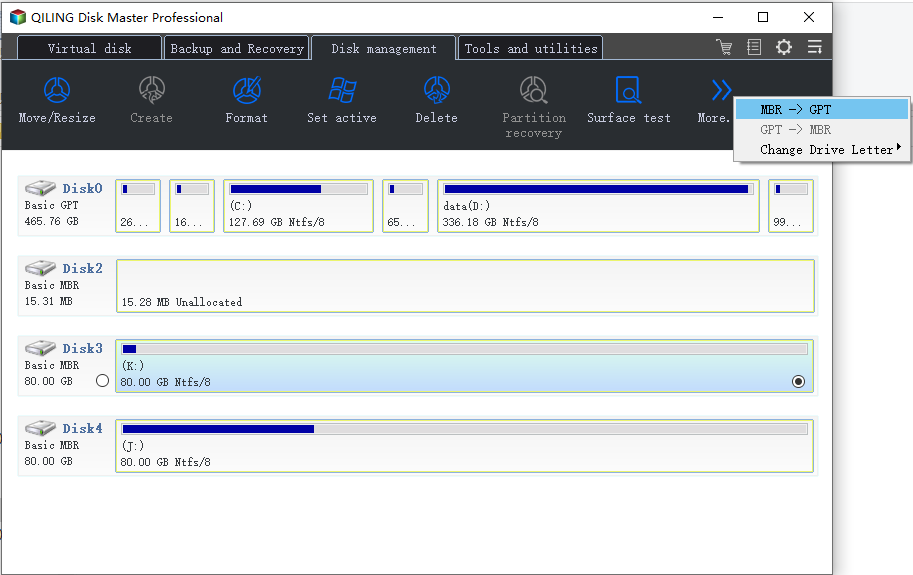
Step 2. To convert a MBR disk to GPT, select the MBR disk, click the "More" button, and choose "Convert to GPT" from the options.
- Important
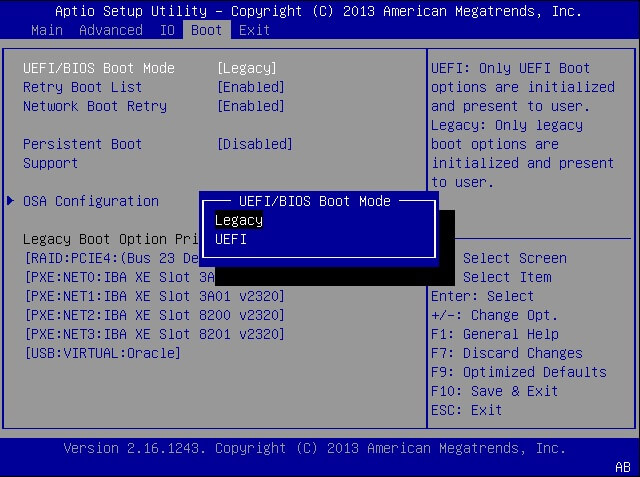
- If your Windows Server system disk was converted from MBR to GPT but the computer won't boot, try entering your BIOS settings and switching the Boot mode from Legacy to UEFI. This should resolve the issue.
For a further guide, you can turn to this page for help:
To enable UEFI, restart your computer and follow the steps: right-click on the Windows icon, select "Shut down and restart," and proceed with the boot process.
#2. Convert MBR to GPT in Windows Server Using Disk Management
Applies to: To change the disk partition style in Windows Server, you can manually do so by accessing the Disk Management console. Open the Disk Management console by right-clicking on "Computer" or "This PC" and selecting "Manage," then navigate to "Disk Management.
If you have no valuable files saved in your MBR disk or prefer a free method for disk conversion, Disk Management is a reliable tool that you can try.
To ensure the safety of your data, it's crucial to back up important content on your disk before proceeding with any system changes. This will prevent potential data loss in case something goes wrong during the process.
Reliable backup software like Qiling Backup can help with instant backup solutions for disk partition data backup.
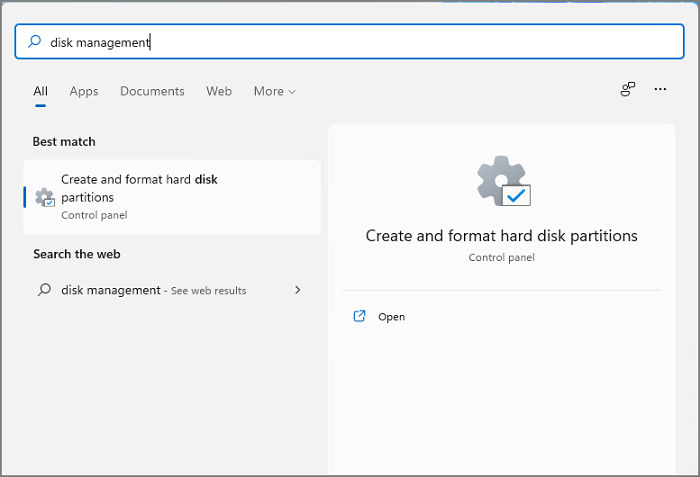
Step 1. To open Disk Management, press the Windows key + S, then type in "disk management" and select "Create and format hard disk partitions" from the search results.
Step 2.Once Disk Management opens, locate and delete an existing partition on your MBR disk by right-clicking on it and selecting "Delete Volume".
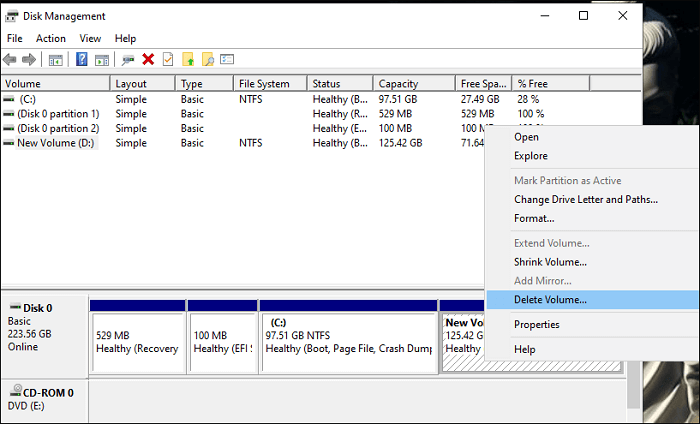
Step 3. Click "OK" to confirm the deletion.
To delete all existing volumes on the disk, repeat the process of creating a new volume and then deleting it, which will essentially erase all data on the disk. This process involves creating a new volume, assigning it a drive letter, and then deleting it, which will free up the disk space.
Step 4. Once your MBR disk becomes an unallocated drive, right-click it, select "Convert to GPT", and click "OK" to confirm.
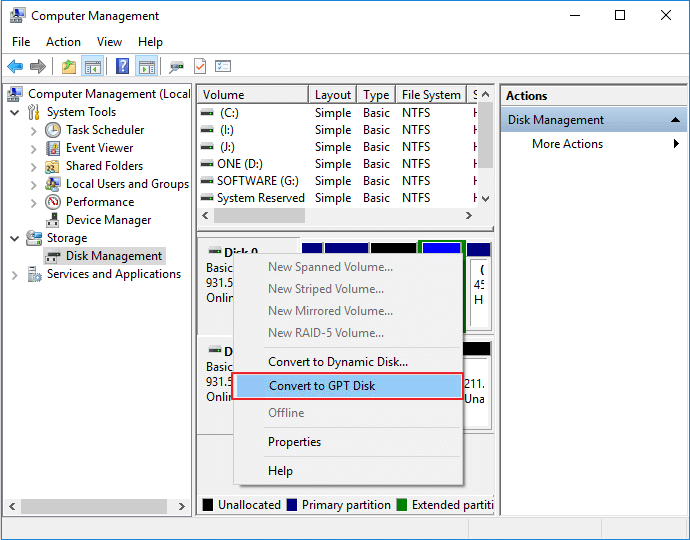
After running the diskpart command, wait for the process to complete. Once finished, your disk is now formatted with GPT. You can then create new partitions on the Windows Server disk and restore your valuable files to the disk.
#3. MBR to GPTConversion Using DiskPart CMD
Applies to: Running CMD command lines in DiskPart to convert MBR disk to GPT in Windows Servers.
To run CMD command lines in DiskPart, you can open the Command Prompt as an administrator, type "diskpart" and press Enter, and then use the DiskPart commands to manage disk partitions. For example, you can use the "list disk" command to list all disks, "select disk" to select a specific disk, and "list partition" to list all partitions on the selected disk. You can also use the "create partition" command to create a new partition, and the "delete partition" command to delete an existing partition.
Before performing a disk conversion operation, it's recommended to back up all essential personal or business files to an external disk to ensure their safety in case something goes wrong during the process.
Step Guide to Convert MBR to GPT Using DiskPart CMD:
Step 1. To open Command Prompt in Windows, press the Windows key + S, type "cmd" in the search bar, and click on the result to open it.
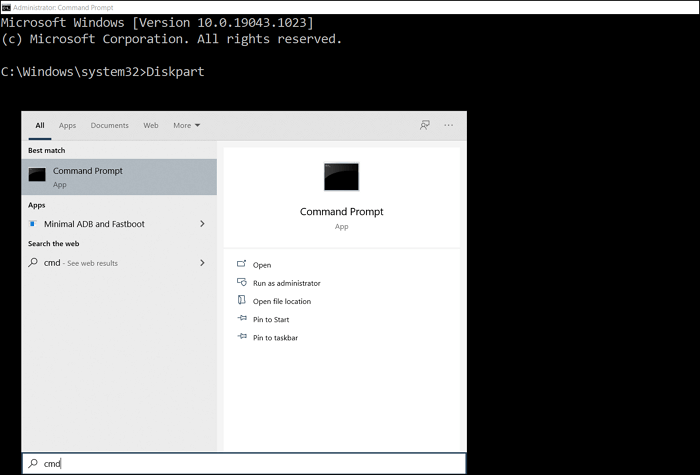
Step 2. Type diskpart in the command prompt window and hit Enter.
Step 3. Use the following commands to convert a disk from MBR to GPT:
- list disk
- select disk * (Replace * with the number of your MBR disk.)
- clean
- convert gpt
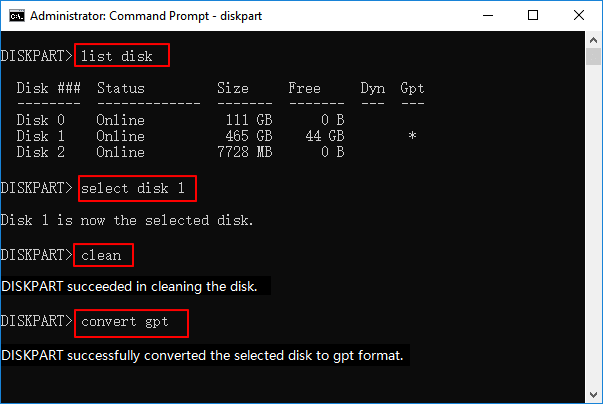
Step 4. When the process completes, you'll get an unallocated GPT disk, and you can run the command lines below to create primary partitions on the converted disk:
- list disk
- select disk * (Replace * with the GPT disk number.)
- create partition primary size=** (The unite size will be MB.)
- Assign letter=* (Replace * with a new drive letter.)
- Format fs=ntfs quick
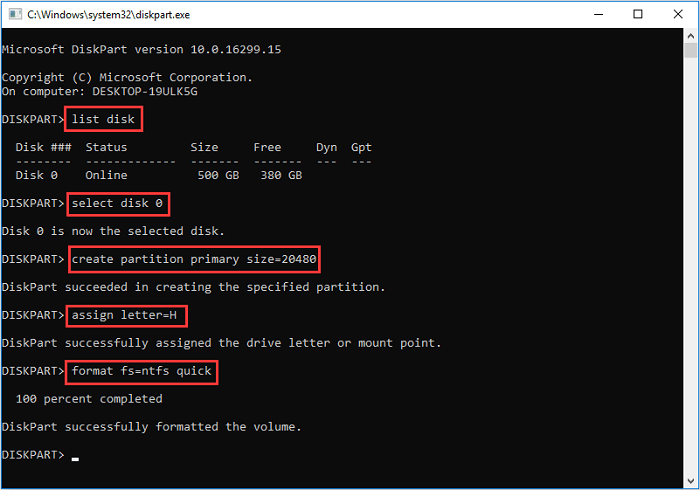
Step 5. Type exit and close the DiskPart window.
After this, you'll get a new GPT disk converted from MBR, where you can save your files or install the Windows Server system on it.
Conclusion
We've compiled 3 methods to convert disks from MBR to GPT in Windows Server systems, which can be found on this page.
For experienced Windows Server users, solutions 2 and 3 are practical tricks, but if you prefer an integrated and low-risk way out, disk conversion software like Qiling Partition Master can help you seamlessly convert the disk to GPT with success.
Related Articles
- Instruction for SanDisk Write Protection Removal and Formatting Tool
- Reformat PS4 Hard Drive for PC in Windows 10/8/7
- 7 Top Best Free Disk Partition Software For Windows in 2026
- Partition Magic VS Qiling Partition Master, Which Is Better & How to Select
- How to Clone PS4 Hard Drive to SSD Without Losing Data
If you're running out of space on your PS4 hard drive and can't afford a PS5, consider cloning your PS4 hard drive to a larger SSD for increased capacity and improved performance. - Your Best Guide to Clone Windows to M.2 SSD [2024 Tutorial]
Do you want to know the process to clone Windows to M.2? You can find the right ways and complete the steps with the following tutorial.
Products
Articles & Tutorials
- Data Recovery
- Data Backup
- File Recovery
- File Backup
- System Backup and Restore
- Disk and Partition Clone
- Technical articles
- Mobile articles
- Disk Master Help
- Windows Data Recovery Tutorials
- Windows Secure Delete Tutorials
- Windows Partition Management Tutorials
- Windows File Backup and Restore Tutorials
- Windows System Backup and Restore Tutorials
- Windows Disk Backup and Restore Tutorials
- Windows Clone Tutorials