How to Convert a Dynamic Disk to Basic Windows Server
| Workable Solutions | Step-by-step Troubleshooting |
|---|---|
| To change a hard drive from dynamic to basic via Qiling Partition Master, you can follow these steps. First, download and install the Qiling Partition Master software. Next, launch the software and select the disk you want to convert from dynamic to basic. | Step 1.Convert Basic into Dynamic...Full steps |
| Method 2. Using CMD to Convert Dynamic to Basic | Step 1.From the start, menu click on the command prompt...Full steps |
| Method 3. Run Disk Management to Convert Dynamic to Basic | Step 1. Press Windows + R, type diskmgmt.msc, and press enter...Full steps |
How to Convert a Dynamic Disk to a Basic Windows Server?
Organizing disks into the right partitions and locations is crucial for optimal system performance. Disks are essentially subfolders and folders created by partitioning hard drives. In the Windows operating system, there are two partition systems: Dynamic and Basic, each serving its own purpose in organizing and utilizing disk space.
The article delves into the disk partition system, comparing the basic disk to the dynamic disk in detail. It explains why the basic disk is preferred and provides a step-by-step guide on how to convert a dynamic disk to a basic disk using simple methods. This will provide a comprehensive understanding of the disk partition system and its conversion process.
Dynamic VS Basic: Why Choose Basic?
We will first examine the functionality and features of Basic Disk and Dynamic Disk separately.
Basic Disk
In Windows, the most common storage type is the Basic disk, which is divided into logical partitions to manage data and folders on the hard disk. Comprising three primary partitions and an extended partition with multiple logical drives, the Basic disk offers a simple storage capacity that is easy to access and modify as storage needs change.
The key features of a Basic disk include its ability to boot from the disk, support for up to 4 primary partitions, and the capacity to hold a maximum of 4 extended partitions. The Basic disk also allows for the creation of a bootable partition, which can be used to load an operating system.
- It can create and delete primary partitions.
- In an extended partition, it can create and delete logical drives.
- It can format the partition and display it as an active disk.
Dynamic Disk
A dynamic disk is a type of disk that allows for flexible partition management, enabling users to modify the size of their partitions as needed. Unlike basic disks, which use a partition table, dynamic disks utilize a hidden logical disk manager and virtual disk service to store partition information, making it easier to extend partitions as needed. This flexibility makes dynamic disks a popular choice for users who require more flexibility in their disk management.
The dynamic disk most notable features are listed below:
- Simple, spanned, striped, mirrored, and RAID-5 volumes can all be created and deleted from the storage system.
- Reactive missing offline disk
- Repair mirrored or RAID-5 volume
Basic Disk and Dynamic Disk are two types of disk configurations in Windows. A Basic Disk is a traditional disk configuration where a single disk is divided into primary partitions and extended partitions, with a maximum of four primary partitions allowed.
| Basic Disk | The new policy aims to provide better support for students with disabilities. It includes a range of measures, such as providing accessible materials and equipment, offering extra time for exams, and allowing students to take exams in a quiet room.Dynamic Disk |
| It uses a normal partitions table. | The system utilizes a hidden logical disk volume and features a dynamic storage volume. |
| All Windows operating systems, including MS-DOS, Windows 95, Windows 98, and Windows 8, are supported. | 7-Zip is a free and open-source file archiver for Windows that supports a wide range of file formats, including 7z, ZIP, CAB, ARJ, LZH, TAR, CPIO, RPM, DEB, and CHM. It is available for Windows 2000, XP, 2003, 2008, 2011, 2012, Vista, Windows 7, and Windows 8, but not for older operating systems. |
| Partition sizes are not changeable once they are created, and a third-party tool is required to do so. | Partition sizes are changeable without any data loss. |
| The drive contains 3-4 partitions and one secondary extended partition. | There is no limit for primary and secondary partitions. |
| A computer's disk can be partitioned in two different styles: MBR (Master Boot Record) and partition, or GPT (GUID Partition Table). | The storage system does not support partitions and has five types of volumes: simple volume, spanned volume, striped volume, mirrored volume, and RAID-5 volume. |
| It can be converted to a dynamic disk without losing any data. | To convert a disk to a dynamic disk, all existing volumes on it must be deleted, which can result in data loss. To avoid this, third-party tools can be used. |
Now that we've identified the differences between Basic and Dynamic disks, we can move on to the next step. The main reason to choose Basic Disk is that it's compatible with all versions of Windows, making it a safe choice. Additionally, Windows has deprecated Dynamic Disks, no longer recommending their use, which further solidifies Basic Disks as the preferred option.
How to Convert a Dynamic Disk to Basic on Windows Server?
Converting a Dynamic disk to a Basic Disk type is a relatively easy task that can be done in various ways. After understanding the differences between the two disk types and considering the recommended disk type, you may need to change a Dynamic disk to a Basic Disk in certain circumstances. Fortunately, there are several methods available to achieve this conversion, which we can explore further.
Method 1. Change Hard Drive from Dynamic to Basic via Qiling Partition Master
The best and fastest way to convert a Dynamic disk to a Basic disk is by using a third-party tool like Qiling Partition Master, which guards against data loss and easily converts the disk.
- The software enables users to modify the size of their partitions with simplicity.
- This software enables users to manage their partitions with ease, allowing them to move, copy, resize, and delete them as needed.
- To minimize disk space usage, it combines large partitions into smaller ones.
- It aligns the partitions correctly to improve system performance.
- It guards against data loss.
- A software tool that securely deletes all data from a hard disk, ensuring data security and privacy.
- Free trial available.
- Windows operating systems 2003, 2008, 2012, 2011, 2016, and 2019 are supported.
Step 1.Install and open Qiling Partition Master on your Windows computer.
Step 2.To convert a disk, select the disk you want to convert, right-click on it and choose the conversion option from the context menu.
- Basic to Dynamic: click a basic disk and select "Convert to Dynamic".
- Dynamic to Basic: click a dynamic disk and select "Convert to Basic".
Step 3.The conversion process will be initiated by clicking "OK" on the pop-up notice window, adding the conversion to begin converting the basic disk to dynamic or vice versa.
Method 2. Using CMD to Convert Dynamic to Basic
To begin with the procedure, you must first empty your dynamic disk.
To convert a Dynamic Disk into a Basic Disk using CMD, follow these steps: Open Command Prompt as Administrator, type `convert m: /fs:ntfs` (replace "m" with the drive letter of the dynamic disk you want to convert), press Enter, and then restart your computer. This process will remove the dynamic disk's features and convert it into a Basic Disk.
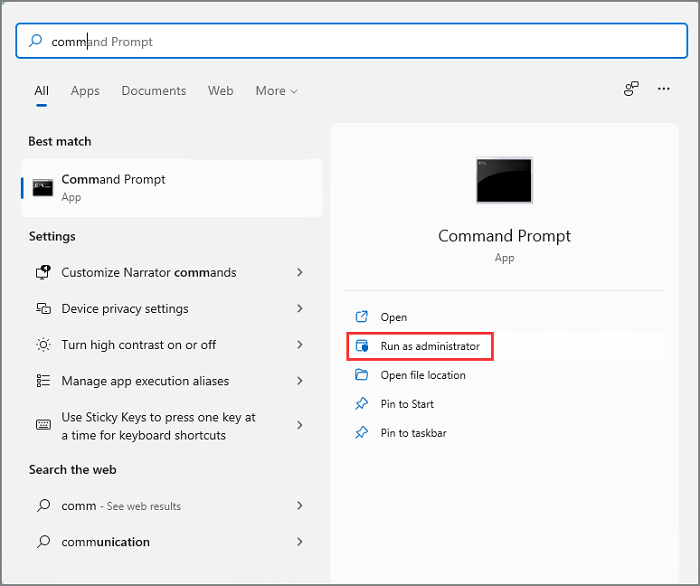
Step 1.From the start, menu click on the command prompt
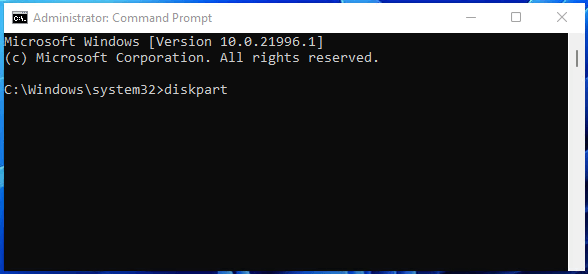
Step 2. Type diskpartand press enter
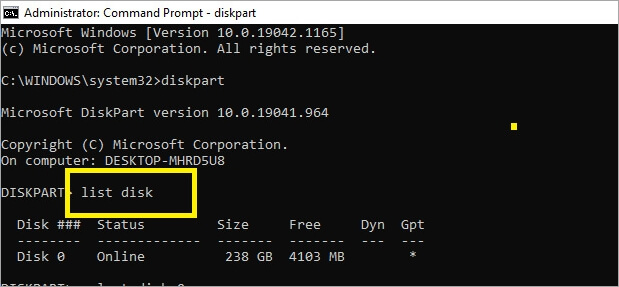
Step 3. Now type list disk and press enter
Step 4. To convert the disk to a GPT partition table, type the command `convert mbr` and press Enter. For example: `convert mbr disk 0`. This will initiate the conversion process. Note: Be cautious when performing this operation as it will erase all data on the selected disk.
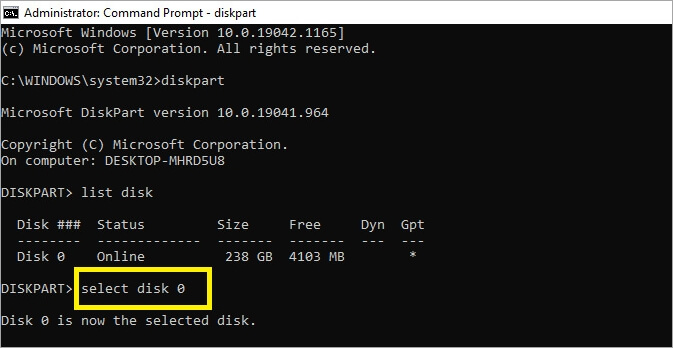
You can type the name of the disk in your system which you want to convert. For example, if you want to convert the disk "C:", you can type "C:".
Step 5. To delete a volume, first type "list volume" to view the available volumes. The volume disk will appear. Then, select the volume you want to delete by typing "select volume" followed by the volume name. Finally, type "delete volume" to confirm the deletion and remove the data.
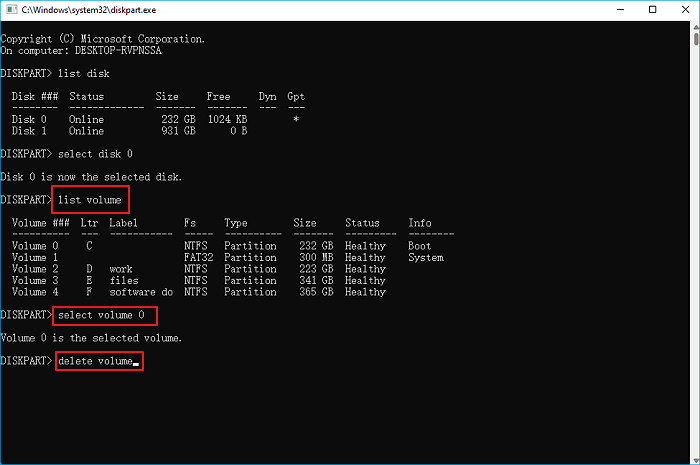
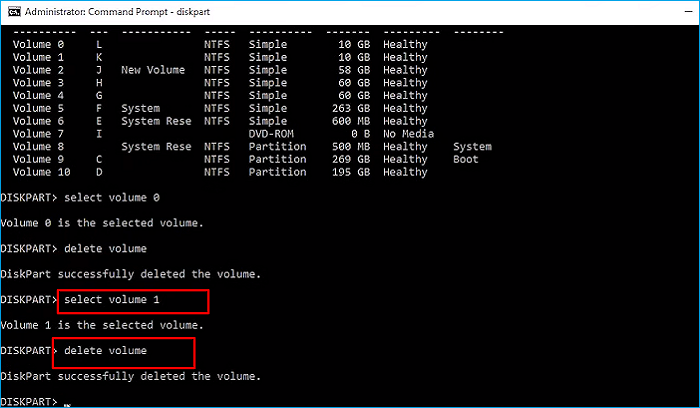
Step 6. To re-select the disk for disk allocation, type Select Volume 1, then type Delete Volume.
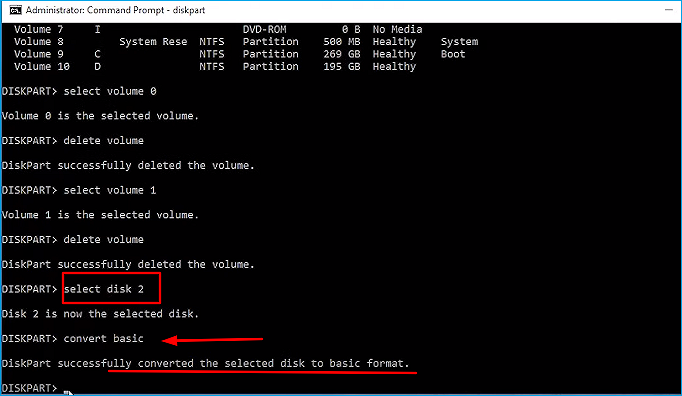
Step 7 .To convert a dynamic disk to a basic disk, type `select disk 2` followed by `convert basic`. This will transform the dynamic disk into a basic disk.
Method 3. Run Disk Management to Convert Dynamic to Basic
To convert a Dynamic Disk to a Basic Disk, it's essential to back up all data and files first, as removing partitions can result in data loss. The process involves several steps: 1) backup your data and essential files to prevent loss, 2) use the built-in Disk Management tool in Windows to delete the existing partition, 3) then, you can convert the Dynamic Disk to a Basic Disk. It's crucial to follow these steps carefully to avoid any potential data loss.
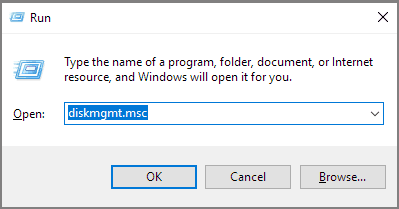
Step 1. Press Windows + R, type diskmgmt.msc, and press enter.
Step 2. To remove a dynamic volume in Disk Management, right-click on the dynamic Disk Management, and select Delete Volume. You will be prompted to confirm the deletion, and once confirmed, the volume will be deleted. Repeat this process for each dynamic volume you want to remove.
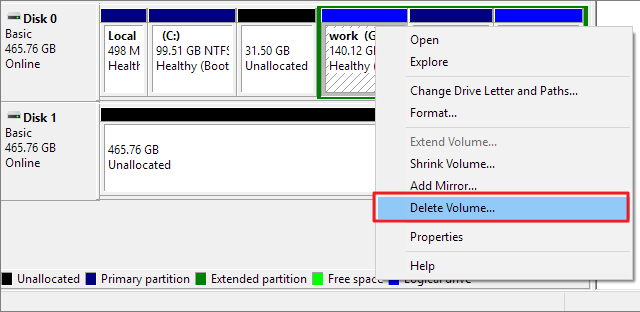
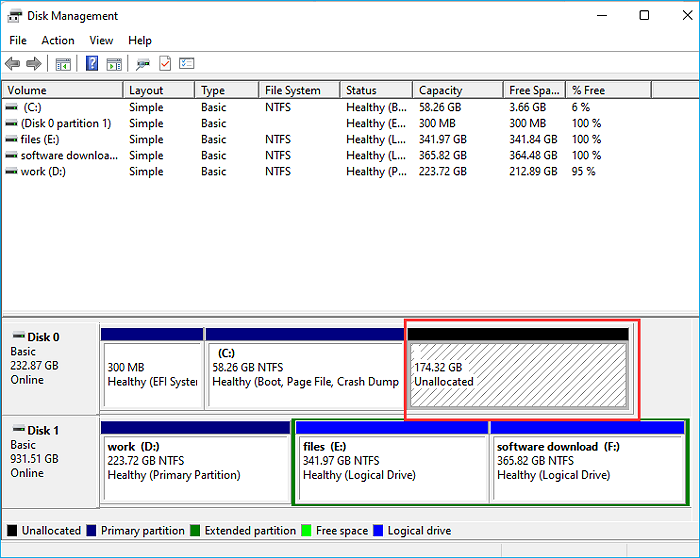
Step 3. Once all the volumes on a dynamic disk are deleted, the disk will automatically convert into a basic disk.
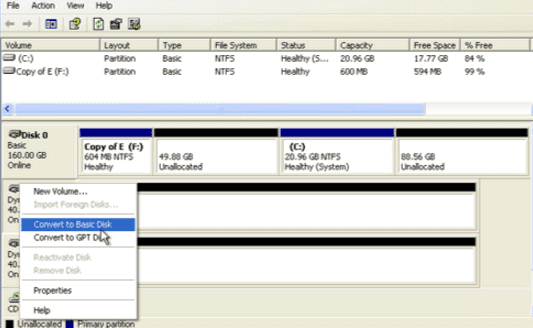
Step 4. You can convert the target disk to a basic disk by right-clicking on it and selecting the "Convert to Basic" option. This will remove any existing partitions and convert the disk to a basic disk.
Conclusion
Converting a dynamic disk into a Basic disk is a straightforward process that can be done in a few easy steps. You can either use the methods provided by the system or opt for a third-party utility like Qiling Partition Manager, which is a secure and efficient solution that can quickly convert a dynamic disk to a basic disk without risking data loss.
Related Articles
- How to Repair MBR in Windows 11? Here Is Your Guide
- Format External Hard Drive with Multiple Partitions
- Windows Detected A Hard Disk Problem? Fix it NOW!
- Check This Guide to Learn How to Check RAM Speed Windows 10
- How to Convert Simple Volume to Primary Partition
Qiling Partition Master can convert and change simple volume to primary partition without data loss, compatible with Windows 10/8/7, 2000/XP/2003/Vista/2008 32-bit and 64-bit systems. - SSD Maintenance: Tips to Maintain Performance and Extend the Life of Your SSD
To keep your SSD running at peak performance for years to come, you can follow these steps: regularly clean up temporary files and system logs, disable unnecessary startup programs, and update your operating system and drivers.
Products
Articles & Tutorials
- Data Recovery
- Data Backup
- File Recovery
- File Backup
- System Backup and Restore
- Disk and Partition Clone
- Technical articles
- Mobile articles
- Disk Master Help
- Windows Data Recovery Tutorials
- Windows Secure Delete Tutorials
- Windows Partition Management Tutorials
- Windows File Backup and Restore Tutorials
- Windows System Backup and Restore Tutorials
- Windows Disk Backup and Restore Tutorials
- Windows Clone Tutorials