How to Clear Windows DNS Cache Windows Server/Workstation
If you're having trouble accessing a web page despite having a strong internet connection, it might be helpful to clear your Windows DNS cache. This can resolve issues caused by a broken or corrupted cache due to technical errors.
It could be a DNS cache poisoning issue, possibly caused by a computer virus or network hack, redirecting visitors to malicious links or bugged pages. Clearing the Windows DNS cache is a recommended step to try and resolve the issue.
Main Content:
What is DNS Cache?/a>
Is It Safe to Delete DNS Cache?
To clear the Windows DNS cache, follow these steps: on Windows Server or Workstation, open the Command Prompt as Administrator, type "ipconfig /flushdns" and press Enter. Alternatively, open the Windows Settings app, navigate to Network & Internet > Status > Network reset, and select Reset now.
Extra Tip: Optimize SSD Performance with Windows Server Disk Manager
What is DNS Cache?
The DNS Cache is a system that converts website domain names into IP addresses that can be processed by computers. DNS stands for Domain Name System, and it's what the computer's browser identifies whenever you try visiting a web page, allowing you to access the site by its domain name rather than its IP address.
Windows maintains a local copy of DNS records, known as the DNS Cache, which stores previously visited IP addresses, making subsequent searches faster by reducing the need to query the public DNS server. This cache acts as a local diary of frequently accessed websites, allowing Windows to quickly retrieve IP addresses without having to contact the public DNS server.
The DNS Cache is a temporary storage of recent domain name and IP address lookups managed by the computer's operating system.
To check the DNS cache on a Windows OS, you can look for local cache records in your Windows directory. The process is different from that on a Mac, and since our focus is on Windows, we'll be covering that here.
- To open the command prompt, locate the search bar on your screen and enter "cmd" to open the command prompt.
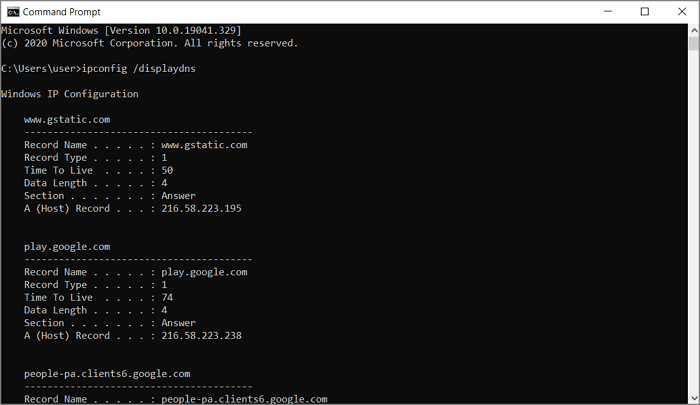
- On the display window, type `ipconfig /displaydns` and hit enter. This command will display the DNS cache, which shows the DNS queries made by your system and the responses received from the DNS servers. The output will include the domain names, IP addresses, and timestamps of the DNS queries.
Is It Safe to Delete DNS Cache?
Deleting the DNS cache won't cause any specific harm, but it will force your computer to request the DNS server for addresses it had previously stored in the cache, potentially slowing down internet access for recently visited websites.
While there is one potential drawback to clearing Windows DNS cache, the benefits far outweigh it. The main advantage is that it's easy to understand when to clear the cache, making it a useful tool for troubleshooting DNS server issues, such as when a website administrator is helping to resolve a complaint.
Other reasons to consider deleting the DNS cache includes:
- Resolving outdated IPs caused by moved DNS servers
- Clearing unwanted cookies that might be monitoring your web activities
- Troubleshooting Internet connectivity complaints
Relate article:
How to Clear Windows DNS Cache on Windows Server/Workstation
Now that you understand when to clear a DNS cache, the next question arises. How to do it? Fortunately, there are two different methods to clear Windows DNS cache, one for Windows Server and one for Windows Workstation. You can clear DNS cache on Windows Server using the PowerShell command `Clear-DnsCache` and on Windows Workstation by running the command `ipconfig /flushdns` in Command Prompt.
Option 1: Directly Clear Cache on DNS Console
- To fix the DNS server issue on your Windows computer, ensure you have a DNS server installed first. If you don't have one, you can install it.
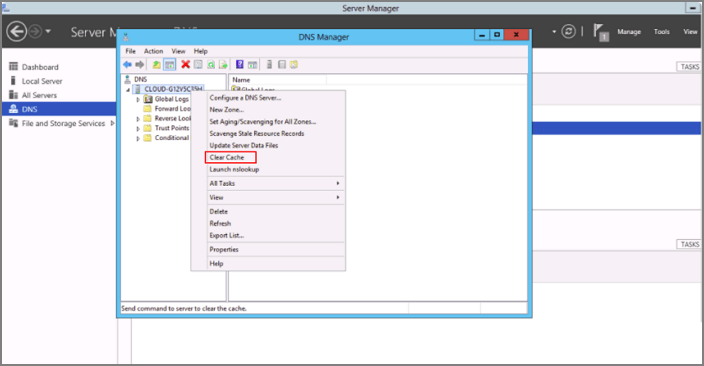
- Navigate to the Windows server application and open it.
- Right-click on the DNS in the left column
- Next is a drop-down menu. Locate the clear cache option and click.
Option 2: Run PowerShell to Clear Cache
This method is a second option to try if you don't have the Windows server application already installed. The steps to clear Windows DNS cache on Windows server/workstation using PowerShell are fast and straightforward.
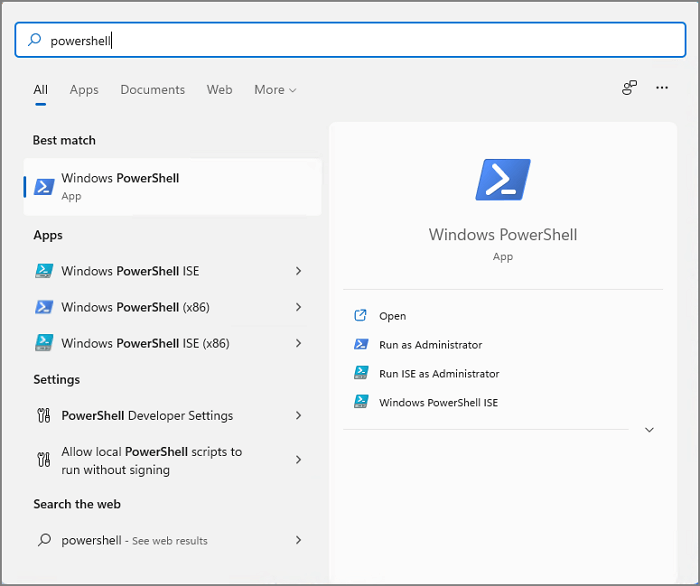
- To open PowerShell, type "PowerShell" in the search bar and click on the application icon that appears in the results.
- The Windows PowerShell interface should resemble the image below, with a command line interface where users can input commands and see output, a navigation bar or menu for accessing various features, and a help section or documentation for troubleshooting and learning. The layout should be clean and organized, with clear labels and minimal clutter, making it easy for users to find what they need and complete tasks efficiently.
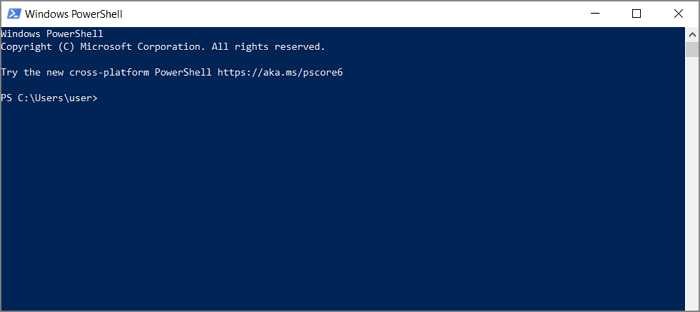
- Use any of the following commands, depending on the specific actions you want.
To clear the client cache:
Enter Clear-DnsClientCache and press enter
To clear the local DNS server cache:
Input the command Clear-DnsServerCache
To clear the cache on a particular DNS server:
Use Clear-The command `DnsServerCache-PCName "DC1" – Force` is used to clear the DNS cache on a server named "DC1". This command should be executed with the "– Force" option to ensure the cache is cleared successfully. To use this command, replace "DC1" with the actual name of the server you want to clear the DNS cache for.
Extra Tip: Optimize SSD Performance with Windows Server Disk Manager
While a DNS cache can improve browsing time, a Windows Server Disk Manager can also achieve this. For instance, our Qiling Partition Master Enterprise Edition software resolves low space issues on the server's hard disk, ultimately speeding up the Windows server.
Qiling Partition Master Enterprise
Your trustworthy Windows Server disk manager.
- Extend System drive, combine/split partitions.
- Clone disk, migrate OS to HDD/SSD.
- Convert MBR to GPT, GPT to MBR, no data loss.
- 1-click adjust disk layout, create volumes at one time.
The Qiling Partition master tool can be used to troubleshoot server start-up failures by creating a WinPE bootable disk that allows access to hard drives.
The Qiling Partition Master Enterprise Edition has several key features. It supports partition resizing, moving, merging, splitting, and deleting, as well as creating and formatting partitions.
- Extend system partition without reinstalling the Windows OS.
- Clone the hard disk and migrate the OS to HDD/SSD.
- Converting between MBR and GPT partitions can be done with zero data loss, allowing users to switch between these two partitioning schemes without affecting their data. This process involves re-partitioning the disk, which can be done using various tools and software.
- To quickly adjust the disk layout and create different partitions at the same time, you can use a one-click feature in your operating system or a third-party tool. This allows you to resize existing partitions and allocate space for new ones with a single action, streamlining the process and saving time.
- This software supports various versions of Windows Server, including Windows Server 2003, 2008 (R2), 2012 (R2), 2011, 2016, and 2019.
Conclusion
Clearing the Windows DNS cache can resolve connectivity issues caused by outdated or changed IP addresses, which can slow down the Windows server or workstation when accessing recently visited websites. This is because the cache stores IP addresses of frequently accessed websites, and if these addresses become invalid, it can lead to connectivity problems. By clearing the cache, you can resolve these issues and ensure smooth access to websites, making it an essential step in maintaining a healthy and efficient Windows system.
To boost Windows server speed, you can use the DNS console or Windows PowerShell to optimize performance. Alternatively, you can use a server disk manager like Qiling Partition Master Enterprise Edition, which not only enhances server speed but also allows you to extend system partition and migrate the OS to a faster HDD/SSD. To get started, check out the installation page.
Related Articles
- How to Free Up Disk Space for Gaming?
- How to Fix Hard Drive Very Slow in Windows 10/8/7
- The Volume Is Too Big for FAT32 Windows 11/10, Fixed Here!
- Partition Wizard Software (Full Version) Free Download for Windows Servers in 2022
- Why My SD Card Shows Empty But is Full
It is a common issue that an SD card is full, but no files show up. If you are wondering 'Why my SD card shows empty but is full', this page explains the answer and guide you to resolve the problem. - Why Pen Drive Is Write-Protected and How to Fix?
Sometimes the USB flash drive will change into write-protected, so why USB flash drive is write-protected and how to fix? This page briefly introduces the reasons and offers some practical methods to remove write protection.
Products
Articles & Tutorials
- Data Recovery
- Data Backup
- File Recovery
- File Backup
- System Backup and Restore
- Disk and Partition Clone
- Technical articles
- Mobile articles
- Disk Master Help
- Windows Data Recovery Tutorials
- Windows Secure Delete Tutorials
- Windows Partition Management Tutorials
- Windows File Backup and Restore Tutorials
- Windows System Backup and Restore Tutorials
- Windows Disk Backup and Restore Tutorials
- Windows Clone Tutorials