Can't Extend C Drive in Windows 11? Here Is Why and How-to Fix
| Workable Solutions | Step-by-step Troubleshooting |
|---|---|
| To extend the C drive, you can shrink or delete a neighbor volume, which is typically the D drive. To do this, follow these steps: | Since we don't have anyone on our hard drive, we'll be taking some from the Neighbor partition. We can delete or shrink...Full steps |
| #2. Extend C Drive with Non-adjacent Unallocated Space | Step 1: Free up unallocated space for C drive; Step 2: Increase C drive space; Step 3: Keep all changes to extend...Full steps |
| #3. Allocate Space from Other Drive to C Drive | Step 1. Right-click on the D: partition with enough free space and select "Allocate Space"; Step 2. Select the target...Full steps |
| #4. Extend C with Space in a Second Disk | Step 1. Right-click partition C, select Advanced and click Extend with 2nd Disk…; Step 2. After the software analyzes...Full steps |
Looking to extend your C Drive storage? Follow along and find out how.
Running low on space on your C Drive is a common issue, especially after a long time with the same Windows installation. Over time, your main partition can become bloated with various files, including programs, games, and hidden files, taking up valuable space.
Many users face problems like slowed down performance and low-storage errors after using their computers for a while, leading them to extend their main partition. However, they often encounter issues when trying to extend their C drive in Windows 11, making it difficult to free up space and maintain a smooth user experience.
To extend your C partition without losing any data, time, or performance, you can use the built-in Disk Management tool in Windows. This tool allows you to shrink or expand partitions, including the C drive.
Why Can't I Extend C Drive in Windows 11?
If you're having trouble extending your C drive in Disk Management, it's likely due to a lack of additional or unallocated space on your physical drive. To check, you can verify if there's any free space available on your drive by checking the available capacity under the "Unallocated space" section in Disk Management. If there's no unallocated space, you may need to delete some files or free up space on another drive to create room for expansion. Alternatively, you can also consider adding a new drive to your system to provide more storage space.
Step 1. Click on Start Menu.
Step 2. Type Disk Management and press Enter.
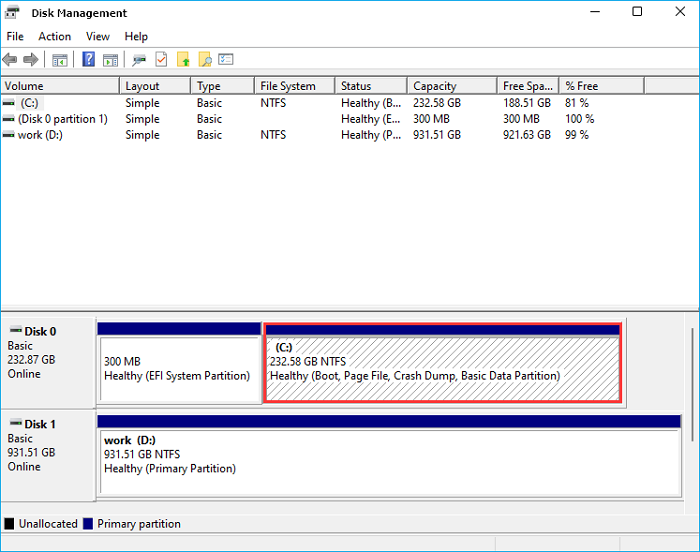
Step 3. Identify the physical drive with your primary partition, which is Disk 0.
Step 4. Navigate and find the disk type, state, and storage. There's no unallocated space left in this OS drive.
We have no space to work within this case, as we can see here. Therefore, we cannot extend this C partition using the normal methods. If we tried, we'd get the error of having no storage left to extend the partition. So, let's keep digging to find the solution.
This article teaches you how to check the total hard disk space in Windows 10.
Can't Extend C Drive Windows 11 - Is There a Workaround? Yes
Now that we've found out a few causes behind the inability to extend C Drive, try to find a workaround. But is there even a way to work around it? Yes, there is. We can head back to disk management using the same method.
Once we do, we can do a few things such as:
- 1. Using disk management to delete or shrink the volume. This is a common way requiring you to use the Disk Management program to execute.
- 2. Extend C Drive with non-adjacent unallocated space.
- 3. Allocate space from another partition to our C Drive.
- 4. Extend C drive with space from another physical drive.
The only issue with methods 2, 3, and 4 is that they require a third-party tool, which can be easily resolved with the help of Qiling Partition Master.
The first step is the only one that can be executed with the help of Disk Management, as mentioned before. For all the other steps, you're going to need Qiling Partition Master. So, let's see how you can do that.
#1. Shrink or Delete a Neighbor Volume to Extend C Drive
To make space on a physical drive, you need to have unallocated space, which can be obtained by taking some space from an existing partition, such as the Neighbor partition.
We can delete or shrink the Neighbor partition to extend the C Drive.
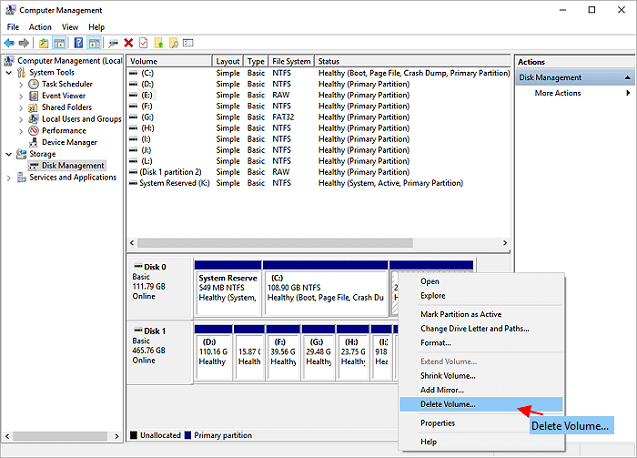
Once the space is unallocated, we can use that to add to our C Drive.
#2. Extend C Drive with Non-adjacent Unallocated Space
To add non-adjacent unallocated space to your system partition, you will need to download and install Qiling Partition Master. This tool will allow you to use the non-adjacent unallocated space to expand your system partition.
Step 1: Free up unallocated space for C drive.
If there is no unallocated space on the system disk, click on a partition next to the C: drive and select "Resize/Move".
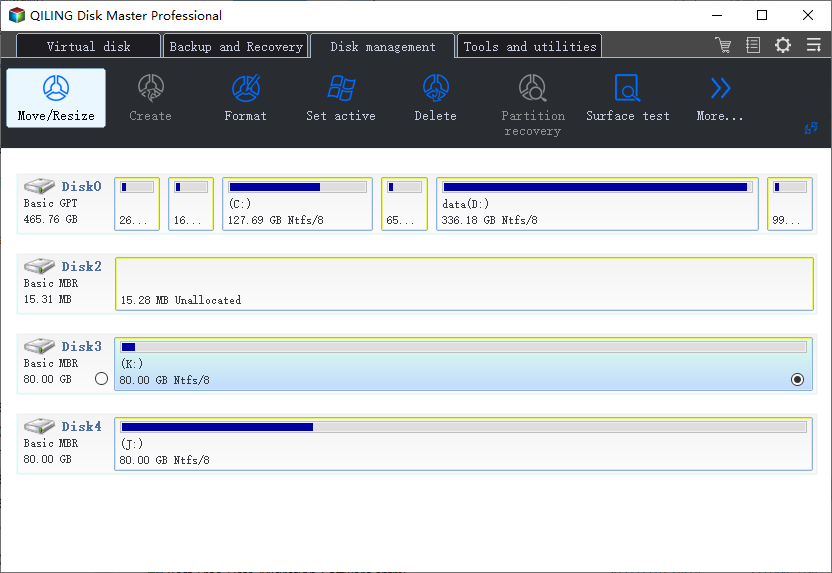
Drag the left panel of the partition to shrink and leave unallocated space behind the system C: drive, then click "Proceed".
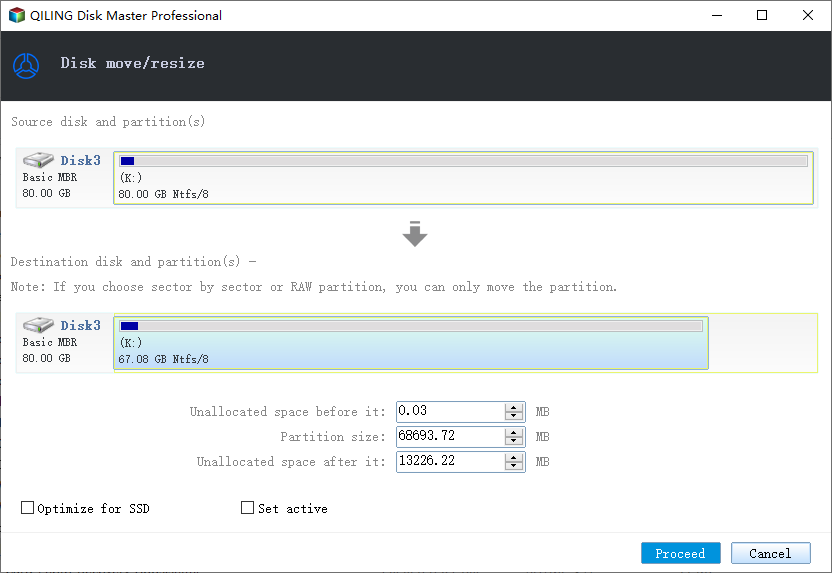
Step 2: Increase C drive space.
1. Click on C: drive and select "Resize/Move".
2. To increase the size of the C: drive, you should drag the system partition end into the unallocated space, effectively adding that space to the C: drive. This will allow you to utilize the previously unused space and expand the capacity of your C: drive.
Step 3: Keep all changes to extend C: drive.
Click the "Proceed" to keep all changes so to extend the system C: drive.
The tool allows you to select physical drives to use as non-adjacent unallocated space to extend the C drive, making all physical drives available for selection.
#3. Allocate Space from Other Drive to C Drive
If you're running low on space on your C drive, you can consider expanding the partition by allocating space from another physical drive, but you'll need a tool like Qiling Partition Master to do so.
Step 1. To resize the D: partition, click on it with enough free space and select "Resize/Move".
Step 2. To free up space on the D: drive, drag the partition panel to the right, reducing the size of the D: drive and creating free space. Once you've made the adjustment, click "Proceed" to confirm the changes.
Step 3. To merge the free space from D: drive to C: drive, select the target partition as C: drive and drag the partition panel to the right to add the free space. Once the free space is added, click "Proceed" to confirm the operation.
To allocate gigabytes from one partition to another, you can use Qiling Partition Master to extend your C Drive by moving space from partition G to C.
#4. Extend C with Space in a Second Disk
It is not possible to extend a primary partition on one disk from a second disk, as primary partitions are tied to a specific disk and cannot be extended across multiple disks. This limitation is due to the way disk partitions are managed by the operating system and the physical constraints of disk storage. If you need to increase the size of a primary partition, you would typically need to resize the partition on the same disk, which may involve reorganizing the partition table and potentially relocating data.
Yes, it is. You'll need Qiling Partition Master with its option to extend C with the 2nd Disk.
Step 1. Click partition C, select Resize/Move.
Step 2. To free up space on your C: drive, drag the partition panel to the right, reducing the size of C: and creating free space. Once you've made the adjustment, confirm the change by clicking "Proceed".
This feature is only available in Qiling Partition Master. So, you'll need to download and install it.
Conclusion: You Need The Right Tool & Methods
The "Can't Extend C Drive In Windows 11" error can be fixed using the correct methods, such as using the Disk Management tool within Windows or installing Qiling Partition Master, which is also considered the best data wipe software.
We'll recommend the latter because it covers up all the ends and ensures a smooth partition extension for a beginner.
Related Articles
- Free Up Disk Space in Windows 11 Can Be Easy Enough Now
- ASUS Laptop Slow in Windows 11/10? 7 Effective Fixes!
- Windows 11/10 Boot Repair: Fix UEFI Boot Issue on Windows 11/10/8/7
- Hard Drive Partition Not Responding in Windows 10/8/7
- Solved: Second Hard Drive Not Detected in Windows 11/10/8/7
If you find your second hard drive not detected in Windows 10, read this post, please. It teaches you what to do respectively when second hard drive is not detected in FIle Explorer, Disk Management, BIOS or after Windows 10 update. - Guide | Enable UEFI Secure Boot for Windows 11 Update
Enabling UEFI Secure Boot is one of the essential requirements for Windows 11 upgrade. This page gives a comprehensive introduction to UEFI Secure Boot and shows how to enable UEFI Secure Boot step by step.
Products
Articles & Tutorials
- Data Recovery
- Data Backup
- File Recovery
- File Backup
- System Backup and Restore
- Disk and Partition Clone
- Technical articles
- Mobile articles
- Disk Master Help
- Windows Data Recovery Tutorials
- Windows Secure Delete Tutorials
- Windows Partition Management Tutorials
- Windows File Backup and Restore Tutorials
- Windows System Backup and Restore Tutorials
- Windows Disk Backup and Restore Tutorials
- Windows Clone Tutorials