Boot Device Not Found in Windows 11? Here Are The Fixes
Error: Boot Device Not Found in Windows 11
A boot device is a hardware component that stores the necessary files for a device to boot up, such as a hard disk, USB drive, or floppy drive. It holds all the files required by the operating system to function properly whenever the device is restarted.
When trying to boot Windows 11 on a PC, it's essential that the boot device and system are functioning properly, free from damaged or corrupted files. However, a boot device not found error can still occur, leaving users disoriented and seeking ways to troubleshoot.
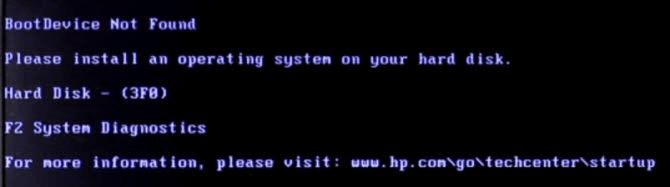
The Windows 11 boot device error occurs when there's an issue with your system hard drive, which can be due to the device's inability to detect the hard disk or misconfigured BIOS setup settings.
If you're experiencing the "boot device not found" error in Windows 11, - this guide can help. This article provides quick and straightforward fixes to help you resolve the issue and get past the error notification. By applying these simple solutions, you should be able to boot your device successfully again.
Main Fixes:
| Workable Solutions | Step-by-step Troubleshooting |
|---|---|
| To change the PC boot order and set it to boot from the OS disk in the BIOS, follow these steps: Boot the PC, press the BIOS key (usually F2, F12, or Del), navigate to the Boot Order or Boot Priority section, select the OS disk (usually the hard drive or SSD where the operating system is installed), and save the changes. This will set the PC to boot from the OS disk first, allowing it to load the operating system and other necessary files. | Restart your PC and press DEL, F1, or F2...Full steps |
| 2 - Restore BIOS to Default Settings | Restart your computer > Go to BIOS setup...Full steps |
| 3 - Rebuild MBR with Qiling Partition Master | Download and install Qiling Partition Master > ...Full steps |
| 4 - Unplug and Reinstall Hard Drive | Power off your computer and unplug all hardware devices...Full steps |
Why Is My PC Showing Boot Device Not Found?
The boot device not found error on your PC is caused by various reasons, including incorrect boot order, faulty boot device, corrupted boot sector, or issues with the BIOS or UEFI settings. This error can also be triggered by a failing or malfunctioning hard drive, a problem with the boot loader, or an incorrect installation of the operating system.
- Corrupted Hard Disk Partition.
- Incorrect Boot Order in BIOS.
- Corrupt or Damaged Boot Files.
- Damaged Master Boot Record (MBR) on the Bootable Disk.
- Connectivity Problems.
- Other External Causes are Malware, viruses, third-party system-protected software, etc.
How to Solve Boot Device Not Found Error in Windows 11
Here are the recommended fixes for the boot device error:
1 - Change PC Boot Order, Set PC to Boot from OS Disk in BIOS
To modify the PC boot order in BIOS, navigate to the boot settings, select the desired boot order, and save the changes. This allows you to prioritize which devices to boot from, such as the hard drive, USB drive, or CD/DVD drive. Ensure you save the changes to apply the modifications.
- To enter the BIOS setup, restart your PC and press one of the following keys depending on your computer's manufacturer: DEL, F1, or F2.
- To display the boot sequence, click on the "Boot" option located at the top bar of the setup menu.
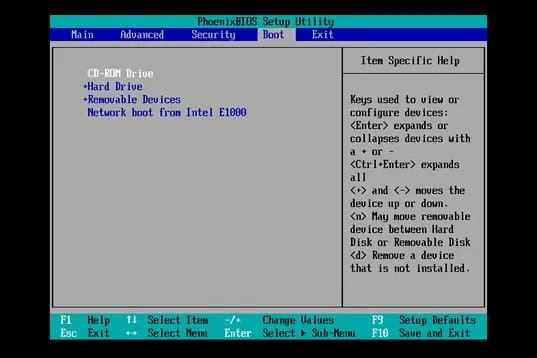
- To set the boot order on your device, you'll need to use a specific key (usually F2, F12, or Del) given on your system to enter the BIOS settings. Once in the BIOS, navigate to the "Boot" or "Boot Order" section, where you can set the sequence in which your device boots for an operating system.
- Set your order to boot from the OS disk first.
- Press F10 to save the BIOS changes.
- Click Yes in the confirmation prompt to confirm your changes.
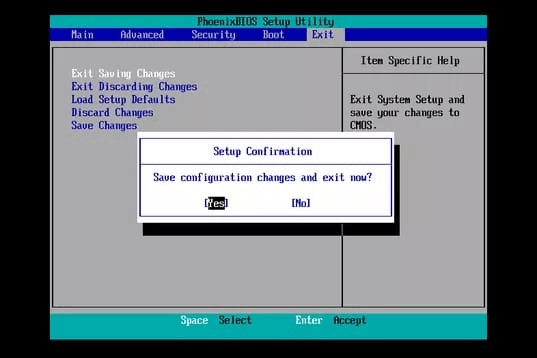
To start the computer with the new boot sequence, simply restart the computer and the BIOS will automatically boot from the first order and proceed to the next device on the list, following the new boot order that has been set.
2 - Restore BIOS to Default Settings
To resolve a boot device not found error, check the BIOS settings to ensure the computer is set to boot from a valid device. If the issue is with the BIOS, restoring it to its default settings can resolve the problem and allow Windows to locate the bootable device. To do this, enter the BIOS settings by pressing the designated key (usually F2, F12, or Del) during boot, navigate to the boot order settings, and select the correct boot device. If still experiencing issues, save and exit the BIOS settings and try booting again. If the problem persists, you may need to reconfigure the BIOS settings or seek further assistance.
- To access the BIOS setup menu, restart your computer by pressing the F10, ESC, F1, F2, or F8 key (depending on the manufacturer) repeatedly. This will allow you to enter the BIOS setup menu.
- To restore the BIOS to its default settings, press the F9 key on the BIOS setup window. This will reset the BIOS to its original factory settings.
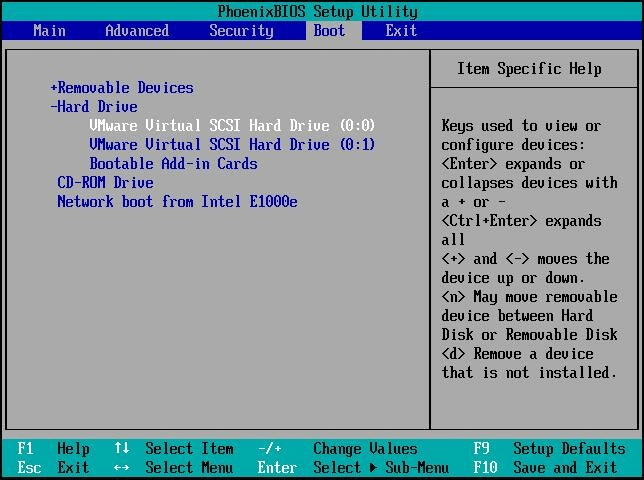
- Press F10 to save the changes and close the BIOS window.
- To save changes, click on the "Save" button and then utilize the arrow key to select "yes" from the prompt that appears.
- Follow the prompts and see if you're still encountering the boot device error.
3 - Rebuild MBR with Qiling Partition Master
The Master Boot Record (MBR) is a crucial file that stores essential information in the first sector of a hard disk, determining how and where an operating system (OS) is loaded into the computer's storage. However, the boot device not found error can occur when the Windows MBR becomes corrupted or damaged, potentially due to MBR overwrite, malware attacks, or disk failures.
You can install a third-If your computer is experiencing boot device errors due to a damaged MBR, I recommend installing the Qiling Partition Master to quickly access and rebuild, fix, or recover your MBR. This application will help you resolve the issue and get your computer up and running again.
Qiling Partition Master offers a valuable feature to rebuild MBR in situations where boot failure occurs due to MBR issues. To utilize this application, you can follow the guide below, which provides a step-by-step process for rebuilding the Master Boot Record.
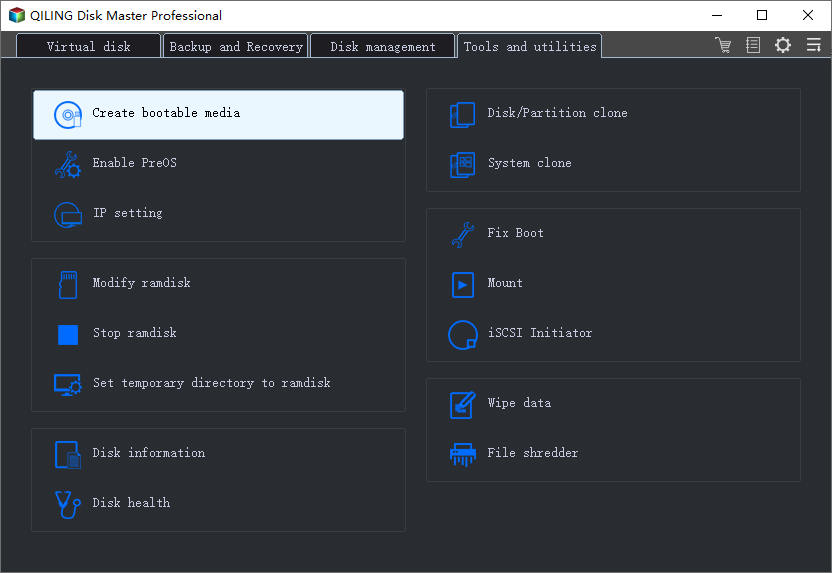
Step 1. Create a WinPE bootable disk
- Launch Qiling Partition Master, click "Create bootable media" on the toolbar. This option allows you to create a bootable disk on a USB drive or CD/DVD, giving you flexibility in how you choose to create the bootable media.
- Click "Proceed" to finish the process.
Step 2. Boot Qiling Partition Master Bootable USB
- Connect the bootable USB or CD/DVD to your PC.
- To access the BIOS screen, press F2 or Del when restarting your computer. Once in the BIOS, set your computer to boot from the CD-ROM drive or removable devices. After doing so, Qiling Partition Master will automatically run.
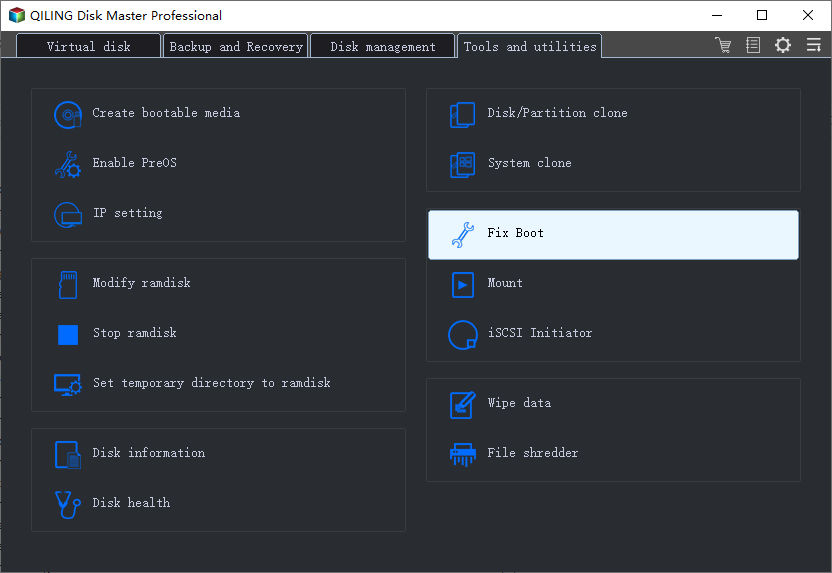
Step 3. Rebuild MBR
- Click the disk whose MBR is damaged. Choose "Fix boot" to continue. This will start the repair process and attempt to fix the MBR of the selected disk.
- Select the type of MBR with the current operating system.
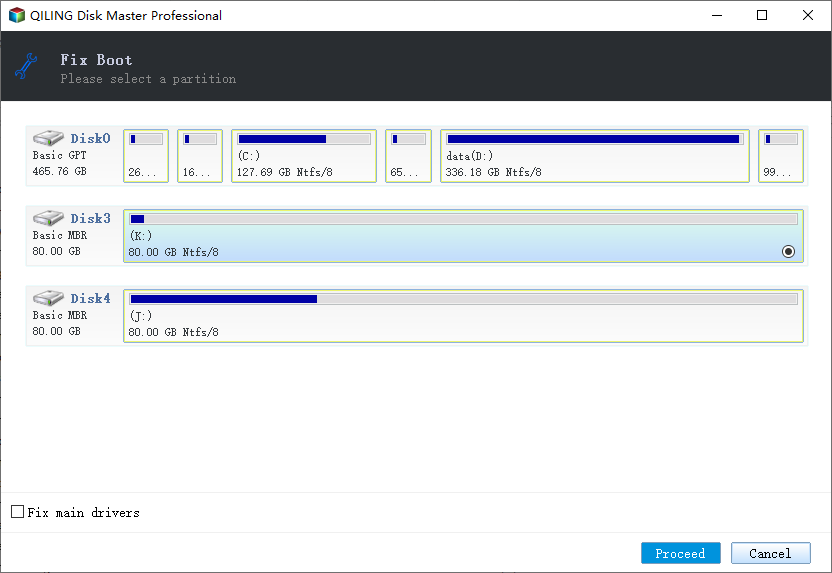
- To resolve the issue, proceed with creating a new Master Boot Record (MBR) by clicking the "Proceed" button. This will allow your computer to boot normally again.
Restart your computer to see if the boot device not found error is fixed.
4 - Unplug and Reinstall Hard Drive
If the BIOS is unable to detect the computer's hard drive, it may not be able to boot due to a boot device error. To resolve this issue, ensure that the BIOS can detect all hard drives by unplugging and re-installing them. This can usually be done by following these steps.
- Power off your computer and unplug all hardware devices.
- To troubleshoot a computer that won't turn on, start by checking the power cord and making sure it's securely plugged into both the computer and the wall outlet. Next, check the power button on the computer to ensure it's functioning correctly.
- Plug back the hardware devices correctly and start your computer.
To confirm if the BIOS can now detect the hardware, navigate to the BIOS setup.
Conclusion: Boot Device Not Found In Windows 11 is Fixable, You Can Do It
You can quickly resolve the "boot device not found" error in Windows 11 by utilizing the efficient solutions presented in this guide, making it easy to fix the issue without getting disoriented.
The error can be resolved by taking necessary precautions while fixing it. To do this, use the appropriate key listed in the BIOS setup to navigate the process effectively.
Related Articles
- How to Install Operating System on SSD and Everything Else on HDD
- Is Your PC Slow to Shut Down? Try These Tips!
- How to Create/Recover EFI Partition on Windows 11
- Windows 11 MBR to GPT Convert Tool [Free&Paid]
- 3 Methods: Fix MBR2GPT Validation Failed (Video Tutorial Attached)
The post discusses the MBR2GPT validation failed error, highlighting the reasons behind it and providing solutions to fix the issue in Windows 11, 10, 8, and 7. - Why Extend Volume Greyed Out and How to Fix Successfully?
If you're unable to extend a volume using the built-in Disk Management tool, you can use Qiling Disk Master to extend the partition when there's no contiguous unallocated space available. This alternative approach allows you to expand the volume even when the standard method is greyed out.
Products
Articles & Tutorials
- Data Recovery
- Data Backup
- File Recovery
- File Backup
- System Backup and Restore
- Disk and Partition Clone
- Technical articles
- Mobile articles
- Disk Master Help
- Windows Data Recovery Tutorials
- Windows Secure Delete Tutorials
- Windows Partition Management Tutorials
- Windows File Backup and Restore Tutorials
- Windows System Backup and Restore Tutorials
- Windows Disk Backup and Restore Tutorials
- Windows Clone Tutorials