Windows 11 MBR to GPT Convert Tool [Free&Paid]
| Workable Solutions | Step-by-step Troubleshooting |
|---|---|
| #1. Qiling Partition Master | Step 1. Download and launch Qiling Partition Master on your Windows computer; Step 2. Right-click the MBR...Full steps |
| #2. CMD | Step 1. Click on the start button and type "cmd". Next, right-click on "Command Prompt" and tap on "Run as administrator"...Full steps |
| #3. Disk Management | Step 1. Right-click on the Windows icon and click on "Disk Management"; Step 2. Right-click on the volumes of...Full steps |
| #4. MBR2GPT.exe | Step 1. Open "Settings" on your computer; Step 2. Click on "Updates & Security"; Step 3. Click on "Recovery"...Full steps |
Windows 11 MBR to GPT Convert Tool
Upgrading to Windows 11 requires converting your computer's MBR disk to GPT, ensuring your computer remains secure even after the upgrade process. This is especially important for Windows 11 users, as GPT is preferred over MBR due to its more flexible boot mode.
Windows 11 developers favor GPT over MBR due to its superior performance on modern hardware. GPT operates in UEFI mode, whereas MBR boots in Legacy mode. GPT's capabilities also include the ability to create up to 128 partitions, whereas MBR is limited to 4, and it doesn't restrict disk sizes, making it more versatile.
Upgrading to Windows 11 requires a reliable MBR to GPT conversion tool to ensure a smooth process. Fortunately, there are several effective tools available that can help you convert your computer's Master Boot Record (MBR) to a GUID Partition Table (GPT) format, a necessary step for a successful Windows 11 installation.
What Is Windows 11 MBR to GPT Convert Tool?
Windows 11 MBR to GPT convert tool is a method that allows you to change the partition scheme of your computer from Master Boot Record (MBR) to GUID Partition Table (GPT) when upgrading to Windows 11.
Related article: Windows 11 MBR or GPT?
The convert tool updates your device's boot mode from Legacy to UEFI, enhancing its security after the upgrade process.
The following are some of the most popular MBR to GPT conversion tools for Windows 11 users.
#1. MBR to GPT Conversion Software - Qiling Partition Master
The software Qiling Partition Master is recommended for converting MBR to GPT, allowing for easy management of disk partitions and a convenient conversion process.
Qiling Partition Master has a competitive edge against other convert tools since it doesn't delete partitions during the conversion process, ensuring no data loss occurs.
#2. CMD - Convert to GPT Command
To convert a MBR disk to GPT using CMD, start by running the command "diskpart" to open the tool. Then, type "list disk" to identify the disk you want to convert. Next, type "select disk X" (where X is the number of the disk you want to convert). After that, type "convert gpt" to initiate the conversion process.
#3. Disk Management
The disk management tool allows you to format, shrink, expand, or delete disks, and also facilitates the conversion of MBR disks to GPT, but be aware that this process will erase all existing data, so it's essential to have a data backup before proceeding.
#4. MBR2GPT.exe
MBR2GPT.exe allows you to add GPT features to an existing MBR partition without modifying existing partitions, making it a faster approach compared to other tools that require data backups.
How to Use Windows 11 MBR to GPT Convert Tool
The tools mentioned above are effective for Windows 11 MBR to GPT conversion. Each tool works by converting the Master Boot Record (MBR) to a GUID Partition Table (GPT) format, allowing for larger disk capacity and improved partition management. This conversion process typically involves resizing or relocating existing partitions, creating a new GPT disk, and updating the boot loader to point to the correct partition.
#1. Convert MBR to GPT with Qiling Partition Master, No Data Loss
Qiling Partition Master is a reliable tool that efficiently converts MBR to GPT, compatible with all Windows computers. It ensures data safety by not deleting any disks, allowing for seamless partitioning of hard drives and optimal utilization of disk space.
To convert MBR to GPT using Qiling Partition Master, you can download and install the software on your device, then follow the steps to achieve the conversion.
Step 1. Download and launch Qiling Partition Master on your Windows computer.
Step 2. Click on the MBR disk you want to convert, then click the "More" button and select "Convert to GPT" from the dropdown menu.
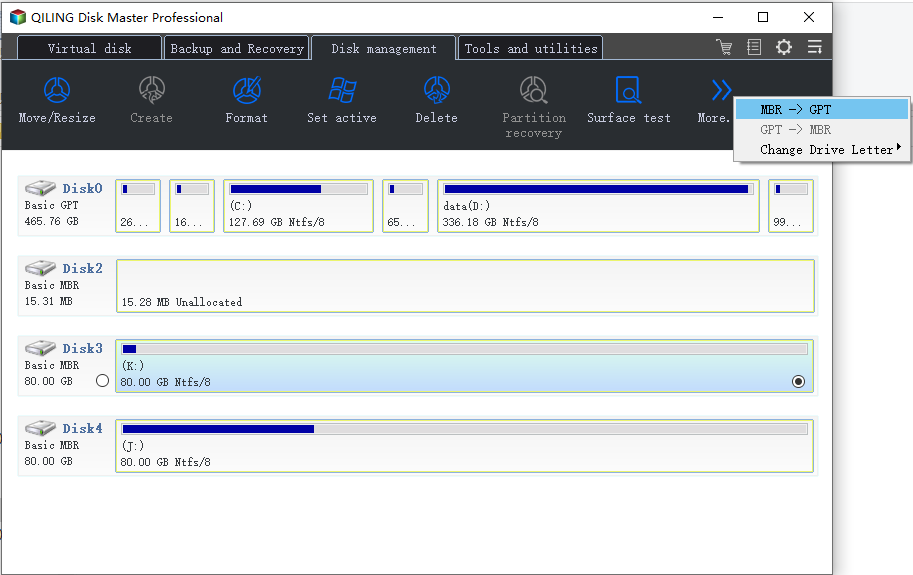
Step 3. After that, the program start the conversion.
You also get to enjoy its unique features, including the following:
- Resize or move partitions to your preference.
- Merge two SSD drives without losing data.
- To optimize your storage space, you can clone, format, create, or delete partitions as needed. This involves using tools like the Disk Utility or disk management software to manipulate the partitions on your storage device, such as an external hard drive or solid-state drive, to free up space or reorganize your storage layout.
- Migrate a partition to unallocated space.
- Speed up Windows through OS to SSD migration.
#2. Convert MBR to GPT Using CMD in Windows 11
To use this tool, you can apply the following steps:
Step 1. To open Command Prompt with administrator privileges, click on the Start button and type "cmd". Then, right-click on the "Command Prompt" result and select "Run as administrator".
Step 2. Type "diskpart" and press "Enter".
Step 3. Type the commands listed below and hit "Enter" after each:
- list disk
- select disk 1 (you should select your MBR disk)
- clean
- convert gpt
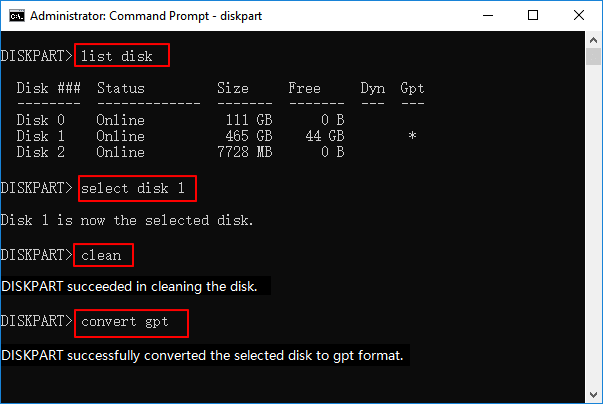
Step 4. Type "exit" after the conversion process is complete.
You can now access your GPT disk.
#3. Convert MBR to GPT Using Disk Management in Windows 11
You can make use of the following steps for this tool:
Step 1. Right-click on the Windows icon and click on "Disk Management".
Step 2. To delete the volumes of the target disk, right-click on each volume and select "Delete Volume". This process should be repeated for all volumes on the target disk.
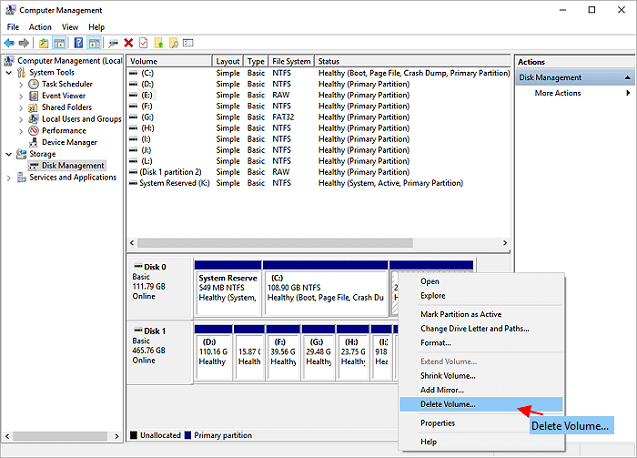
Step 3. After the disk is displayed as "Unallocated", right-click on it and click on "Convert to GPT Disk". Follow the on-screen instructions to complete the remaining steps.
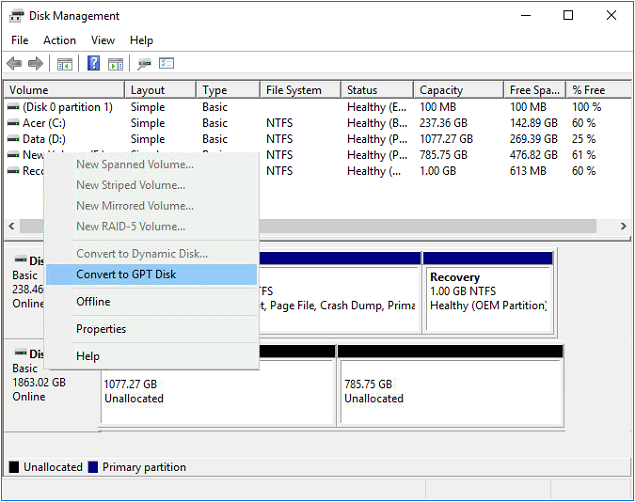
The conversion process is complete, and you can close disk management. Your GPT disk is now ready to install Windows 11.
#4. Use MBR2GPT.exe to Convert MBR to GPT Windows 11
Apply the following steps to use the MBR2GPT.exe tool:
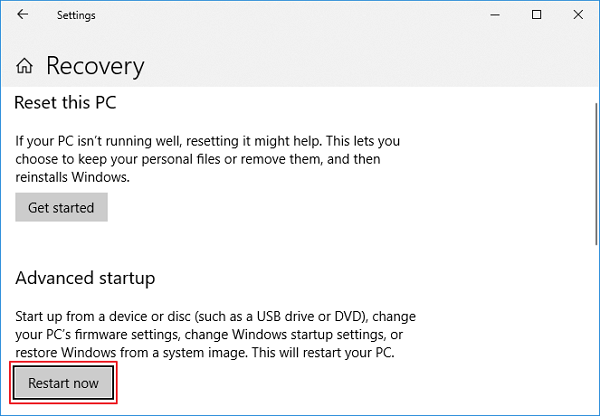
Step 1. Open "Settings" on your computer.
Step 2. Click on "Updates & Security".
Step 3. Click on "Recovery".
Step 4. Under "Advanced startup", click on the "Restart now" button.
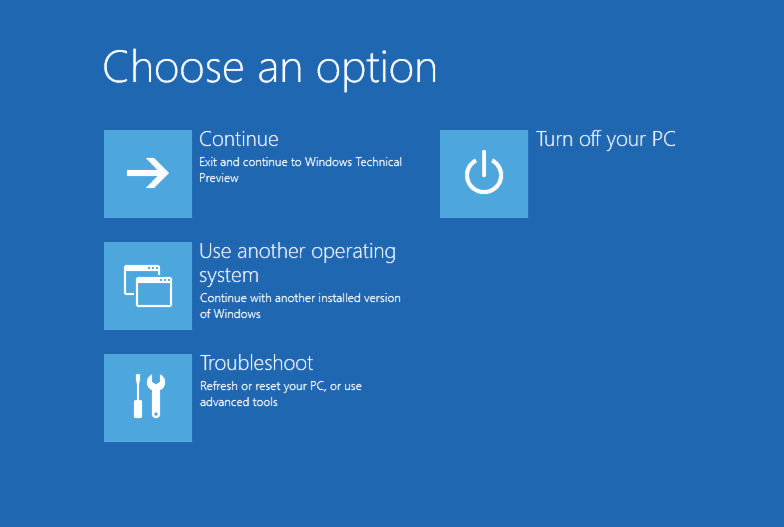
Step 5. Click on the "Troubleshoot" option.
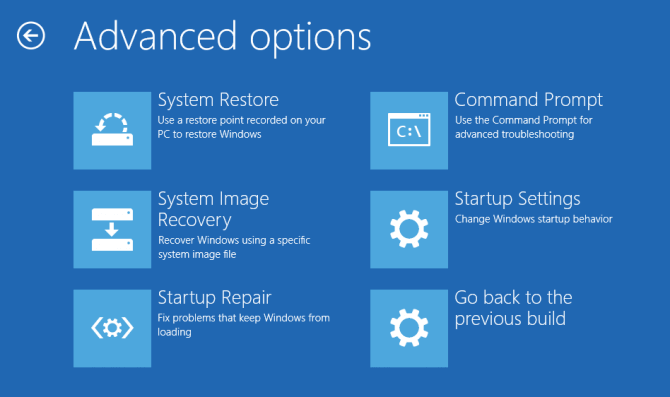
Step 6. Click "Advanced options".
Step 7. Select the "Command Prompt" option.
Step 8. Pick your administrator account and sign in.
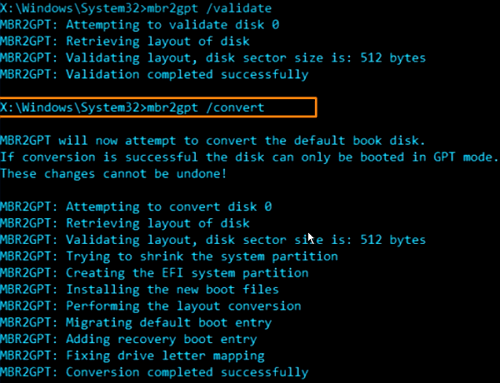
Step 9. Type "mbr2gpt /validate" and press Enter.
Step 10. To convert the drive from MBR to GPT, type "mbr2gpt /convert" and press Enter.
Step 11. Click on the "Close" button.
Step 12. Click on the "Turn off your PC" option.
After completing these steps, the following changes will happen:
- Creation of an EFI system partition (ESP).
- The process of inserting UEFI boot files and GPT components into a partition involves modifying the partition table to include a UEFI boot partition, which contains the boot files and GPT components. This is typically done using a tool like `gdisk` or `parted`, which can be used to create and modify the partition table.
- Boot Configuration Data (BCD) updates.
Windows 11 Work with MBR, But OS Drive Must Be GPT
Windows 11 requires a GPT OS drive for a secure UEFI boot, but can still work on devices with MBR, as long as the OS drive is GPT. If the OS drive is MBR, Windows 11 won't boot.
This article provides four tools to convert MBR to GPT on Windows 11, with Qiling Partition Master and MBR2GPT.exe being the most effective options, allowing for a seamless conversion without deleting existing partitions and risking data loss.
Related Articles
- Hard Drive Partition Not Responding in Windows 10/8/7
- How to Reallocate Disk Space Without Losing Data in Windows 11/10/8/7
- SD Card Not Detected Windows 11/10 | How to Fix SD Card Not Showing Up on Windows 11/10
- SSD Health Check Software Free Download in 2026
- Partition Manager Tutorials
You can find all you needed solutions to manage hard drive space in Windows. Qiling Partition Master is reliable partition manager that help you to resize and manage disk space. - Partition Manager Tutorials
You can find all you needed solutions to manage hard drive space in Windows. Qiling Partition Master is reliable partition manager that help you to resize and manage disk space.
Products
Articles & Tutorials
- Data Recovery
- Data Backup
- File Recovery
- File Backup
- System Backup and Restore
- Disk and Partition Clone
- Technical articles
- Mobile articles
- Disk Master Help
- Windows Data Recovery Tutorials
- Windows Secure Delete Tutorials
- Windows Partition Management Tutorials
- Windows File Backup and Restore Tutorials
- Windows System Backup and Restore Tutorials
- Windows Disk Backup and Restore Tutorials
- Windows Clone Tutorials