Fix 0x80070780: The File Cannot Be Accessed by the System Error in Windows 10/8/7 [10 Fixes]
Error 0x80070780: The File Cannot Be Accessed by the System
When trying to access files or folders on your computer, external hard drive, or USB device, you might encounter the error message "The file cannot be accessed by the system" with error code 0X80070780. This issue can occur in Windows 10, 8, or 7 due to various reasons, including file permission issues, system file corruption or missing files, hard disk errors or bad sectors, corrupted or unreadable files or directories, or unknown virus or malware infections.
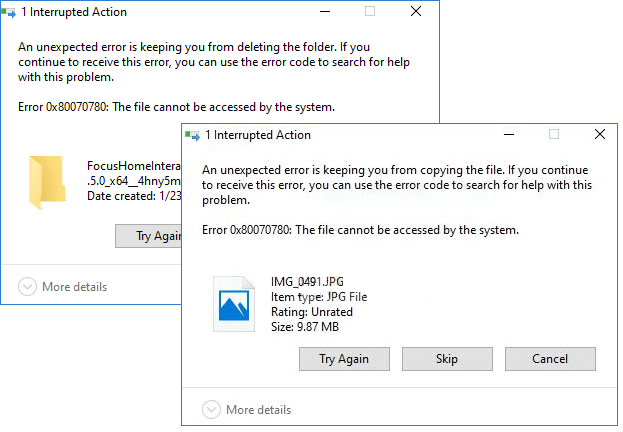
Users often encounter error 0x80070780 when a file cannot be accessed by the system, which can occur in four common situations. If the issue arises when trying to access a file on a network drive, the solution is to check the file's permissions and ensure it's shared correctly. If the problem occurs when trying to access a file on a local drive, the solution is to check for disk errors and run a disk check.
| Workable Solutions | Step-by-step Troubleshooting |
|---|---|
| Case 1. Error While Accessing Files | Perform data recovery > reinstall driver > disk cleanup > format the drive...Full steps |
| Case 2. Error While Copying Files | Robocopy to copy files > backup files ...Full steps |
| Case 3. Error While System Backup | Run SFC repair > disable security software...Full steps |
| Case 4. Error While System Restore | Clean boot Windows with an admin...Full steps |
Fixes for Error 0x80070780 "The file cannot be accessed by the system"
Different situations can have different causes, which in turn imply different solutions. To troubleshoot error 0x80070780, consider the specific circumstances leading up to the error, as this can help identify the root cause. By understanding the underlying reason, you can take targeted steps to resolve the issue, making it easier to overcome the frustration associated with this error.
Quick Fix: Login as Administrator
To resolve the 0x80070780 error and access your files, you can try restarting your computer in Safe Mode, running the System File Checker (SFC) tool, and checking for any corrupted system files. Additionally, you can try running the DISM (Deployment Image Servicing and Management) tool to scan and fix any corrupted system files.
Step 1. Click the Windows icon and click your username at the top.
Step 2. On the user account list, check if you are signing in as an administrator. If not, click to switch to "Administrator".
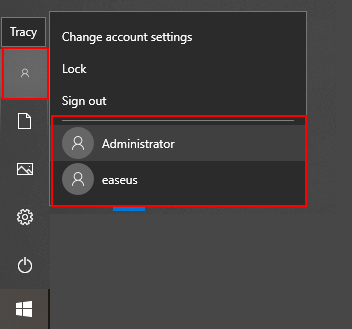
Step 3. Sign in with the password of your administrator account.
If you're unable to open files and folders on your computer, try restarting your computer, checking for any conflicts with other programs, and ensuring that your file system is not corrupted. If the issue persists, you can try running a system file checker, checking for any disk errors, or using a file recovery tool to restore your files. If none of these solutions work, it may be necessary to reinstall your operating system or seek professional help. If files are openable, congratulations. You may stop here.
Situation 1. Encounter Error 0x80070780 While Accessing Files
When you try to access files on your computer hard drive or external storage device, you may receive an error message stating that the system cannot access the file. In such cases, you typically have four options to choose from.
Method 1. Perform Data Recovery
If data recovery takes priority, you can first recover data with hard drive data recovery software, such as Deep Data Recovery, which can retrieve data from computer or external storage devices, and in some cases, recover lost data or damaged/corrupted files.
If your storage device becomes inaccessible, it's worth trying to rescue your files using reliable software. This can be a lifesaver when you need to recover important data.
Note: To guarantee a high data recovery chance, install Qiling data recovery software on another disk instead of the original disk where you lost files.
Step 1. Launch Deep Data Recovery on your Windows computer, select file types, and click "Fast Scan".

Note: You can choose different search modes based on where and why the data was lost.
Step 2. Select the disk partition or storage location where you lost data and click "Scan".

Step 3. This recovery software will start scanning the disk to find all lost and deleted files. Once the scan is complete, you can click "Filter" > "Type" to specify the types of lost files you're looking for.

Step 4.To recover lost Windows files, you can use the software to scan for the missing data, preview the scanned files by double-clicking on them, and then select the desired files to recover. Once selected, click the "Recover" button to save the files to a safe location, such as another spot on your PC or an external storage device.
If the software fails to recover the files you want to retrieve, it's probably the items that are seriously corrupted or damaged. Instead, learn how to recover corrupted files.
Method 2. Reinstall Device Driver
Device driver issues may cause a device to not show up on a computer, such as a USB device not appearing in Windows 10, making files inaccessible. To troubleshoot this, reinstalling the device driver can help exclude driver issues.
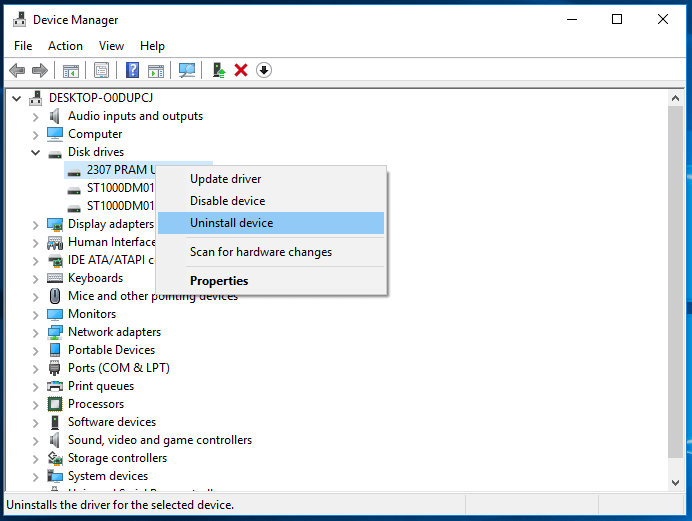
Step 1. If the issue occurs when using your USB drive with your computer, connect the drive to your computer, right-click on "This PC" and select "Properties" followed by "Devices Manager" in the menu.
Step 2. Click on "Disk drives", right-click on your USB drive that is not showing and choose "Uninstall device".
Step 3. In the prompt asking you to confirm the removal, click "OK".
Step 4. After uninstalling the driver, restart your computer and reconnect the USB drive. The driver will be automatically installed once the computer restarts.
Method 3. Perform Disk Cleanup
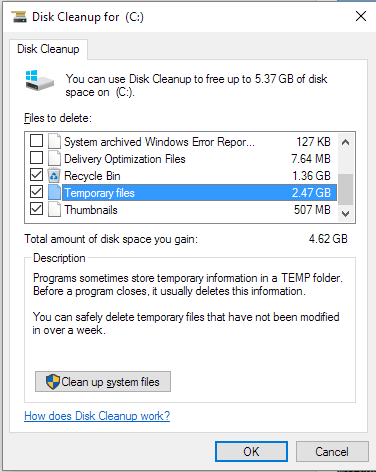
Step 1. Open "This PC", right-click your hard drive, then choose "Properties".
Step 2. Under the "General" tab, click "Disk Cleanup".
Step 3. Choose the files you want to delete and click "OK".
Method 4. Format the Drive
Formatting a drive can help solve file system errors and may fix some disk errors that result in error 0x80070780. However, this will erase all existing files, so back up your files first and then format the drive.
Step 1. Open "This PC", right-click your hard drive, and choose "Format" in the menu.
Step 2. Assign a Windows-compatible file system to your USB and click "Start".
Step 3. In the warning window, click "OK" to confirm the operation.
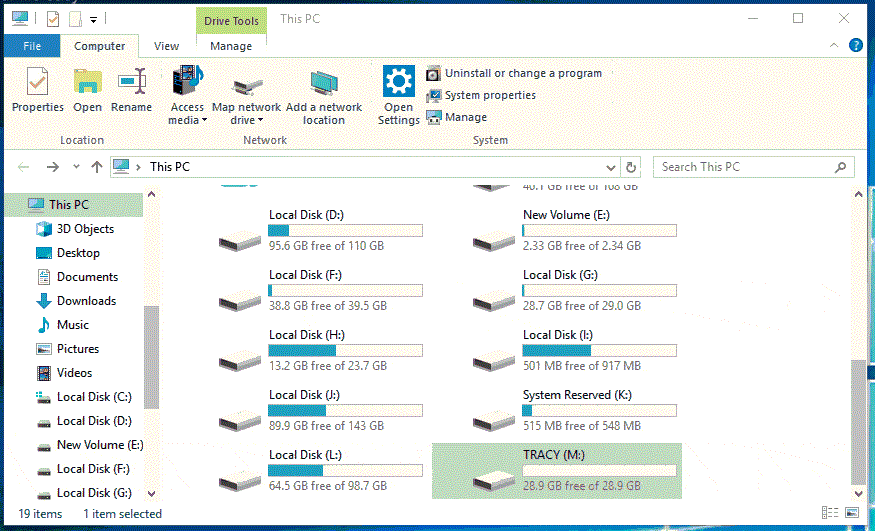
If you're encountering the error 0X80070780 "the file cannot be accessed by the system" when trying to access files on your computer or external storage device, there are workable tips to fix the issue. You can try running the System File Checker (SFC) tool to scan and replace corrupted system files, or use the DISM tool to repair any inconsistencies in the system image.
Situation 2. Encounter Error 0x80070780 While Copying Files
If you're having trouble copying files to make a backup, you can try using data recovery software like Qiling to first retrieve your data. Alternatively, you can also try copying files using other methods, such as using a different file system or storage device.
Method 1. Use Robocopy to Copy Files
Step 1. Click the "Start" menu and type cmd.
Step 2. Right-click "Command Prompt" and choose "Run as administrator".
Step 3. In Command Prompt, enter the command:
"C:\Users\admin\Downloads\6-recover mac deleted files from trash" "F:\test"
The source file is stored in a path, and the destination files are stored in another path. Replace them with your actual file paths. 1.
Method 2. Back Files with Third-Party Software
You can also make a backup of your computer files using a third-party backup utility like Qiling Backup. This software can help you back up your entire disk, partition, system, emails, and more from your computer to another storage device, cloud storage, NAS device, or other destinations.
Situation 3. Encounter Error 0x80070780 While Backing Up System
Many users have reported that they met the error 0x80070780 "the file cannot be accessed by the system" when they try to back up their system to an external hard drive. There are two solutions for this situation:
Method 1. Repair Missing or Corrupted System Files Using SFC.exe
Running the System File Checker tool to scan for corruptions in Windows system files and restore corrupted files may help resolve the "The file cannot be accessed by the system" error with code 0X80070780, which could be caused by system file corruption. If this is the issue, repairing the system file should allow you to access your data and no longer encounter the error message.
Step 1. Click "Start", go to "All Programs" > "Accessories", right-click "Command Prompt", and then click "Run as administrator".
Step 2. At the command prompt, type the command sfc /scannow and then press "Enter" to continue.
Step 3. The sfc /scannow command will automatically scan all protected system files and replace incorrect versions with correct Microsoft versions, completing the process once it's finished.
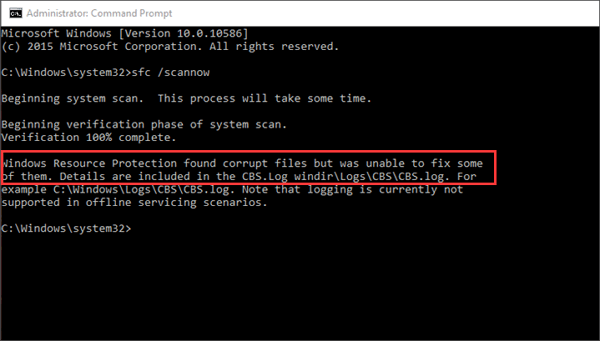
If the SFC command detects any corrupted system files, it will prompt you to run the CHKDSK command to check and repair the disk. To continue running CHKDSK, follow these steps:
Step 4. You can run the command `chkdsk E: /f /r /x` and press Enter to check the disk on drive E:. The `/f` option forces the check, `/r` option runs a thorough check and repairs any errors, and `/x` option allows the check to be run without restarting the system. Replace E: with the drive letter of the device where you're experiencing issues.
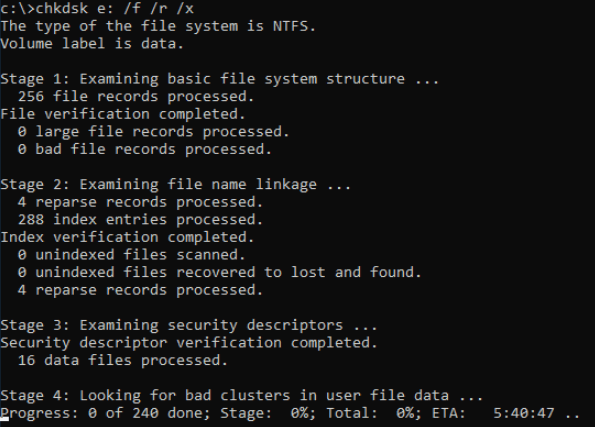
This command will automatically check and fix found file system errors on the device where you cannot access files.
Method 2. Disable Security Software As Admin
It's not recommended to disable security software on a computer, so we suggest temporarily turning it off and re-enabling it after completing the backup.
Step 1. Go to "Start" > "Settings", then search for and open "Windows Defender settings".
Step 2. Open "Windows Defender settings" and click "Open Windows Defender Security Center".
Step 3. Click "Virus & threat protection". In the new window, choose "Virus & threat protection settings".
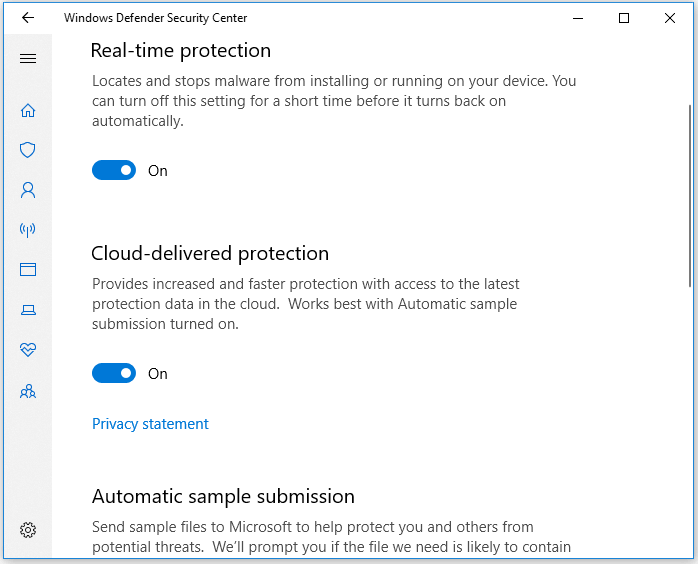
Step 4. Click to switch off "Real-time protection", "Cloud-delivered protection", and "Automatic sample submission".
The free backup software mentioned can also help to migrate OS to a new drive, saving time and being helpful in the process.
Situation 4. Encounter Error 0x80070780 While Performing System Restore
If you're experiencing issues with system restore, try temporarily disabling security software or performing a clean boot to see if that resolves the problem. This can help you troubleshoot the issue without the added complexity of security software interfering.
Method 1. Clean Boot Windows
- Warning
- If you're not careful, the process of upgrading your computer's firmware can go wrong, leaving your computer unusable. So, please be cautious and follow the steps below carefully.
Step 1. Make sure you sign in as an administrator.
Step 2. Click "Start" and type msconfig.
Step 3. Click to run "System Configuration".
Step 4. Go to the "Services" tab, click the checkbox "Hide all Microsoft services" and then click "Disable all".
Step 5. Switch to the "Startup" tab, click "Open Task Manager".
Step 6. In Task Manager, go to the "Startup" tab, then select and disable all the startup items. Afterward, close Task Manager.
Step 7. Go back to the "Startup" tab in System Configuration, click "OK".
Step 8. Restart your computer.
To start your computer in a clean boot environment, you should open the Start menu, click on the Power button, hold the Shift key, and click on Restart. This will allow your computer to start in a clean boot environment in which no third-party software will block your access to the files on your computer.
The Botton Line
Besides the solutions mentioned earlier, other ways to fix error 0X80070780 include repairing bad sectors on hard drives and performing a startup repair in Windows. These methods can also resolve the issue of the file being inaccessible to the system. However, if the above solutions have not resolved the problem, these additional tips can be tried, although they are more complex.
Related Articles
- Fixed: How to Recover Files When Windows 10 Desktop Icons Are Missing
- FIX 'the device has either stopped responding or is disconnected' Error
- Fix macOS Sierra 10.12.1 Update Stuck or Fail to Download Error
- Solved: CMD.exe/CMD Keeps Popping up in Windows 10
- Backup Synology NAS to Cloud/External Hard Drive
Don't know how to back up your Synology NAS to the cloud or an external hard drive? This tutorial will guide you through the process step-by-step, teaching you how to safely store your data in the cloud or on an external hard drive for added peace of mind. - How to Backup to OneDrive Without Sync? Step-by-step Guide
OneDrive is a cloud storage service and enables file hosting and synchronization. This page covers the importance of backing up and how to back up to OneDrive without sync. Hope it can help with your backup issues.
Products
Articles & Tutorials
- Data Recovery
- Data Backup
- File Recovery
- File Backup
- System Backup and Restore
- Disk and Partition Clone
- Technical articles
- Mobile articles
- Disk Master Help
- Windows Data Recovery Tutorials
- Windows Secure Delete Tutorials
- Windows Partition Management Tutorials
- Windows File Backup and Restore Tutorials
- Windows System Backup and Restore Tutorials
- Windows Disk Backup and Restore Tutorials
- Windows Clone Tutorials