Fixed: How to Recover Files When Windows 10 Desktop Icons Are Missing
"This Morning, when I started my Windows 10, I had no icons on the desktop. Now, my only access to the computer is through the Start Button. What can I do to get my desktop icon back? There are a lot of important files and folders on my desktop. They also have gone with desktop icons! Please help me!"
When facing a situation where desktop icons are missing or lost desktop files in Windows 10, remain calm and follow the solutions below to recover them. To start, check if the icons are hidden by looking for a "Show desktop icons" option in the taskbar or by pressing the Windows key + D. If they are hidden, unhide them.
| Workable Solutions | Step-by-step Troubleshooting |
|---|---|
| Fix 1. Enable the Icons Visibility | Click the "Start" menu, search for "Settings", then click "Personalization", choose "Themes", and click "Desktop icon settings" to enable the visibility of desktop icons.Full steps |
| Fix 2. Show All Desktop Icons | On the desktop, right-click your mouse and select "View" from the menu. Then, check the "Show desktop icons" option in the dropdown list.Full steps |
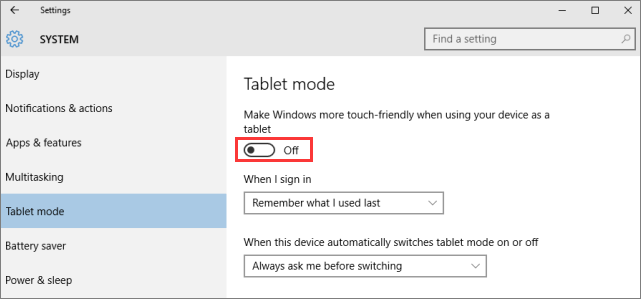
| Fix 3. Disable the Tablet Mode | Open "Settings", click "System", then select "Tablet mode" from the left pane and toggle it off. This should make your desktop icons visible again.Full steps |
| Fix 4. Recover Missing Desktop Files | Run Deep Data Recovery, select location to scan lost folder...Full steps |
Quick Fixes for "Desktop Icons Are Missing in Windows 10"
There are three possible ways listed on this page. You can try them one by one to check which one can help you get the missing Windows 10 desktop icons back.
Step 1. Enabling the Desktop Icons Visibility
- Click the "Start" menu and Search for "Settings".
- To change the theme in Windows 10, go to Settings, then click on "Personalization", and from there select the "Themes" tab from the left pane.
- To enable the visibility of desktop icons, click on "Desktop icon settings" to open the settings.
- Select the icons you want to show on the desktop and click "Apply" and "OK" buttons afterwards.
Step 2. Show All Windows Desktop Icons
- On the desktop, right-click your mouse and select "view".
- To show desktop icons, go to the View tab and check the box that says "Show desktop icons" at the bottom. If it's unchecked, click on it to mark it as checked.
- Then, you will get your missing icons back at once.
Step 3. Disable the Tablet Mode
Windows 10 has two types of modes: Desktop and Tablet. If Tablet mode is enabled, the Windows 10 desktop icons will be missing.
- To access the system settings, open the "Settings" app and click on the "System" option. This will allow you to make changes to your system settings.
- To resolve the issue of desktop icons being hidden, go to the left pane of the Settings window, click on "Tablet mode", and toggle it off. This should allow your desktop icons to become visible again. Once done, close the Settings window and verify if your desktop icons are now visible.
How to Recover All Missing Desktop Files
Files can easily get lost when desktop icons disappear, and other issues like hard drive formatting, OS crashes, viruses, or storage media corruption can also lead to data loss. However, with an effective file recovery tool, you don't have to worry. Qiling data recovery software is particularly useful in difficult circumstances, allowing you to recover deleted, formatted, or inaccessible data in various data loss cases.
Step 1. Launch Deep Data Recovery in Windows 11/10/8/7. Choose file types and click "Fast Scan" to begin the recovery process.
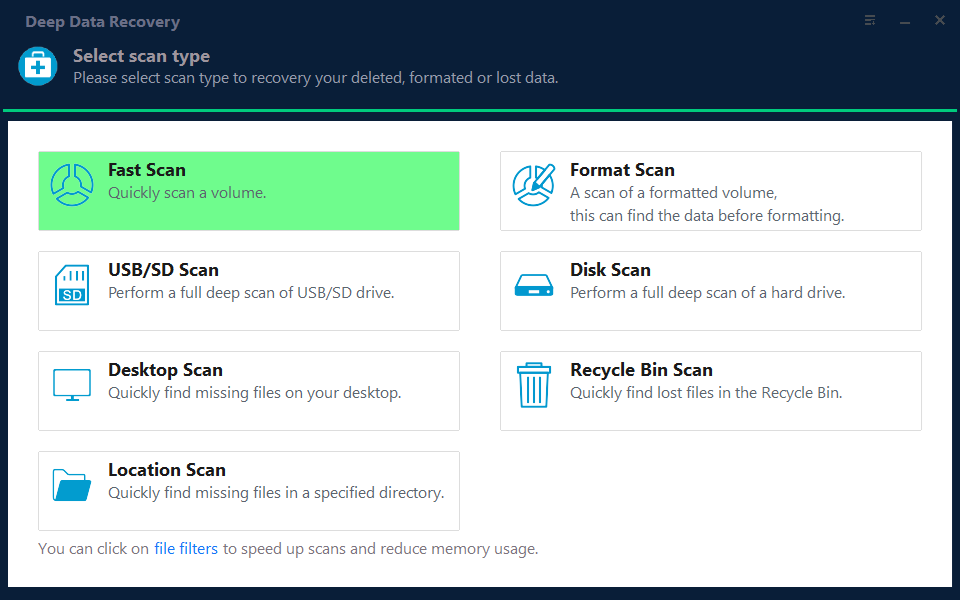
Note: You can choose different search modes based on where and why the data was lost.
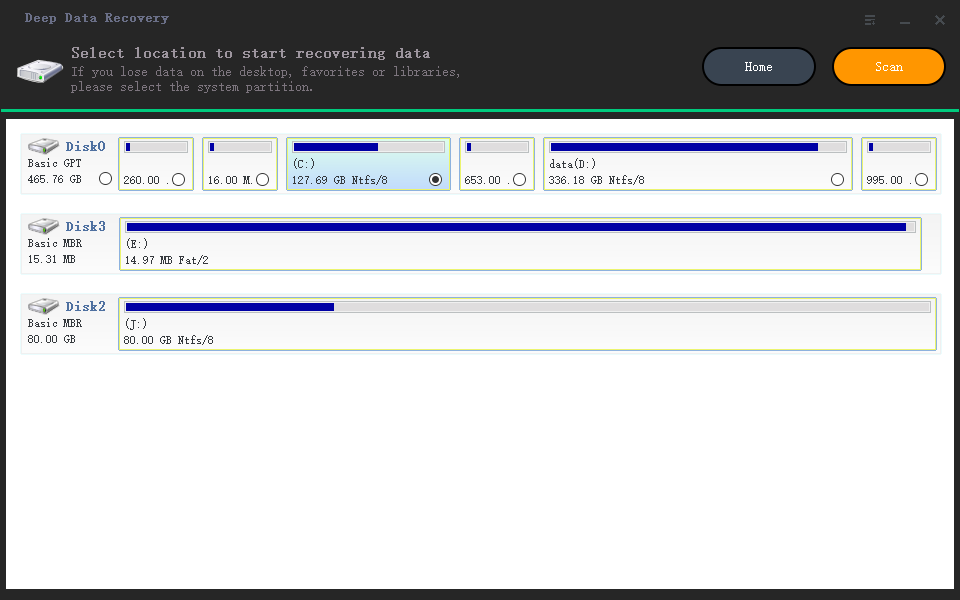
Step 2. Choose the place where you lost data. Then, click "Scan".
Step 3. After scanning, use the file format filter on the left or upper right corner to find the files you need, and then click the "Preview" button or double-click a file to view its content.
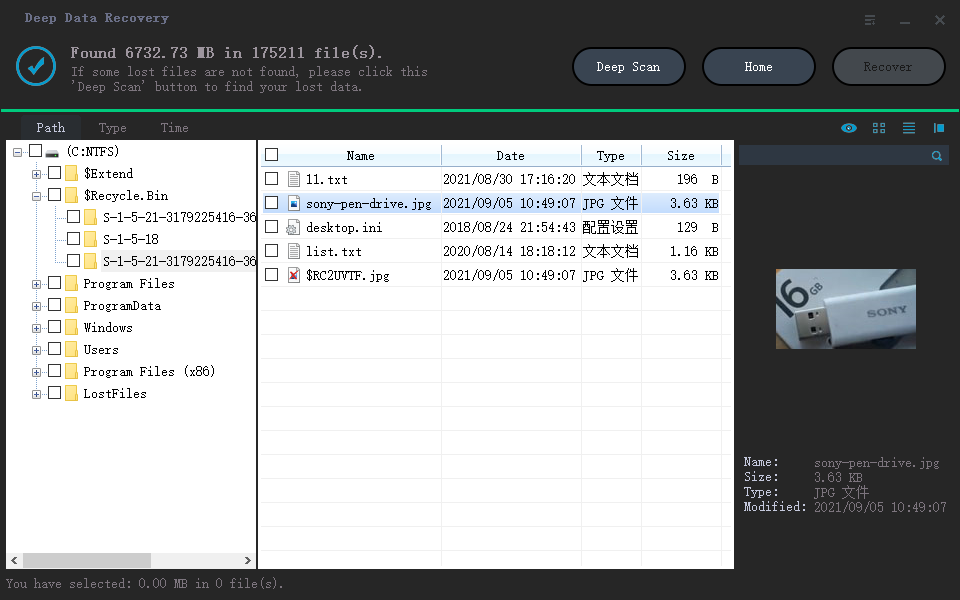
Step 4. To recover lost data, select the file that was lost, check the box next to it, and click the "Recover" button to restore the data to a secure location.
Related Articles
- How to Fix/Remove Bad Image Error Windows 10
- [Tips] AutoSave Is Greyed Out or Not Working in Office, Word, Excel
- Fix 'DCIM Folder Shows Empty But Not' Error on PC/Android/iPhone
- Fix and Repair Volume Shadow Copy Service Not Working Error in Windows 10
- How to Change Your IP Address on Computer
This guide will teach you how to change your IP address on a computer, whether a Mac or Windows system. In addition, you will learn how to change your public IP address when you need to. - How to Change Partition to Primary Using Diskpart
A primary partition is a partition on your hard drive or an SSD that contains Windows operating system and all the other important files and data. This article teaches you how to change partition to primary using Diskpart and provides a quick and easier way for you to change partition to primary.
Products
Articles & Tutorials
- Data Recovery
- Data Backup
- File Recovery
- File Backup
- System Backup and Restore
- Disk and Partition Clone
- Technical articles
- Mobile articles
- Disk Master Help
- Windows Data Recovery Tutorials
- Windows Secure Delete Tutorials
- Windows Partition Management Tutorials
- Windows File Backup and Restore Tutorials
- Windows System Backup and Restore Tutorials
- Windows Disk Backup and Restore Tutorials
- Windows Clone Tutorials