How to Fix Slow USB Transfer Speed and Speed Up USB in Windows 10/8/7
- Reading Duration:3-5 minutes.
- Applies to:To boost USB transfer speed, consider using a high-speed USB cable and a compatible device. Additionally, ensure that the device and computer are properly connected and that the USB port is functioning correctly.
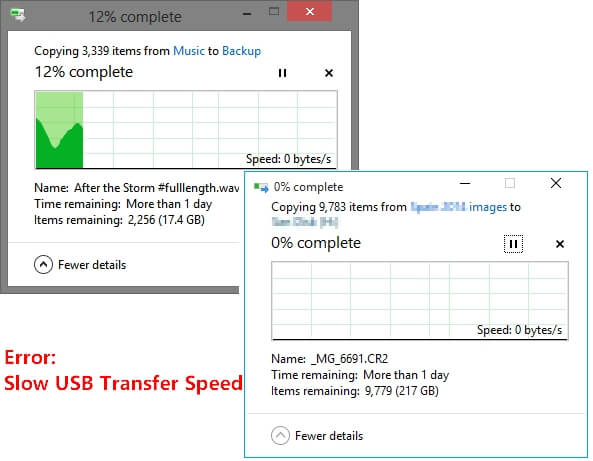
To speed up USB transfer, try closing unnecessary programs, disabling antivirus software, and ensuring the USB drive is properly connected. You can also try using a USB 3.0 port or a faster USB drive. If you're still experiencing issues, check for any software or driver updates, and consider using a transfer software like TeraCopy or Copy Handler. Additionally, you can try transferring files in a different order or using a different file system, such as exFAT instead of NTFS. If none of these solutions work, you may want to consider using a different USB drive or a cloud storage service.
"USB transfer speed slow" is a common issue that can be frustrating for users. To resolve this, Windows 10/8/7 users can try 6 ways to speed up the USB transfer rate:
| Workable Solutions | Step-by-step Troubleshooting |
|---|---|
| Fix 1. Connect USB to Rear Port | Unplug USB and connect it to the rear port...Full steps |
| Fix 2. Recover Data and Format USB | Recover data and format USB to improve speed...Full steps |
| Fix 3. Convert FAT32 to NTFS | Open CMD, type convert E: /fs:ntfs...Full steps |
| Fix 4. Optimize the Performance | Enter Device Manager, update your USB drivers...Full steps |
| Fix 5. Update USB/Chipset Drivers | In Device Manager, update USB/chipset drivers...Full steps |
| Fix 6. Enable USB 3.0 in BIOS | Connect USB, restart PC, press F2, enter BIOS...Full steps |
Overview of Slow USB Transfer Speed (Causes & Symptoms)
Generally, the USB transfer speed will slow down when you have one of the following issues:
- Unstable power supply in the USB port.
- Bad sectors slow down USB.
- USB file system slows in transferring big files.
- USB port is old, not compatible with a new USB drive.
- USB drive gets full, slows down in transferring files.
To determine if your USB is transferring at a normal speed or a slow one, you can check the following: If it takes more than 10-15 seconds to transfer a 1GB file, it's likely slow. Additionally, if you're transferring files to an external drive or another computer, and it's taking significantly longer than usual, it might be a sign of a slow USB. You can also try transferring files to a different USB port or using a different USB cable to rule out any issues with the current setup.
| #1. If USB has the below symptoms: | #2. If USB is slower than its stipulated transfer rate: |
|
|
USB 3.0 has a minimum transfer speed of 400MB per second, significantly faster than USB 2.0, which has a transfer speed of 35MB per second.
If your USB meets one of the conditions (frozen in transferring files or doesn't reach its average speed), it's likely experiencing a slow data transfer rate.
How to Speed Up USB Transfer Rate in Windows 10/8/7 (6 Fixes)
Applies to: To improve USB transfer speeds on Windows 10, consider addressing inconsistent speeds and upgrading to faster USB-C or USB 3.0 connections. You can try to speed up USB transfer speeds by fixing issues with your current setup, such as slow USB 3.
To boost the file transfer speed on your USB, try the recommended tips one by one. You can successfully increase the transfer speed of a USB on Windows 10/8/7 on your own.
Method 1. Change USB Port, Connect Your USB to Rear Port (for Desktop Only)
When transferring files, it's common to use the front ports on a desktop computer to connect a USB device. However, the power supply of these front ports can become unstable over time, leading to a decrease in transfer speed.
Connecting a USB flash drive to a rear port on your computer can speed up transfer speeds by utilizing the motherboard's more stable power supply, which is soldered directly onto the motherboard.
To connect a USB device to the rear port and speed up USB file transfer, you can use a USB extension cable or a USB hub to connect the device to the rear port, which can help distribute the workload and increase the transfer speed. Alternatively, you can also use a USB 3.
Step 1. Cancel the transferring process first.
- Important
- If you're experiencing issues with transferring files via Copy + Paste and get stuck, try canceling the transfer and restarting your USB immediately. This should help resolve the issue and speed up the transfer process.
- If you used Cut + Paste to transfer data, you may lose data if you cancel the process. To avoid this, first recover the data with data recovery software, then transfer it using Cut + Paste.
Step 2.Right-click to eject the USB drive from the taskbar.
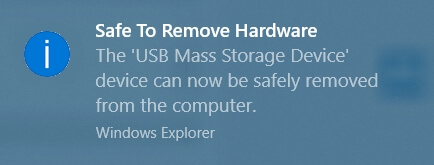
Step 3. Unplug the USB drive and reconnect it to a different USB port, such as the back (rear) USB port, to resolve the issue.
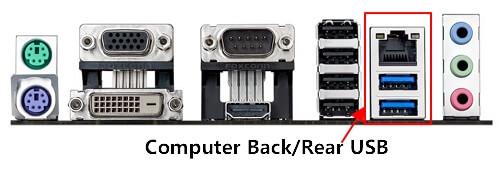
If you're experiencing slow file transfers or issues with external drives, try reconnecting them to a different USB port. This might resolve problems like the "please insert a disk into removable disk" error or an external hard drive light blinking but not working. After reconnection, retry transferring your files to see if the speed improves.
If you find it inconvenient, you can use a USB hub that also speeds up your USB transfers.
Method 2. Recover Data, Format to Fix Soft Bad Sectors and Speed Up USB
If your USB flash drive is slowing down due to soft bad sectors, the best solution is to recover your files from the drive and then format it to fix the bad sectors, which should help speed up the USB's performance.
To do so, you have two phrases to go:
#1. Recover and Get All Files Out of USB
Deep Data Recovery software can scan a USB drive and recover all data, using both quick and advanced scanning modes, making it a reliable option for disk recovery.
To speed up your USB's file transfer, start by recovering any existing files and data that may be lost. This will help declutter your USB and free up space for new files.
Step 1. Run Deep Data Recovery, select file types and click "USB/SD Scan"
To recover data from a USB drive, connect it to your computer and launch Qiling USB data recovery software. Select the file types you want to recover and click "USB/SD Scan" to begin the process.

Note: You can choose different search modes based on where and why the data was lost.
Step 2. Scan USB drive or pen drive
Select the drive labeled as an "External drive" and click "Scan" to begin searching for lost files.

Step 3. Scan and Search Lost Files on a USB Drive
Deep Data Recovery thoroughly scans a USB flash drive, finding all lost data, and then uses the Filter feature to locate specific files after the scan is complete.

Step 4. Restore All Lost Files from USB
A double-Click will allow you to preview the files. Select the target files to restore and click "Recover" to save them to a secure location on your PC or other external storage devices.
Save the recovered data to another secure location on your computer to ensure its safety and prevent any potential loss.
#2. Format to Fix Bad Sectors and Speed Up USB
Here are the steps to format a USB flash drive to fix soft bad sectors and speed it up:
- Step 1: Connect USB to your PC and open "This PC".
- Step 2: Locate and right-click on USB drive, select "Format".
- Step 3: To format a USB drive, select the file system as NTFS, click Start, check the box for Quick Format, and then click OK to finalize the formatting process.
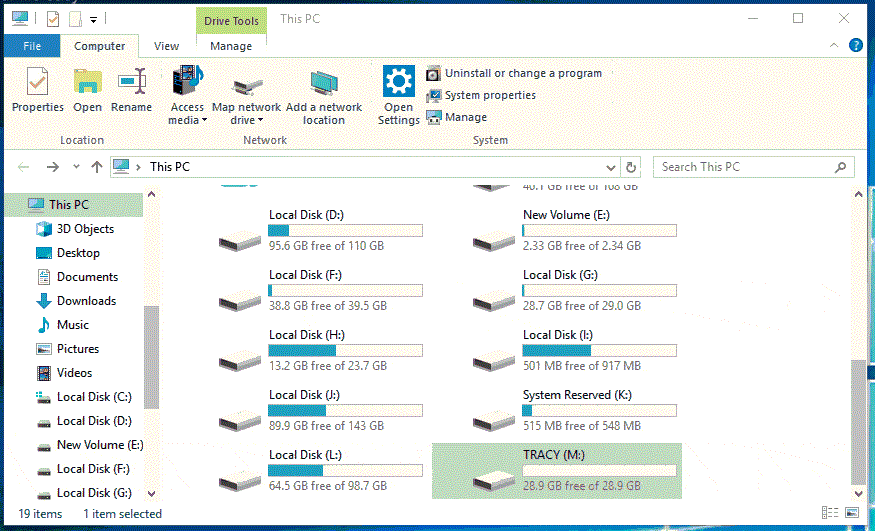
Once you've completed the process, you can close the format window and use your USB flash drive for faster file transfers. You can also save files back to your USB.
Method 3. Convert USB File System FAT32 to NTFS
Most USB flash drives are set to FAT32 for its high compatibility, but NTFS is a better option for file transfer speed, especially for large files over 4GB.
If your USB drive is currently formatted as FAT32, you can convert it to NTFS to potentially increase your transfer speed.
- Tip
- To prevent losing important files, use Qiling file backup software to back up all files from your USB drive to another storage device.
To convert a USB drive from FAT32 to NTFS, follow these steps. First, open the Command Prompt as an administrator.
- Step 1: Click on "Start" and enter cmd.
- Step 2: Right-click "Command Prompt" and choose "Run as administrator".
- Step 3: Type convert E: /fs:ntfs and hit "Enter". (Replace E: with the drive letter of your USB drive.)
Method 4. Optimize the Performance of USB
To optimize the performance of your USB flash drive, ensure it is properly formatted, update its firmware, try a different USB port or a USB 3.0 port if supported, and defragment the files on the drive if it has a file system.
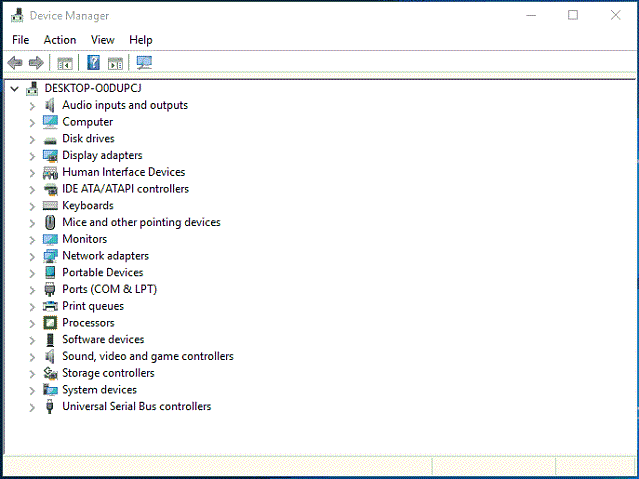
- Step 1: Right-click on the "Windows" icon and select "Device Manager".
- Step 2: To access the properties of your USB device, you need to expand the "Disk drives" section in the Device Manager, locate your USB device, right-click on it, and select the "Properties" option from the context menu.
- Step 3: To optimize and improve your USB transfer speed, go to the "Policies" tab, select "Better performance", and click "OK" to confirm.
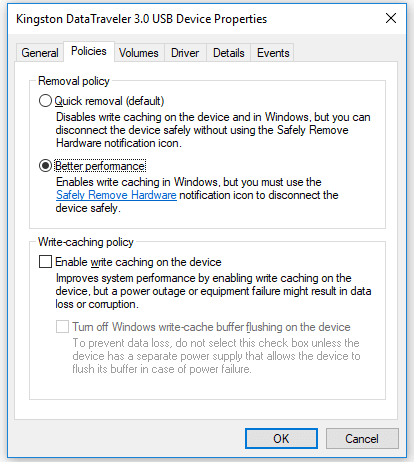
After you've completed the steps to enable write protection, you can reboot your computer and then you should be able to use your USB drive and get a faster transfer speed by then.
Method 5. Update USB Drive Driver or Its Chipset Drivers
If you're experiencing slow USB transfer speeds on your laptop, try updating the USB driver or the chipset driver, as the USB port is often connected to the chipset. This may help resolve the issue.
#1. To update USB driver:
- Step 1: To connect USB to a PC, you can right-click on "This PC" and select "Manage", then click on "Device Manager".
- Step 2: To update the driver for your USB drive, right-click on it and select the option to update the driver. This will allow Windows to search for and install any available updates for the drive.
- Step 3: Shoose "Scan automatically for updated driver software".
#2. To update the USB chipset driver:
- Step 1: Connect your USB to your PC, then right-click on the Windows icon and select "Device Manager" from the dropdown menu.
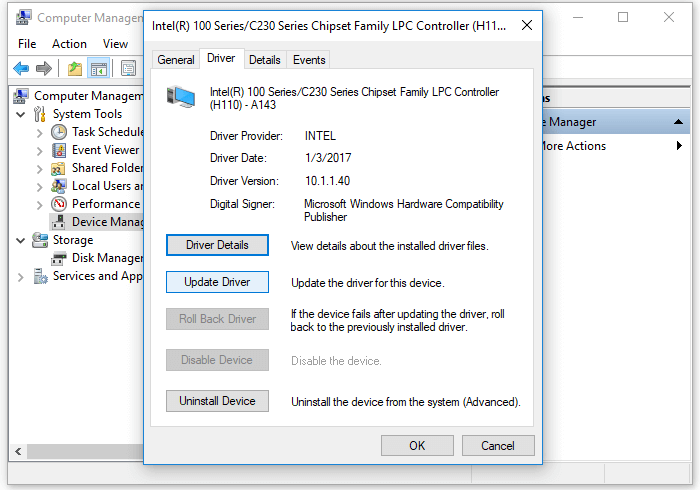
- Step 2: Expand "System devices" and double-click the Intel chipset device in the list.
- Step 3: Switch to the "Driver" tab and click "Update Driver".
Method 6. Enable USB 3.0 Drive in BIOS
If you have a USB 3.0 or 3.1 USB drive, but the transfer speed is slow, check that the USB 3.0 is enabled in your BIOS settings by default.
- Step 1:Restart your computer, press F2/Del keys to enter BIOS.
- Step 2: Use the left and right arrow keys in BIOS to choose the "Advanced" tab.
- Step 3: To change the USB configuration, use the up and down arrow keys to navigate to the "USB Configuration" option and press the "Enter" key to select it.
- Step 4: If the option "USB 3.0 (or 2.0) Support" is disabled, use the arrow keys to select it and press "Enter".
- Step 5: In the Options window, select "Enabled" and press "Enter".
- Step 6: Press "F10" to save the changes and exit BIOS.
After your computer boots into Windows, you can reconnect your USB for file transferring. If the USB support option was previously disabled, enabling it will significantly speed up your USB transfer.
The Bottom Line
Upgrading to a new computer with a compatible USB port is a wise choice, especially if your current USB port is outdated (e.g. USB 1.1) and your USB device is a higher version (e.g. USB 3.1 or higher). This mismatch can significantly slow down your USB speed, limiting its potential transfer speed of up to 400MB per second.
If your USB transfer speed is slow, the most effective way to boost it is by using Method 1, 2, and 4. Additionally, if you're still using USB 2.0, it's a good idea to switch to USB 3.0 for faster transfer speeds.
Before attempting to fix the USB slow transfer rate error, it's recommended to back up your USB file first. If you've lost data from your USB, a data recovery tool like Deep Data Recovery can help.
People Also Ask About USB Slow Transfer Speed
Some of you may have concerns about increasing USB transfer speed. To address this, here are some questions and their answers: What is the maximum data transfer speed of USB 3.0?
1. Why does USB transfer speed fluctuate?
The USB transfer speed can be affected by various factors, leading to fluctuations. These factors may include hardware limitations, software issues, and environmental conditions, among others. As a result, the transfer speed may vary significantly, making it difficult to achieve consistent results.
- Read/write speed differs between computer and USB.
- The size of the transferred files can vary, with smaller files being transferred more quickly.
- The USB port on your computer is typically a USB 2.0 port, which has a slower transfer rate than a USB 3.0 flash drive. This means that even if you have a USB 3.0 flash drive, it will only be able to transfer data at the speed of the USB 2.0 port on your computer, which can slow down the transfer process.
2. Does USB cable affect transfer speed?
The transfer speed of a USB is influenced by several key factors, including the type of USB connection (such as USB 2.0, 3.
- 1. USB type - USB 3.1/3.0/2.0
- 2. The speed of computer RAW and hard disk speed.
- 3. The CPU speed.
3. A 1GB file transferred on a USB 2.0 drive would take around 5-7 minutes, while on a USB 3.0 drive, it would take approximately 1-2 minutes. This is because USB 3.
The transfer speed of a 1GB file is significantly slower when transferred to a USB 2.0 device compared to a USB 3.0 device.
- Transfer 1GB files to USB 3.0 - 18 seconds;
- 1GB files can be transferred to a USB 2.0 drive in approximately 3 minutes and 18 seconds.
If a USB transfer stopped and some files vanished, check both sides of the interrupted transfer before retrying the copy.
Related Articles
- Fixed: System Image Restore Failed, Windows Cannot Restore a System Image in Windows 10/8/7
- Fixed: Chrome Browser Not Open/Working in Windows 10 Creator
- How to Backup OneNote in Windows 10 and How to Restore OneNote from Backup
- Fix Dropbox Not Syncing Error in Windows 10 [2022]
- How to Backup Windows to Box - Safe & Quick Solutions
Learn how to back up Windows files to Box safely. Use Box Drive, manual upload, or backup software to protect important data in the cloud. - How to Backup Windows XP to USB Drive? 2 Ways Recommended
To back up Windows XP to a USB drive, you can either use Qiling Disk Master to create a backup or utilize the Windows Backup Utility, which can be accessed through the Control Panel.
Products
Articles & Tutorials
- Data Recovery
- Data Backup
- File Recovery
- File Backup
- System Backup and Restore
- Disk and Partition Clone
- Technical articles
- Mobile articles
- Disk Master Help
- Windows Data Recovery Tutorials
- Windows Secure Delete Tutorials
- Windows Partition Management Tutorials
- Windows File Backup and Restore Tutorials
- Windows System Backup and Restore Tutorials
- Windows Disk Backup and Restore Tutorials
- Windows Clone Tutorials