Fix 'DCIM Folder Shows Empty But Not' Error on PC/Android/iPhone
| Workable Solutions | Step-by-step Troubleshooting |
|---|---|
| Fix 1. Troubleshoot on PC |
|
| Fix 2. Recover on iPhone | Make the DCIM folder detectable. Then, recover the empty DCIM folder with data recovery software...Full steps |
| Fix 3. Restore on Android phone | Use Android data recovery software to To restore the DCIM folder with all files, follow these steps: If the DCIM folder shows empty, it's likely that the files were deleted or moved. Check if the files are in the Recycle Bin or if they were moved to a different folder. If not, you can try using a file recovery software to scan for deleted files. If you have backups, restore the DCIM folder from the backup.Full steps |
The DCIM folder is showing empty
You can try deleting the DCIM folder on your Android phone to see if it resolves the issue. To do this, go to Settings > Storage > Internal Storage, then find the DCIM folder and delete it. This will likely cause your phone to recreate the folder and potentially restore the missing photos and videos. Alternatively, you can also try checking the camera app settings to see if there's an option to save photos to the DCIM folder.
If your DCIM folder is showing as empty on your computer after connecting your phone, it's possible that the photos and videos haven't been transferred yet or are being synced. Check your phone's storage and ensure that the DCIM folder is not empty on your phone. If the folder is empty on your phone, you might need to manually transfer the files from your phone to your computer. If the folder is not empty on your phone, try restarting your computer and phone, then reconnect your phone to your computer to see if the files sync over.
If your DCIM folder is empty on both your phone and PC, don't worry - it's an issue many users face. To restore your DCIM folder files, follow the methods below to retrieve your lost photos and videos.
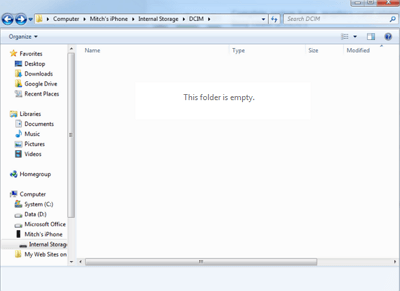
Part 1. Fix Camera/SD/Memory Card DCIM folder shows empty on PC error
If the DCIM folder appears empty on your camera memory card or cell phone SD card, but your PC still detects nothing, don't worry. You can try two methods to find and restore files:
Method 1. Show hidden files in Camera/SD card DCIM folder on PC
If the DCIM folder appears empty, you can try using a cmd command to display hidden files within the folder.
1. Plug in your memory card to your PC.
2. You can access the Command Prompt by searching for "cmd" in the search bar, hitting enter, and then seeing the "cmd.exe" program listed under programs.
3. To recover hidden files, right-click on "cmd.exe" and select it to open the command window, which will allow you to recover hidden files.
4. To remove hidden, read-only, and system attributes from all files and subfolders on your SD card, type the following command in Command Prompt, replacing "G:" with the drive letter of your SD card: `attrib -h -r -s /s /d G:\*.*` .
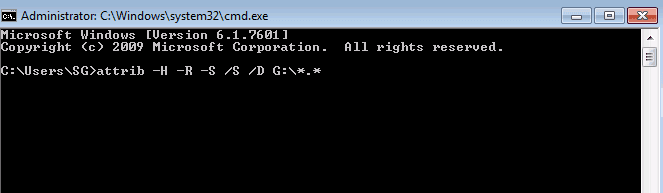
Then you should be able to view and see files in the DCIM folder by then.
Method 2. Restore missing photos/videos from empty DCIM folder on SD/memory card
If you're looking for a more straightforward way to recover your Qiling files, consider using a professional data recovery tool. This software can help you recover your files by doing the following things:
- Recover deleted, formatted, and inaccessible data in various data loss situations, including accidental deletion, formatting, virus attacks, and hardware failure.
- Recover photos, audio, music, and emails from any storage effectively, safely, and completely.
- Data recovery software can be used to recover data from various devices and storage media, including the recycle bin, hard drive, memory card, flash drive, digital camera, and camcorder. This software can help retrieve deleted, lost, or corrupted files and data, even if they have been emptied from the recycle bin or formatted from the hard drive. The software can scan the device or storage media, identify the recoverable data, and recover it to a safe location.
You can easily restore photos, videos, and other files from your DCIM folder on the camera or Android phone memory card using this tool. The process is straightforward, requiring just 3 simple steps:
Step 1. To recover data, launch Deep Data Recovery and select the desired file types, then click "Fast Scan" to initiate the recovery process.

Note: You can choose different search modes based on where and why the data was lost.
Step 2. Choose the place where you lost data. Then, click "Scan".

Step 3. After scanning, use the file format filter to find the desired files, and then click the "Preview" button or double-click a file to view its content.

Step 4. To recover lost data, select the file that needs to be recovered, check the box next to it, and then click the "Recover" button to restore the file to a safe location.
Part 2. Fix iPhone DCIM folder shows empty error
Here's how to make the empty DCIM folder image files invisible on your iPhone when it's locked: You can connect your iPhone to a computer and copy the DCIM folder after the iPhone storage is showing up. If the iPhone screen was locked while you plug it into your computer, the DCIM folder that typically contains all the pictures on your camera roll will be empty. To make the empty DCIM folder image files invisible, you can simply delete the empty DCIM folder from your computer, and then sync your iPhone with your computer to update the DCIM folder. This will make the empty DCIM folder image files invisible on your iPhone.
Step 1. Make the DCIM folder detectable
1. Plug your iPhone into your PC using a USB cable to see if the computer can detect the iPhone's storage. This is a simple troubleshooting step to check if the iPhone is recognized by the computer and if it's possible to transfer files between the two devices.
2. If not, unplug your iPhone and unlock your iPhone screen.
3. Plug the iPhone into your PC via another new USB port to make the DCIM folder detectable.
Step 2. Recover empty DCIM folder on iPhone with all saved photos, images, and videos
Once your computer can detect the DCIM folder, you can recover the empty folder with all its data restored.
If you're experiencing an empty DCIM folder issue, Qiling MobiSaver, a professional iOS data recovery software, can help you recover your photos and videos with just a few easy clicks.
Step 1. Connect iPhone to Your PC
To recover data from an iPhone, download and launch Qiling MobiSaver, then click "Recover from iOS device" on the left and finally click "Start".
Step 2. Scan for Lost iPhone/iPad/iPod Data
Qiling MobiSaver will automatically scan your devices, and find all the lost data for you, just wait for the scan to complete.
Step 3. Recover Lost iPhone/iPad/iPod Data
You can select the lost data you want to recover, such as photos, videos, contacts, SMS, notes, voice mails, and other files, and save them to a new location.
Part 3. Restore empty DCIM folder on Android phone
To restore the DCIM folder which shows empty on your Android phone, you can try the following steps:
If the DCIM folder is empty on your Android phone and is saved on the internal storage, you can use a data recovery software to restore the folder with all files.
Step 1. Connect your Android phone to the computer
Install and run Qiling MobiSaver for Android on your computer, then connect your Android phone to the computer with a USB cable. Once connected, click the "Start" button to allow the software to recognize and connect your device.
Step 2. Scan Android phone to find the lost data
After connecting your Android phone to the software, it will quickly scan the device to find all existing and lost data. You can easily locate the lost files you're looking for by selecting the correct file types.
Step 3. Preview and recover data from Android phone
After previewing all the recoverable files, quickly select the ones you want to recover and click the "Recover" button to get them back.
This app allows you to access and view all saved, deleted, and even hidden files on an Android phone, including photos, images, and videos, by directly accessing the DCIM folder and retrieving lost files.
Related Articles
- Access Denied When Copying Files Windows 10/8/7
- Fix MacBook Pro Shuts Down Randomly Error and Restore All Lost Data
- How to Recover Browser/Internet History?
- How to Increase Transfer Speed of External Hard Drive
- How to Clone a Partition to Another Drive on Windows 10?
How to clone a partition to another drive on Windows 10? Do you want to have the answer? This post will tell you how to clone your partition to another hard drive in Windows 10 PCs and offer a tool to help you. - How to Clone Hard Drive with Different Sector Size
If you're wondering how to clone a hard drive with different sector sizes, this guide includes can help. By the end of it, you'll know the process of cloning a hard drive with varying sector sizes.
Products
Articles & Tutorials
- Data Recovery
- Data Backup
- File Recovery
- File Backup
- System Backup and Restore
- Disk and Partition Clone
- Technical articles
- Mobile articles
- Disk Master Help
- Windows Data Recovery Tutorials
- Windows Secure Delete Tutorials
- Windows Partition Management Tutorials
- Windows File Backup and Restore Tutorials
- Windows System Backup and Restore Tutorials
- Windows Disk Backup and Restore Tutorials
- Windows Clone Tutorials