How to Recover Browser/Internet History?
Here are three methods to recover browser/internet history files: use DNS Cache to find deleted browsing history, use data recovery software to recover lost browsing history files, or recover deleted history by using Google history. These methods can be applied to all browsers, including Chrome, Firefox, IE, and Edge. Let's see how to recover lost or deleted browser internet history now.
Method 1: Use DNS Cache to find and view deleted browsing history
DNS can't restore deleted browsing history, but it can help with searches or history when the computer is on. If you need to restore browsing history, don't shut down or restart the computer, as this may still allow you to view the deleted history. However, this is only possible when everything is connected to the internet. If you need to restore browsing history for an app or video game, it's best to check the app's or game's own history or settings.
1. Press Windows + R, type cmd and click OK, or type cmd in Windows search bar.
2. Open Command Prompt, type ipconfig/displaydns and click Enter.
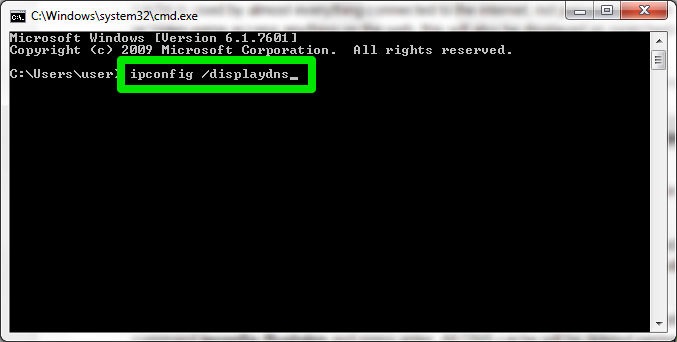
You can view your recent browsing history by accessing your browser's history feature, which displays all the websites you've visited recently. This allows you to easily find and revisit important websites that you've previously looked at.
Method 2: Use data recovery software to recover lost browsing history files
If you don't know where to find your saved computer browsing history, please follow next path to see whether the history files are deleted or not now:
Google Chrome: C:\Users\(username)\AppData\Local\Google\Chrome\User Data\Default\local storage
Mozilla Firefox: C:\Users\(username)\AppData\Roaming\Mozilla\Firefox\Profiles\
Internet Explorer: C:\Users\(username)\AppData\Local\Microsoft\Windows\History
If you save your browser history as files on your computer, deleting it from the browser will also delete the files from your computer. However, you can still recover the deleted history files using professional data recovery software, giving you a chance to restore them.
We recommend trying Deep Data Recovery to recover deleted files, including browsing history data, without any obstacles. The software can be used in just three steps: launch the software, choose the location and scan, and then recover the found browser/internet history data.

Method 3. Recover deleted browsing history from Google History
If you have a Google Account and are logged in when browsing websites, you'll likely have a record of your browsing history, including all pages visited, even after deleting it from your browser. This is because Google stores all browsing history, including devices attached to your account, in their Google History.
Go to Google History, sign in with Google account.
When you access your browser's internet history, all the websites you've visited will be displayed along with the date and time of each visit.
If you've carelessly deleted important history bookmarks or lost important websites, don't worry. You can recover your browser/internet history files and data without any obstacles by following the steps outlined in this article. Qiling software can guide you through the process.
Extra Tip: Restoring deleted/lost Chrome history on Android phone
If you have Google sync turned on, you can easily retrieve your lost browsing history on Android. If not, you can check your browser's history folder or use a third-party app to recover deleted history. If you're still unable to find it, you can try checking your Google account's history.
1. Open a webpage in Chrome;
2. Open this page: https://www.google.com/settings/...
3. Scroll down to Chrome Bookmarks in your Google account to view all your saved bookmarks.
Google Chrome stores all your browsing history, bookmarks, and app data in the browser. This data can be accessed through the Chrome settings.
Related Articles
- How to Fix PS4 Safe Mode Loop Without Losing Data
- How to Backup Sticky Notes Windows 11 [Step-by-Step Guide]
- Disk Boot Failure - Insert System Disk and Press Enter in Windows 10
- How to Fix Windows 10 Update with Error Code 0x800F0922 Issue
- What Is MBR2GPT and How to Use It on Windows 10 [Full]
MBR2GPT is a Windows utility that converts MBR disks to GPT format without data loss, making it easy to upgrade legacy BIOS systems to UEFI. - What Is Wuauserv and How to Fix Wuauserv High CPU Usage? [Updated 2023]
This article introduces you to the Wuauserv or the Windows Update Service utility. If you are a user-facing high CPU usage due to these services, the article is a perfect overview of the fixes that can be used to resolve the problem.
Products
Articles & Tutorials
- Data Recovery
- Data Backup
- File Recovery
- File Backup
- System Backup and Restore
- Disk and Partition Clone
- Technical articles
- Mobile articles
- Disk Master Help
- Windows Data Recovery Tutorials
- Windows Secure Delete Tutorials
- Windows Partition Management Tutorials
- Windows File Backup and Restore Tutorials
- Windows System Backup and Restore Tutorials
- Windows Disk Backup and Restore Tutorials
- Windows Clone Tutorials