Microsoft's Windows File Recovery Tool Full Review
| Workable Solutions | Step-by-step Troubleshooting |
|---|---|
| What Is Windows File Recovery | You may use Windows File Recovery the tool to scan and recover previously deleted files...Full steps |
| The Main Features of Windows File Recovery | Some of its better features may be found here for anybody who wants to utilize it. Several Recovery Modes...Full steps |
| Microsoft's Windows File Recovery Tool Download | Use the Microsoft Store to download and install Windows File Recovery tool to recover data...Full steps |
| How to Use Windows File Recovery to Recover Deleted Files | The Windows PowerShell (Admin) menu may be accessed by right-clicking on the "Start" button...Full steps |
| Deep Data Recovery -- an Alternative Today | Deep Data Recovery is the finest partition recovery software available today...Full steps |
Microsoft has finally entered the data recovery software market, surprising some with the delay, but not others who expected the tech giant to eventually make a move into this space.
Windows File Recovery is a free application that uses various recovery techniques to recover different file formats, comparing favorably to other rehabilitation methods that have been used for years in terms of features and functions.

What Is Windows File Recovery
Microsoft's Windows 10 file recovery solution, Windows File Recovery, was initially published in 2020. It requires Windows 10 build 19041 or later, so you may need to check your version and upgrade if necessary.
Windows File Recovery allows you to search the file system for previously deleted files, using various scanning options, and recover files from USB flash drives, hard drives, and solid-state drives (SSDs).
The May 2020 Update for Windows 10 or Windows 11 is required for this utility, as Windows XP and earlier versions are not compatible. Microsoft's program's ability to locate and recover a deleted file depends on the storage device.
The Main Features of Windows File Recovery
This tool appears to be geared towards individuals with a technical background, rather than focusing on aesthetics. Its features may be more suited for those who want to use it.
Several Recovery Modes
Regular and Extensive modes are available depending on your file system and conditions. You can further reduce it using NTFS, Segment, or Signature modes.
Multiple File Systems Support
The program allows users to choose from various recovery modes, supporting file systems such as NTFS, FAT, exFAT, and ReFS.
Supports Different File Types
This tool can recover a wide range of digital files, including photos, documents, movies, and more.
Support for Different Types of Hard Drives
Microsoft states that data may be recovered from internal and external disks, USB storage devices, SD cards, and other types of flash storage.
Pros:
- Completely free to use for Windows users
- You can filter based on file type
- Include various recovery modes of file
- Supports multiple storage media
- Compatible with multiple file systems
Cons:
- May not recover all the files
- Many files don't appear that were lost a while ago
Microsoft's Windows File Recovery Tool Download
To download and install Windows File Recovery, go to the Microsoft Store, search for Windows File Recovery, and select the app to download and install.
Step 1. To search for the Microsoft Store, enter "Microsoft Store" in the search bar located at the bottom-left of the screen.
Step 2.Microsoft's app store will appear in the search results. Press "Enter" to get started.
Step 3.To download a desired application from the search results list, click on the "Get" button.
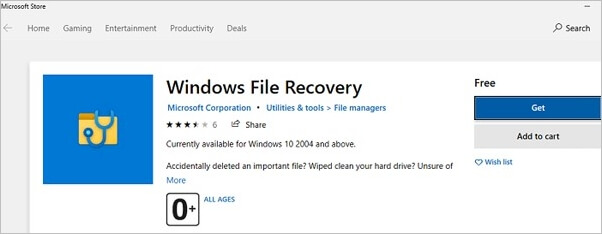
Step 4. It will begin downloading when this is completed. The "Start" menu will show Windows File Recovery once you've downloaded it.
Note: It's normal for new apps to show up in the "Recently Added" list.
How to Use Windows File Recovery to Recover Deleted Files
To begin making use of the application, you should:
Step 1.The Windows PowerShell (Admin) menu can be accessed by right-clicking on the "Start" button.
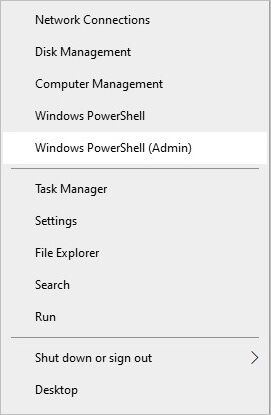
Step 2.In the new window shown, begin Windows File Recovery by entering the command "winfr" followed by the "Enter" key on your keyboard.
How to Recover a File in Default Mode?
Use /n to go back to the default search route.
You can use the "/n" command to search for a file by name or path, for example "/n document.docx" or "/n UsersBobDocumentsdocument.docx".
Users\Bob\Documents would be used to search for all files in the Documents folder if your username is Bob. This is a common notation in Windows, where "Users" is a system folder containing all user accounts, and "Bob" is the username, making "Users\Bob\Documents" the path to the Documents folder of the user account "Bob".
The asterisk (*) is used as a wildcard in a search, allowing you to find files that match a pattern. For example, searching for "UsersBobDocuments*.docx" will return all files with the .docx extension in that directory, regardless of their actual name.
To find all DOCX files on drive C: and transfer them to drive D:, you would use a command to accomplish this task.
winfr C: D: /n *.docx
To proceed, you will need to write "y."
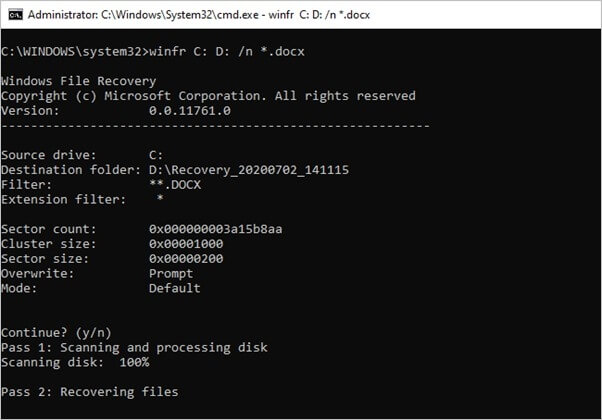
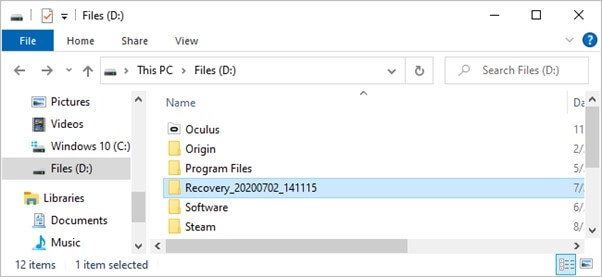
The recovered data will be saved on the disk you specified in the command line, in a folder named "Recovery [date and time]".
You can use wildcards to find files containing a specific term in their name. To find all papers with the word "project" in their title, you can use the command:
winfr C: D: /n *project*
To locate all Microsoft Office documents, use the /n switch multiple times in a search to specify numerous searches. For example, you can search for files with the following extensions: /n .docx /n .
winfr C: D: /n *.docx /n *.xlsx /n *.pptx
The command to access the file "important document.pdf" from the Documents folder on disk C: would be: `C:\Users\Bob\Documents\important document.pdf`
winfr C: D: /n UsersBobDocumentsimportant_document.pdf
How to Recover a File in Segment Mode?
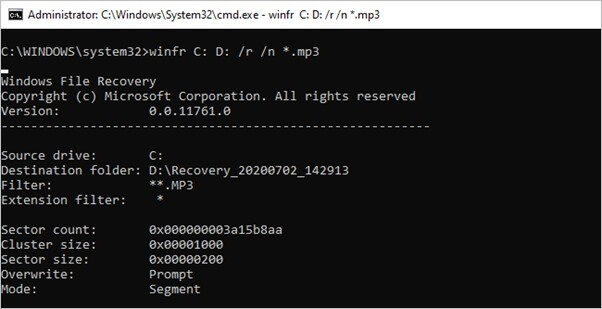
The functionality of Segment mode is similar to Default mode, but with the added requirement of using /r to access it, which analyzes individual record segments within a file, in addition to using /n.
To recover from Segment mode, you can build instructions in the same way you construct commands for Default mode, simply by adding /r at the end of the command.
You can recover deleted MP3 files from your C: drive to your D: drive using the following command: `undelete /d D: /f MP3 /s C:`. This command will search the C: drive for deleted MP3 files and save them to the D: drive.
winfr C: D: /r /n *.mp3
If you don't find what you're looking for in a search using the Default mode, try adding the /r to your search terms and try again.
How to Recover a File in Signature Mode?
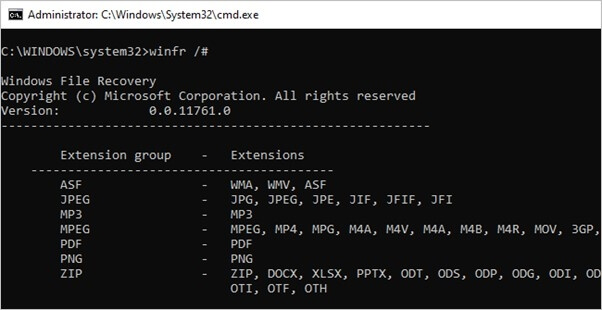
Signature mode is a different way of searching compared to normal mode. It focuses on specific file types and looks for deleted files that match those types. Users can search for particular file types using the /x: command followed by the file type, and then use the /y: command to specify a list of file groups to search within.
Microsoft's documentation supports a wide range of file formats, categorized into various categories, including documents (.docx, .doc).
- ASF: wma, wmv, asf
- JPEG: jpg, jpeg, jpe, jif, jfif, jfi
- MP3: mp3
- MPEG is a compression standard that supports various formats, including mpeg, mp4, mpg, m4a, m4v, m4b, m4r, mov, 3gp, and qt. These formats are used for storing and playing back audio and video content, and are widely used in various applications, such as video streaming, online media, and digital media players.
- PDF: pdf
- PNG: png
- You can upload files with the following extensions: zip, docx, xlsx, pptx, odt, ods, odp, odg, odi, odf, odc, odm, ott, otg, otp, ots, otc, oti, otf, oth.
ZIP files are also included in addition to Microsoft Office and OpenDocument files in the "ZIP" category.
Any time, you may use the following command to get access to this list:
winfr /#
To search drive E: for JPEG photographs and store them on drive D:, you would run the command: `copy E:\*.jpg D:\`.
winfr E: D: /x /y:JPEG
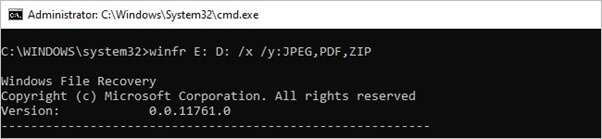
To locate JPEG images, PDFs, and Word documents, you can define multiple file groups by separating each with a space in the command line interface. For example, you would run a command like this: `find . -type f -name "*.
winfr E: D: /x /y:JPEG,PDF,ZIP
Deep Data Recovery -- an Alternative Today
Windows File Recovery is a tool that could be improved, particularly due to its lack of a graphical user interface, making it difficult to use. Additionally, manually entering commands in a Windows PowerShell environment is a time-consuming and cumbersome process.
Deep Data Recovery is the finest partition recovery software available today, capable of repairing damaged or corrupt JPEG/JPG images on various storage media, including hard disks, SD cards, memory cards, and more, with an easy-to-use interface.
After scanning, you can preview the corrected images to confirm they meet your standards before saving them. You can also extract and improve .jpeg/.jpeg thumbnails and export them.
Main Features of Deep Data Recovery:
- Unlimited data can be recovered.
- Before the recovery, preview the files.
- Data may be recovered from a RAW or a hidden partition.
Conclusion
Microsoft has developed Windows File Recovery, a tool that has pleased some users, but others are skeptical about its effectiveness and whether it was truly necessary. Nonetheless, it remains a useful small utility on your computer.
If you're not satisfied with the results, we recommend using Deep Data Recovery, which is excellent at recovering all files, documents, pictures, and hard drive data. Let us know your choice.
If the command-line workflow is difficult to follow, compare it with a graphical recovery workflow while keeping the same separate-destination precaution.
Related Articles
- Top 6 Best Data Recovery Services
- [Solved] USB Pen Drive Not Showing Data, Files, and Folders
- Fix Unspecified Error When Copying File or Folder on Windows 10
- How to Recover Corrupted Macro Enabled Excel File with Top 5 Ways
- Fixed: Windows 10 Freezes While Copying Files, No Data Loss
If your Windows PC freezes or hangs when copying files from one hard drive to another, as there are reliable methods available to help resolve the issue. - Fix Command Cannot Be Performed Because a Dialog Box is Open
To resolve the error message “Command cannot be performed because a dialog box is open” when running an older version of Microsoft Word on Windows 10, follow these steps: click “OK” on the error message, then close any open dialog boxes in Word.
Products
Articles & Tutorials
- Data Recovery
- Data Backup
- File Recovery
- File Backup
- System Backup and Restore
- Disk and Partition Clone
- Technical articles
- Mobile articles
- Disk Master Help
- Windows Data Recovery Tutorials
- Windows Secure Delete Tutorials
- Windows Partition Management Tutorials
- Windows File Backup and Restore Tutorials
- Windows System Backup and Restore Tutorials
- Windows Disk Backup and Restore Tutorials
- Windows Clone Tutorials