How to Fix Windows 11 Installation Stuck at 35%, 85%, 100%
If your laptop meets the Windows 11 requirements and you are part of the Windows Insider program in the dev channel, but you are stuck at 35% during the installation process with the updater showing "What needs your attention", try restarting the installation process. A simple reboot can often resolve the issue. If the problem persists, try checking for system updates or consider seeking further assistance from Microsoft support or the Windows Insider community forum.
| Workable Solutions | Step-by-step Troubleshooting |
|---|---|
| Disconnect Any Incompatible Devices |
Peripheral devices and incompatible programs are the main causes. When you are faced Windows 11 installation stuck error...Full steps |
| Uninstall Incompatible Programs |
Click "Start". Go to "Settings > Apps > Apps & features". Scroll down to find VMware Workstation...Full steps |
Windows 11 Update/Installation Stuck at 35%, 85%, 100%
Windows 11 is an upcoming major version of the Windows NT operating system developed by Microsoft. Before upgrading, you must check your Windows 11 requirements. You can get Windows 11 by either downloading the insider preview builder or by upgrading your system through the "Start > Settings > Update & security > Windows Update" section.
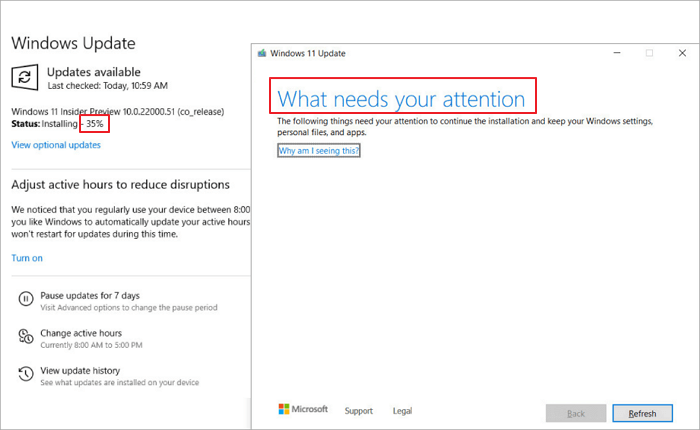
Some users have experienced issues with Windows 11 upgrades, with the installation getting stuck at 35% or 85% and prompting a "Windows 11 update that needs your attention" interface.
What Causes Windows 11 Installation Stuck at 35%, 85%, 100%
When upgrade installation is at 35 percent or 85 percent, an error pops up:
The following things need your attention to continue the installation and keep your Windows settings, personal files, and apps.
Why does this error happen? The possible causes are:
- Incompatible devices
- Incompatible Drivers
- Incompatible Games
- Incompatible Programs
- Waste files
| Incompatible Programs | Incompatible Devices |
|---|---|
|
|
How to Fix Windows 11 Update/Installation Stuck at 35%, 85%, 100%
Upgrading to Windows 11 can be a smooth process, but it's not always successful. Users may encounter various Windows update errors, including the installation getting stuck. If you're experiencing issues with the upgrade process, you may need to troubleshoot or seek further assistance to resolve the problem.
If your Windows 11 installation is stuck at 35%, you have two methods to resolve the issue. Firstly, you can try restarting the installation process by clicking on the 'Restart' button on the installation screen.
Method 1. Disconnect Any Incompatible Devices on Your Computer
When Windows 11 installation gets stuck, the main culprits are usually peripheral devices and incompatible programs. To resolve the issue, disconnect any non-essential external hardware to prevent conflicts and allow the installation to proceed smoothly.
What can you disconnect? Here are they:
- Bluetooth receivers of Mouse and Keyboards
- External hard drives
- Printers
- Scanners
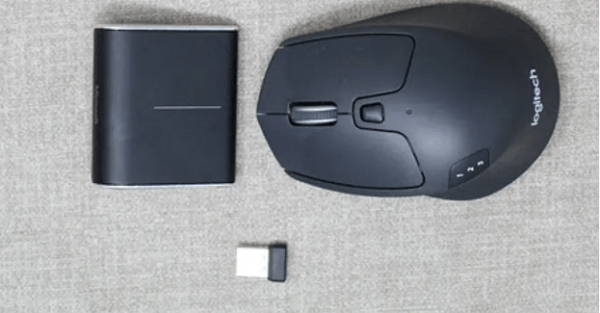
To resolve the Windows 11 installation issue, click on the "Refresh" button on the Update What needs your attention interface, and then check if the installation proceeds smoothly.
Method 2. Remove/Uninstall Incompatible Programs from Your PC
If the error persists, you need to manually find and remove the incompatible programs and files on your computer. This may involve uninstalling programs such as VMware Workstation Player, VirtualBox, and others.
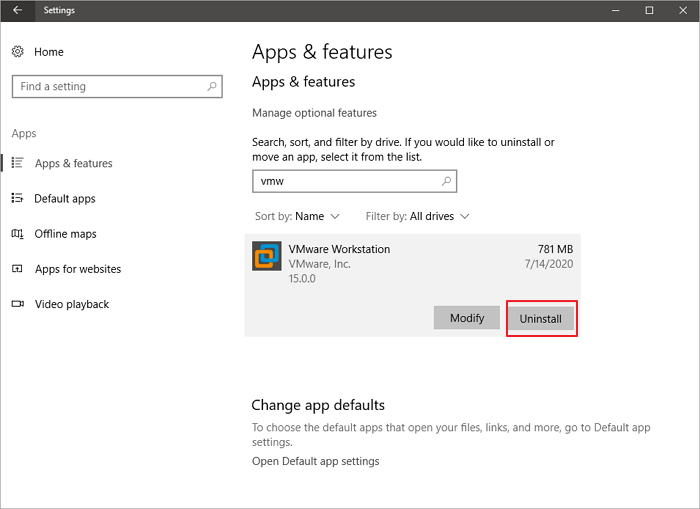
To Uninstall VMware Workstation Player:
Step 1. Click "Start".
Step 2. Go to "Settings > Apps > Apps & features".
Step 3. To continue, scroll down and click on the VMware Workstation Player to proceed.
Step 4. Click the "Uninstall" button to uninstall it from your computer.
To Remove Virtualbox.exe:
Step 1. To open the Control Panel, click on the Start Menu, type "Control Panel" in the search bar, and then click on it in the search results.
Step 2. To uninstall Virtualbox, go to the "Control Panel" > "Programs" > "Uninstall a program" section, find Virtualbox in the list, and right-click on it. This will open the uninstallation process, allowing you to remove Virtualbox from your system.
Step 3. Click "Uninstall/Change" and click "OK".
To successfully complete the Windows 11 installation process, after encountering the issue with the Windows 11 installation media, you can try using the Windows 11 installation media in a different USB port, and if that doesn't work, you can try using a different USB drive. If you're still having trouble, you can try using the Windows 11 installation media in a different computer to see if the issue is with the computer or the installation media.
How to Recover Data After Windows 11 Update
If you've lost important files after upgrading to Windows 11, you can recover them using Qiling hard disk data recovery software. This all-in-one tool has helped millions of people restore lost data from Windows 11/10/8.1/8/7/XP.
Windows 11 Data Recovery Software
- Use a data recovery software like Deep Data Recovery, Disk Drill, or Recuva to recover data from an SD card, USB flash drive, hard drive, memory card, and more. Simply connect the device to your computer, select the drive, and follow the software's instructions to scan and recover your files.
- In Windows 11, data recovery is possible after deleting, formatting, and system crashes. This can be achieved using various methods, including using built-in tools, third-party software, and manual recovery techniques.
- Recover lost photos, videos, music files, Word documents, Excel files, and more with our efficient data recovery service.
Download this data recovery software and recover data on a Windows 11 PC.
Step 1. Select file types
Launch Deep Data Recovery. Select file types and click "Fast Scan" to initiate the recovery process.

Note: You can choose different search modes based on where and why the data was lost.
Step 2. Select a location and start scanning
Choose the partition where you lost data. Then, click "Scan".

Step 3. Filter and preview files
Use the file format filter on the left or upper right corner to find the specific files you need, then click the "Preview" button or double-click a file to preview its content.

Step 4. Recover lost data or files
To recover lost data, select the file, check the box next to it, and click "Recover" to restore the lost data to a secure location.
Conclusion
If you're experiencing issues with Windows 11 installation getting stuck at 35%, 85%, or 100%, try the solutions provided, such as checking for BIOS updates, running the installation in safe mode, or using the Windows 11 installation media to reinstall. If you encounter data loss during the process, consider seeking assistance from Deep Data Recovery.
Related Articles
- What to Do When Computer Says Invalid System Disk Replace the Disk Windows 10/8/7
- Top 10 Best Free Data Recovery Software
- Download Microsoft Word Document Recovery Software to Recover Word Files
- Free Download MySQL Recovery Tool to Recover MySQL Database
- Fix Exracted Files or Files Not Showing in Folder Windows 10
Here are four solutions to resolve the issue of files not showing up in folder or extracted files not showing up in Windows 10: Try to check the file type association, reset the File Explorer, check for corrupted system files, and run a full. - How to Fix Inaccessible Boot Device (Stop Code 0x0000007b)
The Inaccessible Boot Device error code 0x0000007b is a common Blue Screen of Death issue that often occurs on Windows 10 computers and laptops.
Products
Articles & Tutorials
- Data Recovery
- Data Backup
- File Recovery
- File Backup
- System Backup and Restore
- Disk and Partition Clone
- Technical articles
- Mobile articles
- Disk Master Help
- Windows Data Recovery Tutorials
- Windows Secure Delete Tutorials
- Windows Partition Management Tutorials
- Windows File Backup and Restore Tutorials
- Windows System Backup and Restore Tutorials
- Windows Disk Backup and Restore Tutorials
- Windows Clone Tutorials