[Solved] - Window 10 Quick Access Files/Folders Missing
Quick Access Files/Folders Missing
Case 1. To resolve the issue of missing files and folders in Windows 10 Quick Access, try restarting Windows Explorer by pressing the Windows key + E, right-clicking on the Taskbar, and selecting Task Manager. Then, find Windows Explorer in the list, right-click on it, and select Restart. If that doesn't work, you can try resetting Windows Explorer by typing "net stop explorer" in the Command Prompt and then "net start explorer". If the issue persists, check if the files and folders are still present in their original location. If they're missing, you can try recovering them from the Recycle Bin or by checking your backups. Additionally, you can try resetting the Quick Access feature by following these steps: Go to File Explorer Options, click on the General tab, and under the "Privacy" section, click on the "Clear" button next to "Clear file explorer history". Then, restart your computer and see if the issue is resolved.
Case 2. Users are experiencing an issue where pinned folders in Quick Access disappear after upgrading to Windows 10, but it's not affecting everyone.
- If you've lost recent files or frequently used folders, you can recover them by following Fix 1. This will help you regain access to your important data.
- If your Quick Access Pins are missing, it may be due to a corrupted cache or a software issue. To troubleshoot this problem, you can try restarting your computer, checking for any software updates, or reinstalling the application.
- If you haven't figured out where the problem started, refer to the given solutions one by one.
| Workable Solutions | Step-by-step Troubleshooting |
|---|---|
| Fix 1. Recover Quick Access Files |
Step 1. Run the Deep Data Recovery. Step 2. The scanning process starts if you click "Scan". Step 3. Click the "Deleted files" on the left...Full steps |
| Fix 2. Advanced Troubleshooting |
Option 1. Reset Quick Access folders. Option 2. Make Recent Folders displaying...Full steps |
How Does Windows 10 Quick Access Displaying Files and Folders
After upgrading to Windows 10, users can enjoy a new feature called Quick Access in File Explorer. This feature displays computer files in two groups: Frequent folders and Recent files, which are always visible when navigating here.
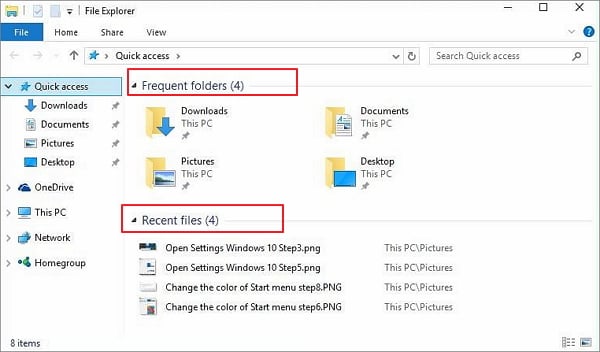
Some users are experiencing issues where their recently opened files and folders are no longer visible in the designated area, causing them inconvenience and frustration. They are seeking an explanation for why these files and folders have stopped showing up or even disappeared.
To solve this troublesome issue, we provide useful solutions below:
Fix 1. Retrieve Windows 10 Quick Access Recent Files/Folders
If Quick Access doesn't display permanently deleted files or folders, this solution is recommended. The reason is that you can't delete files directly from the Quick Access area, but removed files will no longer be displayed. This can lead some users to think it's a bug, especially if they recall a situation that removed all recently deleted files, such as a virus infection, disk formatting, or partition loss.
Don't attempt a system restore as it may cause you to lose more saved data and installed programs. Instead, try to recover missing files or folders to Quick Access.
To recover deleted files and pin them to Quick Access again, you'll need reliable data recovery software. This easy-to-use software can get back recent files in just three steps, and can undelete files, photos, pictures, images, audio, and videos from a USB flash drive, HDD, and external hard drive.
To retrieve deleted files and folders from Quick Access, you can follow these steps: navigate to the "Recycle Bin" in the File Explorer, right-click on the Quick Access folder, and select "Restore" from the context menu. Alternatively, you can also search for the deleted file or folder in the File Explorer's search bar, and then click on the "Restore" button following to the search result.
Step 1. Select file types and click "Fast Scan" to start
Launch Deep Data Recovery. Select file types and click "Fast Scan" to start.

Note: You can choose different search modes based on where and why the data was lost.
Step 2. Select a location and start scanning
To recover deleted files, hover over the partition or drive where the files were stored, then click "Scan" to initiate the recovery process.

Step 3. Select the files you want to recover
After the scanning process is complete, select the deleted files you want to recover. You can filter the results by file type or search for a specific file by name in the search box. This allows you to quickly find and recover the desired files.

Step 4. Preview and recover deleted files
Preview the recoverable files, select the ones you want to restore, and click "Recover" to save them to a new location, bypassing the original lost disk.
To pin folders to Quick Access:
Right-click on wanted files and select "Pin to Quick access".
Fix 2. Advanced Troubleshooting - Quick Access Pins Are Missing
If some misoperation disables grouping for Quick Access, recent items may disappear. To get them back, you have two options.
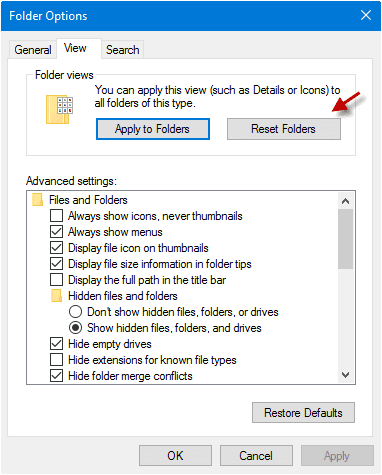
Option 1: Reset Quick Access Folders
- Right-click on the Quick Access icon.
- Click "Options" and click the "View" tab.
- Click "Reset Folders" and click "OK".
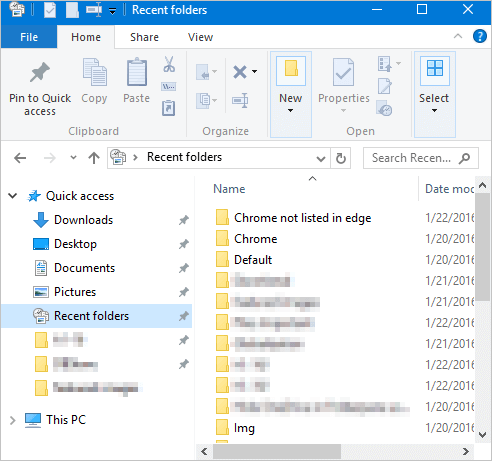
Option 2. Make Recent Folders Displaying in Windows 10 Quick Access
Open the File Explorer and type the following code in the Address Bar and Press "Enter".
The Recent folder's shell folder can be opened by clicking on it. To pin it to the Quick access area, click "Pin to Quick access" in the ribbon, allowing it to be moved up the hierarchy if desired.
Conclusion
The files in Windows 10 Quick Access missing problem can occur without warning, but you can recover them yourself. Qiling data recovery software can effectively recover lost or deleted files, photos, audio, music, and emails from any storage device.
Related Articles
- How to Recover Data Files Deleted by Antivirus
- Top 5 Best Open Source Data Recovery for Windows/Mac/Linux/Android
- Free Download MySQL Recovery Tool to Recover MySQL Database
- Download Nikon Photo Recovery Software
- Files Getting Deleted Automatically Without Asking Windows 10/11
If your computer is automatically deleting files without asking, there are solutions to recover them. You can try using Qiling Data Recovery Software or the Previous Version feature in Windows 10 to retrieve your deleted files. - Files Missing from External Hard Drive but Still Taking Space
If you're experiencing missing folders and files on an external hard drive, but it's still taking up space, it's likely there's an issue with the drive.
Products
Articles & Tutorials
- Data Recovery
- Data Backup
- File Recovery
- File Backup
- System Backup and Restore
- Disk and Partition Clone
- Technical articles
- Mobile articles
- Disk Master Help
- Windows Data Recovery Tutorials
- Windows Secure Delete Tutorials
- Windows Partition Management Tutorials
- Windows File Backup and Restore Tutorials
- Windows System Backup and Restore Tutorials
- Windows Disk Backup and Restore Tutorials
- Windows Clone Tutorials