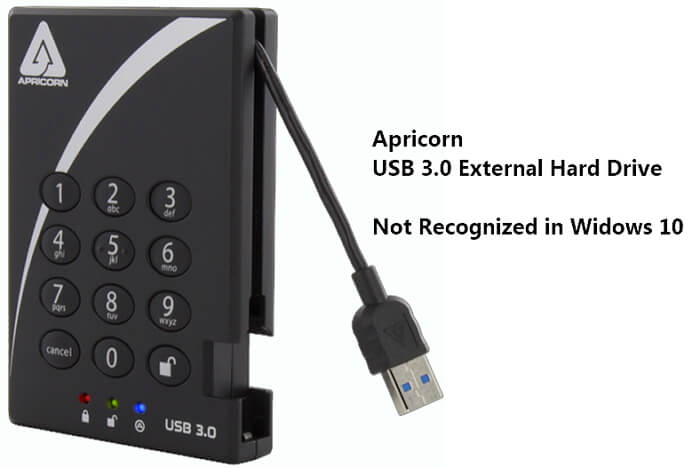
[Solved] Apricorn USB 3.0 External Hard Drive Not Recognized
Quick Guide to Fix Apricorn USB 3.0 External Hard Drive Not Recognized Error:
- #1. Reconnect Apricorn USB 3.0 External Hard Drive
- #2. Assign a New Drive Letter to External Hard Drive
- #3. Amount the External Hard Drive to PC
- #4. Update USB Controller Driver and Device Firmware
- #5. Uninstall and Reinstall Device Driver
- #6. Clear Attributes that Prevent External Disk from Showing Up
- #7. Disable USB Selective Suspend Setting
- #8. Recover Lost Data from Apricorn USB 3.0 External Disk
Many Windows users have encountered the issue of their USB 3.0 external hard drive not being recognized by their computer, particularly in Windows 10, 8, and 7. This problem has become increasingly common with the growing use of USB technology, and it can be difficult for those who rely on these devices for data storage and transfer. If you're experiencing this issue, you're not alone, and there may be a solution to get your USB 3.0 hard drive working properly again.
This guide addresses the issue of an Apricorn USB 3.0 not being recognized, and provides solutions to make a not detected or showing external hard drive appear on a PC and function normally again without losing any data. The fixes provided can also be applied to external hard drives, USB drives, and SD cards from other brands.
If your Windows 10/8/7 PC fails to recognize your USB 3.0 external hard drive. The issue can be caused by various reasons, and we'll guide you through the troubleshooting process. Whether it's your Apricorn Aegis Padlock or another brand of storage device, we'll help you identify the problem and provide solutions to make your USB 3.0 external hard drive show up and work normally again on your PC.
Causes of Apricorn USB 3.0 Not Recognized in Windows 10/11
Apricorn USB 3.0 external hard drives may experience recognition issues, where they do not appear in the Windows File Explorer, resulting in a common symptom of not being detected.
Here are the major causes of this issue:
- Apricorn SATA wire is not working/recognized
- Apricorn SATA to USB 3.0 connector is not recognized
- Aegis Padlock 3.0 not recognized
- Apricorn data transfer cable not working
- The issue of a USB 3.0 external hard drive not having a drive letter assigned to it is a common problem that can be caused by various factors. It might be due to the drive being incorrectly configured, the USB port being faulty, or the operating system not being able to recognize the drive.
- The device is not mounted
- The external hard drive driver is outdated
- Notice:
- These listed causes may also lead to other brands of USB 3.0 external hard drives not being detected in Windows 10/8/7, such as Lacie Rugged USB 3.0, Seagate, and WD external hard drives not being recognized.
In the next 3 parts, you will unveil the most effective solutions that you just need to follow from the top down until your problem gets resolved. You don't even have to try them all.
Part 1. Quick Fix Apricorn USB 3.0 Not Recognized in Windows 10 (3 Fixes)
Here are three quick fixes to try when your Apricorn or other brands of external hard drive are not recognized:
- #1. Reconnect Apricorn USB 3.0
- #2. Assign a New Drive Letter to the External Hard Drive
- #3. Remount the USB 3.0 External Drive
If your Apricorn USB 3.0 device is not showing up on your computer, there are various methods that can help it appear again. These methods include resetting the device, updating the drivers, checking for conflicts with other devices, and using a different USB port.
#1. Reconnect the USB 3.0 external hard drive
Try the following steps one by one and check if your external hard drive shows up:
Step 1. Unplug the external hard drive from its current port and plug it into a different USB port on your computer to troubleshoot the issue.
Step 2. Connect the external hard drive to a different computer.
Step 3. If your USB 3.0 cable isn't working properly, try swapping it with a new one. This can resolve issues such as slow data transfer speeds or connection problems.
If you're having trouble with your Apricorn USB 3.0 wire or cable, you can contact their customer service center for assistance. They can provide guidance on how to change or troubleshoot the issue.
#2. Assign a new drive letter to the external hard drive
If your external storage device isn't showing up in Disk Management, you can try assigning a new drive letter to it. To do this, go to Disk Management, find your device, right-click on it and select "Change Drive Letter and Paths." Then, click "Add" and choose a new drive letter from the list.
Step 1. Connect your external hard drive to Windows PC.
Step 2. In Open Disk Management, locate the external hard drive that has no drive letter assigned to it. This drive is typically listed as "Unallocated" or "RAW" in the Disk Management window.
Step 3. To change the drive letter and paths for an external hard drive, right-click on it and select the option "Change Drive Letter and Paths...".
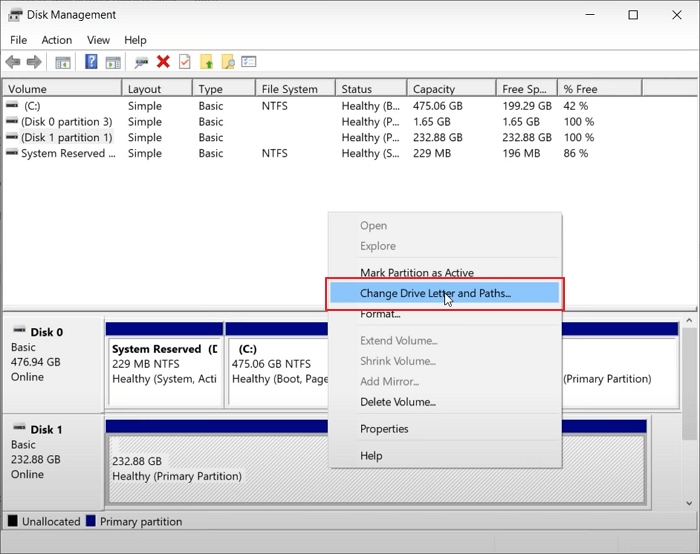
Step 4. To set a new drive letter for the external hard drive, right-click on the drive in File Explorer, select "Change Drive Letter and Paths," and choose a new drive letter from the list. Save the changes to apply the new drive letter.
#3. Remount the external hard drive to PC
If an external storage device like an Apricorn USB 3.0 external hard drive isn't correctly mounted on a computer, the computer may not recognize the device. To fix this, you can manually mount the external hard drive, making it detectable again.
Step 1. Connect the Apirocrn USB 3.0 external hard drive to your PC, then type "cmd" in the search box to open the Command Prompt.
Step 2. Right-click Command Prompt and select "Run as Administrator", type diskpart and hit Enter.
Step 3. Open DiskPart, type the following command, and hit Enter each time:
- automount
- automount enable
- exit
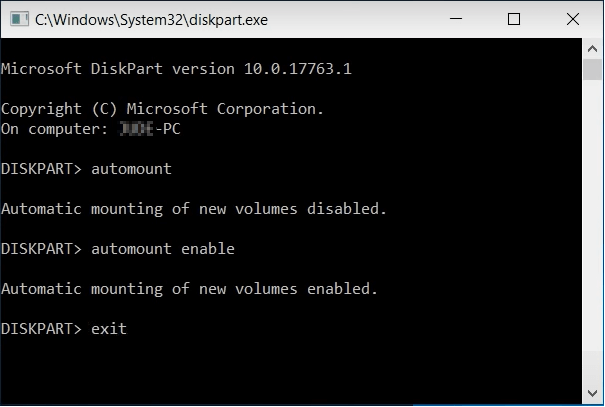
Step 4. Type exit when the mounting process completes.
To check if the Apricorn USB 3.0 external hard drive shows up in Windows File Explorer, you can reopen the File Explorer. This will allow you to see if the drive has been successfully recognized and is now visible in the system.
Part 2. Fix USB 3.0 External Hard Drive Not Recognized in Windows 10 (4 Methods)
External storage devices, including USB drives, may not be detected or recognized due to outdated factors such as the universal controller drive, disk driver, or device firmware. Additionally, improper power settings can also cause this issue.
If the quick fixes don't work really well, you can try these 4 methods to fix Apricorn USB 3.0 not recognized issue on your own. These methods include checking the USB drive for physical damage, updating the USB drivers, reinstalling the USB drivers, and checking the USB port for any issues.
- #1. Update USB Controller Driver & Firmware
- #2. Uninstall & Reinstall Disk Driver
- #3. Clear Attributes to Make Apricorn USB 3.0 Show Up
- #4. Disable USB Selective Suspend Setting
Method 1. Update USB Controller Driver and Device Firmware
Applies to: External hard drive not recognized due to the USB port not working
Step 1. Open the Device Manager by pressing the Windows key + R keys and selecting "Device Manager".
Step 2. To fix the yellow exclamation mark next to "USB Universal Bus Controller", click the "+" next to it, which will reveal the yellow exclamation mark.
Step 3. Right-click on the device, select "Update Driver Software", and then click on "Automatically Search for Driver Software Online".
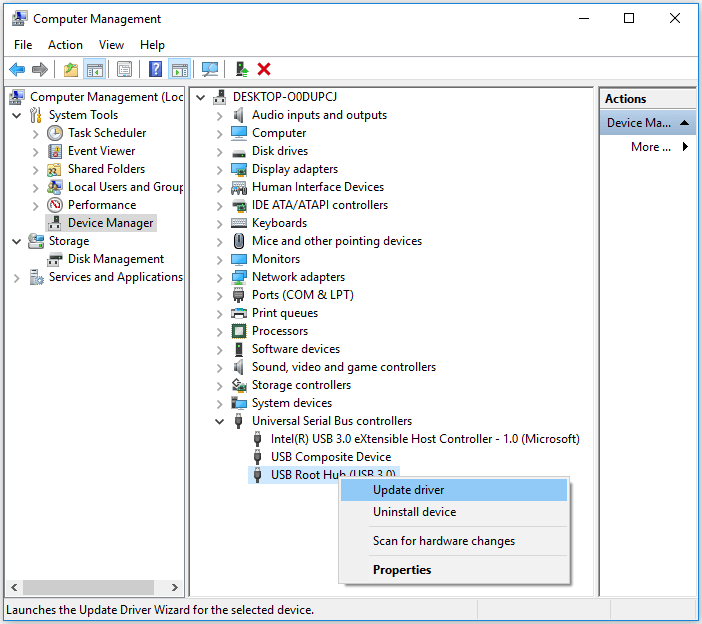
The driver is being installed and your computer will reboot shortly. Please wait patiently.
Step 4. Reconnect your USB drive to your PC, download the latest firmware from the drive's manufacturer, and install it.
After installing the firmware, restart and reconnect the Apricorn USB 3.0 external hard drive, allowing you to access your saved data again.
Method 2. Uninstall and Reinstall Device Driver
Applies to: External hard drive not recognized due to unknown issues
Step 1. Open Device Manager and expand the Disk drives.
Step 2. Right-click on the problematic drive, choose "Uninstall device".
Step 3. Go through the wizard guide and then reboot your computer.
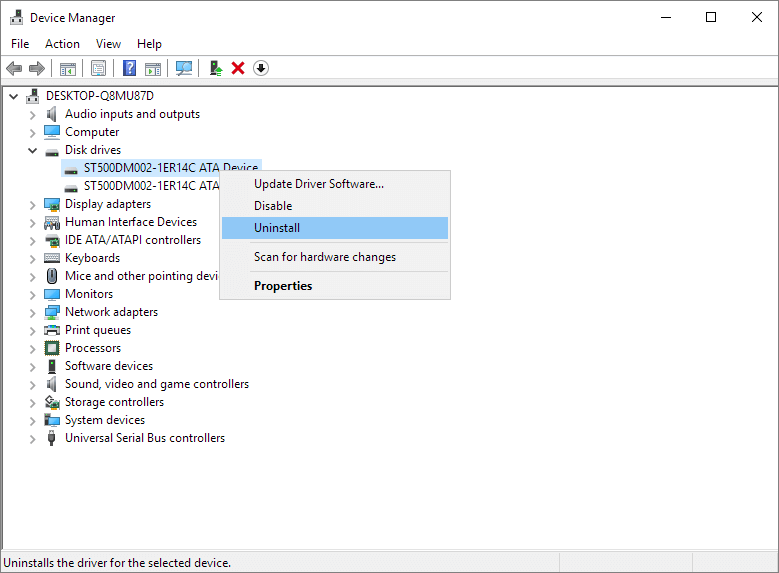
The computer will automatically reinstall the driver you uninstalled.
Method 3. Clear Attributes that Prevent External Disk from Showing Up
This check applies to ensuring that attributes are not present on the disk that would prevent or hide it from being visible in the computer. This involves verifying that the disk is not flagged with attributes that would make it invisible or inaccessible.
Step 1. To run Command Prompt as an administrator, go to the Search bar on your computer, type in "cmd", right-click on Command Prompt from the search results, and select "Run as Administrator" from the context menu. This will open the Command Prompt with elevated privileges, allowing you to perform administrative tasks.
Step 2. Type diskpart and hit Enter to open DiskPart.
Step 3. Type the following command lines one by one and hit Enter each time:
- list disk
- select disk 1 (Replace 1 with the disk number of your external hard drive.)
- list part
- select partition 1 (Replace 1 with the partition number of your external hard drive.)
- attributes volume
- attributes volume clear nodefaultdriveletter
- attributes volume clear hidden
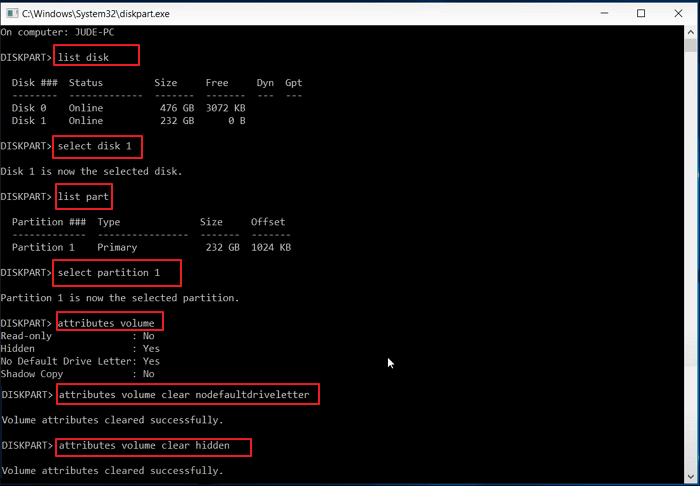
Step 4. Type exit when the process finishes and restart PC.
After this, you can check the USB 3.0 external hard drive on your computer and access data again.
Method 4. Disable USB Selective Suspend Setting
To resolve the issue of an external hard drive not being recognized, try changing the power setting plan to a more aggressive setting, and also disable the USB selective suspend setting. This can help the hard drive to be recognized again by the system.
Step 1. Right-click on the Windows icon and click the Power Options.
Step 2. Click "Change plan setting" in the Choose or customize a power plan window.
Step 3. To change the advanced power settings in the Edit Plan Settings window, click on the "Change advanced power settings" option.
Step 4. To disable USB selective suspend settings, go to Power Options, expand USB settings, expand USB selective suspend settings, and change the setting from "Enabled" to "Disabled".
Then click "Apply" and "OK" to save the settings.
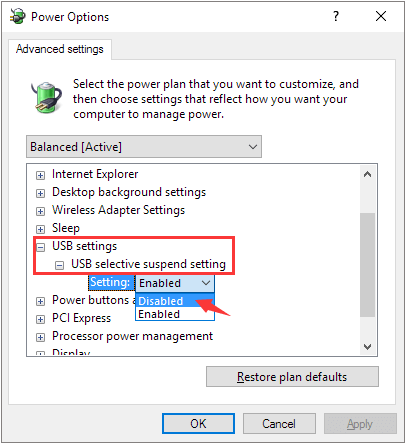
Unplug your external hard drive from your PC, wait for a few seconds, and then plug it back in. This should resolve the issue and allow you to access your external hard drive again.
Part 3. Recover Data after Fixing Apricorn USB 3.0 Not Recognized Error
If you lost data after fixing the Apricorn USB 3.0 is not recognized error on Windows 10/8/7, Deep Data Recovery can help. This tool allows you to scan and restore data from inaccessible, raw, or formatted USB 3.0 external hard drives in just three simple steps.
Step 1. Select file types and click "USB/SD Scan" to start
Launch Deep Data Recovery, select file types and click "USB/SD Scan" to start the recovery process.

Note: You can choose different search modes based on where and why the data was lost.
Step 2. Choose the USB drive to scan
To recover lost files from a USB drive, select the drive where the files were lost, then click the "Scan" button to initiate the scanning process. This will begin searching for recoverable files on the drive.

Step 3. Check and preview USB drive data
When the scanning is finished, you can quickly locate a specific type of file by using the Filter feature and the Search option.

Step 4. Restore flash drive data
After finding lost USB drive files, click "Recover" to restore them, and save the recovered files to a safe location on your PC, not the USB drive itself.
IMPORTANT: If your computer can read a USB 3.0 drive but can't open it, you can directly format the external hard drive to NTFS to make it accessible again.
Conclusion
This page addresses the issue of an external hard drive suddenly failing to show up in Windows 10/8/7, providing 7+ efficient solutions to fix the USB 3.0 external hard drive not recognized error using reliable Qiling data recovery software, ensuring no data loss.
Here, we have some tips to help you better manage your external hard drive and protect precious data:
- 1. Update the device driver if the device firmware gets updated.
- 2. Set the file system to NTFS on the drive.
- 3. Run antivirus software regularly
- 4. Create a backup of precious data
Here are some frequently asked questions and brief answers to help and release your doubts immediately.
People Also Ask About USB 3.0 External Not Recognized Error
Follow and find your answers here now.
1. What do I do if USB 3.0 transfer speed extremely slow?
If you are faced with a slow USB 3.0 flash drive in Windows 10/8/7, follow these methods below to improve your USB 3.0 drive's transfer speed and keep your all data securely:
- #1. Use the Device Manager to Optimize USB 3.0
- #2. Convert USB 3.0 from FAT32 to NTFS
To increase the speed of a USB 3.0 external hard drive, you can try using a USB 3.0 dock or hub, which can provide more power and stability to your drive.
2. How do I fix USB device not recognized error in Windows 10/8/7?
If you're experiencing issues with a USB device not being recognized by Windows, The error message 'The last USB you connected to this computer malfunctioned' is likely just a warning. To resolve the issue, try one of the methods below to get your USB working again.
- Fix 1. Unplug Computer
- Fix 2. Change USB Cable/Port
- Fix 3. Update Device Driver
- Fix 4. Fix Root Hub
- Fix 5. Change USB Settings
- Fix 6. Reinstall USB drive
For a step-by-step guide, go and follow USB Device Is Not Recognized for help.
3. How do I protect my external hard drive and data?
Here is a list of tips that you can apply to protect your external hard drive and data:
- Run virus cleaner to clean up malware or virus regularly.
- Plug and unplug the external hard drive to the PC properly.
- Update device drives and USB drivers regularly.
- Don't use a third-party program to encrypt the device.
- Save a backup of valuable data from the external hard drive to another device, such as a computer or a cloud storage service, to prevent data loss in case the external hard drive fails or is damaged.
Related Articles
- Kingston Flash Drive Recovery
- Solutions: Cannot Open External Hard Drive and Files/Folders
- Free Download Lenovo Data Recovery Software [for Laptop & Mobile]
- Fix 'CHKDSK Is Not Available for RAW Drive/USB/SD Card' Error
- Avast Deleted My Files, How to Recover?
Does Avast delete your important files, and you're clueless on how to recover them? This guide is for you. You can recover Avast deleted files with Qiling data recovery software easily. Download and run this software to restore lost data now. - .Bak File Recovery Software Free Download
Download the best .bak file recovery software to recover accidentally deleted or corrupted .bak files as soon as possible. It's the best way to recover your backup files (.bak file extension) from any device.
Products
Articles & Tutorials
- Data Recovery
- Data Backup
- File Recovery
- File Backup
- System Backup and Restore
- Disk and Partition Clone
- Technical articles
- Mobile articles
- Disk Master Help
- Windows Data Recovery Tutorials
- Windows Secure Delete Tutorials
- Windows Partition Management Tutorials
- Windows File Backup and Restore Tutorials
- Windows System Backup and Restore Tutorials
- Windows Disk Backup and Restore Tutorials
- Windows Clone Tutorials