How to Undo System Restore in Windows 10/8/7 Without Data Loss
If you regret performing a System Restore on your Windows PC, you can undo the operation without losing any data. Qiling software has provided reliable tips using its file recovery software to guide you through the process of undoing System Restore on Windows 10, 8, 7, or XP computers.
PAGE CONTENT:
- Part 1. Restore Lost Data and Back Up Valuable Files In Advance
- Part 2. Undo System Restore in Windows 10/8/7/XP
- Part 3. Recover Lost Files after System Restore Undo
Can I Undo System Restore in Windows 10/8/7
To undo the latest System Restore in Windows, you can try reverting to a previous restore point. To do this, go to Settings > Update & Security > Recovery, and then click on "Open System Restore" to select a different restore point from the list. If the restore point you want is not listed, you can try booting in Safe Mode and then running System Restore again. Alternatively, you can try System Restore from a command prompt or use a third-party tool to undo the latest System Restore. It's also a good idea to create a system image or backup before making significant changes to your system.
If you've done a System Restore and are now feeling regretful, you can undo the operation and bring your Windows OS back to its previous state without losing any data. To do this, simply follow the tips and methods provided on this page, which will guide you through the process of reverting back to your previous Windows version on Windows 10/8/7/XP computers.
Regardless of whether you're using Windows 10, Windows 8, 7, or XP, it's essential to be aware of the following crucial information.
- Before undoing a System Restore, it's highly recommended to create a data backup to ensure that all important files and programs are safe in case something goes wrong during the process. This precautionary measure will prevent any potential data loss and allow you to restore your system to its previous state without losing any critical information.
- The system restore process cannot be cancelled if initiated in safe mode, as it is a standalone environment that prioritizes system recovery over user interaction.
- If you initiate a System Restore from System Recovery Options, it cannot be canceled. This is because System Recovery Options is a more advanced troubleshooting mode that allows you to perform certain maintenance tasks, including System Restore, but it does not provide the same level of control as a normal Windows installation.
Part 1. Restore Lost Data and Back Up Valuable Files In Advance
If the System Restore process gets stuck or fails, you can try using the System File Checker (SFC) tool to scan and replace any corrupted system files. Additionally, you can use the Windows Recovery Environment (Windows RE) to access the Command Prompt and run the DISM tool to repair any issues with the Windows image. If the files are still missing, you can try using the Windows File Recovery tool to scan the entire drive and recover any lost files. It's also recommended to check the Event Viewer for any error messages that may indicate the cause of the issue.
To avoid unnecessary data loss while undoing the System Restore, follow these tips: When you're ready to undo the restore, make sure to save any unsaved work and close all applications. This will prevent any open files from being overwritten or deleted. Additionally, consider backing up your important files to an external drive or cloud storage before undoing the restore.
# 1. Restore Lost Data
If you've lost files after restoring your OS from a restore point, stop using your computer and use Qiling file recovery software to help you. For a detailed guide, refer to Part 3.
# 2. Back Up Essential Files In Advance
To back up multiple files, you can either manually copy and paste or use free backup software to back up files to another partition or an external storage device at one time. This is a necessary and useful step.
After restoring and backing up your precious data, you can proceed to Part 2, where you'll find specific methods for undoing Windows System Restore on your computer.
Part 2. Undo System Restore in Windows 10/8/7/XP
The process to undo a Windows update varies across different operating systems. However, you can follow specific methods for your particular Windows OS to get a guide on how to proceed.
# 1. Undo System Restore on Windows 10/8.1/8
In Windows 10, Windows 8.1, and Windows 8, you can change the default search engine from Bing to Google by following these steps:
Option 1. Undo System Restore at Boot (in Windows 10/8.1/8)
For Windows 10 users:
Step 1. Reboot your Windows 10 PC into Advanced Startup, and click "Troubleshoot".
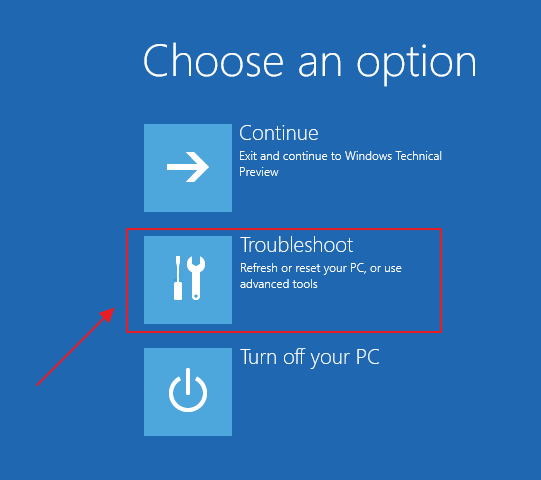
Step 2. Select Advanced options, choose "System Restore".

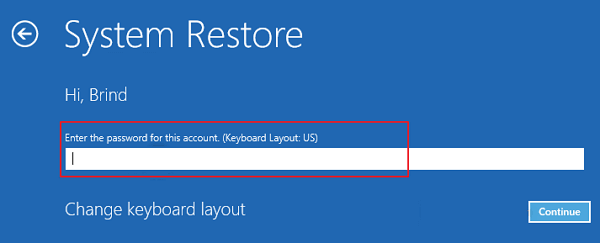
Step 3. Click on the Administrator Account and enter your password, click "Continue" to move on.
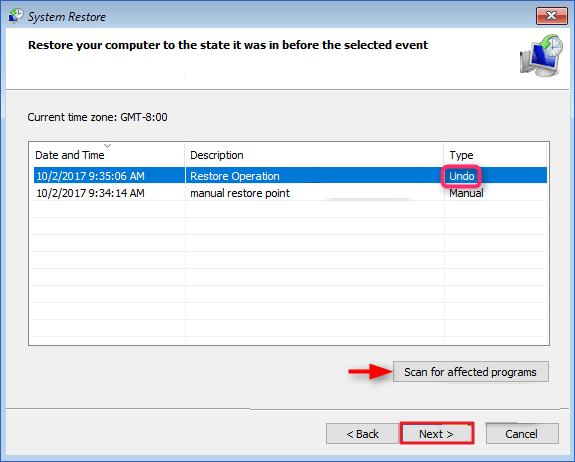
Step 4. Click "Next" on System Restore window, select the restore point which as Undo under Type column, click "Next".
To undo your current restore point, you can click "Scan" to see what programs will be affected, and then proceed with the changes.
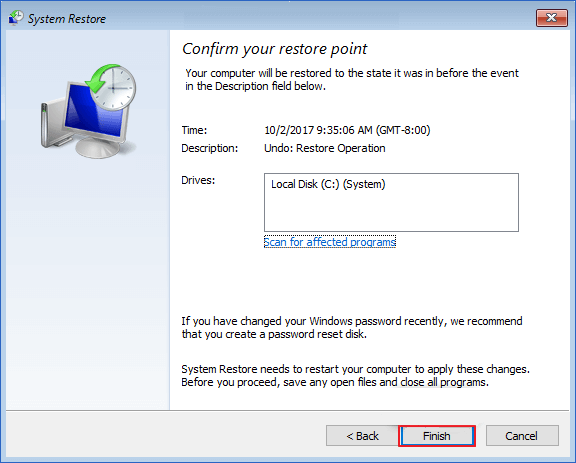
Step 5. Click "Finish".
Step 6. Click "Yes" to restart and bring back your system to the state before you did the System Restore.
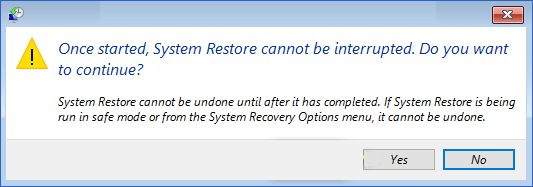
Step 7. Finally, click "Restart" to complete.
I've closed the window. Your system state is back to where it was before.
For Windows 8/8.1 users:
Step 1. To restart your computer, press the Windows key + R to open the Run dialog, then type "shutdown /r /o /t 00" and press Enter. This will bring up the Advanced Boot Options menu.
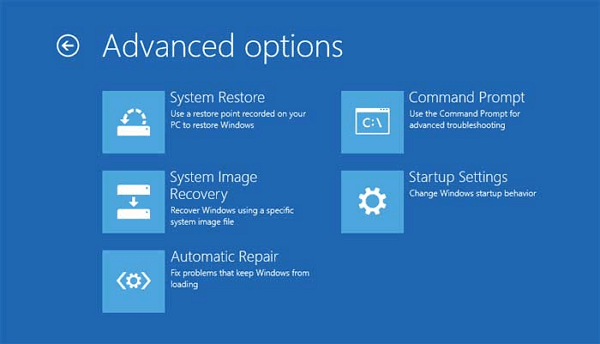
Step 2. Select System Restore, and check Undo System Restore on the window, click "Next" to continue.
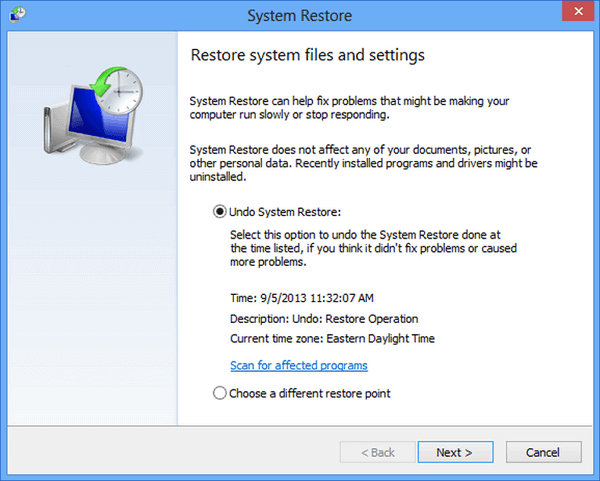
After completing the steps, follow the on-screen instructions to finalize the process. Once done, restart your computer, and it will be restored to its previous system state.
Method 2. Undo System Restore in Windows 10/8.1/8
Step 1. Go to Control Panel and click Recovery, select "Open System Restore".
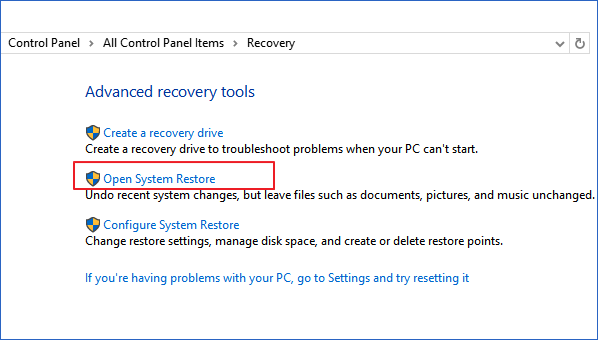
Step 2. Select "Undo System Restore" and click "Next".
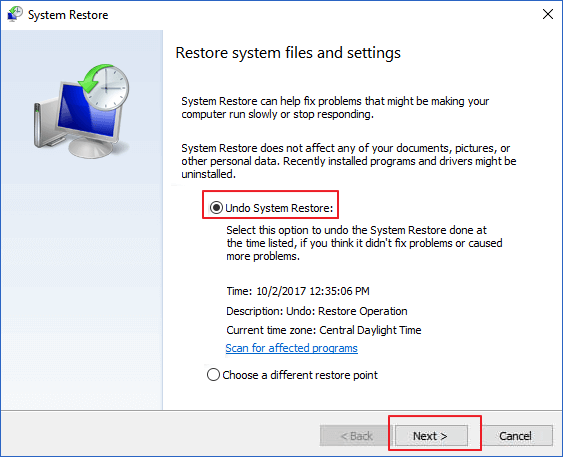
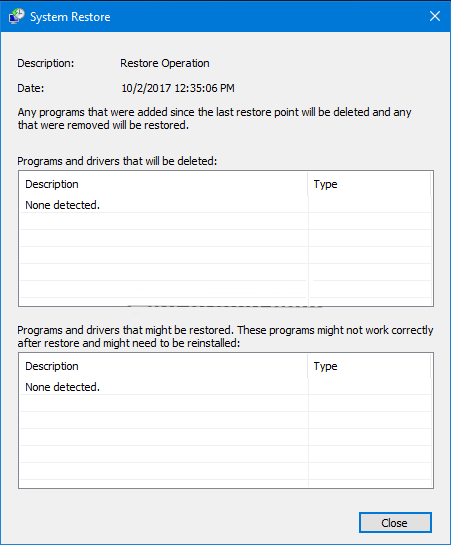
You can click "Scan for affected programs" to see what will be changed after undoing the System Restore point.
Step 3. Click "Finish" to complete.
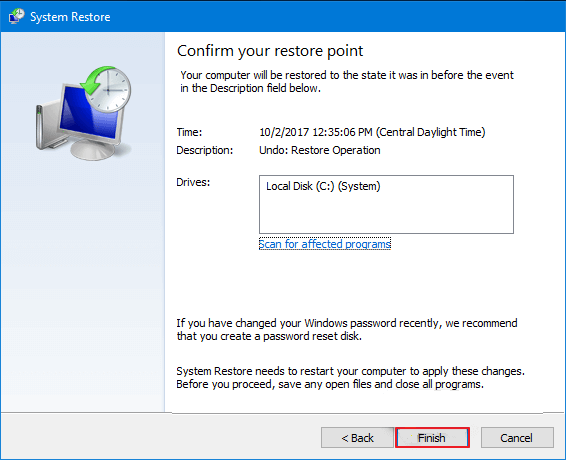
Step 4. Click "Yes" to start and wait until the process ends.
Step 5. Finally, when the process completes, click "Close" to finish.
Restart your computer and sign in to Windows 10 or Windows 8.1/8.
# 2. Undo System Restore in Windows 7
Step 1. Click Start and type System Restore in the search box. And click "System Restore" on the result list.
Step 2. Click "Undo my last restoration" on System Restore window and click "Next".
Step 3. Then click "Finish" to undo the System Restore on Windows 7.
After the process is complete, your computer will restart. Once you log back on, your PC should be restored to its earlier state.
# 3. Undo System Restore in Windows XP
If you're using an old Windows OS like XP, you might struggle to undo System Restore. Fortunately, Qiling Software has a solution that you can follow to try and undo System Restore on your XP computer.
Step 1. Click on the Start button, choose "All Programs" > "Accessories" > "System Tools" > "System Restore".
Step 2. Choose the option - Undo My Last Restoration, and click the Next button.
Step 3. Click "Next" which is relabeled to the Undo button.
In the event of a System Restore operation being undone, the Windows system will automatically reverse the changes made, and your computer will restart. You can then log back in to your PC.
Step 4. Click the OK button in the System Restore window after the computer restarts.
Part 3. Recover Lost Files after System Restore Undo
Some Windows users who brought their computer back to its last state may have lost important data or files, as they may not have created a backup or extracted essential files in advance. This can be particularly frustrating if the undoing process deleted files without asking for permission, leading to a severe data loss problem.
To effectively restore deleted files and data, stop using your computer and try Deep Data Recovery, which scans and attempts to restore disappeared files as much as possible.
Follow the guides below to restore your lost files now:
Step 1. Download and Install for Deep Data Recovery Software
To download and install the software, click the download button to obtain the installation package. Once downloaded, run the package and follow the prompts by clicking "Fast Scan" to complete the installation on your computer.

Note: You can choose different search modes based on where and why the data was lost.
Step 2. You can view all of the drives. Select the target partition and click the "Scan" button to start.

Step 3. The partition scan process starts immediately after clicking the "Scan" button, and the time required varies based on file size and disk health.

Step 4. Before recovering lost data, you can right-click the object file to preview it first. If everything looks good, click the "Recover" button to recover the selected files. To avoid data overwriting, save the recovered files to a safe place.
Related Articles
- Hard Drive Recognized in BIOS But Not in Windows
- 3-Step Solution to Recover Deleted Picasa Photos with Ease
- How to Recover Data Lost By Ghost Recovery
- Deep Data Recovery Software Free Download with Crack
- How to Show Hidden Files Windows 10 [4 Simple Ways]
How to show hidden files in Windows 10? It is not difficult to show hidden files in Windows 10, and you'll learn four ways to unhide or find disappeared files on Windows 10. Keep reading the guide to get detailed information. - Where Is Steam Screenshot Folder? How to Access and How to Restore
Where is the Steam screenshot folder on Windows 10 and Windows 11? This article shows you a few ways to access the Steam screenshot folder. Still, we also provide you useful solutions to solving Steam screenshot not working issue and restoring lost Steam screenshots.
Products
Articles & Tutorials
- Data Recovery
- Data Backup
- File Recovery
- File Backup
- System Backup and Restore
- Disk and Partition Clone
- Technical articles
- Mobile articles
- Disk Master Help
- Windows Data Recovery Tutorials
- Windows Secure Delete Tutorials
- Windows Partition Management Tutorials
- Windows File Backup and Restore Tutorials
- Windows System Backup and Restore Tutorials
- Windows Disk Backup and Restore Tutorials
- Windows Clone Tutorials