Text Recovery Converter Word | Fix Corrupted Word and Recover Text
To remove the "Recent" list in Word, go to the "File" tab, click on "Options," and in the "Word Options" window, click on the "Save" tab. In the "Save" tab, uncheck the box next to "Keep the last accessed files in the Recent list" and then click "OK" to close the window.
What Is Text Recovery Converter in Word
The Text Recovery Converter in Microsoft Word allows you to open and repair damaged documents, including Word files and others, even if they've been corrupted by a system or program crash.
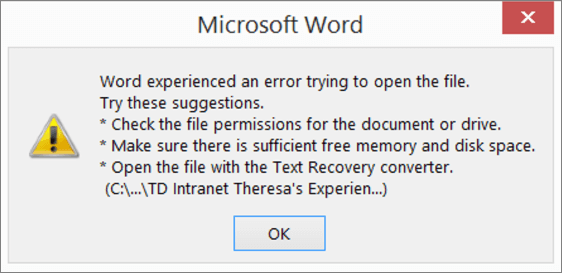
The recover text converter offers the option "Recover Text from Any File" to extract and recover text from Word and even non-document files, allowing users to recover text and repair corrupted Word documents on both Mac and Windows computers.
How to Use Word Text Recovery Converter to Fix Damaged Files
When Word experiences an error trying to open a file and displays a message saying "The file is corrupt and cannot be opened" or "The file cannot be opened because there are problems with the contents", you can try opening the file with the Text Recovery Converter to potentially fix the corrupted Word or HTML file.
To use Word Text Recovery Converter, follow these steps: On a Mac or Windows computer, download and install the software. Launch the program and select the corrupted Word document you want to recover.
Step 1. Open the Microsoft Word application on your computer.
Step 2. To access the "File" menu in the MS Word, click on the "File" option located in the top left corner of the application's main window. This will open a drop-down menu with various file-related options.

Step 3. In the main menu bar, select "Open" > "Browse" to navigate to the location where the Word file is saved.

Step 4. To recover text from any files in Google Drive, click on the three vertical dots at the top right corner, select "Settings", then click on "All Files" at the bottom right corner, and finally select "Recover text from any files" from the drop-down list.
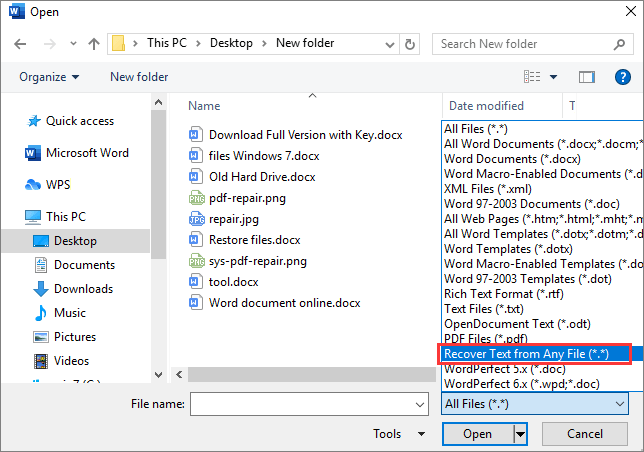
Step 5. To recover text from a file, select the file you want to recover text from and click the "Open" button, which will then open MS Word and recover the text from the file.
.png)
Recover Text Converter is a tool that can only extract text from a file, making it useful for recovering text from corrupted Word documents. However, if the document contains images, charts, or other embedded elements, this option may not work. For more comprehensive file repair, a complete guide on repairing Word online is also available.
How to Fix Corrupted Word Using the Open and Repair Tool in MS
Microsoft Office has a feature called Open and Repair that allows you to repair damaged Word or Excel files caused by invalid file format or file extensions.
Step 1. Start Office Word. Click "File > Open > Browse".
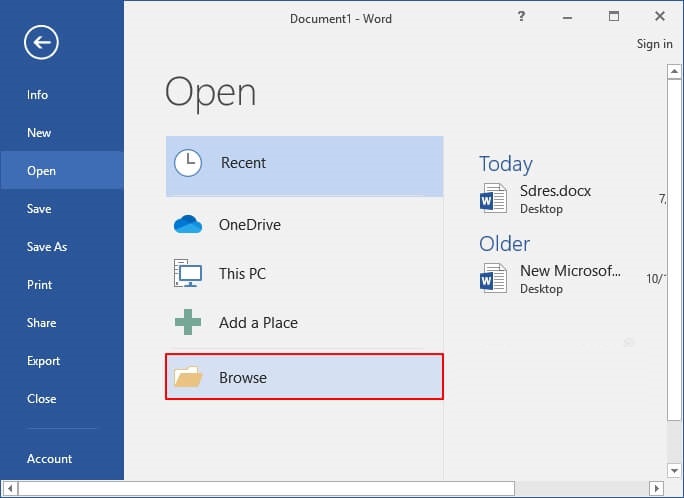
Step 2. Go to the location or folder where your corrupted Word document is stored.
Step 3. To repair a damaged Word document, select the file by clicking on it, then click the "Open" button. From the drop-down menu, choose "Open and Repair". This will attempt to recover any corrupted data and make the file usable again.
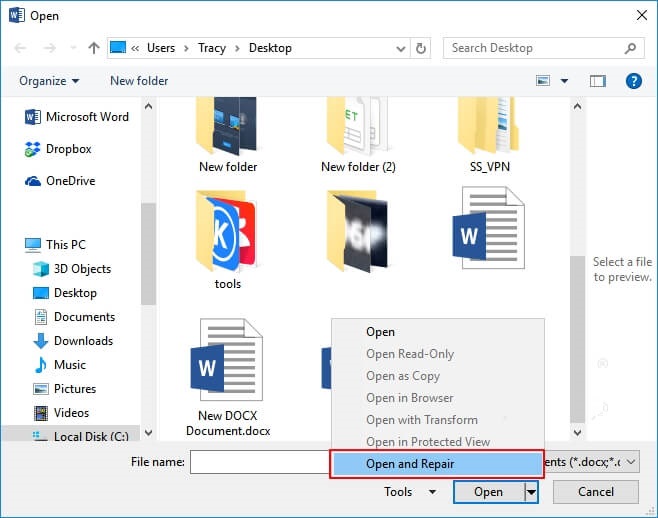
Microsoft Office will automatically repair and open the Word document, allowing you to check and save the repaired document as a new file. If the repair utility still doesn't work, you can use file recovery software to attempt to fix the corrupted file.
How to Repair Corrupted Word Document with a File Repair Tool
A better alternative to Word Text Recovery Converter is Deep Data Recovery, a professional file repair tool that can recover and repair lost or corrupted files effectively.
Being world-Deep Data Recovery is a famous data recovery software that helps recover deleted files and retrieve lost data due to various issues, including hard drive formatting, partition loss, OS crash, and storage media corruption, while also fixing corrupted files like photos, videos, and documents.
If you need to fix corrupted Word documents, you can use Qiling file recovery software to recover them. The steps to do this are outlined below. Alternatively, if you need to repair corrupted JPEG photos or MP4/MOV files, you can check the full guide for those specific file types.
Step 1. To recover data, open Deep Data Recovery, select the desired file types, and click "Fast Scan" to initiate the process.

Note: You can choose different search modes based on where and why the data was lost.
Step 2. This software allows you to fix damaged Word, Excel, PPT, and PDF files in a single process, scanning the disk for corrupted documents and enabling you to repair them in the same steps.

Step 3. Qiling data recovery and repair tool scans for all lost and corrupted files, allowing you to find target files by type or search for them by name.

Step 4. Deep Data Recovery can automatically repair damaged documents, allowing you to recover and save Word, Excel, and PDF files to a safe location after previewing them.
Concluding Words
Text Recovery Converter is a tool that can help retrieve text data from damaged Word and other files. If it's unable to recover the data, a file repair tool like Deep Data Recovery can be used as a next step to attempt to repair the file.
Using a file repair tool can be effective for document recovery, but it's still essential to develop the habit of backing up files at any time. If manual backups aren't your thing, consider using Windows automatic backup software to do it for you. This way, you'll have a safety net in case of any data loss or corruption.
Text Recovery Converter FAQs
Check the following questions and answers to learn more about the Word text recovery converter.
1. What is a text recovery converter in Word?
If you've ever lost work in Microsoft Word due to a crash or power outage, you may be familiar with the text recovery converter, a feature designed to recover corrupted files, allowing you to pick up where you left off.
The text recovery converter in Word is a tool that can be used to fix damaged files in Microsoft. It scans the document for any recoverable text and converts it into a format that can be opened in Word.
2. What is the text recovery converter on Mac?
Microsoft Office for Mac has a feature called Text Recovery Converter that helps recover lost or corrupted Word documents by attempting to repair and salvage as much of the original content as possible when a damaged or corrupt file is opened.
3. How do I open a file with the text recovery converter?
To access the text recovery converter, open a damaged document in Microsoft Office, click File, then Open and Browse, and select All Files to recover text from any file.
The Text Recovery Converter scans files for errors and attempts to repair them, potentially salvaging most of the original content, even if complete repair is not possible.
Related Articles
- Best Get Data Back Full Version Crack Alternative Free Download in 2025
- Deep Data Recovery vs Disk Drill: Which Is Better for You
- Data Recovery Software Full Version Free Download (in 2025)
- How to Recover Lost Data after Disk MBR to GPT Conversion
- 3 Ways to Fix Invalid B-tree Node Size Error and Recover Data
If you're experiencing an invalid b-tree node size error on your Mac's hard drive, there are a few potential fixes. - Kik Shows Notification but No Message iPhone [Solved]
Does Kik show notifications but no message on your iPhone? You shouldn't worry as this article will solve kik shows notification but no message iOS 15 issue. Follow the solutions or download Qiling MobiSaver now!
Products
Articles & Tutorials
- Data Recovery
- Data Backup
- File Recovery
- File Backup
- System Backup and Restore
- Disk and Partition Clone
- Technical articles
- Mobile articles
- Disk Master Help
- Windows Data Recovery Tutorials
- Windows Secure Delete Tutorials
- Windows Partition Management Tutorials
- Windows File Backup and Restore Tutorials
- Windows System Backup and Restore Tutorials
- Windows Disk Backup and Restore Tutorials
- Windows Clone Tutorials