Everything You Need to Know About Shortcut Virus
What Is a Shortcut Virus
Shortcut viruses can infect a computer, creating unwanted shortcuts on the desktop or file list, and can be spread through email attachments, downloads, and USB drives, potentially leading to data loss or corruption.
Is Shortcut Virus Dangerous
Shortcut viruses can cause problems on your computer by creating new shortcuts on your desktop or Windows Explorer file list, which may point to non-existent programs or files, making it hard to find what you're looking for. Furthermore, these viruses can alter the icons associated with these shortcuts, making it even more challenging to determine their purpose.
Shortcut viruses can be particularly problematic, as they can cause your computer to slow down or freeze due to their constant background activity, consuming valuable resources and potentially leading to sluggishness, unresponsiveness, and even error messages or crashes.
Can You Recover and Open Shortcut Files
If you've been infected with a shortcut virus, you might be wondering if it's possible to open the shortcut files it creates. Fortunately, you can recover these shortcut files without risking further infection, and it's a relatively straightforward process.
Method 1. Convert Shortcut Files into Original
Converting shortcut files into their original forms involves several steps.
Step 1. Locate the shortcut file you want to convert and open. Right-click on it and select "Properties" from the context menu.
Step 2. To find the location of the original file that a shortcut points to, open the Properties window and click on the "Shortcut" tab. Then, copy the location of the original file and close the Properties window.
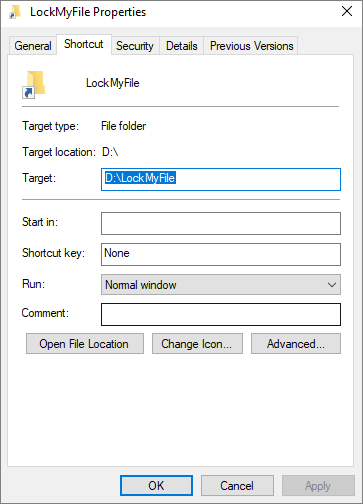
Step 3. To access the original file's location, open a new File Explorer window, paste the path into it, and navigate to the folder that contains the original file.
Step 4. Right-click on the original file and select "Rename". Rename the file to a different name, then press Enter.
Step 5. Delete the existing path in the Target field, paste the new location of the renamed file, and then click OK.
After renaming the shortcut file, the process of converting shortcuts into their original files is complete. The original file will be restored and the shortcut will be deleted, allowing you to access the file without the shortcut.
Method 2. Recover Shortcut Files with Virus Recovery Software
If the shortcut virus deletes or hides the original files, you can easily use virus recovery software to restore files. Deep Data Recovery recovers lost data due to various reasons such as virus/malware infection, hard drive formatting, partition loss, OS crash, and more.
This data recovery software supports virus recovery in three processes:
Step 1. Select the virus-infected drive to scan.
Step 2. Filter all scanned results for lost data.
Step 3. Preview and recover deleted/hidden files.

Full guide:
Here are the detailed steps on how to open shortcut files safely: first check the file type and target path before opening it, because shortcuts can point to malware. If the shortcut is legitimate, right-click it and select 'Open file location' to view the actual file. If you are unsure, open 'Properties' and verify the target path before running anything.
After recovering and opening the shortcut files, run a virus scanner to identify and clean other malicious files. Additionally, change all your passwords, including those for email accounts, social media, and online banking, to ensure your personal information remains secure.
How Can You Remove Shortcut Virus
If you suspect your computer has a shortcut virus, you can try removing it using a few methods. One approach is to use the Command Prompt (CMD) to delete the virus through command lines. Alternatively, you can use a shortcut virus remover to clean up any shortcuts the virus has created, effectively removing the infection from your system.
Remove Shortcut Virus Using CMD
If your computer has been infected with a shortcut virus, you can remove it using the Command Prompt (CMD). This process is relatively simple and only requires a few steps, making it a quick and effective solution to get your computer back to normal.
Step 1. To open the Command Prompt, go to Start, click on "Run", and type in "cmd" in the text box, then click "OK" to open the Command Prompt.
Step 2. Next, type in the following command: del /a /s /q %windir%\*.* that will delete all of the shortcuts on your computer.
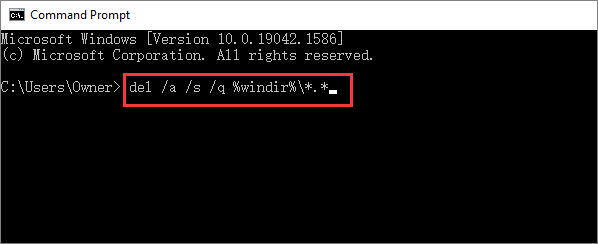
Step 3. Rebooting your computer should remove the virus, but if you're still seeing shortcuts, you may need to use professional tools to remove them.
[Further reading]: To remove a shortcut using the Command Prompt, follow these steps: Open the Command Prompt as an administrator. Type the command `del "C:\Users\YourUsername\Documents\YourShortcut.lnk"` (replace "YourUsername" and "YourShortcut" with your actual username and the name of the shortcut you want to delete). Press the Enter key to execute the command.
Use the Best Shortcut Virus Remover
Many shortcut virus removers are available, but not all are created equal. To help you clean your computer and protect it from data loss, we've compiled a list of the best shortcut virus remover tools.
These shortcut virus removers are great options for removing shortcut viruses and other types of malware, being very effective at removing shortcuts and adware. They also have a simple interface that makes them easy to use, making them accessible to anyone.
- Bitdefender Adware Removal Tool
- Kaspersky Virus Removal Tool
- Malwarebytes Anti-Malware
- Norton Power Eraser
- Sophos Virus Removal Tool
- Trend Micro HouseCall
- Zemana AntiMalware
How to Remove Shortcut Virus from PC
The shortcut virus creates shortcuts on your computer, spreading the virus further, but it can be easily removed by following a step-by-step guide, which includes deleting the shortcuts, running a virus scan, and updating your operating system and antivirus software.
Step 1. Start by running a full scan of your computer using your antivirus software to identify and isolate any infected files.
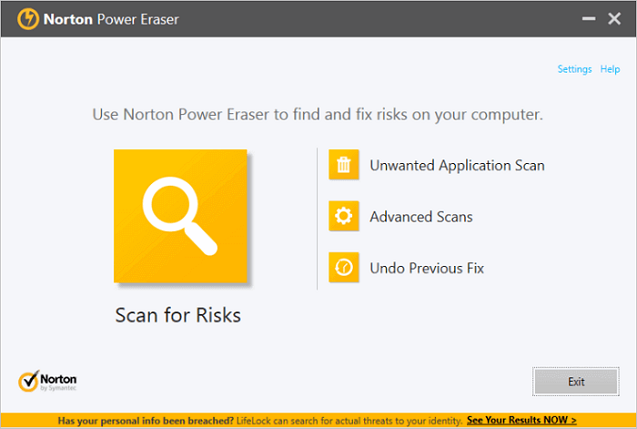
Step 2. Once the scan is complete, delete any shortcuts created by the virus, which can be found in your Windows Start menu and on your desktop.
Step 3. Use Qiling file recovery program to restore any files that may have been deleted or corrupted by the virus.
Full guide:
You should be able to remove a shortcut virus from your PC without too much trouble. For a complete guide, check the instructions.
How to Remove Shortcut Virus from Hard Disk
If your computer has been infected with a shortcut virus, you'll likely notice that all your files and folders have been replaced with shortcuts, making it impossible to access your actual data. However, there is a way to remove the virus from your hard disk and regain access to your files.
To delete a virus from your computer, start by locating it in the root directory or System Volume Information folder. Once you've found it, open the Command Prompt and type "del /f /s /q" to delete it. This command will force the deletion of the file, including any subfolders, without prompting for confirmation. Be cautious when using this command, as it can also delete other files if they are in the same directory. It's recommended to use this command in a safe environment, such as a test system, to avoid any potential data loss.
After deleting the virus, you should be able to access your files and folders again. If you still encounter issues, running a virus scan on your hard drive may be necessary to confirm the virus has been fully removed.
Full guide:
To remove the shortcut virus from your hard disk without losing data, you can try the following steps: First, disconnect your external hard drive or any other storage device that may be infected. Then, boot your computer in safe mode and run a full scan with an anti-virus software to detect and remove any malware.
How to Remove Virus from USB
USB drives are just as vulnerable to viruses as any other type of external storage device. They can be infected with a shortcut virus, making them a potential threat to your computer's security.
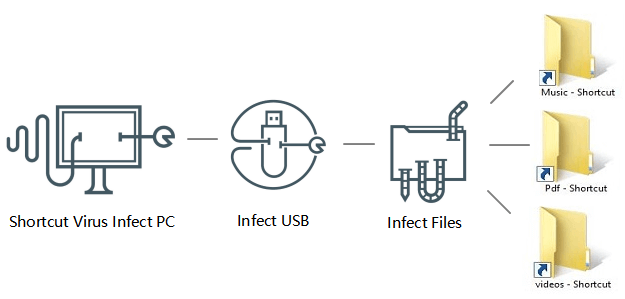
If your USB drive becomes infected with a virus, disconnect it from your computer right away. Then, follow these steps to remove the virus:
Step 1. Download and install reputable antivirus software on your computer.
Step 2. Connect your USB drive to your computer, then run a full virus scan to remove any potential malware from the drive, which may take some time but is crucial for a thorough cleanup.
Step 3. Once the scan is complete, delete any infected files that are found.
Step 4. To format a USB drive, first disconnect it from your computer. Then, ensure you have backups of any important files or use a USB data recovery tool to restore lost data. After that, you can format the drive, which will erase all data on it. This process will make the drive ready for new data to be written onto it.
Step 5. To format a USB drive in Windows, open My Computer, right-click on the drive, select "Format" and follow the on-screen instructions.
Step 6. Reconnect your USB drive to your computer and copy over any important files you backed up in step 4, making sure to transfer them back to their original locations on your computer.
LEARN MORE
Here are the complete tutorials on removing shortcut virus from pen drive/USB: scan the drive with reliable antivirus software, remove suspicious shortcuts, and recover hidden files if needed. Format the drive only after backing up or recovering important data.
Conclusion
Removing a virus from your PC, hard disk, pen drive, or USB drive can be a straightforward process if you follow the right steps. By following simple guides, you can effectively eliminate malicious software and keep your devices virus-free in no time.
To avoid viruses on your USB drive, protect it proactively by following some basic tips. This includes being cautious when plugging in a USB drive from an unknown source, scanning the drive for viruses before using it, and avoiding using USB drives from public computers or untrusted sources. By taking these precautions, you can minimize the risk of your USB drive being infected with a virus.
Don't connect your USB drive, pen drive, or SD card to any public computers, as they may contain malware that can spread to your device.
To protect your computer from malware, keep your antivirus software updated and run regular scans on your storage device. This will help detect and remove any harmful viruses or other threats that may be present.
Be cautious when downloading files, only getting them from trusted sources to avoid potential risks.
Be cautious when clicking on links or opening attachments from unknown or untrusted sources, as they may contain malware or phishing scams.
If your drive becomes infected with a virus. You can easily remove the virus using the methods from our tutorials. If that doesn't work, consider using a professional data recovery software like Deep Data Recovery to recover your data in a timely manner.
When USB folders appear as shortcuts, check hidden originals and avoid opening suspicious links before scanning for genuinely missing files.
Related Articles
- Chrome History: How to View, Delete, and Recover
- (July 2022) Ultimate Guide to Mac Time Machine Backup
- How to Recover Unsaved Excel Files (2022 Tips)
- Windows Repair Tools and Services [Windows 10/11]
- Recover Deleted Folders on Windows 10/11 [Quick]
To recover deleted folders on Windows, check your Recycle Bin first. You'll need Windows File History and Windows Backup and Restore if you cannot find the folders in the Recycle Bin. You can also restore the folder to a previous version or download Deep Data Recovery to regain lost folders. - 2023 Solutions| How to Recover Deleted GoPro Files [Videos & Photos]
This post provides the best way to recover deleted GoPro files on Windows and Mac. Download the best GoPro file recovery software - Deep Data Recovery and recover deleted GoPro videos and photos with simple steps. Keep reading to get more information.
Products
Articles & Tutorials
- Data Recovery
- Data Backup
- File Recovery
- File Backup
- System Backup and Restore
- Disk and Partition Clone
- Technical articles
- Mobile articles
- Disk Master Help
- Windows Data Recovery Tutorials
- Windows Secure Delete Tutorials
- Windows Partition Management Tutorials
- Windows File Backup and Restore Tutorials
- Windows System Backup and Restore Tutorials
- Windows Disk Backup and Restore Tutorials
- Windows Clone Tutorials