How to Fix Seagate External Hard Drive Not Working in Windows/Mac
If your Seagate external hard drive is not showing up or not detected, try restarting your computer, updating drivers, and checking for disk errors. Ensure the drive is properly connected and recognized by your computer.external hard drive light blinking but not work, not recognized in Windows 10, USB not showing up, etc.
This page provides solutions to fix Seagate external hard drives and other brands that are not working, not detected, or not showing up, allowing users to recover their data without any loss.
Quick tips to fix problematic Seagate external disk:
- Try a different USB port on the computer.
- If the current cable is damaged, it's recommended to replace it with a new one to ensure the functionality and safety of the device or system it's connected to. This is especially important if the damaged cable is part of a critical system or if it's causing any issues with the device's performance.
- Try connecting the drive to a different computer.
- If the drive's light is not on, it means the power adapter is not connected to power, so you should check the power source and plug the adapter back in. If the light is on, proceed with the next step.
- Try a different power outlet. (Desktop Drives)
If your Seagate external hard drive is not detected, try the following: check the USB cable and connection, restart your computer, update your drivers, and use the Seagate backup software. If these steps do not work, you can try resetting the drive, checking for firmware updates, or using a different USB port or computer.
Before You Begin: Recover Data from Seagate External Drive First
Before attempting to fix external disk problems, it's essential to back up and restore your data from the Seagate external hard disk to avoid data loss. This includes formatting the disk, which can be a destructive process.
To recover data from a not working Seagate external hard drive, you can use powerful hard drive data recovery software like Deep Data Recovery, which can restore data from inaccessible, corrupted, and RAW external hard drives.
Qiling data recovery software has the following highlights and features.
Easy External Hard Drive Data Recovery
- Recover documents, photos, videos, audio files, music, and emails effectively.
- Recover files from corrupted USB flash drive, emptied recycle bin, memory card, SD card, digital camera, and more with our expert guidance. Don't let lost data go to waste - follow our simple steps to retrieve your important files and memories.
- External hard drive data recovery helps recover lost data due to sudden deletion, formatting, drive corruption, or virus attacks. This service can restore files from an external hard drive that has been accidentally deleted, reformatted, or damaged by a virus, allowing users to recover their important files and data.
Step 1. Connect your external hard drive to your computer using a correct USB cable, then run Deep Data Recovery. Select the desired file types and click "Fast Scan" to initiate the recovery process.

Note: You can choose different search modes based on where and why the data was lost.
Step 2.You will see your external disk listed under External drives in the next window. This software supports a wide range of popular external disk brands, including WD, Seagate, Toshiba, LaCie, SanDisk, Samsung, and more.
Select the external hard drive and then click the "Scan" button.

Step 3. As soon as the scan process begins, the software will locate and display more lost and deleted data, organizing the recovered files in a clear and accessible manner. Users can quickly find specific files or folders by file type or search for them using the search box with exact file name.

Step 4. After scanning, you can preview the files found by Deep Data Recovery's algorithms, select the desired files, and click "Recover" to save them to a different drive than the original Seagate drive to avoid data overwriting.
Mac users should download the Mac version to restore lost files from a Seagate external hard drive. To recover data on Mac, follow the link to the External Hard Drive Data Recovery on Mac guide.
How to Fix Seagate External Hard Drive Not Working in Windows
To resolve the issue, open Disk Management and check the state of your external hard drive. If it's not showing up, refer to the appropriate solutions provided below.
| Workable Solutions | Step-by-step Troubleshooting |
|---|---|
| Fix 1. Uninstall and reinstall drives | If your hard drive is not detected in Disk Management, uninstall and update the Seagate drive driver...Full steps |
| Fix 2. Format RAW Seagate hard drive | If your external hard drive shows as RAW or unallocated, you need to format your hard drive...Full steps |
| Fix 3. Restore or create a partition | Restore lost partition from Seagate unallocated space or create a new partition...Full steps |
| Fix 4. Change Seagate drive letter | When the external hard drive shares the same drive letter as other disk partitions, Windows won't show it...Full steps |
| Fix 5. Turn on USB Root Hub | External hard drive may stop functioning correctly if multiple devices are connected to the same USB hub...Full steps |
Fix 1. Uninstall and Reinstall Seagate Hard Drive Driver
| Risk Level: Low | Difficulty Level: Easy |
If your hard drive is not detected, you may need to uninstall and update the Seagate drive driver, which can be done by following these steps: uninstall the driver, restart your computer, and then update the driver to the latest version. This may resolve the issue and allow your hard drive to be detected in Device Manager or Disk Management.
Step 1. Connect the not working Seagate external hard disk to PC.
Step 2. To open the Device Manager, type "Device Manager" in the search box and click on the "Device Manager" option on the menu.
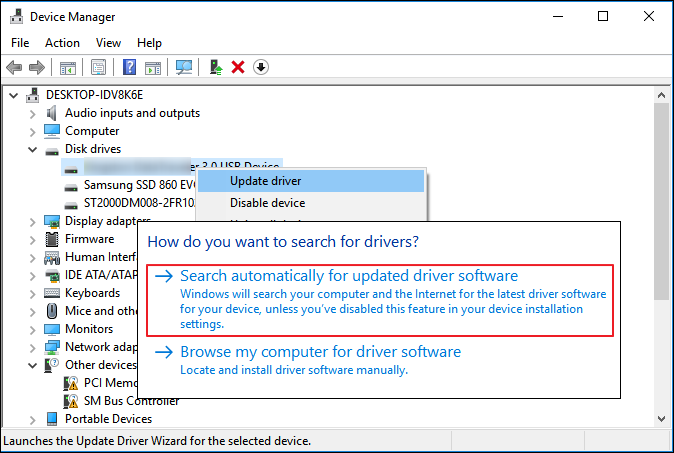
Step 3. To update the disk drivers for your external hard drive, expand the disk drivers and right-click on your external hard drive. From the context menu, select the option to "Update Driver".
Step 4. Select "Search automatically for updated driver software" and restart the PC once the process is finished.
Fix 2. Format RAW Seagate External Hard Drive to NTFS
| Risk Level: High. Data may get lost after formatting. | Difficulty Level: Easy |
- Warning
- Formatting your hard drive can lead to permanent data loss, so it's essential to back up your data before proceeding. If you've already formatted your hard drive and need to recover your data, consider using data recovery software or services to attempt to retrieve your lost files.
If your external hard drive shows up as RAW or Unallocated in Device Manager or Disk Management, it needs to be formatted.
Step 1. Connect the Seagate external hard drive to your PC and open Disk Management. In Disk Management, look for the external hard drive and right-click on it to select 'Initialize' or 'Revert to Disk' if it's not initialized.
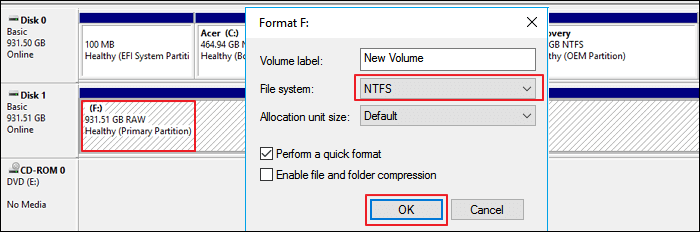
Step 2. Right-click on the not working RAW drive and select "Format".
Step 3. To format a drive, set the volume label, select NTFS as the file system, and check the "Quick Format" box. Then, click "OK" to initiate the formatting process.
Fix 3. Restore Partition or Create a New Partition on Unallocated Seagate External Disk
| Risk Level: Medium, data may get overwritten by creating a new partition. | Difficulty Level: Easy |
If your external hard drive appears as unallocated in Disk Management, you have two possible solutions: either you can restore the original partition, or create a new one. This means that you can either recover the existing data and partition structure, or start fresh and set up a new partition on the drive.
#1. Restore Lost Partition and Data from Seagate Unallocated Space
To recover lost partitions and data, you can directly apply partition recovery software, which scans and restores all lost partitions and data from the unallocated space.
Step 1. Run Qiling Partition Recovery on your PC.
To recover lost partition(s), select the disk or device where the partition(s) were located, then click "Scan" to initiate the recovery process.
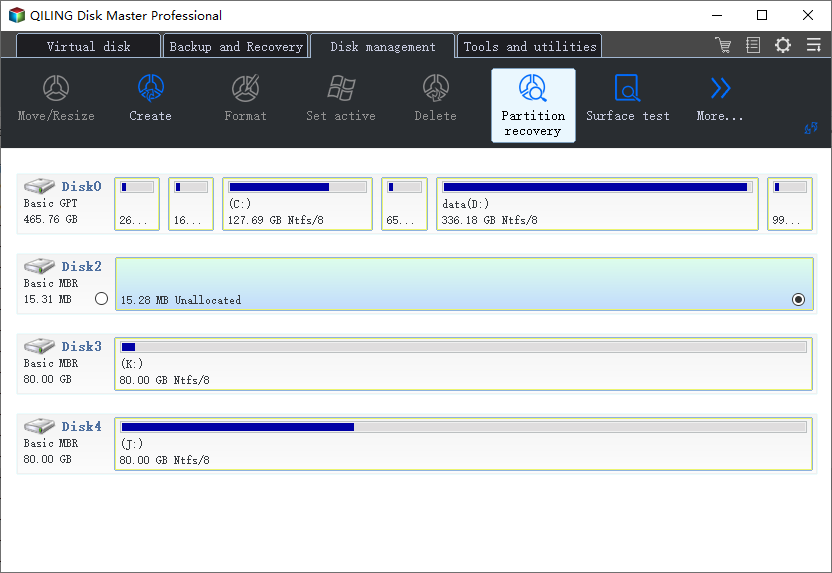
Step 2. Wait for the scanning process to complete.
Let the program scan the selected disk and find the lost partition(s).
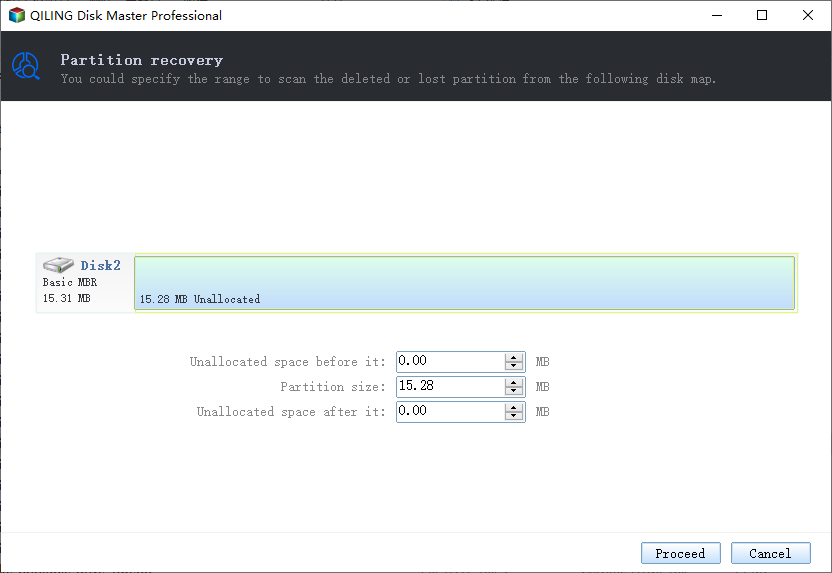
Step 3. Preview and restore the lost partition(s).
double-click on the partition which is marked as "Lost" with "Good" recoverability.
To restore a lost partition, first preview the content of the lost partition by clicking "OK" and then "Proceed" to initiate the recovery process.
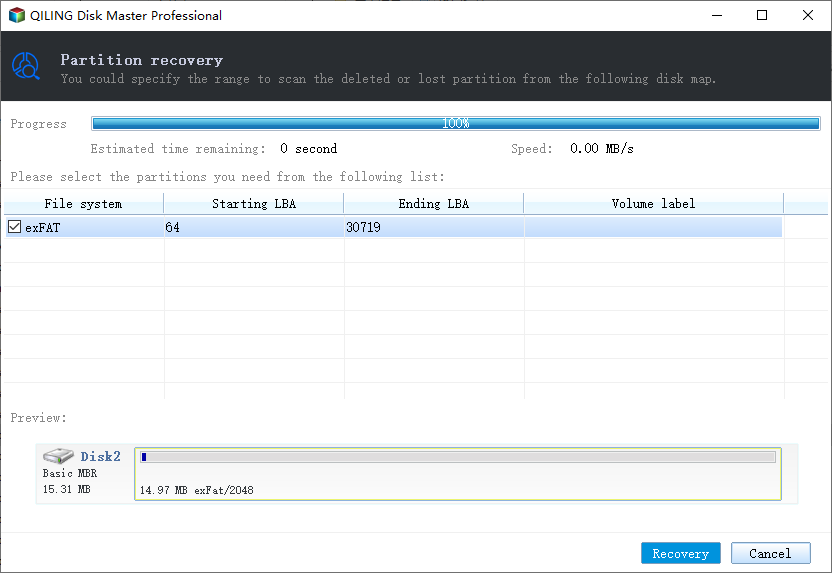
Step 4. Click "Recover" to finish the partition recovery process.
If the program warns of a conflict, back up the listed partition with essential data to an external hard drive, then execute the final operation to restore the lost partition.
#2. Create a New Partition on Unallocated Seagate External Disk
Note: If you want to delete all files in a directory, you can use the `rm -rf` command in the terminal. However, this method can lead to data loss, so it's recommended to recover data first if you want to use this method.
Here is how to use Disk Management to create a new partition:
Step 1. Connect the unallocated Seagate external hard drive to your PC and open Windows Disk Management.
Step 2. Right-click on the unallocated partition and choose "New Simple Volume...".
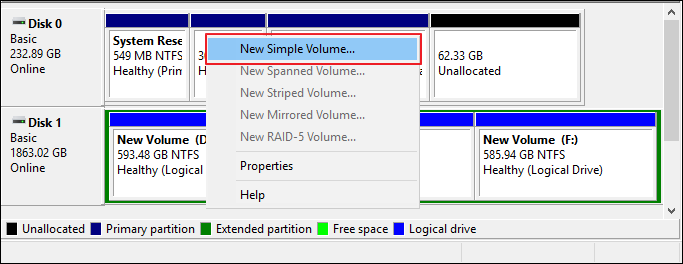
Step 3. Set the partition size, drive letter, and file system, such as NTFS, and click OK to confirm the changes.
Step 4. Click "Finish" to complete the process.
Fix 4. Change Seagate Drive Letter
| Risk Level: Low | Difficulty Level: Easy |
If your external hard drive has the same drive letter as a disk partition on your computer, Windows won't display the drive letter of the external device, instead showing it as "New Volume" in Disk Management without a drive letter.
To fix the issue with your external hard drive not being detected, you'll need to add a new drive letter to your Seagate disk. This can be done by going to the Disk Management tool, selecting the external drive, and assigning a new drive letter to it. This should resolve the issue and allow your external hard drive to be recognized and used.
Step 1. Connect Seagate external to computer and open Disk Management.
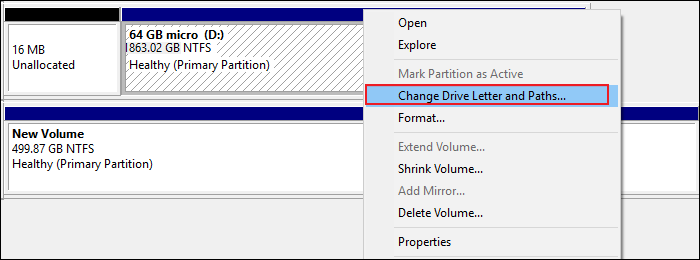
Step 2. Right-click the partition of the not working Seagate disk and choose "Change Drive Letter and Paths..."
Step 3. Assign a new drive letter to the Seagate disk by right-clicking on it in File Explorer, selecting "Properties", and then clicking on the "Change" button next to "Drive letter and path". Select the desired drive letter from the dropdown menu and click "OK" to confirm.
Fix 5. Turn on USB Root Hub
| Risk Level: Low | Difficulty Level: Easy |
USB external hard drives may malfunction if multiple devices are connected to the same USB hub, which can cause the hub to go into selective suspension, leading to the external hard drive's failure to function correctly.
You can enable the USB root hub letting the controllers recover the USB port from its unresponsive condition to make your device work normally again:
Step 1. Connect not working Seagate external hard disk to PC.
Step 2. Open Device Manager and expand "Universal Serial Bus controllers".
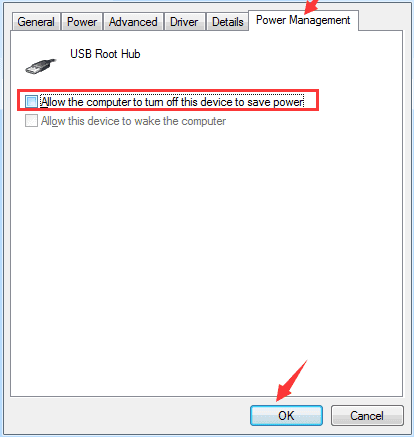
Step 3. Right-click USB Root Hub > Click "Properties" > "Power Management".
Step 4. To resolve the issue, uncheck the box that says "Allow the computer to turn off this device to save power" in the device properties and then restart the computer. This should resolve the problem.
How to Repair Seagate External Hard Drive Not Working/Detected in Mac
To repair a Seagate hard drive on a Mac, follow these methods to get it working normally again. First, check the drive's physical condition and ensure it's properly connected.
- Fix 1. Repair Seagate External Hard Drive in First Aid
- Fix 2. Format Seagate Disk to macOS Supported File System
- Fix 3. Remount and Reformat Unmountable Seagate External Hard Drive
Before you proceed further, try the quick fixes:
- Seagate drive is not showing on desktop:To check Disk Utility, open the Finder and navigate to the Applications folder, then click on Utilities, and finally select Disk Utility.
- Seagate disk is not detected in Disk Utility: see the System Information/System Profiler section.
- On macOS 10.13 or higher, click "View" in the upper left and select "Show All Devices".
If all the attempts failed to display your Seagate external hard drive on Mac, try the below 3 methods.
Fix 1. Repair Not Working Seagate External Hard Drive in First Aid
| Risk Level: Low | Difficulty Level: Easy |
If the Seagate drive is unmountable or the mount icon is greyed out, it will prevent your Mac from recognizing or detecting the drive correctly, so you can repair the problematic drive in the built-in First Aid utility.
Step 1. Open Finder and click "Applications".
Step 2. Locate Disk Utility in "Utilities" and double-click to open it.
Step 3. To unmount and repair a Seagate external hard drive, select it in the left sidebar and choose "First Aid" at the top.
Step 4. Run the Seagate hard drive repair tool and then click "Done" to finish the process.
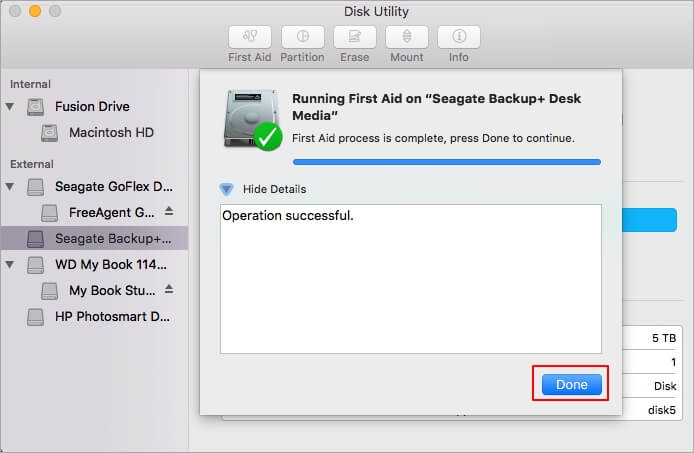
If Fix 1 fails to work, you may try to format the Seagate disk in Fix 2 or Fix 3, which are alternative methods to resolve the issue.
Fix 2. Format Seagate Disk to macOS Supported File System
| Risk Level: High. data will get lost due to formatting. | Difficulty Level: Easy |
- Warning
- Before formatting a disk on your Mac, it's essential to know that it will erase all data, so make sure to use reliable data recovery software like Qiling data recovery software for Mac to restore all files first.
If you use an NTFS Seagate external hard drive on a Mac computer, it won't work or show up on Mac, as Mac only supports APFS, FAT32, and exFAT formats, not NTFS.
To fix the Seagate external hard drive not working error, try formatting the drive to FAT32 or exFAT. To do this, follow these steps: connect the drive to your computer, go to Disk Management, select the drive, and click on "Format" - choose FAT32 or exFAT as the file system, and follow the on-screen instructions to complete the formatting process. This should resolve the issue and allow you to use the drive again.
Step 1. Connect the Seagate external hard drive to Mac.
Step 2. Go to the Apple menu, click "Go" and select "Applications".
Step 3. double-click to open Utilities, locate "Disk Utility" and double-click to open it.
Step 4. Select the Seagate disk, click "Erase".
Step 5. On the Format pop-up window, set a new format like "MS-DOS (FAT)" and click "Erase" to change the drive's format.
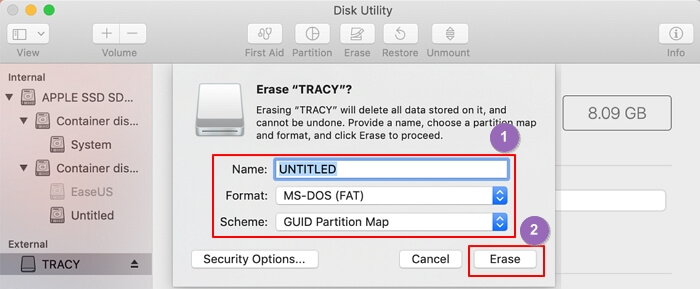
Once the formatting process completes, you can view and access the Seagate external disk on your Mac again.
Fix 3. Remount and Reformat Unmounted Seagate External Disk
| Risk Level: Low | Difficulty Level: Medium |
If the file system on your Seagate hard disk is corrupted and it's not mounting correctly on your Mac, it won't work or be detected. To revive it, remounting and reformatting the drive is the quickest solution.
Carefully follow the steps below to make the Seagate external hard disk work again on Mac:
Step 1. To access Disk Utility, go to the Applications folder, then click on "Utilities" and double-click to open Disk Utility.
Step 2. Select the "Untitled" Seagate drive, and click "Mount".
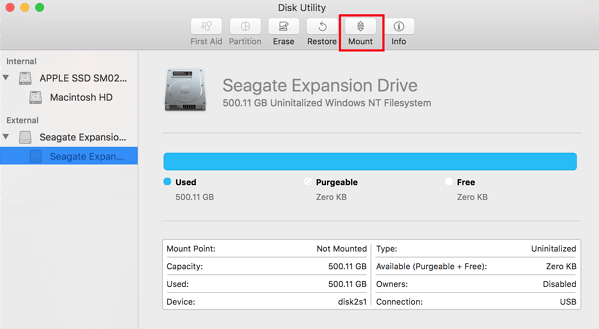
Once the mounting completes, the Seagate drive will appear in the left pane.
Step 3.Select your Seagate external hard drive on the sidebar, choose "Erase" to wipe all data from the drive.
Step 4. To format a drive, rename the drive, select the format as MS-DOS (FAT), and then click "Erase".
If you're having trouble using your Seagate external hard drive on both Windows and Mac computers, try using the Seagate Dashboard software on your Windows computer and then connect it to your Mac using the USB cable. Alternatively, you can also use the Seagate Drive software on your Mac computer.
Why Is Seagate External Hard Drive Not Working/Detected
Seagate external hard drive not working or not detected is a concerning issue among worldwide Seagate users, often describing a malfunctioning hard disk or external hard drive in a state of "Not Working".
Your Seagate external hard drive may stop working or malfunction due to various reasons, including both software and hardware issues. Software problems can arise from corrupted files, outdated drivers, or incorrect settings, while hardware issues can be caused by physical damage, faulty connections, or worn-out components. Other common reasons for a malfunctioning hard drive include overheating, power surges, or electrical interference. Additionally, user errors such as improper shutdown, file system corruption, or physical damage can also lead to a non-functional hard drive.
- Incompatible file system
- File system corruption, Invalid file system, RAW
- The drive turns to unallocated
- Disk drive letter conflict
- Hard drive driver is corrupted or out of date
- The USB port is not working
- The hard drive has too many bad sectors
- The hard drive is damaged, dead, or not spinning up
Fixing Not Working Seagate Drive Is Possible, It's Your Turn
This guide provides 8 solutions to fix a non-functioning Seagate external hard drive on both Windows and Mac computers. If any of these fixes result in file loss, you can recover all your precious data using the Qiling file recovery solution.
Your Seagate external hard drive may suddenly stop working or not be detected by your Windows or Mac computer. To avoid losing your data, it's essential to create a regular backup of your external disk data. Fortunately, fixing the issue is possible, and following the steps outlined above can help get your drive working again.
Related Articles
- How to Recover Data from Corrupted or Scratched CD/DVD
- [Solved] USB Drive Detected But not Accessible
- Unlock Hard Drive | Fix Drive Where Windows Installed Is Locked
- Recover Data from SATA Hard Drive in 3 Steps [2023 Guide]
Recover data from SATA hard drive can use backup and recovery software solutions. SATA is a previous-generation technology, and the PCs utilizing it are older. Therefore, there are a few limitations. This article provides the methods for SATA data recovery. - 3 Working Ways to Recover Deleted CCTV (DVR) Footage
even if you lost CCTV footage from your DVR camera. You can get three practical ways to restore lost CCTV camera videos, using data recovery software, asking data recovery experts for help, and checking the backups. Read on and recover deleted CCTV footage as soon as possible.
Products
Articles & Tutorials
- Data Recovery
- Data Backup
- File Recovery
- File Backup
- System Backup and Restore
- Disk and Partition Clone
- Technical articles
- Mobile articles
- Disk Master Help
- Windows Data Recovery Tutorials
- Windows Secure Delete Tutorials
- Windows Partition Management Tutorials
- Windows File Backup and Restore Tutorials
- Windows System Backup and Restore Tutorials
- Windows Disk Backup and Restore Tutorials
- Windows Clone Tutorials