Fix Seagate External Hard Drive Light Blinking but Not Working/Detecting Error
This page provides solutions to two common issues with Seagate external hard drives: the light is blinking but not working or detecting, and the light is not blinking at all. Depending on your situation, you can either jump to the first part to troubleshoot why your Seagate external hard drive light is blinking but not working or detecting, or to the second part if your light is not blinking at all.
| Workable Solutions | Step-by-step Troubleshooting |
|---|---|
| Part 1. Hard drive light is blinking but not working/detecting |
Fix 1. Change USB Port...Full steps |
| Part 2. Light is not blinking |
Fix 1. Check the Power Supply...Full steps |
Part 1. Seagate External Hard Drive Light Blinking But Not Working
Seagate external hard drives can sometimes become undetectable by PC due to unknown reasons, with the drive light blinking but not working or detecting. This issue can be caused by problems with the hard drive itself or other non-device errors. Fortunately, there are six effective methods to repair and fix Seagate external hard drive not working errors, which can help resolve the issue and get your device up and running again.
Minor issues like a loose connection or a faulty cable can cause problems with an external hard drive, making it a good idea to troubleshoot and rule out those possibilities before trying more drastic measures.
Fix 1. Change USB Port and Reboot PC
The Seagate external hard disk light blinking but not being detected issue can often be resolved by simply switching the USB port and rebooting the computer. This involves disconnecting the external hard drive, turning off the PC for a minute, reconnecting the drive to a different USB port, and then turning the computer back on. Alternatively, trying the device on a different computer can also be a troubleshooting step.
Fix 2. Turn On USB Root Hub
Connect your Seagate external hard drive to your PC and then start the following process:
Step 1. Click "Start" and type devmgmt.msc.
Step 2. Open "Device Manager" and expand "Universal Serial Bus controllers".
Step 3. Right-click "USB Root Hub", click "Properties", and then select "Power Management".
Step 4. To prevent the computer from turning off the device to save power, you should uncheck the option "Allow the computer to turn off this device to save power". This ensures that the device remains active and functioning, even when the computer is in a low-power state.
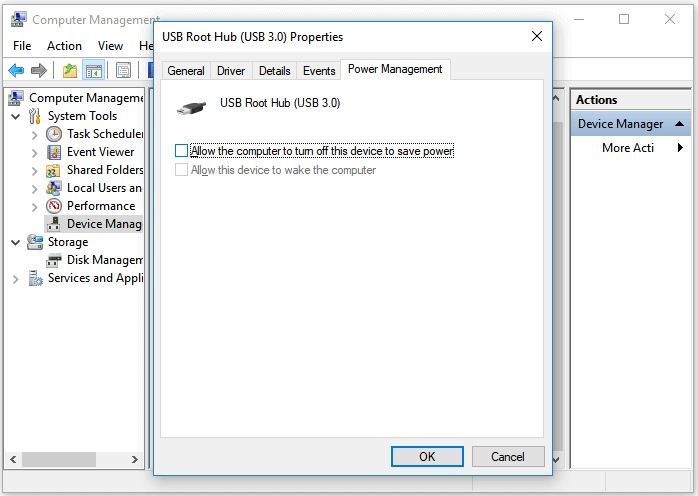
Step 5. Repeat this process for each USB Root Hub in the list and reboot PC.
To check if your Seagate external hard drive is detected by your PC, connect it using a USB cable, then open the File Explorer and click on 'This PC' or 'Computer' in the left-hand menu. Look for the Seagate external hard drive in the list of available drives; if it's detected, you'll see it listed with its capacity and other details.
Fix 3. Clean Up Virus
If your computer or Seagate external hard drive is infected by a virus, it may cause the drive to be undetectable or unreadable. To resolve this issue, use virus cleaning software to remove the virus from your drive and PC, then reboot your PC and try accessing the Seagate external hard drive again.
If these simple tips fail to help you solve the issue "Seagate external hard drive light blinking but not working", don't get frustrated. There are three more advanced solutions for you to apply.
Fix 4. Make Seagate External Hard Drive Show Up in PC by Showing All Hidden Devices
Step 1. Click on "Start", type devmgmt.msc, and select "Device Manager".
Step 2. To view hidden devices in the menu bar, click on "View" and select "Show hidden devices".
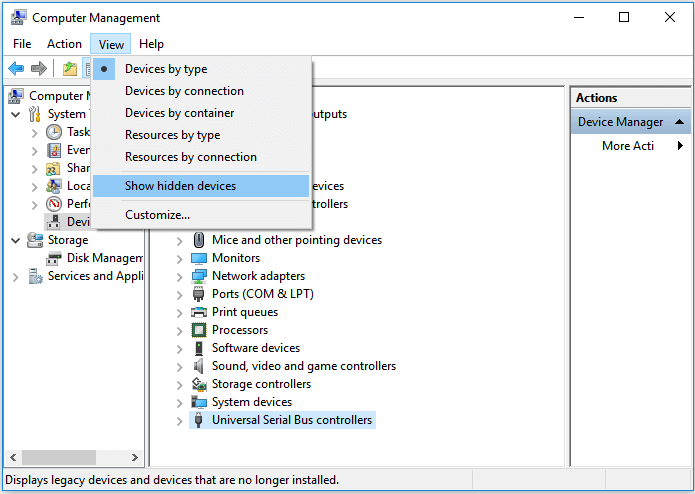
Step 3. Expand all notes by clicking on the "+" icon.
Step 4. If there are any greyed entries, right-click on it and select "Uninstall".
Step 5. Reboot your computer and try again.
Fix 5. Update Hard Drive Driver to Fix Seagate External Hard Drive Not Detecting Error
Step 1. Click on "Start" and type devmgmt.msc to open "Device Manager".
Step 2. To update the driver for your Seagate external hard drive, right-click on "Disk drives" in the Device Manager, and select "Update driver" from the context menu. This will initiate the driver update process, which may take a few moments to complete.
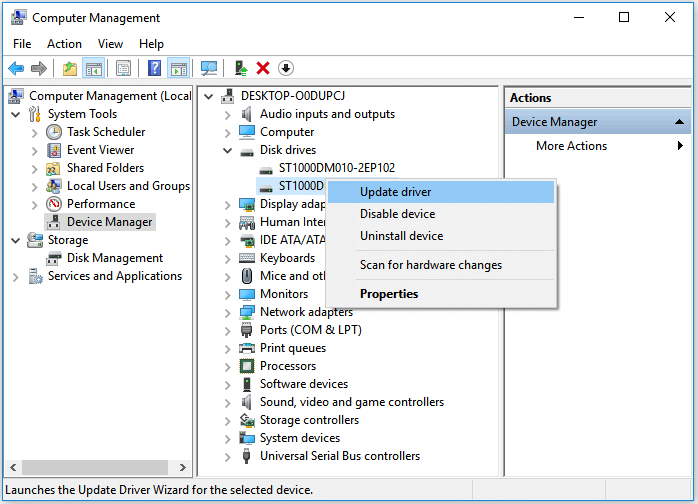
Step 3. The device was not recognized by the computer. I will try to connect the device to the computer again.
- If your Seagate external hard drive is showing as unrecognized, go to the Device Manager, navigate to the Drivers tab, and delete or uninstall the driver associated with the hard drive. This may resolve the issue and allow the drive to be recognized again.
- To check if the external hard drive is recognized by your computer, go to "My Computer/This PC" and see if the external hard drive shows up in the list of available drives. If it does, it means the computer is able to recognize the external hard drive.
- If it doesn't show up, reboot or restart the PC
- If the Seagate external hard drive shows up initially but later disappears, try repeating the steps to troubleshoot the issue. Then, go to Disk Management, change the drive letter of your Seagate external hard drive, and reconnect it to your PC to allow it to detect it again.
Fix 6. Delete Registry Key to Make Seagate External Hard Drive Detected and Work
Be extremely cautious when using Registry Editor, as any false operation can result in serious problems. To delete a Registry key and make a Seagate external hard drive detectable and functional again, follow the steps carefully.
Step 1. Click on "Start", type regedt32 and click "regedt32" to run "Registry Editor".
Step 2. To back up your registry, go to "File" and click on "Export" in the Registry Editor, then save the registry keys to a designated location on your computer. This will create a backup of your registry that you can use to restore your system if needed.
Step 3. Go to: HKEY_LOCAL_MACHINE\SYSTEM\CurrentControlSet\Control\Class\{4D36E967-E325-11CE-BFC1-08002BE10318};
Step 4. If you see any "UpperFilter" or "LowerFilters" on the right side, right-click to delete them.
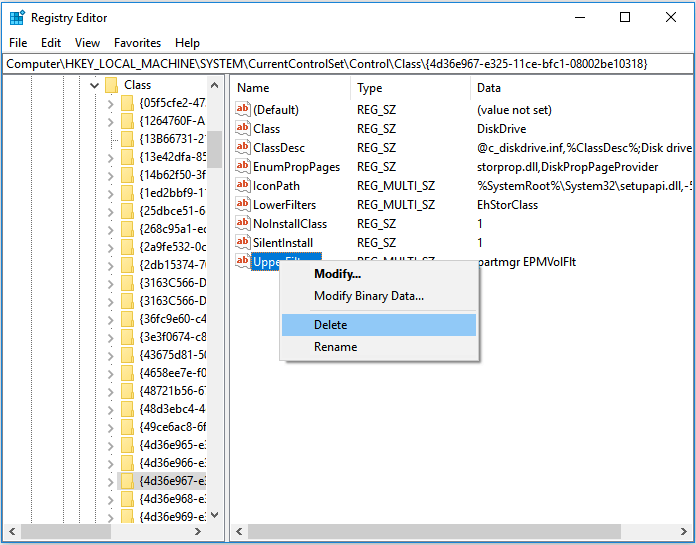
Step 5. Then close the registry, reboot the PC, and retry to open your external hard drive again.
Part 2. Seagate External Hard Drive Light Not Blinking
Here are four methods to deal with a Seagate external hard drive that is not blinking:
Method 1. Check the Power Supply
If there is a power supply issue, your external hard drive won't blink at all when you connect it to your computer. This can be checked by ensuring the power cord is securely plugged into both the hard drive and the wall outlet, and that the outlet itself is working properly. If the power cord is damaged or the outlet is not functioning, it may not turn on.
Step 1. Change the USB cable.
Step 2. Change the USB port.
Step 3. Connect your external hard drive to another computer if possible.
Method 2. Take the External Hard Drive Out of Its Enclosure Case
To troubleshoot the issue with your external hard drive, try removing it from its enclosure and connecting it directly to your computer to rule out any issues caused by the enclosure.
If the Seagate external hard drive still won't power up, you can try using the Seagate Backup Plus Portable external drive, which has a built-in power supply, eliminating the need for an external power source. Alternatively, you can try using a USB 3.
Method 3. Ask for a Replacement
If the two tips above don't work, it's highly likely that your hard drive is dead. In this case, if your Seagate external hard drive is still under warranty, go to get a replacement from where you have bought it.
Method 4. Get Manual Data Recovery Service
If your HDD is dead and out of warranty, the best way to recover your precious data is to ask for manual data recovery services, as existing data recovery software can't restore files from a crashed or damaged external hard drive that can't be detected by the computer.
Part 3. Restore Data from Seagate External Hard Drive
After resolving the issue of a Seagate external hard drive not working or not detecting, you can now open the drive to access your stored data.
If your hard drive is damaged or you've lost data, don't panic. The powerful hard drive recovery software, Deep Data Recovery, can help you recover your lost data. As long as your external hard drive is detected by your computer and the data hasn't been overwritten, the software can retrieve all your lost data.
Qiling data recovery software enables you to:
- Data recovery is possible from various storage devices, including emptied Recycle Bin, formatted hard drive, corrupted or damaged storage drive, and more. This process involves retrieving lost files and data from these devices, often due to accidental deletion, formatting, or physical damage.
- Restore lost or deleted files from various storage devices, including hard disk drives (HDD), solid-state drives (SSD), USB drives, pen drives, SD cards, external hard drives, and more.
- Repair corrupted files automatically during data recovery on Windows 11/10/8/7
If you need to recover data from your external hard drive, you can do so with a few simple steps using a data recovery software. To start, download and install a data recovery software such as Disk Drill or Deep Data Recovery on your computer.
Step 1. Connect your external hard drive to your computer using a correct USB cable. Run Deep Data Recovery on your computer, select the desired file types, and click "Fast Scan" to initiate the recovery process.

Note: You can choose different search modes based on where and why the data was lost.
Step 2.In the next window, you will see your external disk listed under External drives, with support for popular brands such as WD, Seagate, Toshiba, LaCie, SanDisk, and Samsung.
Select the external hard drive and then click the "Scan" button.

Step 3. As soon as the scan process starts, the software will find and display lost and deleted data in the scan results, with recovered data organized in a user-friendly way, allowing for quick file or folder retrieval by type or exact name through a search box.

Step 4. To recover files from a Seagate drive, you can use Deep Data Recovery's scanning algorithms to preview the files found, select the desired files, and then click "Recover" to save them to a different drive. This approach avoids overwriting the original data.
Part 4. Back Up Seagate External Hard Drive
In addition to using a powerful data recovery tool like Deep Data Recovery, it's essential to back up your devices or files to minimize the risk of losing data on Seagate external hard drives and other devices. This proactive approach can help prevent data loss and ensure that your important files are safely stored.
Qiling Backup is a free software that allows you to create backups of your precious data. It supports backing up various storage devices, including computer hard drives, external hard drives, USB drives, memory cards, and more. With this software, you can either back up your entire device or selectively choose the files you want to save, providing a convenient and efficient way to safeguard your digital information.
Step 1. When you first use Qiling Backup to back up files, click on "File backup" on the "Backup and recovery" page.

Step 2. To back up files, folders, or directories, follow the paths to locate the items you want to back up, select them all.
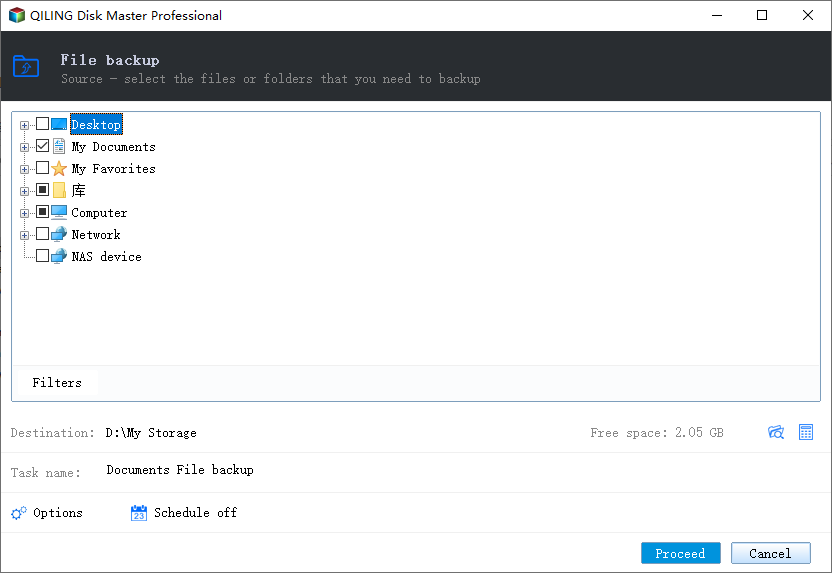
Step 3.To select a backup location, you can choose a physical storage device, such as an external hard drive, a network drive, or a cloud storage service like Google Drive or Dropbox. You can also save the backup to a folder on your computer or another device.
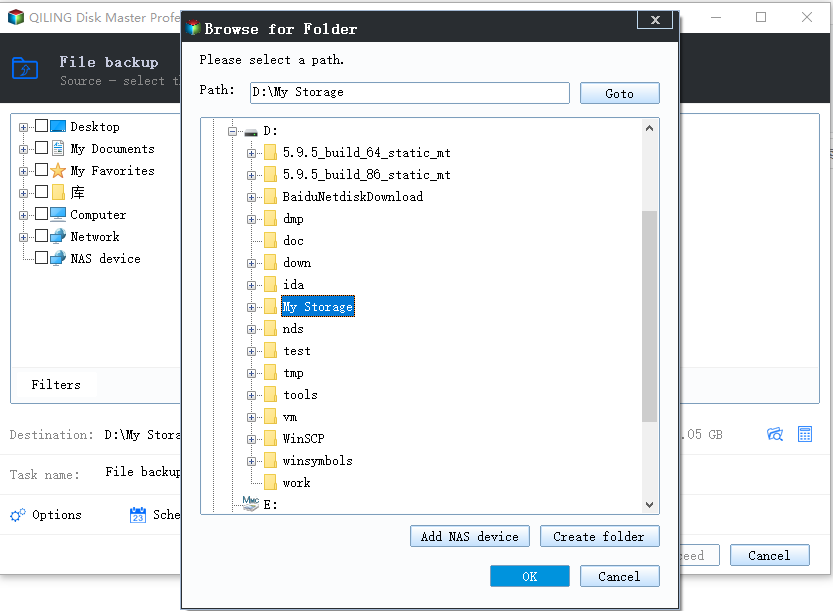
Step 4. Qiling Backup allows users to save backup files to various devices, including local hard drives, external USB drives, SD cards, network drives, NAS drives, and Qiling cloud drives. We recommend storing backups in the cloud for greater accessibility, flexibility, and safety.
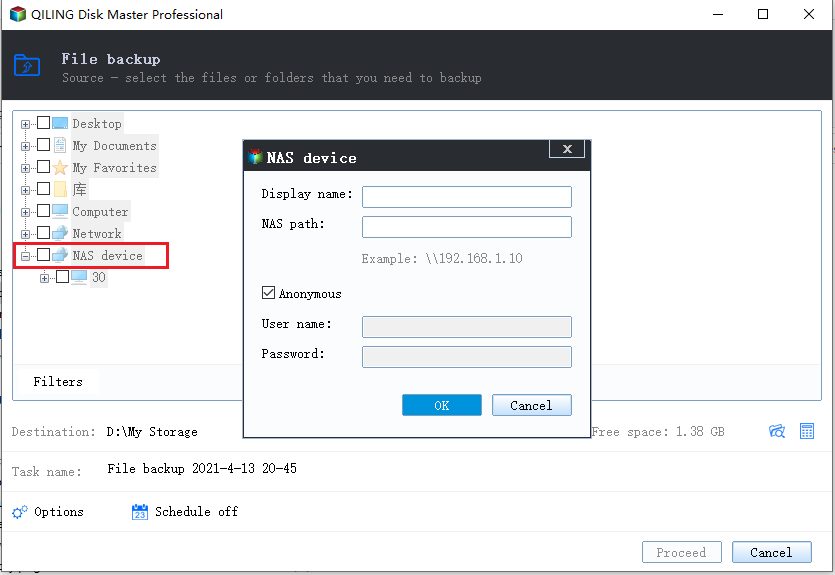
Step 5.If you want a backup schedule for your next file backup task, go to the "Options" setting. There, you can choose to encrypt confidential files, compress the backup image size, or customize a backup schedule to specify when the next backup should start.
Customize an advanced and automatic backup task here:
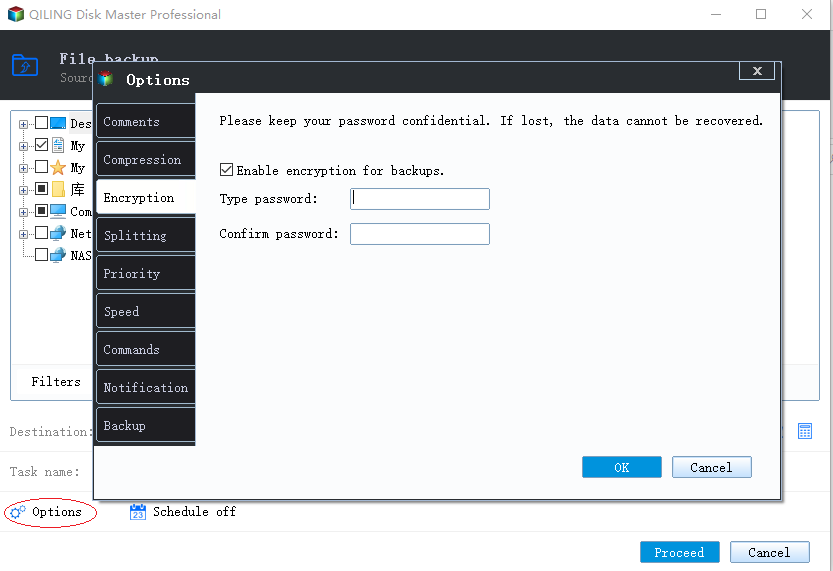
Step 6. Click "Proceed" to start the file backup process, and your completed backup files will be visible on the left in a card style.
Having a backup available can provide a sense of relief and reduce frustration when encountering issues like a Seagate external hard drive's light blinking but not working. It's worth trying.
Conclusion
If your Seagate external hard drive is not working or detecting, try these 10 fixes to get it up and running. First, check the power cord and USB connection for any issues. Next, restart your computer and try again.
- If your Seagate external hard drive light is blinking but not detecting, you can try the methods mentioned in Part 1 of the solution to troubleshoot the issue.
- If your Seagate external hard drive is not working or blinking, try the following fixes from Part 2: 1) Check the power cord and USB connection, 2) Restart your computer, 3) Update your operating system, 4) Run a disk check on the external drive, and 5) Contact Seagate support for further assistance. If none of these solutions work, it may be a hardware issue and you may need to replace the drive.
- To protect data on storage devices, consider using data recovery software like Qiling File Data Recovery and backup software to prevent data loss.
If your external hard drive, such as a Toshiba, SanDisk, or Samsung model, is not working or detecting but its light is on, you can try applying the fixes to resolve the issue. The fixes can be applied to these brands and others with similar errors, and they may help get your external hard drive up and running again.
People Also Ask
Many users face the issue of their Seagate external hard drive not being detected, despite trying various solutions such as changing the USB port, turning on the USB Hub, updating the device driver, and deleting the Registry key. Despite these practical fixes, some users still encounter issues with their external hard drive not showing up.
What are the FAQs asked by people on Google and the answers we left below each question?
1. How do I fix a flashing external hard drive?
If your external hard drive is flashing but not recognized, it's likely due to a connection or power supply issue. Try changing the USB hub power settings, checking the cable and connection, and ensuring the device has a stable power source. If the issue persists, try restarting your computer or using a different USB port.
- 1). Click Start and type devmgmt.msc and press Enter.
- 2). Click Device Manager, expand Universal Serial Bus Controllers.
- 3). Right-click on USB Root Hub, choose Properties followed by Power Management.
- Disable the option to allow the computer to turn off the device to save power.
- 1) Follow the process for all UAB Root Hub and reboot PC.
Next, you need to update the external hard drive driver to make sure the device driver is updated.
2. What does a blinking hard drive light mean?
On a healthy external hard drive or USB flash drive, it's normal for the activity light to flash on and off, even all day long, as the device is being written and read from, such as transferring files or running programs.
Windows often waits until your computer is idle to run specific tasks, resulting in the hard drive activity light flashing even when you're not actively using your computer.
3. Why is my external hard drive not showing up?
There are several reasons why your external hard drive may not be showing up, including issues with the drive itself, such as a faulty drive or corrupted data, as well as problems with the computer or device you're trying to connect it to, like outdated drivers or incompatible software. Additionally, physical issues like a loose or damaged connection, or environmental factors like overheating or interference from other devices, can also prevent your external hard drive from being recognized. Other possible causes include incorrect settings or permissions, or even a simple matter of the drive not being properly connected or powered on.
- 1). Partition loss: external hard drive shows as unallocated space
- 2). Driver letter conflict
- 3). External hard drive driver outdated
- 4). Problematic connection, USB port/cable damaged
- 5). Physical damage on the external hard drive
The solutions for a hard drive not showing up or being recognized include checking the power cord, checking the USB connection, running a disk check, updating drivers, and using a different USB port or cable. Additionally, you can try using a different computer or a USB extension cable to rule out any hardware issues. If the problem persists, you can try formatting the hard drive or seeking professional help.
Related Articles
- Lexar USB Flash Drive Format & Repair Tool Free Download
- Fixes for Adobe Photoshop Has Stopped Working Without Losing Files
- [Self-Check-and-Repair]: How to Repair External Hard Disk Not Detected in Windows 10
- Fixed: Why My PS4 Won't Turn On
- 2 Proven Ways to Recover Civilization VI Game Save
If you've lost Civilization VI game data, there are two ways to recover it. You can try recovering lost game data with Civilization VI's autosave feature, or use Qiling game data recovery software to restore your game saves. - How to Recover Data from 2TB External Hard Drive in Windows 11/10/8/7
about large amounts of data recovery. Here, we come up with a DIY recovery solution - Qiling data recovery software. It helps you recover data from a 2TB external hard drive or internal hard drive with simple steps. You can get this hard drive recovery software by clicking the download button.
Products
Articles & Tutorials
- Data Recovery
- Data Backup
- File Recovery
- File Backup
- System Backup and Restore
- Disk and Partition Clone
- Technical articles
- Mobile articles
- Disk Master Help
- Windows Data Recovery Tutorials
- Windows Secure Delete Tutorials
- Windows Partition Management Tutorials
- Windows File Backup and Restore Tutorials
- Windows System Backup and Restore Tutorials
- Windows Disk Backup and Restore Tutorials
- Windows Clone Tutorials