All You Need to Know About a Rooted Device
Customizing your smartphone to your liking can make it even more valuable, but the preloaded custom UI can limit this, allowing for data breaches and administrative control. Fortunately, this article will guide you through everything you need to know about rooted devices, which can provide the desired functionality and extra features.
Definition - What Is A Rooted Device
Even if you want to, you won't be able to get everything you want from your phone because certain features are restricted to general users who can't tamper with the phone on a deeper level. Smartphone manufacturers place restrictions on your device to prevent this, but you can jailbreak it.
Rooting an Android device allows you to gain greater control and access to the device's system, essentially "unlocking" it, similar to jailbreaking an iPhone, to customize and modify the device beyond what is possible with standard software. This is done to bypass restrictions and have more control over the device's subsystems.
Devices that have been modified or jailbroken, also known as rooted devices, can install unapproved apps, delete unnecessary system apps, force update the operating system, and customize various settings, giving users more control over their device. This can also allow for the installation of Custom ROMs, which can provide a fresh and customized Android experience.
The Risks Of Rooting Your Android Phones
Rooting a device can be a complex and potentially hazardous process, especially for inexperienced users, and may lead to unwanted problems and distress if not done correctly.

Rooting your Android device can be a complex process that requires technical knowledge and experience, and can result in loss of the device if done incorrectly, so it's recommended to proceed with caution and only if you have the necessary skills and experience.
- Turn your smartphone into a brick.
- Malware can breach your mobile security much easier.
- Losing all your digital data, including cherished photos, important messages, and everything you've stored, can be a devastating experience.
Rooted Device Data Recovery- Unroot a Device
If you decide to root your device and encounter data loss. Losing data is a common risk, but there are options to recover it. You can use Qiling data recovery software to restore and retrieve your lost data on a rooted device, but you'll need a PC for this process.
Deep Data Recovery is an all-Data recovery software is a tool that helps you retrieve deleted data files, as well as data from damaged or formatted hard drives. It's a secure, smooth, and efficient way to recover lost data, making it an easy method to get back any files you've accidentally deleted.
The software has flexible scanning modes, including Quick scan and Advanced scan, which scan the storage device sector by sector. This allows users to preview their data before actual recovery, ensuring they're recovering the correct files.
Qiling supports JPEG Repair Tool Free Download | Repair Corrupted JPEG Files in JPEG/JPG format, and its hard disk data recovery software can recover unlimited data, including from raw partitions, with remote consultation and assistance available for free.
You can recover almost any file type, including documents, graphics, video, audio, Email, and ZIPs, from a rooted device. When connected to a PC, the device is recognized as an external drive, allowing you to follow a step-by-step guide to recover data.
Step 1. Select file types and click "Fast Scan" to start
- Download and install Qiling Data Recovery software on your PC or laptop to access its data recovery features.
- Connect the external hard drive to your computer.
- Launch Deep Data Recovery software, select file types, and click "Fast Scan" to initiate the recovery process.

Note: You can choose different search modes based on where and why the data was lost.
Step 2. Choose and scan the external hard drive
- To recover data from an external drive, select the drive from the list of external drives, then click "Scan for lost data".

Step 3. Check the scan results
- Qiling data recovery software scans the selected drive for all data, including deleted, corrupted, and existing data.
- You can use the Filter feature to quickly find files of a specific type, such as Pictures, Word, Excel, PDF, videos, emails, and more.

Step 4. Preview and recover data
- double-clicking a file from the scanned results to preview.
- Choose the files you want and click "Recover".
- Select a different drive to save the recovered files instead of the original one.
Extra Tips - How to Root Your Android Smartphones
Proper guidance is always necessary when taking a risk that involves potential damage. We've covered the issues that can occur when rooting a device without prior knowledge or proper guidance, and provided guidance on what to do if data is lost during the process.
To root your device safely, consider using Magisk, a tool that grants root access to your Android device. Magisk is a popular and reliable choice for rooting, offering a seamless experience and opening up possibilities for modifications and customizations on your device.
To extend the functionality of your Android device, power users can install Magisk, a popular rooting solution that allows for the installation of Magisk Modules. These modules serve various purposes, including ad-blocking, aesthetic theming, enabling Camera2API, and more. If you're considering rooting your device, Magisk is a great option that can help you unlock additional features and juice from your device. To get started, follow this step-by-step guide to install Magisk on your Android smartphone.
To install a custom ROM on your device, you need to have a custom recovery installed and your bootloader unlocked. If your bootloader is already unlocked, you can proceed. Otherwise, you can search for a guide specific to your device on XDA Forums to unlock it. Each phone has a unique method for unlocking the bootloader. Once your bootloader is unlocked, you're ready to move forward.
1. Identifying the Type of Boot Image
To install the latest version of Magisk, download it from Github, as it is not available on the Google Play Store.
After the installation is done, open the Magisk app and note down the values of the given parameters: Ramdisk, A/B, and SAR.
2. Locating the Boot Image
To patch the boot image of your device, you need to extract it from official firmware packages, such as Lineage OS or similar compatible versions.
Case 1: You have access to recovery-flashable ZIP File
It works with an A-To extract the boot.img from the recovery-flashable ZIP file, you'll need to only partition scheme, find the boot.img just inside the ZIP file and extract it.
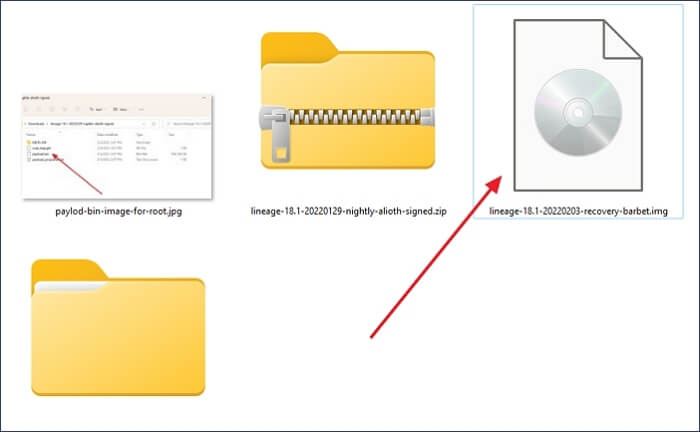
In case your device is using an A/B partition scheme, the boot image and other partition images are packed inside a file called payload.bin.
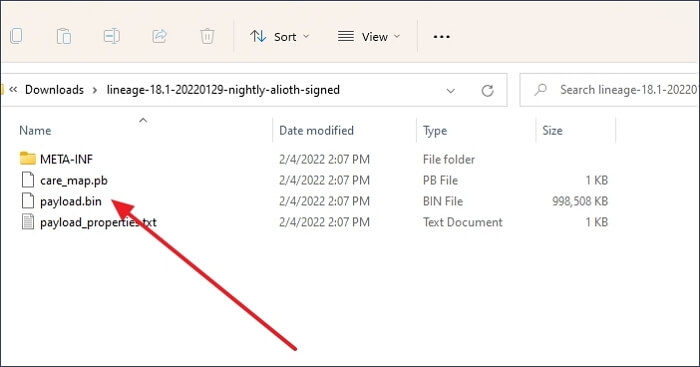
Case 2: You have access to the fastboot-flashable image
If you're using a device from OEMs like Google and Xiaomi, they provide factory images that can be flashed using Fastboot, allowing you to extract the boot.img file from their archives.
3. Patching the boot image
The next step in the boot process is patching. This involves updating the boot image with any necessary patches or updates to ensure it's compatible with the target system.
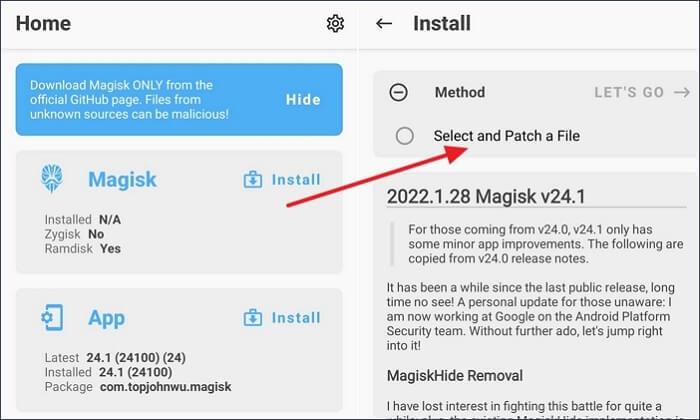
Case 1: The Value of the "Ramdisk" parameter is "Yes"
- First, copy the boot image to your device.
- Click on the "Install" button on the Magisk card.
- To select and patch a file, go to the Method section and choose "Select and patch a file", then select the stock boot image.
- The app will automatically patch the image to
[Internal storage] /Download/magisk_patched_[randomstrings].img.
- Now, you can copy the patched image to your computer using ADB. Connect your device to your computer via USB cable, enable Developer options and USB debugging on your device, and open a command prompt or terminal on your computer.
adb pull /sdcard/Download/magisk_patched_[randomstrings].img
- To flash the patched image to a device, you can use a command that varies depending on the device. However, most devices can be flashed with a single command, which is typically executed in a terminal or command prompt. This command allows the patched image to be written to the device's storage, effectively replacing the original software with the modified version.
fastboot flash boot /path/to/magisk_patched.img
- Reboot your device.
Case 2: The value of the "Ramdisk" is "no"
- Just copy the recovery image to your device.
- Press the "install" button.
- Choose the "Select and patch a file" under Method, and select the stock recovery image.
- Magisk will automatically patch the image to
[Internal storage] /Download/magisk_patched_[random_strings].img.
- Now, you can copy the patched image to your computer with ADB:
adb pull /sdcard/Download/magisk_patched_[random_strings].img
- To flash the patched image to the device, you can use a command that varies depending on the device. The command is usually specific to the device's model and can be found in the instructions provided with the patched image. This process involves using a tool like Odin or Fastboot to write the patched image to the device's memory.
fastboot flash boot /path/to/magisk_patched.img
- Reboot your device.
Now, you're probably left with three options:
- Normal, no Magisk.
- Use the Recovery Key Combo and when the Splash screen appears release all buttons. The system should boot with Magisk.
- To boot into Stock Recovery mode, press the Recovery Key Combo and keep pressing the volume up button when the splash screen appears.
4. Verification
To complete the task, launch the new Magisk app and verify that everything is in working order. Check for a number next to the installed parameter, indicating that the task has been successfully completed. Congratulations, you've finished the task!
Conclusion
Rooting your device may seem complicated, but you'll get used to it eventually. We've covered the benefits and drawbacks, and it's ultimately up to you to decide if the risk is worth taking. If you accidentally lose files, Android phone data recovery software can help you recover them. It's a leap of faith, but best wishes for your future adventures.
Related Articles
- How to Recover Uninstalled Programs on Windows 10 and Windows 11
- [Fixed] Google Chrome Not Downloading Files
- Can RAID 0 Be Recovered? Get Answers Here
- Restore Deleted/Lost ASUS Data with ASUS Data Recovery Software
- How to Restore WhatsApp Backup from SD Card
If you're having trouble restoring a WhatsApp backup from an SD card, you can follow a detailed guide to help you through the process. The steps to restore a WhatsApp backup from a memory card are available and can be followed to successfully recover your data. - 4 Ways Solutions for How to Recover Deleted Pictures on Samsung Galaxy Note 9 (2023)
If you're looking to recover deleted pictures on your Note 9, this guide can help. We've got four ways to help you recover deleted photos, texts, contacts, and videos on your Samsung Galaxy Note 9.
Products
Articles & Tutorials
- Data Recovery
- Data Backup
- File Recovery
- File Backup
- System Backup and Restore
- Disk and Partition Clone
- Technical articles
- Mobile articles
- Disk Master Help
- Windows Data Recovery Tutorials
- Windows Secure Delete Tutorials
- Windows Partition Management Tutorials
- Windows File Backup and Restore Tutorials
- Windows System Backup and Restore Tutorials
- Windows Disk Backup and Restore Tutorials
- Windows Clone Tutorials