Restore or Repair Corrupted AutoCAD Files
To recover and repair corrupted AutoCAD files, follow these six methods: Check for corrupted blocks, use the AutoCAD "Recover" command, try to open the file in an earlier version of AutoCAD, use the "AutoCAD File Repair" tool, check for corrupted layers, and finally, consider using a third-party file recovery software.
| Workable Solutions | Step-by-step Troubleshooting |
|---|---|
| Recover unsaved AutoCAD files |
Method 1. Open Deep Data Recovery > choose a location > scan > Preview and recover...Full steps Method 2. Locate the .bak backup file > copy and paste the .bak file and change file extension to .dwg...Full steps Method 3. Open AutoCAD > Tools > Options > check the location of autosaved files in Automatic Save File Location...Full steps |
| Repair corrupted AutoCAD files |
Method 1. Open Drawing Utilities > Recover > save the repaired CAD file to your local drive...Full steps Method 2. Open a blank DWG file > Run RECOVER command > select the corrupted files...Full steps Method 3. Open .dwg file and type -PURGE...Full steps |
How Do I Recover An AutoCAD Autosave File?
You're looking for a way to recover a lost .dwg file in AutoCAD. To do this, you can try using the AutoCAD 'Recover' feature, which can sometimes restore deleted or lost files. You can also try using third-party file recovery software, such as Recuva or Deep Data Recovery, to scan your computer for the lost file. Additionally, if you have a backup of your AutoCAD files, you can restore the lost file from there. If none of these methods work, you may want to try contacting AutoCAD support for further assistance.
AutoCAD users often face the frustrating issue of losing unsaved drawings or experiencing corrupted .dwg files on their computers. If you're experiencing a similar problem, don't worry - there are solutions available to help recover lost AutoCAD files or repair corrupted CAD files on your PC.
Here we'll provide you with reliable and effective methods to recover lost CAD files and show you how to repair the corrupted .dwg files.
Part 1. Restore Lost or Unsaved AutoCAD Files
If you've accidentally deleted or removed CAD files or .dwg files, there are still chances to recover them. You can try three methods to restore lost or corrupted AutoCAD files:
Method 1. Restore Lost AutoCAD Files with File Recovery Software
If you deleted an AutoCAD file and want to recover it, check the Recycle Bin first to see if it's still there. If not, you can try using data recovery software to scan your computer for deleted files. You can also check with your IT department or system administrator to see if they have any backup copies of your work.
If you're unable to recover your lost files using the methods in this guide, a more effective approach is to use professional file recovery software, such as Deep Data Recovery, which allows you to scan your computer's hard drive and find your lost files in just three simple steps.
Step 1. Launch Deep Data Recovery, select the desired file types, and click "Fast Scan" to initiate the recovery process.

Note: You can choose different search modes based on where and why the data was lost.
Step 2. To recover lost files, choose the drive where the files were lost and start scanning. This software can recover lost data from various devices, including hard drives, solid state drives, USB drives, SD cards, pen drives, and cameras.

Step 3. You can browse the full scan results and filter by file type to choose what you need, with Qiling data recovery software supporting over 1000 file types including photos, videos, documents, emails, audio files, and more.

Step 4. To recover data from selected files, click "Recover" and choose a storage location to save the recovered data.
Method 2. Recover Lost CAD File from Backup - .BAK File
When you lost a saved CAD file or an editing CAD file, you may also go to the CAD folder on your PC and you can try the below steps to restore lost CAD file from its .bak file:
Step 1.Locate the backup file with a .bak extension in the local folder where CAD files are stored.
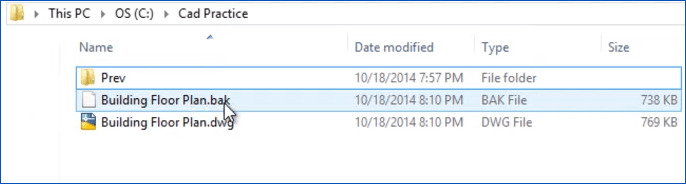
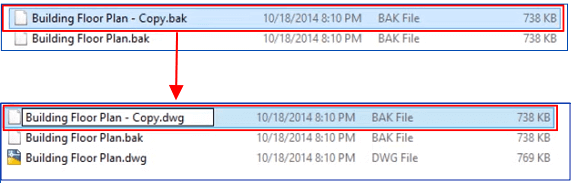
Step 2. Copy the .bak file from the folder, change its extension from .bak to .dwg, and then press Enter to proceed.
Step 3. To confirm the switch from .bak to .dwg, click "Yes" and then double-click the DWG CAD file in AutoCAD to open it.
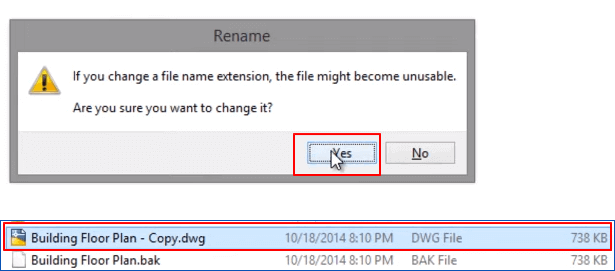
There, your lost or unsaved drawing is back and you can save to keep this file on your computer by then.
If you have enabled the AutoSave feature in AutoCAD, and you lost a half drawing without saving, you can try the next method for help.
Method 3. Restore Unsaved CAD files from Autosave
If you've enabled the AutoSave feature in AutoCAD, you can easily restore an unsaved drawing that was closed without saving. To do this, simply follow these steps: follow the instructions on the AutoSave prompt that appears when you try to open the drawing, and you'll be able to recover your unsaved file. This feature is a convenient way to retrieve your work if you accidentally closed the program or file without saving.
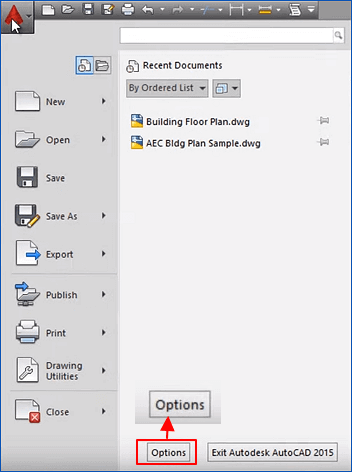
Step 1. To access AutoCAD's settings, click on the AutoCAD icon in the Tools column, then select "Options" from the drop-down menu.
Step 2. To find the location of autosaved files, go to the Files tab, expand the Automatic Save File Location, and check the location listed there.
The autosaved files are typically saved under the path: C:\Documents and Settings\USERNAME\Local Settings\Temp.
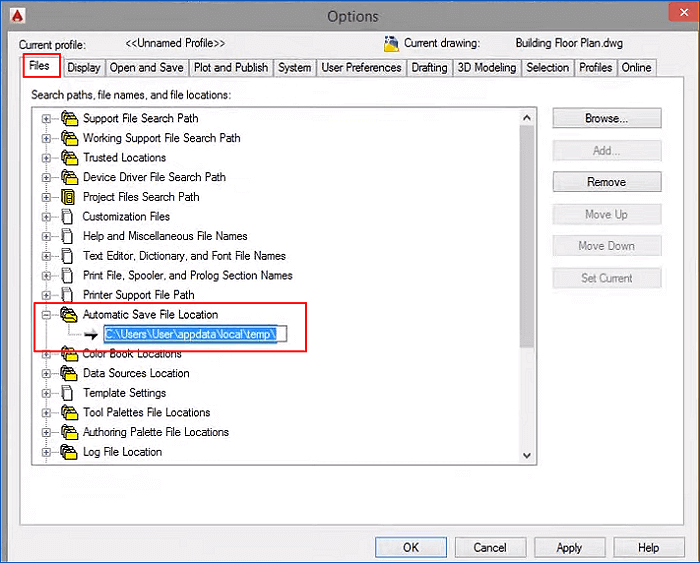
Step 3. Copy the autosave file path and paste it to the Windows File Explorer, then press Enter to open the AutoSave file folder.
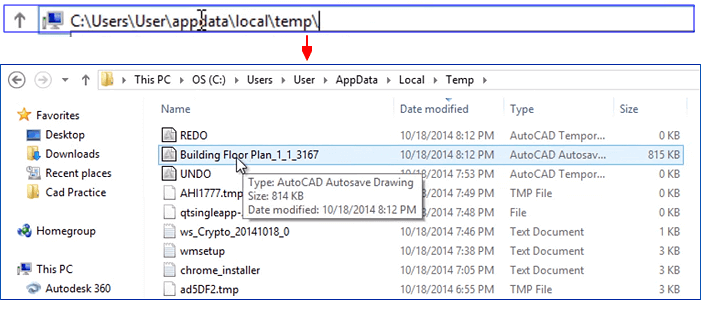
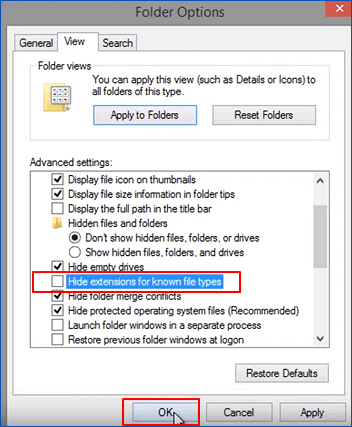
Step 4. If you can't find the autosave file, you can make the file extensions visible in File Explorer by going to Options, selecting the View tab, unchecking "Hide extensions for known file types", and clicking OK. This will allow you to see the file extensions, potentially making it easier to locate the autosave file.
Step 5. Locate the CAD autosaved file with a .sv$ file extension, copy it, change the file extension from .sv$ to .dwg, and confirm.

Step 6. To open a DWG file in AutoCAD, double-click on the file to launch it directly in the software.
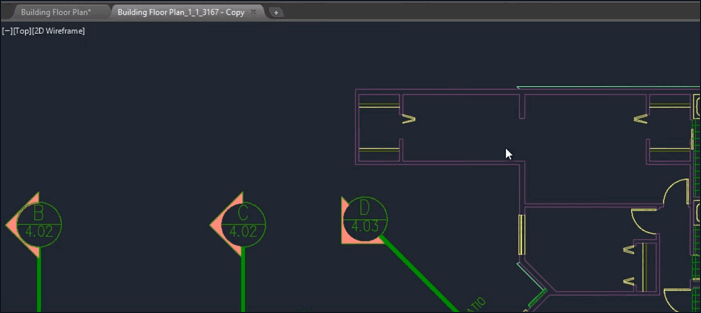
You can choose to continue your drawing or save it to another secure drive on your computer.
Part 2. Repair corrupted AutoCAD files that fail to work or open
If recovered files won't open or work in the drawing manager, you can try troubleshooting steps such as checking file format compatibility, ensuring the correct version of the software is used, and verifying the integrity of the recovered files. Additionally, you can try reinstalling the software, running a virus scan, or seeking technical support from the software provider. If none of these solutions work, it may be worth considering alternative software or file formats that are more compatible with the recovered files.
Method 1. Repair Corrupted or Not Working CAD Files with Drawing Utilities
If you're getting the 'Drawing file is not valid' error message while trying to open a CAD file, try these tips to get it fixed: check if the file is corrupted or damaged, try opening it in a different CAD software or version, check for any malware or viruses that might be interfering with the file, and if none of these work, try reinstalling the CAD software or seeking help from the software's support team.
Recover Command in AutoCAD allows you to directly restore lost files when you delete or lose them. To use this feature, follow these steps:
Step 1. To recover a corrupted DWG file, open it in AutoCAD, click the AutoCAD icon in the Tools column, then select Drawing Utilities > Recover. This will attempt to repair the file.
The Recover option will repair a damaged drawing file automatically.
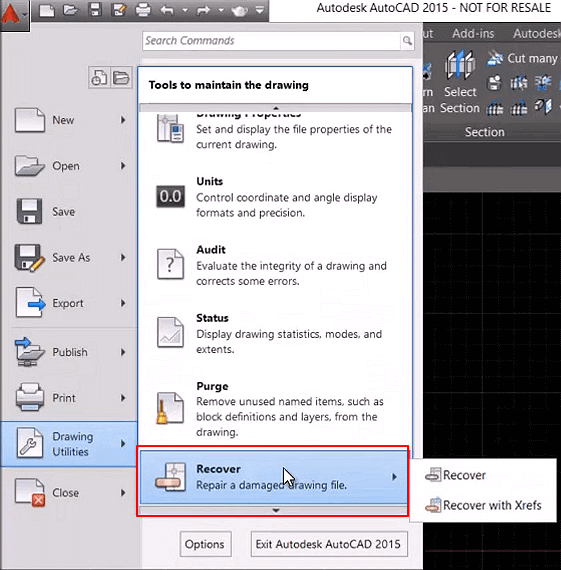
Step 2.Once the repair process is complete, verify that the CAD file has been successfully repaired by checking it. If everything looks good, save the repaired file back to your local drive for safekeeping.
If the Recover option doesn't work, you can try using a data recovery software to scan your device for any recoverable data. This type of software can help you recover deleted files, photos, and other data that was lost due to a system crash, virus, or other issues.
Step 3. Repeat to open Drawing Utilities and select "Audit".
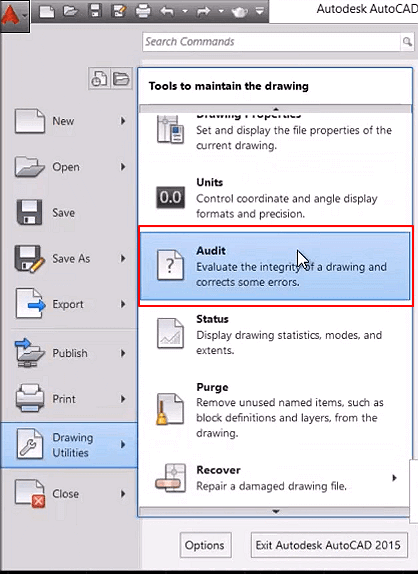
Step 4. To repair errors on the local drive, select "Yes" on the command window to execute the command. This will initiate the error repair process.

To fix errors on your disk and AutoCAD program, run the command "chkdsk /f" in the command line, then wait for the auditing process to finish. This will automatically fix all checked errors.
To fix the corrupted AutoCAD file, you can try opening it in the AutoCAD program, which may allow you to recover the file and continue working with it again.
Method 2. Run RECOVER Command to Repair Corrupted DWG AutoCAD Files
Step 1. To recover a corrupted AutoCAD file, open a blank DWG, run the RECOVER command, select the problematic file, and let AutoCAD attempt to recover and open it.
Step 2. To recover a corrupted AutoCAD file, open a blank drawing (DRW) and run the RECOVERALL command. Then, select the problematic file, and AutoCAD will attempt to recover it and open it.
Step 3. The user wants to know if they can insert a problematic DWG file into a blank DWG file using the INSERT command. They want to try this to see if it will work.
If the inserted block doesn't explode, run the EXPLODE command, select the inserted block, and then run the AUDIT and PURGE commands to clean up the file. Finally, click Save to create a new DWG file.
Step 4. To troubleshoot corrupted .dwg files, go to the C:\Windows\Temp folder and look for files with an SV$ extension. If you find a file with the same name as the corrupted .dwg file, rename it to have a .dwg.
Step 5. Try open the corrupted drawing by using DWG Trueview.
If you can open it there, convert the drawing to an older DRW version and try to open it again.
Method 3. Fix Corrupted .dwg Files that Can Be Opened But Not Responding
Step 1. Open corrupted .dwg file and type: -PURGE and hit Enter.
Step 2. Type: R and hit Enter.
Step 3. Type: N and hit Enter.
Step 4. Type: PURGE and check all boxes > Click Purge All.
Step 5. Type: AUDIT and select Y to fix all errors, then hit Enter.
Or you may try the below fixes to get your problem with corrupted CAD files repaired:
Step 1. Open corrupted .dwg files and open a new drawing.
Step 2. Press CTRL + A and CTRL+SHIFT + C in the corrupted drawing. Basepoint is 0,0,0.
Step 3. Press CTRL + V in the new drawing and insert point: 0,0,0. This command will insert a point at the origin (0,0,0) in the new drawing.
Step 4. Then save the new drawing.
What steps can I take to repair corrupted CAD files? There are several methods you can try to repair corrupted CAD files.
Bonus Tips to Back Up and Protect AutoCAD Files
To prevent data loss, it's essential to have a backup plan in place for your valuable CAD drawings, in addition to restoring lost or corrupted AutoCAD files.
Here are two practical tips for you to follow and fully back up AutoCAD files on your own:
# 1. Enable AutoSave in AutoCAD
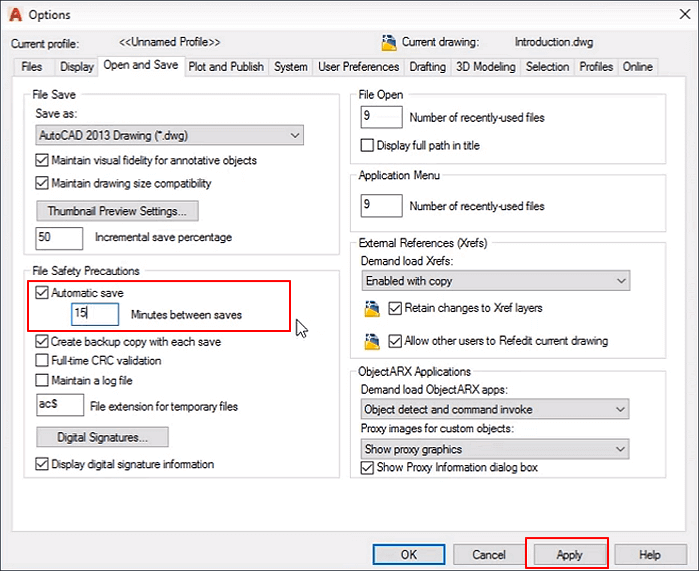
Step 1. Click the AutoCAD icon at the Tools tab, select "Option".
Step 2. To enable automatic saving in the Options window, go to the Open and Save tab, check the Automatic save box, and set the autosave frequency, such as saving every 15 minutes.
Click "Apply" to confirm.
Step 3. To enable AutoSave in AutoCAD, click on the "OK" button to confirm the AutoSave settings, which will automatically save all changes to the drawing file at regular intervals, typically every 10 minutes, to prevent data loss in case of a system failure or crash. This ensures that your work is protected and can be recovered if needed.
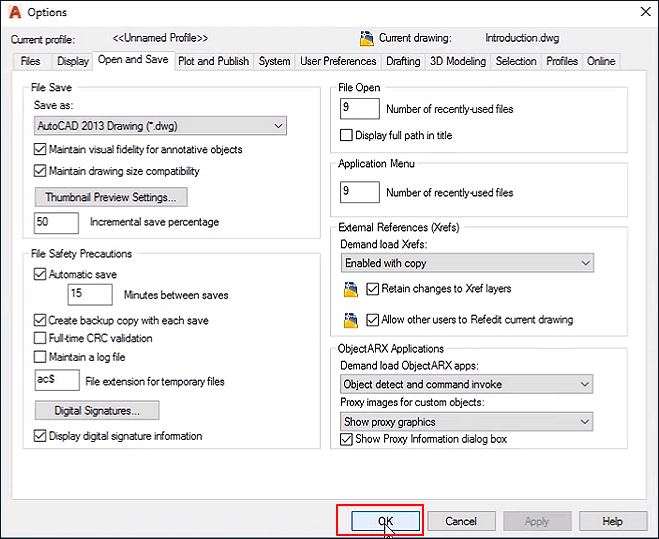
After this, you can go back to Method 3 in Part 1 to restore lost or unsaved drawings if you closed CAD or lost a DWG file without saving.
# 2. Run File Backup Software to Automatic Backup Saved CAD Files
Save your CAD files on your local PC and back them up regularly, either by manually copying them to an external hard drive or using a file backup software with a schedule backup feature.
Qiling Backup offers a simple file backup process that can be completed in just a few clicks. It allows users to create a scheduled backup plan to automatically back up desired CAD files and other valuable data on their PC.
Step 1. When you first use Qiling Backup to back up files, click on the "File backup" option on the home screen.

Step 2. Since you're going to back up files and folders on your computer, you can select pictures, videos, documents, and all other types of files to back up.
Step 3. Select all the files, folders or directories you want to back up, following the paths to locate them.
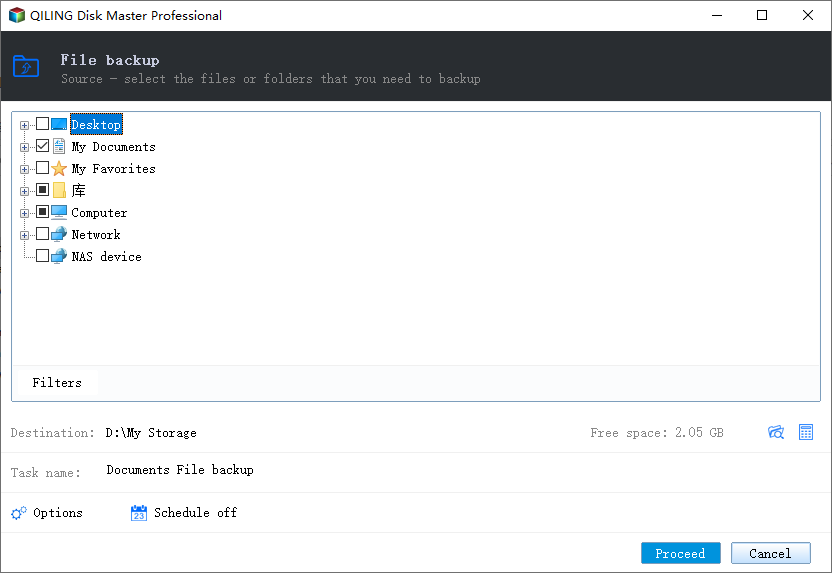
Step 4.You need to choose a backup location to save and keep your backup files.
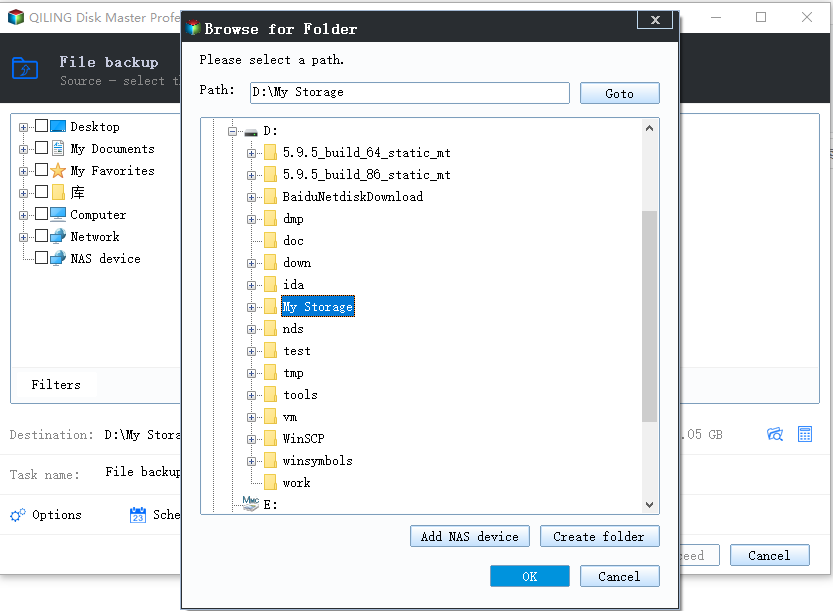
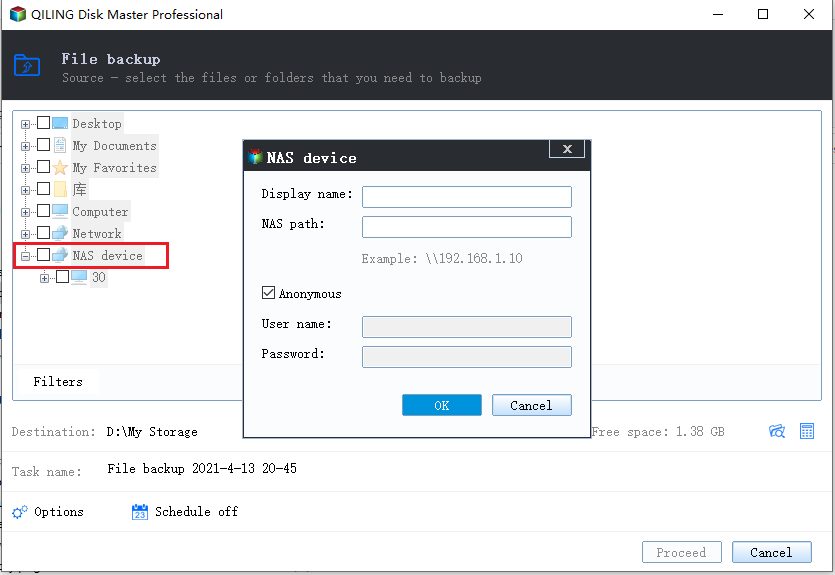
Step 5.Qiling Backup allows users to save backup files to various devices, including local hard drives, external USB drives, SD cards, network drives, and NAS drives, as well as Qiling's cloud drive. We recommend choosing the cloud drive for saving important backups due to its greater accessibility, flexibility, and safety.
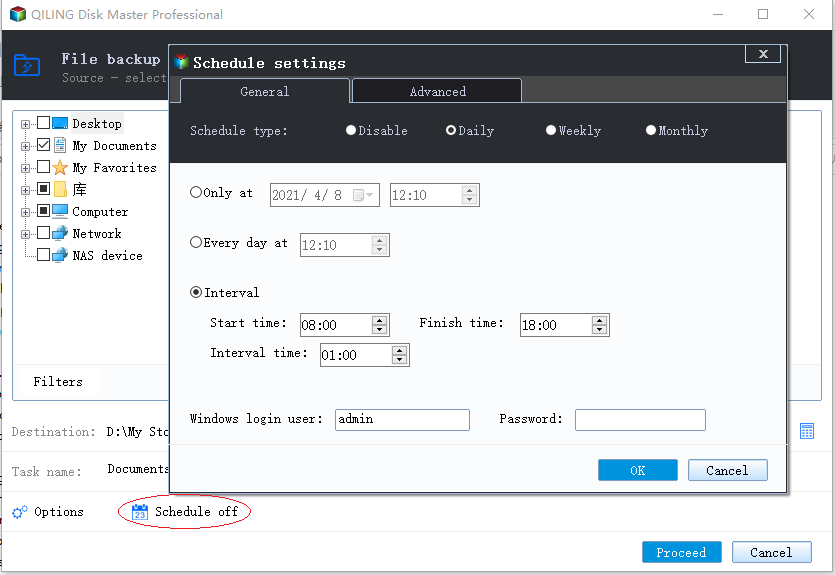
Step 6. To set up an automatic and intelligent backup schedule for the next file backup task, go to the "Options" setting. Here, you can encrypt confidential files, compress the backup image size, or customize the backup scheme to specify the start time of the next backup.
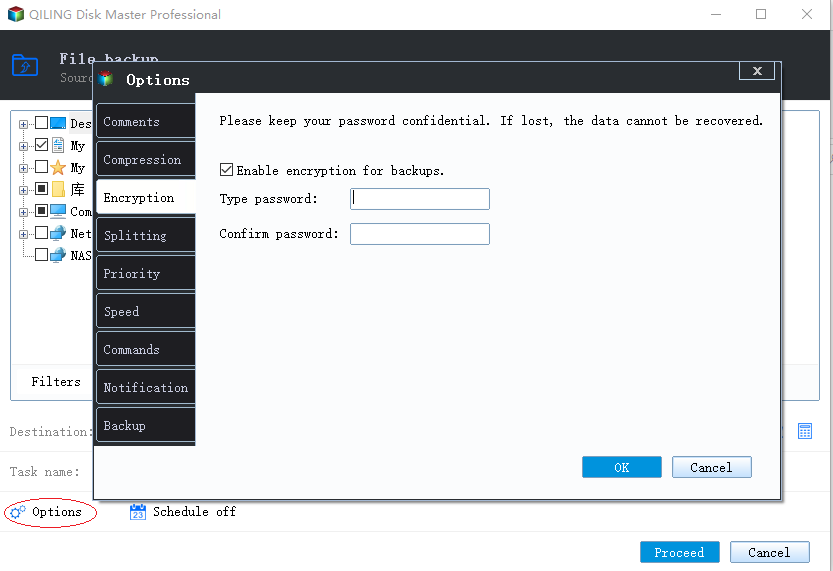
Customize an advanced and automatic backup task here:
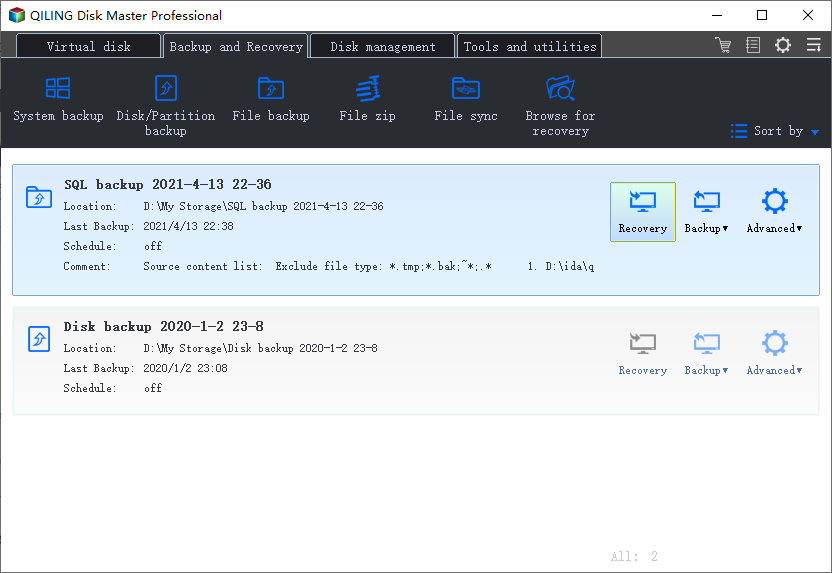
Step 7. Click "Proceed" to start the file backup process, which will display your completed backup files in a card style on the left area.
Related Articles
- Fix Files Missing After Restarting Computer and Recover Lost Data
- How to Repair Office 2016, 2013, 2010 with Microsoft Repair Tool
- Recover Hidden Files From External Hard Disk
- Remove Virus That Automatically Delete Files
- How to Recover a Partition on a USB Drive
When you need to recover or restore a partition from a USB drive, it's essential to follow the correct procedure and consult a reliable guide for partition recovery on USB drives. This ensures that you can successfully retrieve your data and restore the partition to its original state. - How to Recover a Deleted/Lost Partition on External Hard Drive
This article provides a step-by-step guide on how to recover a deleted or lost partition on an external hard drive, either via a Windows PC or Mac. To do so, free download the necessary lost external hard drive partition recovery software to retrieve it.
Products
Articles & Tutorials
- Data Recovery
- Data Backup
- File Recovery
- File Backup
- System Backup and Restore
- Disk and Partition Clone
- Technical articles
- Mobile articles
- Disk Master Help
- Windows Data Recovery Tutorials
- Windows Secure Delete Tutorials
- Windows Partition Management Tutorials
- Windows File Backup and Restore Tutorials
- Windows System Backup and Restore Tutorials
- Windows Disk Backup and Restore Tutorials
- Windows Clone Tutorials