How to Restore Master Database in SQL Server 2008/2012 with or Without Backup
The solution is applicable to various versions of MS SQL Server, including 2016, 2014, 2012, 2008, 2008 R2, and 2005.
The master database file (MDF) is the primary user database file that holds the main configuration details and all major data of SQL Server. If the server experiences a sudden shutdown, crash, or is affected by a virus, the MDF file can become corrupted or damaged. In such cases, restoring the MDF file is the most effective approach to resolve the issue.

How to Restore the SQL Server Master Database with or Without Backup
Restoring the master database in SQL Server 2008 or 2012 can be achieved in two ways. Either you can restore the master database from a backup file, or you can restore the MDF file without a backup. Depending on your situation, you can choose one of these two methods to resolve the issue.
Solution 1. Restore Master Database in SQL Server from Backup File
If you have a backup of the SQL server master database, you can easily restore the MDF file by following a few simple steps. Simply copy the backup file to the server, open SQL Server Management Studio, right-click on the server name in the Object Explorer, and select "Tasks" > "Restore" from the context menu.
- Notice:
- If you haven't created a backup of your SQL Server database, you can skip this method and use Solution 2 to restore the master database in SQL Server without a backup file.
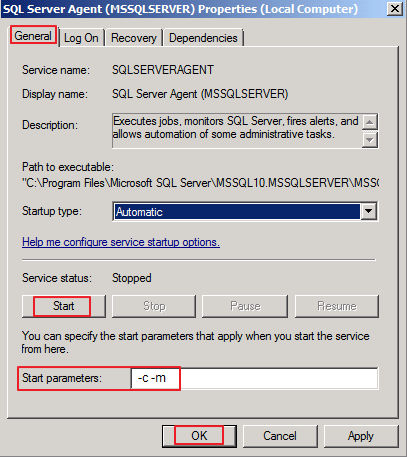
Step 1. Set your SQL server instance in single-user mode.
- To stop the SQL server service, log in as the administrator, go to Administrative Tools, then Services, right-click on SQL Server (MSSQLSERVER), and select Stop.
- Double-click "SQL Server (MSSQLSERVER)" to open the "Service Properties" window.
- In the "General" tab, type "-c -m" in the "Start parameters" field.
- To set the server in single user mode, click "Start" in the "General" tab, and then click "OK" to close the dialog box.
Step 2. Run Transact-SQL command to restore SQL server master database.
RESTORE DATABASE master FROM WITH REPLAC
The "replace" command in the restoration process continues even if there is a database with the same name, and the existing database will be removed.
Step 3. Set Microsoft SQL Server to Multi-User Mode.
After the master database restoration is complete, the SQL Server instance will shut down. To proceed, remove the single-user startup parameter and set the server to multi-user mode before restarting it.
- Log in to the SQL server as the administrator.
- To start the Windows services that are necessary for the BitLocker feature, follow these steps:
SQL Server (MSSQLSERVER)
SQL Server Agent (MSSQLSERVER)
SQL Server Reporting Services (MSSQLSERVER)
Step 4. Restart the SQL Server instance and perform other recovery tasks if you want.
Solution 2. Restore SQL Server Master Database Without Backup File
If you're new to SQL Server or haven't created a backup, you can still restore the master database using the Qiling MS SQL Recovery tool. This professional software can recover MDF files and their components, including tables, triggers, indexes, keys, rules, and stored procedures, as well as deleted records from the SQL database.
- Repair corrupt MDF and NDF files of SQL Server database.
- Recover deleted records from MS SQL Server database.
- Recover corrupted SQL server database components: tables, triggers, indexes, keys, rules, and defaults.
- Export MS SQL database to CSV, HTML, XLS, and MDF.
Step 1. Stop MS SQL Server service via services.msc or Management Studio.
Step 2. Run Qiling SQL Recovery, select the MDF/NDF file of the database you want to restore, and click "Repair" to start repairing your MDF/NDF file in the main interface.
If you know the exact location of the file, click "Browse" to locate the database. This will allow you to select the file from your computer and upload it to the system.
If you're unsure about the location of the file, click on the "Search" button to search for the .mdf or .ndf file in your system.

Step 3. After the recovery process is complete, the recovered database objects will be listed in the left pane of the window, allowing you to see the results of the operation.

Step 4. To export your database objects, click the "Export" button located in the bottom right corner of the screen. This will allow you to save your database objects in a preferred format, such as MDF (Microsoft Database File) or SQL scripts.
On the "Export to database" window, choose "Create new database" to create a new database and enter the database name and SQL location, or select "Export to existing database" to export to an existing database, selecting the database from the list.

Step 5. Now restart the SQL Server.
Related Articles
- How to Repair SQL Server 2012 Step by Step
- How to Export Data from SQL Server to Excel Automatically
- SQL Error 233 No Process Is on the Other End of the Pipe
- [Solved] MS SQL Server Database Corruption Repair
- How to Recover Files from Formatted HDD in Windows 10/11
Want to restore data from a formatted HDD? You can use the Qiling tool to quickly recover files from a formatted HDD in Windows 11/10. The Qiling tool can help you recover your data, even after formatting your hard drive. - How to Recover Formatted Partition in Windows 11/10/7
To recover files from a formatted partition, you can use the Qiling tool, which can be downloaded for free. Following the steps provided, you can easily restore your files, making the process as straightforward as possible.
Products
Articles & Tutorials
- Data Recovery
- Data Backup
- File Recovery
- File Backup
- System Backup and Restore
- Disk and Partition Clone
- Technical articles
- Mobile articles
- Disk Master Help
- Windows Data Recovery Tutorials
- Windows Secure Delete Tutorials
- Windows Partition Management Tutorials
- Windows File Backup and Restore Tutorials
- Windows System Backup and Restore Tutorials
- Windows Disk Backup and Restore Tutorials
- Windows Clone Tutorials